
Overview
The Attendance page is where you track who is at your center each day. From here you record check-in and check-out times, cancel a scheduled day, add attendance events, set the payor (benefit) for billing, and record transportation. The page always shows a single date and updates its statistics in real time as you work.
This article explains the page layout: the action bar, the filters, the statistics bar, and the columns in the attendance table.
Before You Begin
- You must be logged into Seniorverse with Care module access.
- To view the page without editing, you need the Care:Attendance:View permission.
- To record or change attendance, you need the Care:Attendance permission (or Care:FullAccess). The Batch Attendance action also requires this permission.
Steps
Step 1: Open the Attendance page
Select the Care app, then choose Attendance from the menu. The page opens on today's date.
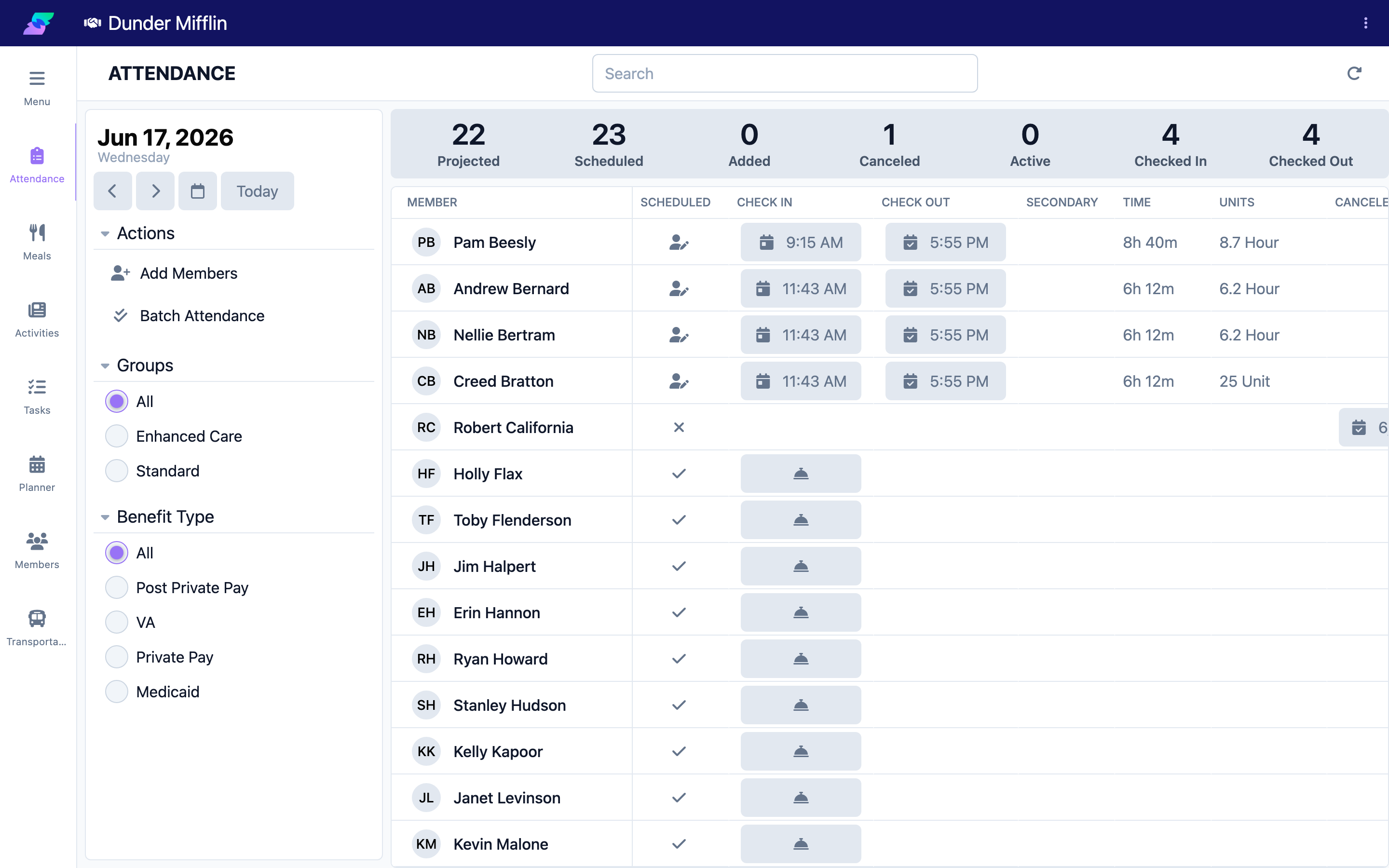
Step 2: Use the top bar
The bar across the top shows the page name and a search box — type a member's name to filter the list instantly. The refresh icon on the right reloads the day's data.
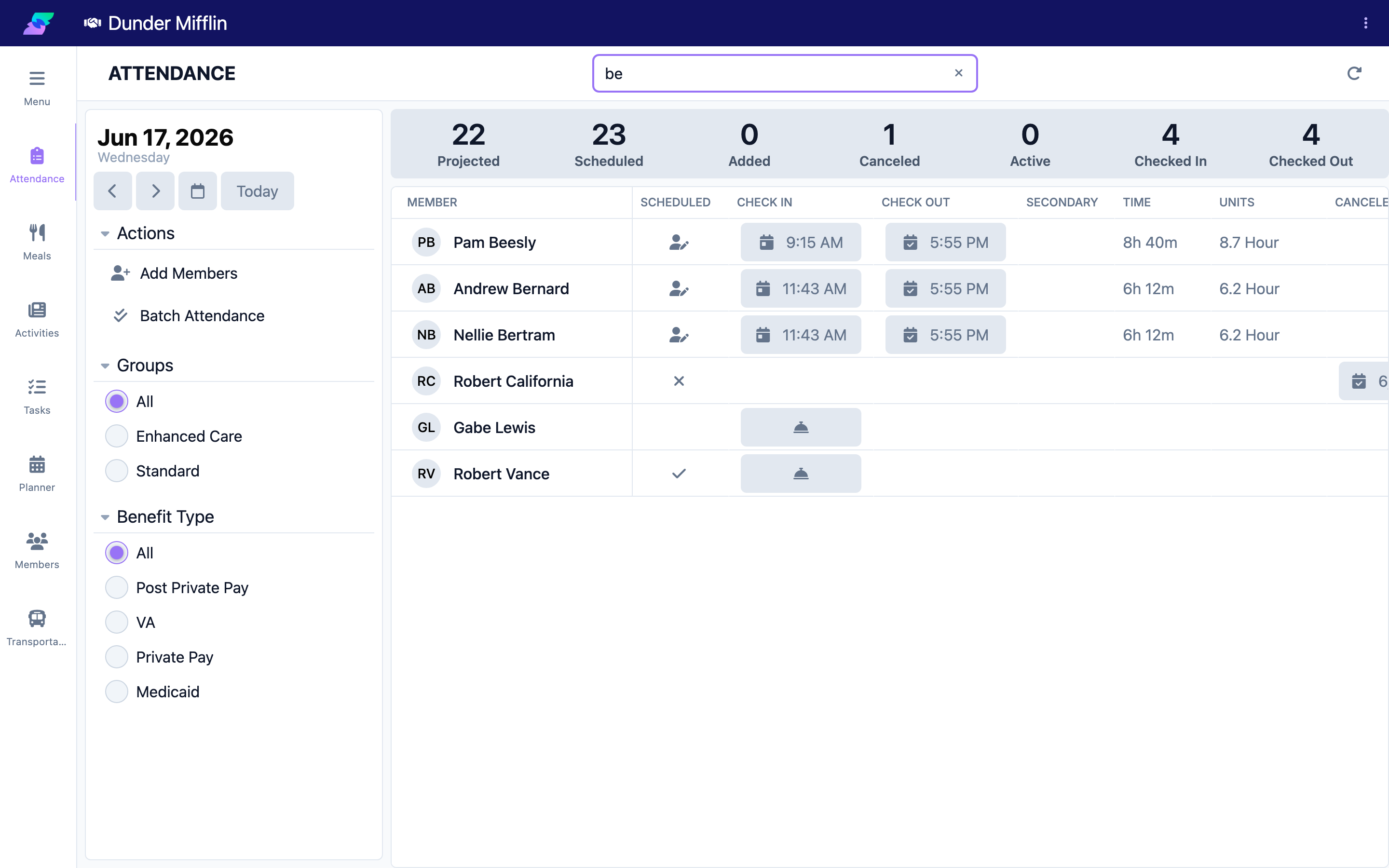
Step 3: Use the left panel — date, actions, and filters
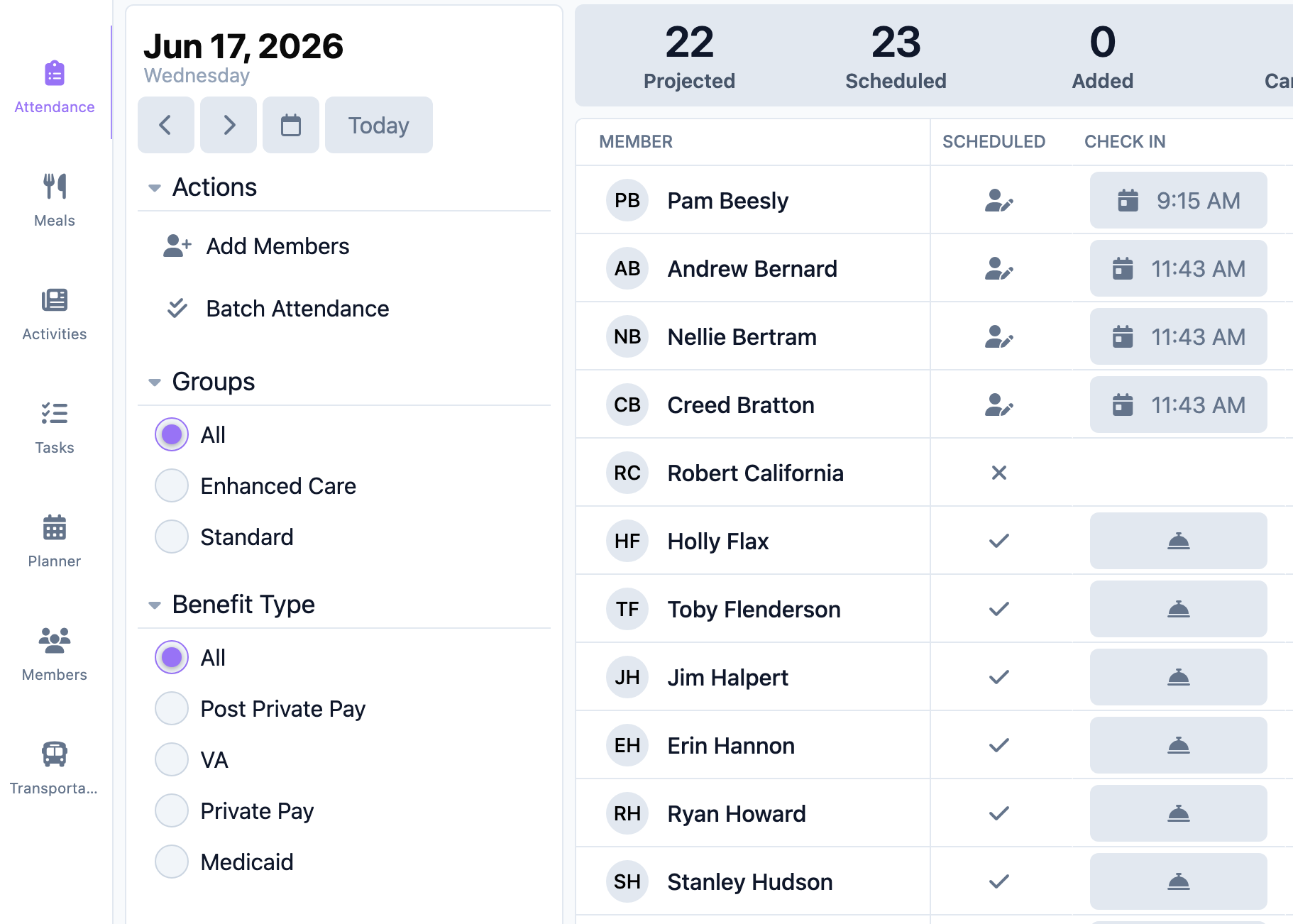
The left panel controls what the table shows:
- Date — the selector at the top sets the day you are working with. Use the arrows to step one day at a time, the calendar icon to jump to any date, or Today to return to the current day.
- Actions (if you can edit attendance) — Add Members adds someone who is not scheduled for the selected date; Batch Attendance checks several members in or out at once.
- Groups — show only members in a chosen group (appears when your center uses groups).
- Benefit Type — show only members on a specific benefit type.
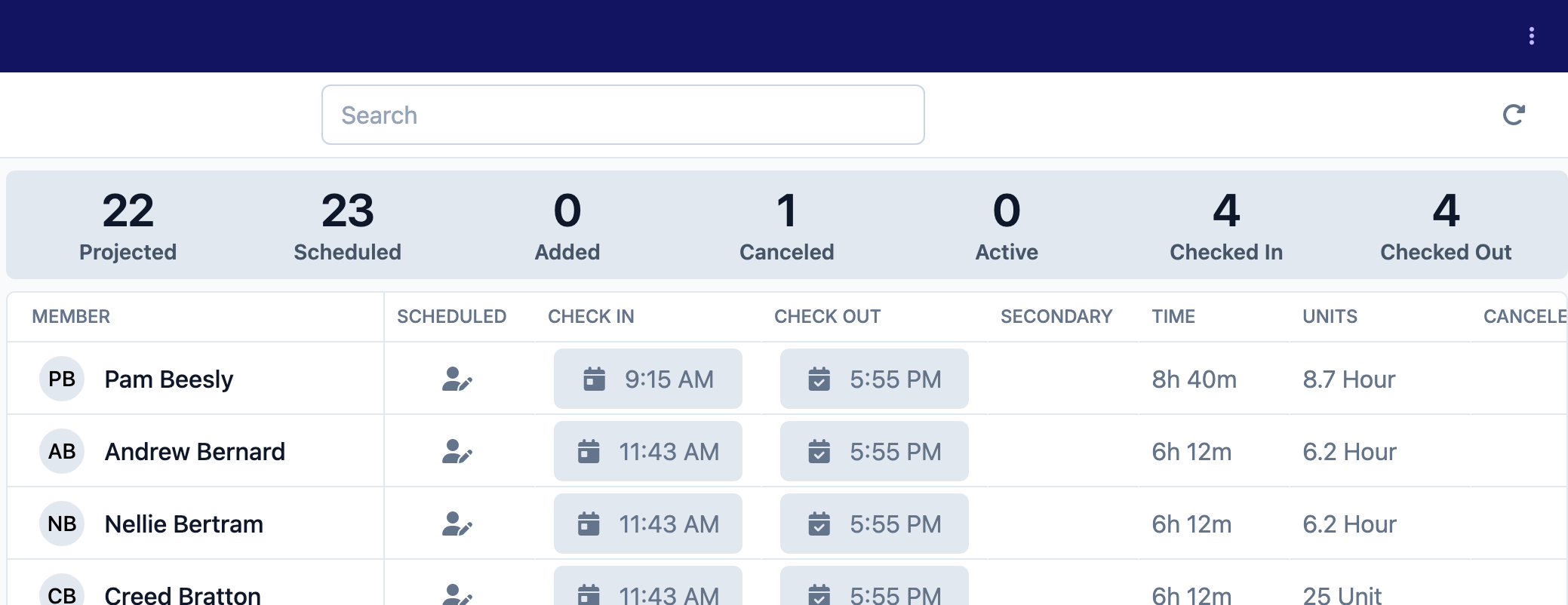
Step 4: Read the statistics bar
The statistics bar summarizes the day. Hover any number to see its description.
| Statistic | What it means |
|---|---|
| Projected | Expected attendance: Scheduled + Added − Canceled. |
| Scheduled | Members expected based on their benefit schedule. |
| Added | Members manually added for this date. |
| Canceled | Scheduled members who canceled for this date. |
| Active | Members currently present (checked in but not checked out). |
| Checked In | Members marked present on this date. |
| Checked Out | Members marked as departed on this date. |
Step 5: Read the attendance table
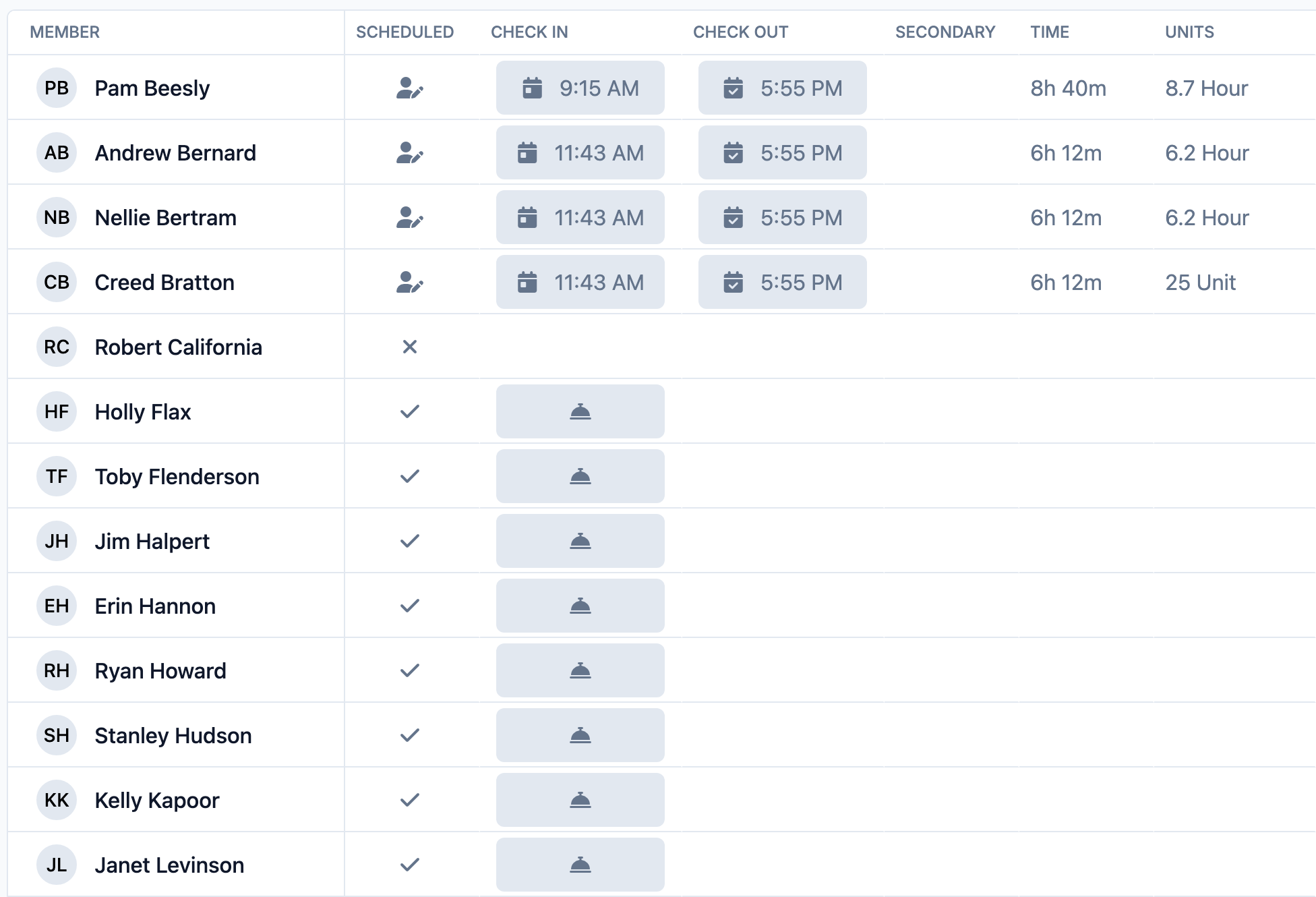
Each member has one row. Columns depend on your center's settings; the common ones are:
| Column | What it shows |
|---|---|
| Member | Name and photo. Select the name to open the member's record. |
| Scheduled | An icon showing the member's schedule/attendance status for the day. |
| Scheduled Time | The member's scheduled check-in time (shown when enabled). |
| Check In | The recorded arrival time, or a check-in button. |
| Check Out | The recorded departure time, or a check-out button. |
| Secondary | A second attendance record for the same day (shown when enabled). |
| Time | Total time present, shown as hours and minutes (for example, "4h 30m"). |
| Units | Billable units for the visit (shown when enabled). |
| Canceled | The cancellation date/time and reason, if canceled. |
| Events | Attendance events recorded for the day. |
| Benefit | The payor (benefit type) applied for billing. |
| Transport Arrival | How the member arrived. |
| Transport Departure | How the member left. |
Tips
- The Time column stays blank until the member is checked out; it is calculated from check-in to check-out.
- If the Benefit column shows a red Invalid button, the visit has no valid payor for that date. Select it to choose a benefit before billing.
- Use the search box for a quick lookup when a family calls to check on a member.
Troubleshooting
| Problem | Solution |
|---|---|
| A member is missing from the list | Confirm you are on the correct date. Members appear when they are scheduled or already have attendance for the day. To add someone who is not scheduled, use Add Members. |
| I can see the page but cannot edit anything | You likely have view-only access (Care:Attendance:View). Ask your administrator for the Care:Attendance permission. |
| The Benefit column shows "Invalid" | The visit has no valid benefit for that date. Select the field and choose a benefit, or set up the benefit in the member's record. |
| The Time column is blank | Time is calculated at check-out. A member who is still checked in shows no time yet. |
Related Articles
- checking-a-member-in — Checking a Member In
- checking-a-member-out — Checking a Member Out
- recording-a-cancellation — Recording a Cancellation
- adding-attendance-events — Adding Attendance Events
- changing-the-payor-benefit-type — Changing the Payor / Benefit Type