
Overview
Removing a user from Center > Users revokes that person's access to your center. It removes their access to this center only — it does not delete their overall Seniorverse account or any center records they created. If someone returns later, invite them again to restore access.
Before You Begin
- You need the Center:User:Delete scope or full center access (Super Access).
- You cannot remove your own account — another administrator must do that.
- Confirm you have the correct person; use the copy-email button if you need to double-check the address.
Steps
Step 1: Open Center > Users
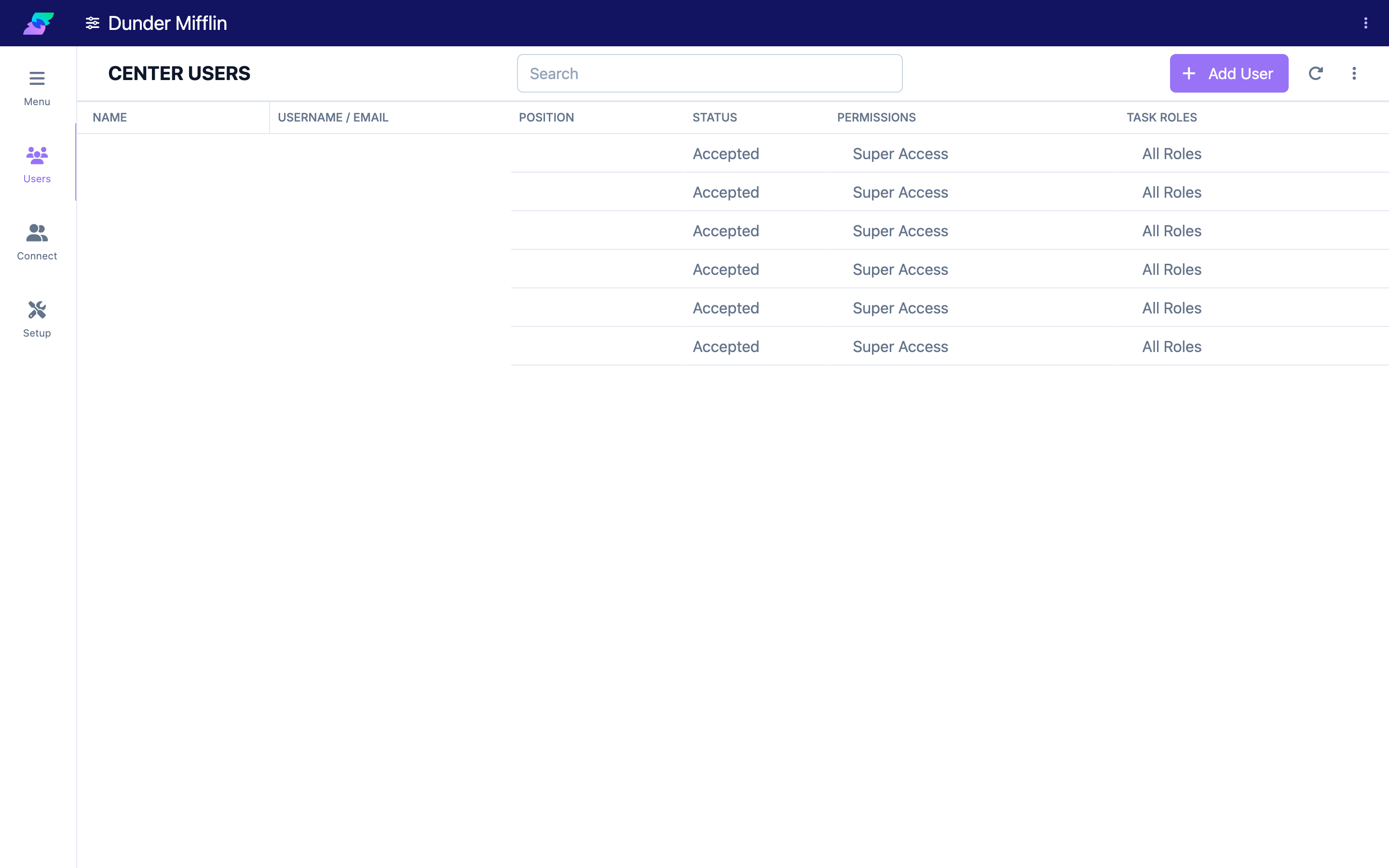
Select Center from the navigation, then Users. The table lists everyone with access, with columns for Name, Username / Email, Position, Status, Permissions, Task Roles, and Remove.
Step 2: Find the user
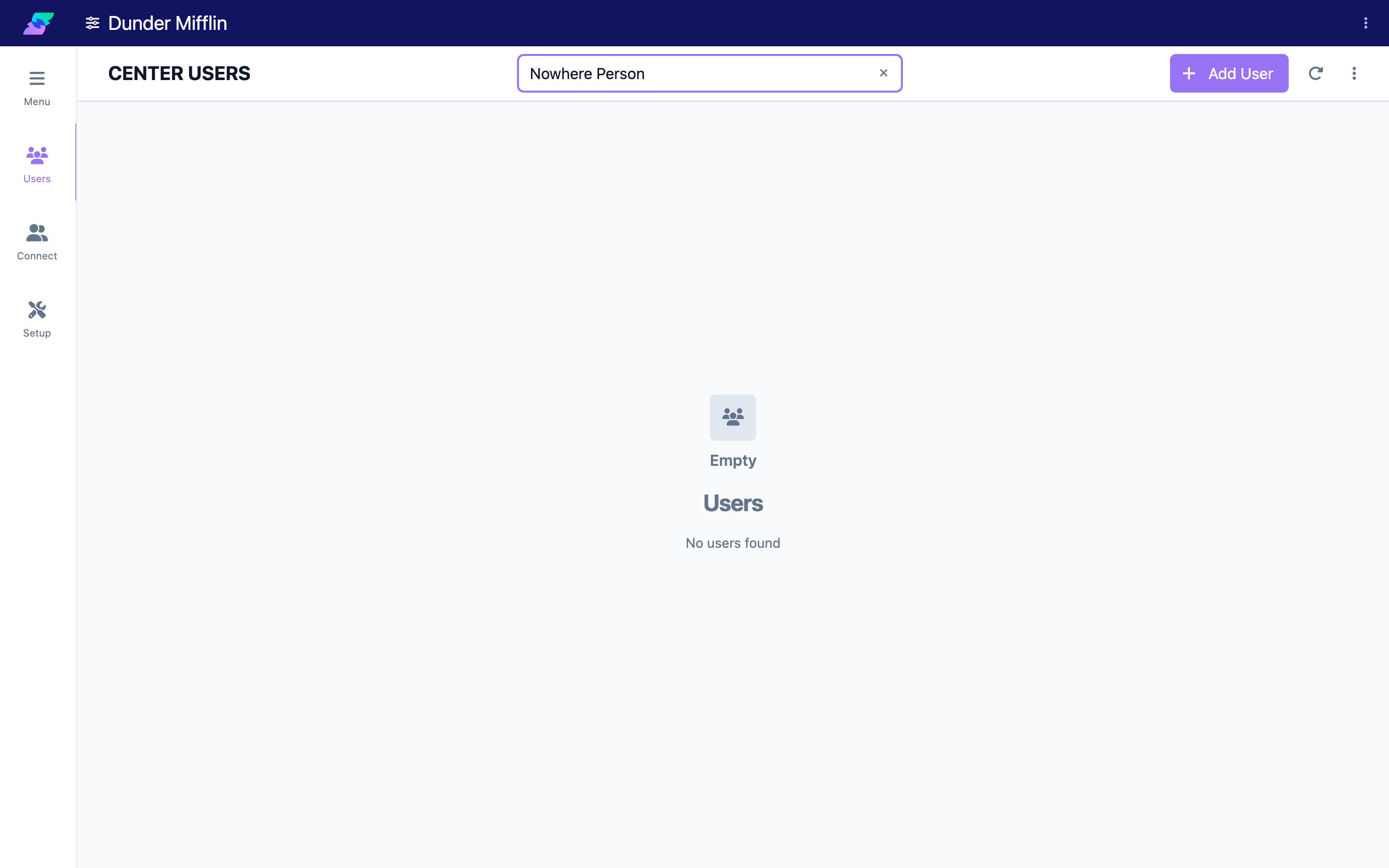
Locate the person you want to remove. Use the search box if the list is long, and check the Name and Username / Email columns to confirm you have the right account.
Step 3: Select the trash icon in the Remove column
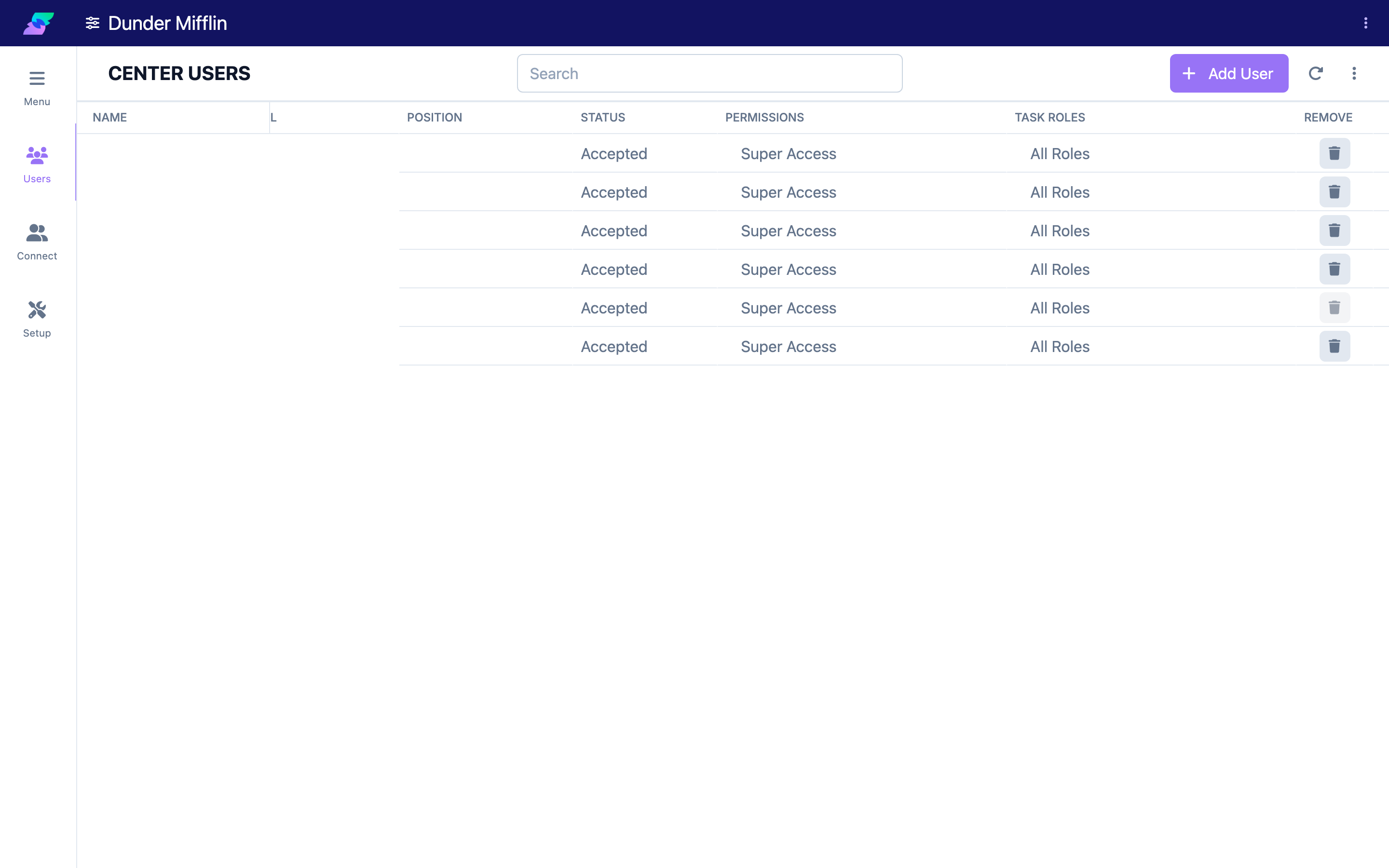
In the Remove column at the end of the person's row, select the trash icon.
Step 4: Confirm
A prompt asks, "Are you sure you want to remove access for this user?" Select OK to remove their access, or Cancel to keep it. Once confirmed, the person disappears from the table and can no longer access your center.
Screenshot coming soon — Confirmation prompt for removing access
Tips
- Double-check the email first. Names can be similar; use the copy-email button in the Username / Email column to verify the exact address before removing.
- Removing revokes center access, not the whole account. The person keeps any access they have at other centers, and your center's records remain intact.
- Re-invite to restore access. There is no separate "reactivate" step — if someone needs access again, invite them as a new user.
Troubleshooting
| Problem | Solution |
|---|---|
| The trash icon is disabled | You need the Center:User:Delete scope or full center access, and you cannot remove your own account. |
| You removed the wrong person | Invite them again from Center > Users to restore their access. |
| The removed user can still sign in | Ask them to sign out and back in; access is revoked for your center, but they may still have access at other centers. |
| You want to keep the account but pause access | Seniorverse does not have a separate "deactivate" action — removing access and re-inviting later is the supported path. |