
Overview
An Unallocated payment is posted money that has not been applied to any invoice line. A Partial payment has some, but not all, of its amount applied. Both represent funds that still need attention. The Payments tab is built for this: it opens filtered to show Partial and Unallocated payments by default, so unapplied money is front and center. This article shows how to find these payments, apply the remaining funds, handle refunds, and correct a payment recorded under the wrong payor.
Before You Begin
- You need Billing access to the center.
- You should be comfortable recording and allocating payments. See Recording a Payment and Allocating Payments to Invoices.
- Have any remittance details handy so you can match funds to the right invoices.
Steps
Step 1: Open the Payments tab
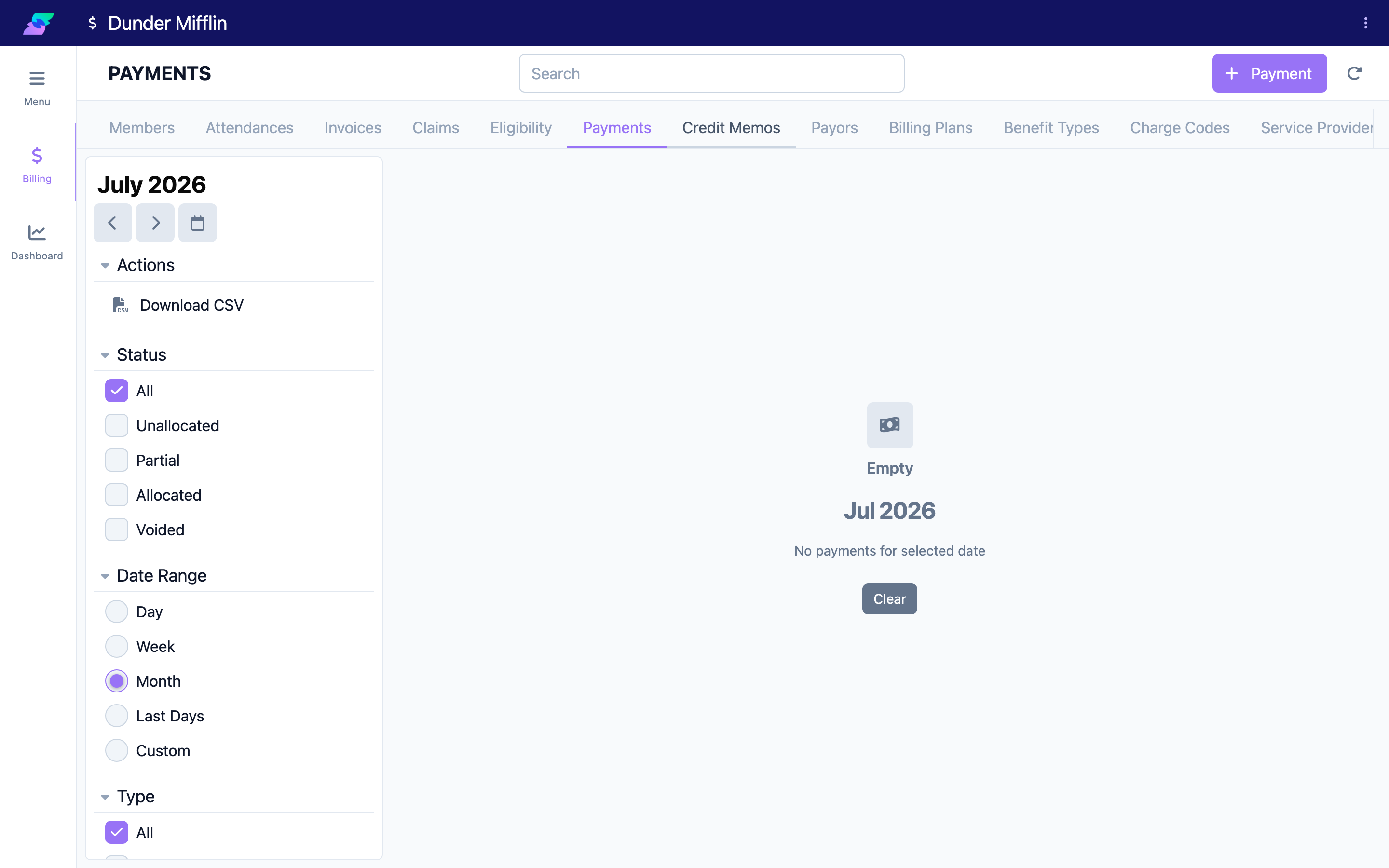
From the Billing module, select the Payments tab. The Status filter defaults to All; set it to Partial and Unallocated (see Step 2) to narrow the list to only payments with money still to apply. The Unallocated Amount column shows how much remains on each payment.
Step 2: Adjust the Status filter as needed
Use the Status filter to narrow or broaden the list. The available options are All, Unallocated, Partial, Allocated, and Voided. Select Unallocated on its own to see only fully unapplied payments, or add Partial to include payments that are partly applied. You can also filter by Type and Payor, and use the date range to surface older items.
Step 3: Open a payment and apply the remaining balance
Select a payment to open it, then go to the Allocations tab. The Unallocated figure shows what is left. Apply it to invoice lines manually, or use Auto Allocate (Proportional or Oldest First) to distribute it automatically. As you allocate, the payment's status updates from Unallocated to Partial to Allocated. See Allocating Payments to Invoices for the full allocation workflow.
Screenshot coming soon — Allocations tab with the Unallocated amount and Auto Allocate button
Step 4: Record a refund when funds must be returned
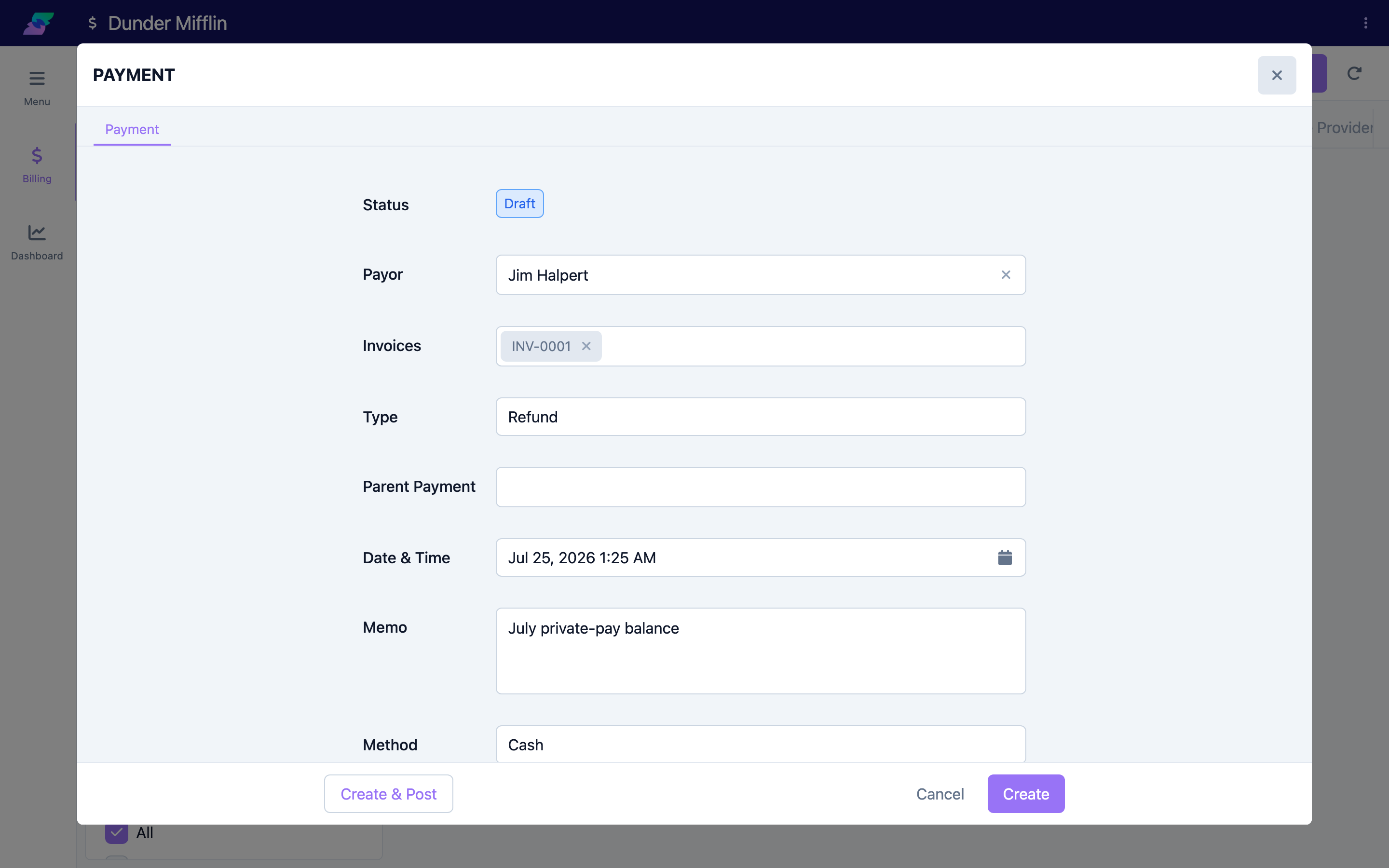
If an unallocated balance is an overpayment that should be returned, record a refund: create a new payment and set Type to Refund, then choose the original payment in the Parent Payment field. This links the refund back to the money it reverses.
Step 5: Correct a payment recorded under the wrong payor
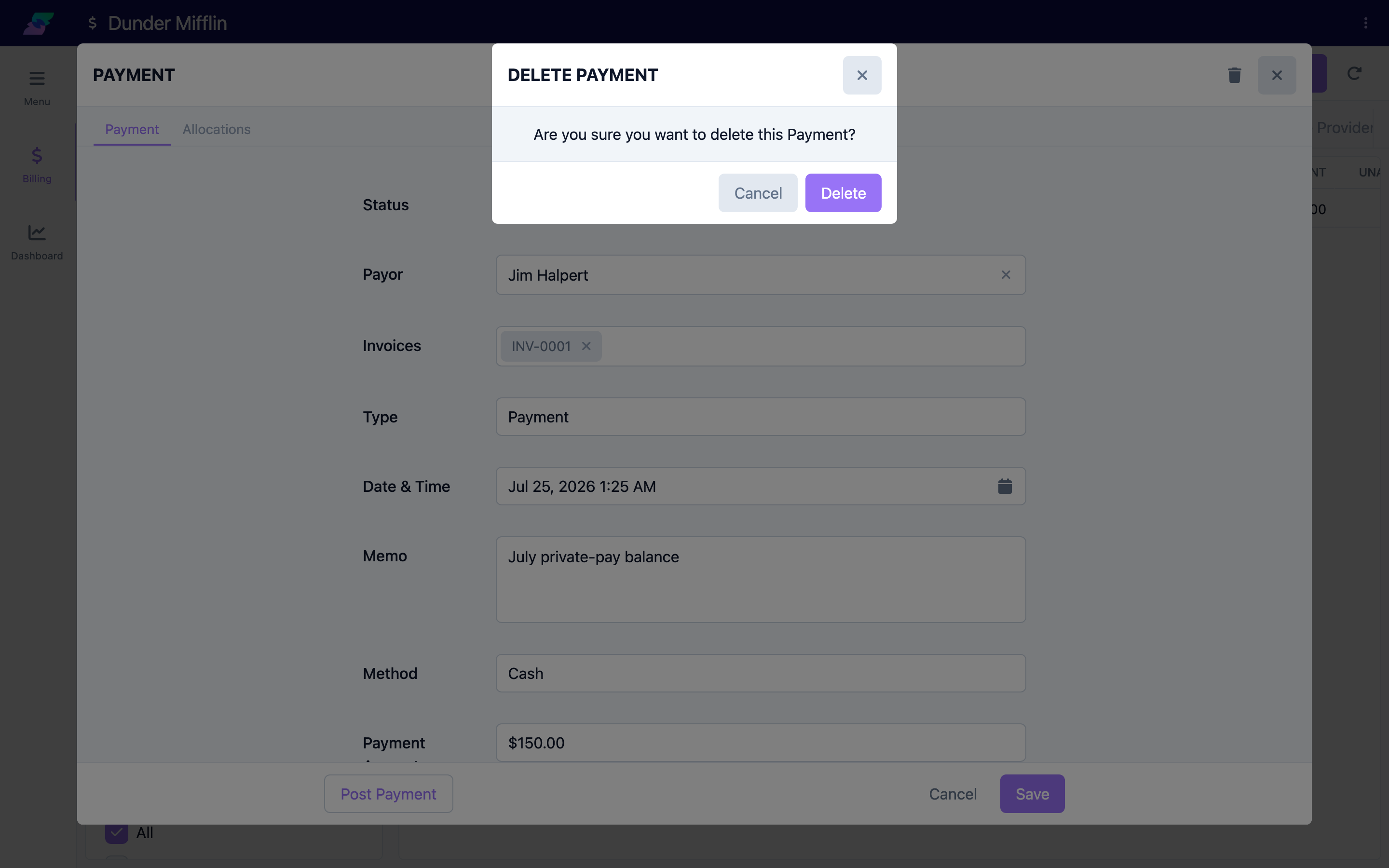
The Payor on a payment can only be changed while the payment is a Draft. The reliable fix is to delete the draft and re-record it with the correct payor. If the payment has already been posted, you cannot edit or delete it — void it (a posted payment shows a Void Payment button), then record a new payment under the correct payor.
Tips
- Because the Payments tab opens filtered to Partial + Unallocated, it doubles as a worklist — anything showing here still needs money applied.
- Incoming ERA files create posted payments and their allocations automatically. If an ERA payment cannot be matched to a line, it can land as unallocated for you to resolve here.
- Sort by the Unallocated Amount column to prioritize the largest unapplied balances first.
Troubleshooting
| Problem | Solution |
|---|---|
| A recently recorded payment isn't in the Unallocated list | A payment must be posted to carry an Unallocated status. Drafts don't appear under status filters; switch the Status filter to All to find drafts. |
| I have unallocated funds but no open invoices for the payor | The invoices may not be created or finalized yet, or the amount is an overpayment. Finalize the invoices, or record a Refund. |
| I recorded a payment under the wrong payor | While it's a Draft, delete it and re-record with the correct payor. If it's posted, Void it, then record a new payment. |
| The Void Payment button isn't showing | Void is only available on posted payments. A draft is deleted instead (trash icon). |
| An unallocated payment is for an inactive member | Confirm the intent with the payor, then either allocate to final charges or record a refund. |
Related Articles
- recording-a-payment — Recording a Payment
- allocating-payments-to-invoices — Allocating Payments to Invoices
- setting-up-payors — Setting Up Payors
- creating-an-invoice — Creating an Invoice
- finalizing-an-invoice — Finalizing an Invoice