
Overview
When a member is discharged or no longer attending, you usually archive them by setting their status to Inactive, which keeps the full record for reporting and compliance. Deleting is reserved for records created in error.
| Action | What happens | Reversible? |
|---|---|---|
| Archive (Inactive status) | The member is hidden from the default (Active) list but the record is preserved. | Yes — set the status back to Active. |
| Delete | The member is removed from the active system and moved to the Deleted page. | Yes — restore from the Deleted page. |
Seniorverse has no separate "Archive" button; archiving means setting the member's Status to Inactive. Also note: a member who has any attendance on record can never be deleted — the Delete option is hidden for them, so archive those members instead.
Before You Begin
- You must be logged in with Admin permissions (deleting requires the Member Admin permission; changing status requires the Status edit permission).
- Confirm the discharge or removal with the appropriate staff first.
Steps
Step 1: Archive a member by setting the status to Inactive
- Open the member and select Edit Member.
- Set Status to Inactive.
- Select Save.
The member drops off the default Active list but remains fully intact.
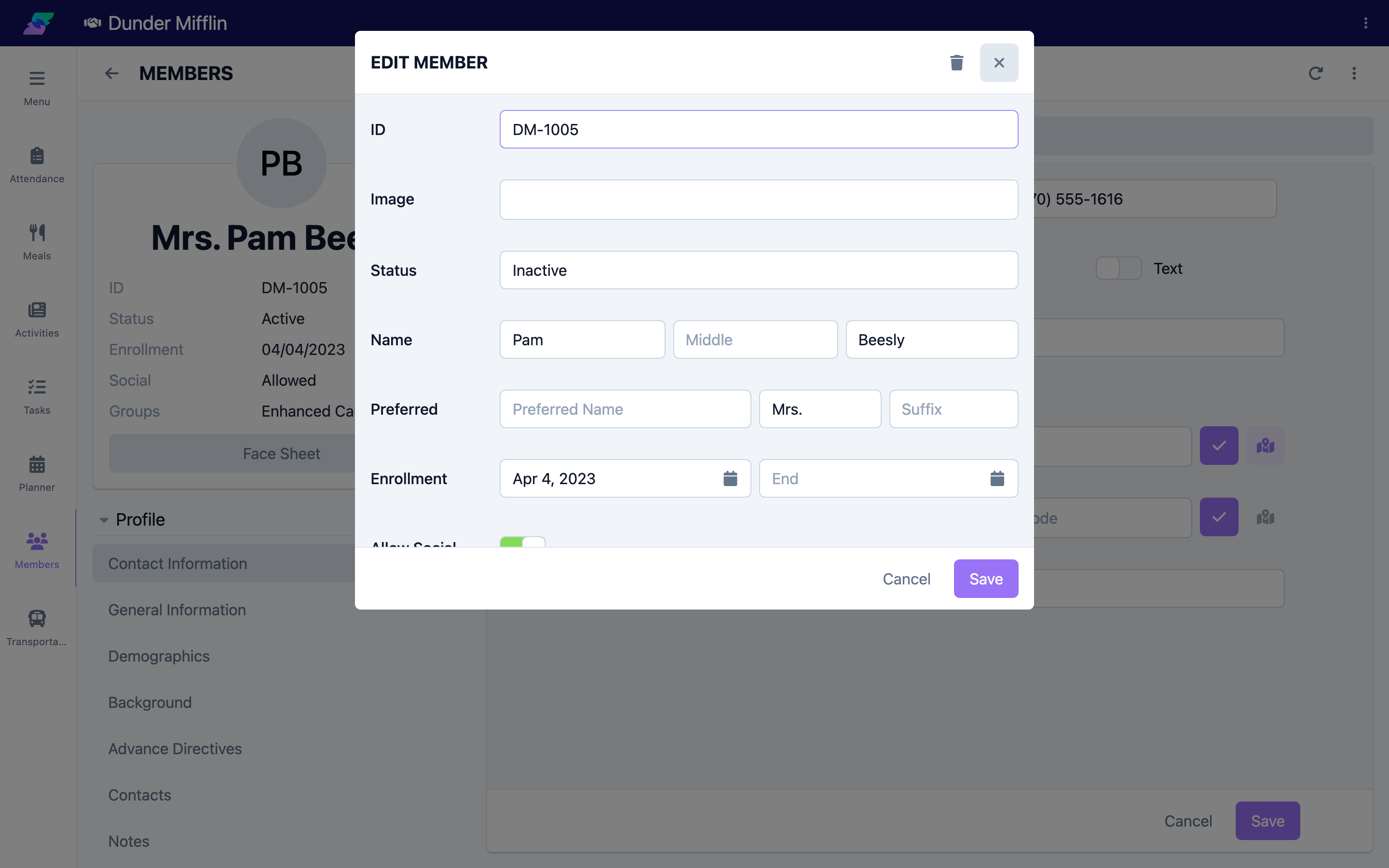
Step 2: Find archived (inactive) members
On the Members page, switch the status tab to Inactive (or All) to see archived members. To reactivate one, set its status back to Active.
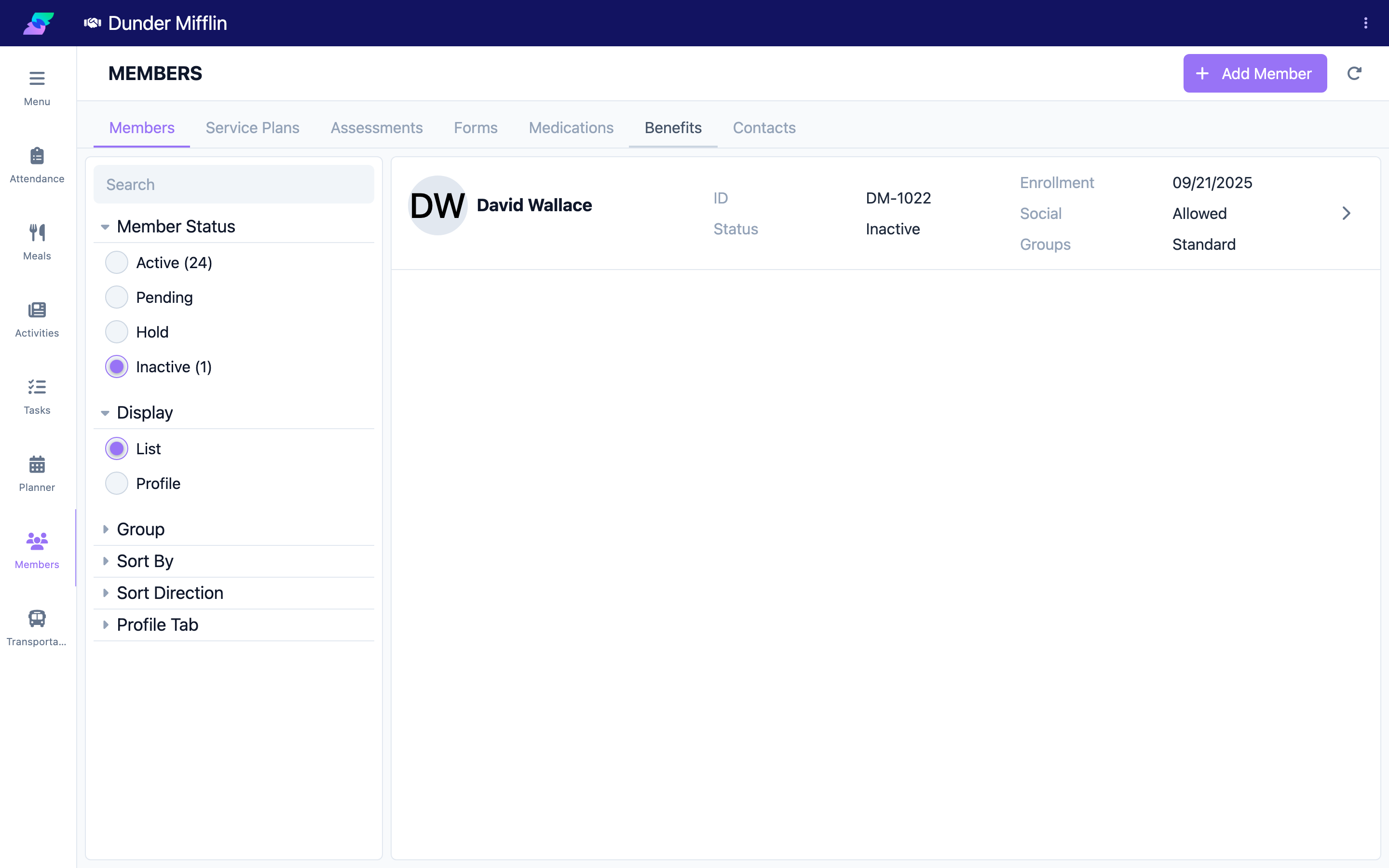
Step 3: Delete a member from the profile menu
- Open the member's profile.
- Open the overflow menu and select Delete Member.
- Confirm at the prompt (Are you sure you want to delete this member?).
The member is set to Inactive and removed, and you are returned to the Members list. If Delete Member is not in the menu, the member has attendance on record and cannot be deleted — archive them instead.
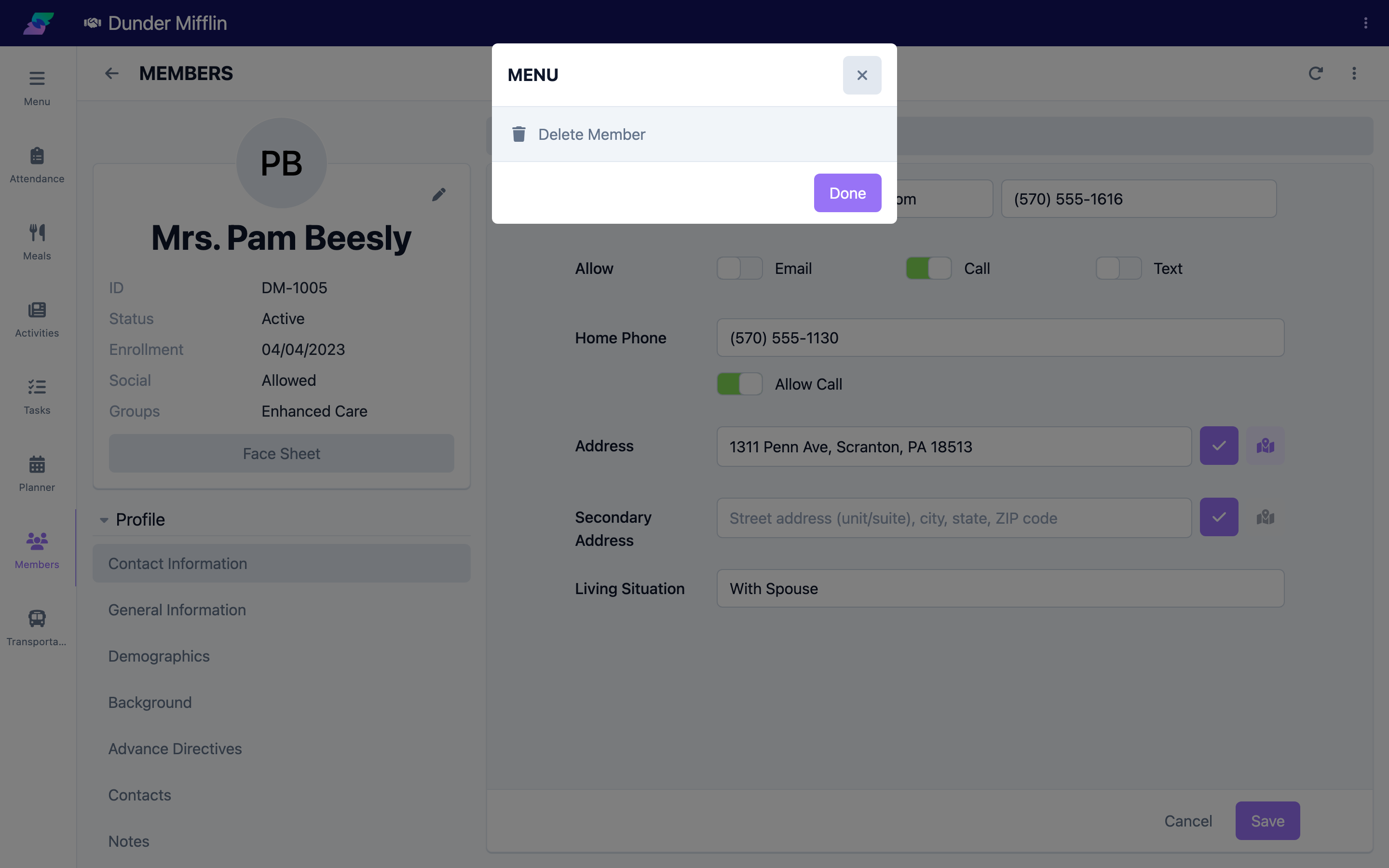
Step 4: Restore a deleted member
- In the Care module, open the Deleted page.
- Find the member and select Restore.
- Confirm at the prompt (Are you sure you want to restore this item?).
Screenshot coming soon — Restoring a member from the Deleted page
Tips
- Archive first, delete rarely. Setting a member to Inactive preserves history and is easily reversed.
- Members with attendance can't be deleted — this protects your billing and attendance records. Use Inactive status for them.
- Document the reason with a note before archiving or deleting, for future context.
- Check retention rules. Confirm your organization's record-retention policy before deleting anything.
Troubleshooting
| Problem | Solution |
|---|---|
| I cannot find a member to archive | They may already be Inactive or deleted. Set the status tab to All or Inactive, and check the Deleted page. |
| The Delete Member option is missing | Either you lack the Member Admin permission, or the member has attendance on record (such members can never be deleted — archive them instead). |
| I cannot change the status | Changing status requires the Status edit permission. Contact your administrator. |
| I deleted a member by mistake | Open the Deleted page in the Care module and select Restore. |