
Overview
Events are the building blocks of your center's schedule. In the Planner you create events, set them to recur, edit them, copy them, and delete them. This article covers the event form fields, recurring options, editing a single occurrence, and copying.
Before You Begin
- You must be logged into Seniorverse with Care module access.
- You need the Care:Planner permission (or Care:FullAccess).
Steps
Step 1: Open the event form
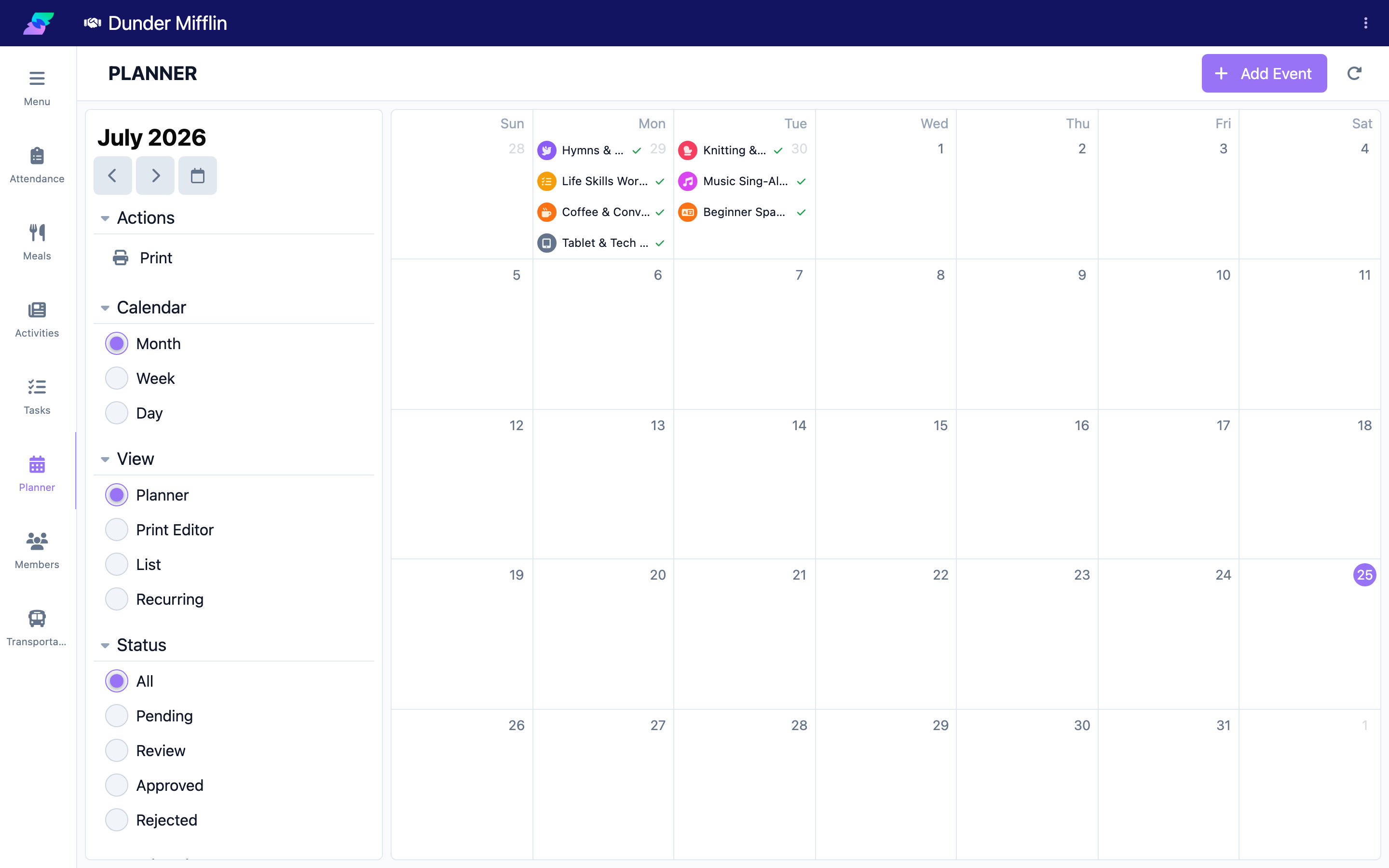
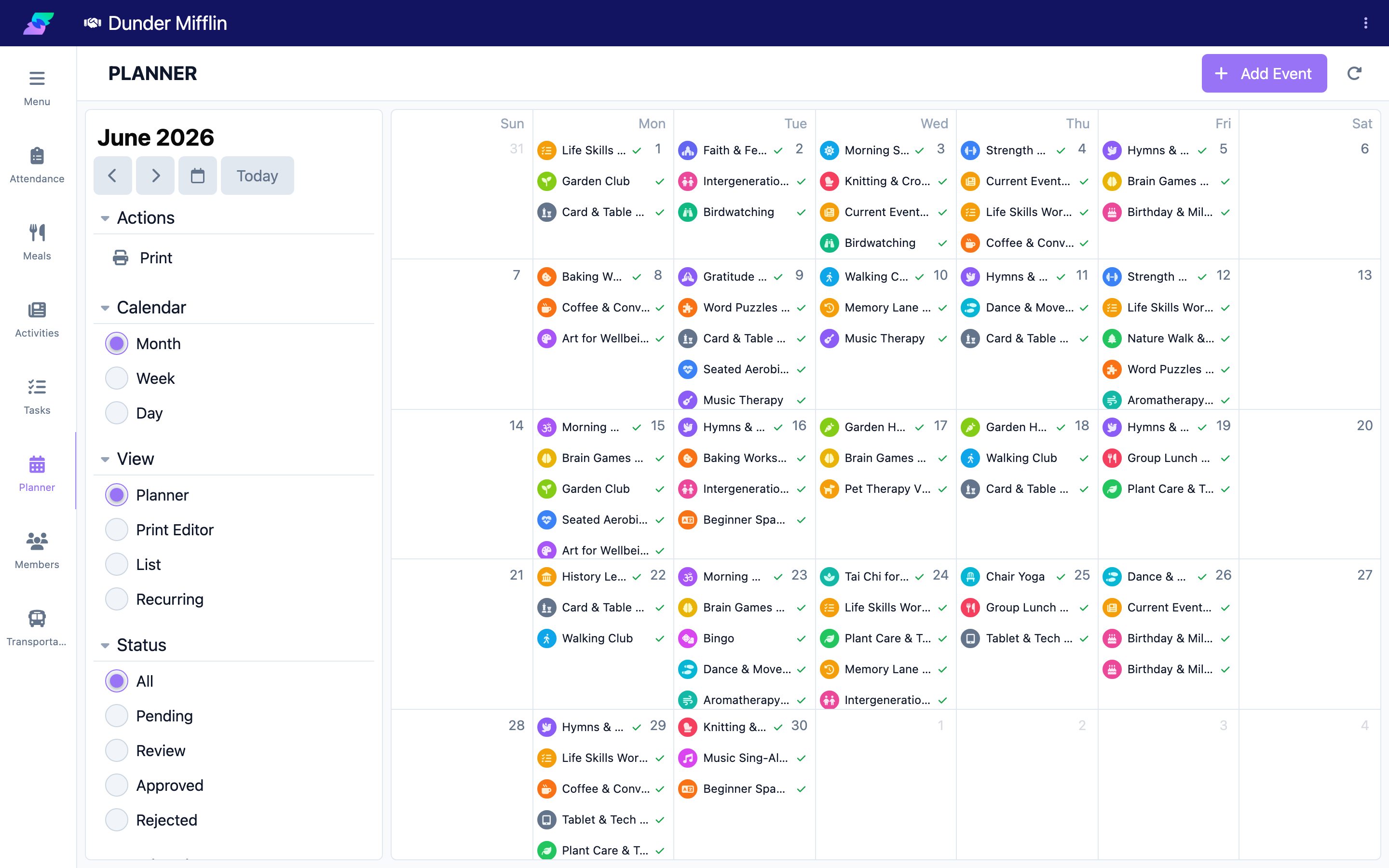
On the Planner page, select Add Event. The event form opens.
Step 2: Enter the event details
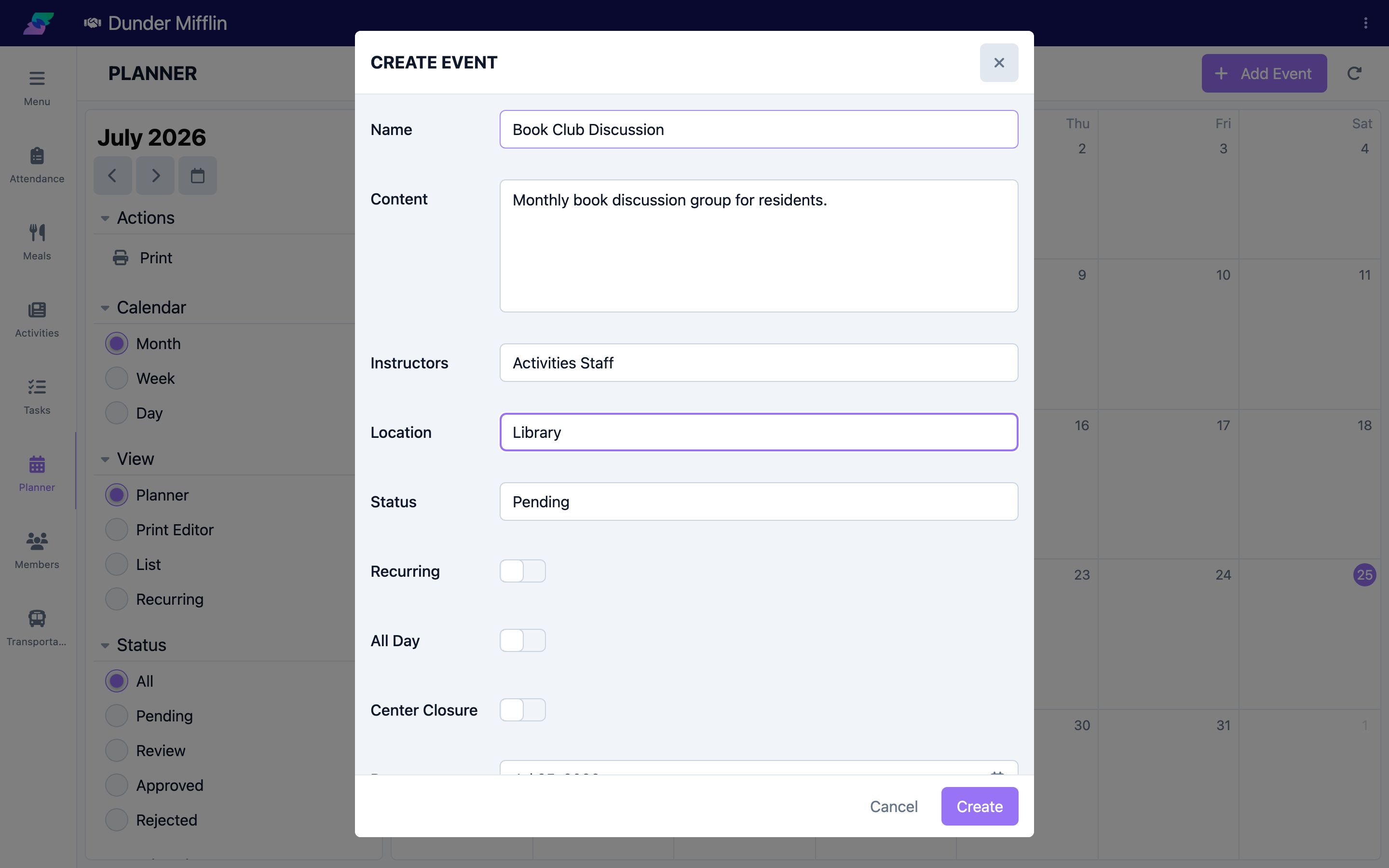
Fill in the fields:
| Field | Purpose |
|---|---|
| Name | The event's title. |
| Content | A description or notes. |
| Instructors | Who leads the event. |
| Location | Where it takes place. |
| Status | Pending, Review, Approved, or Rejected. |
Step 3: Set the date, time, and appearance
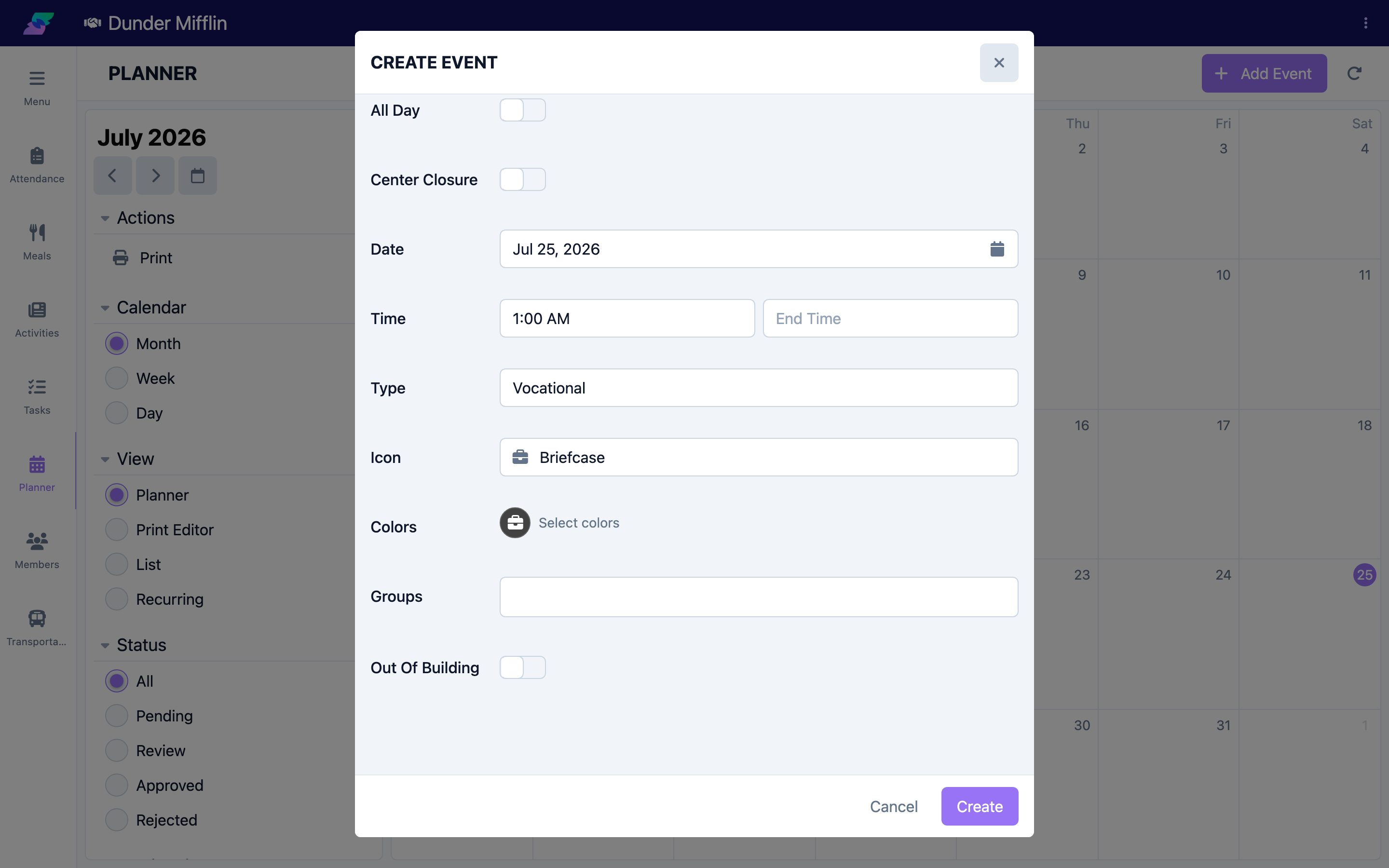
Set the event's date(s) and start/end times (or mark it all-day). Choose the event type, which sets its color and icon on the calendar, and assign Groups if your center uses them.
Step 4: Configure recurrence (optional)
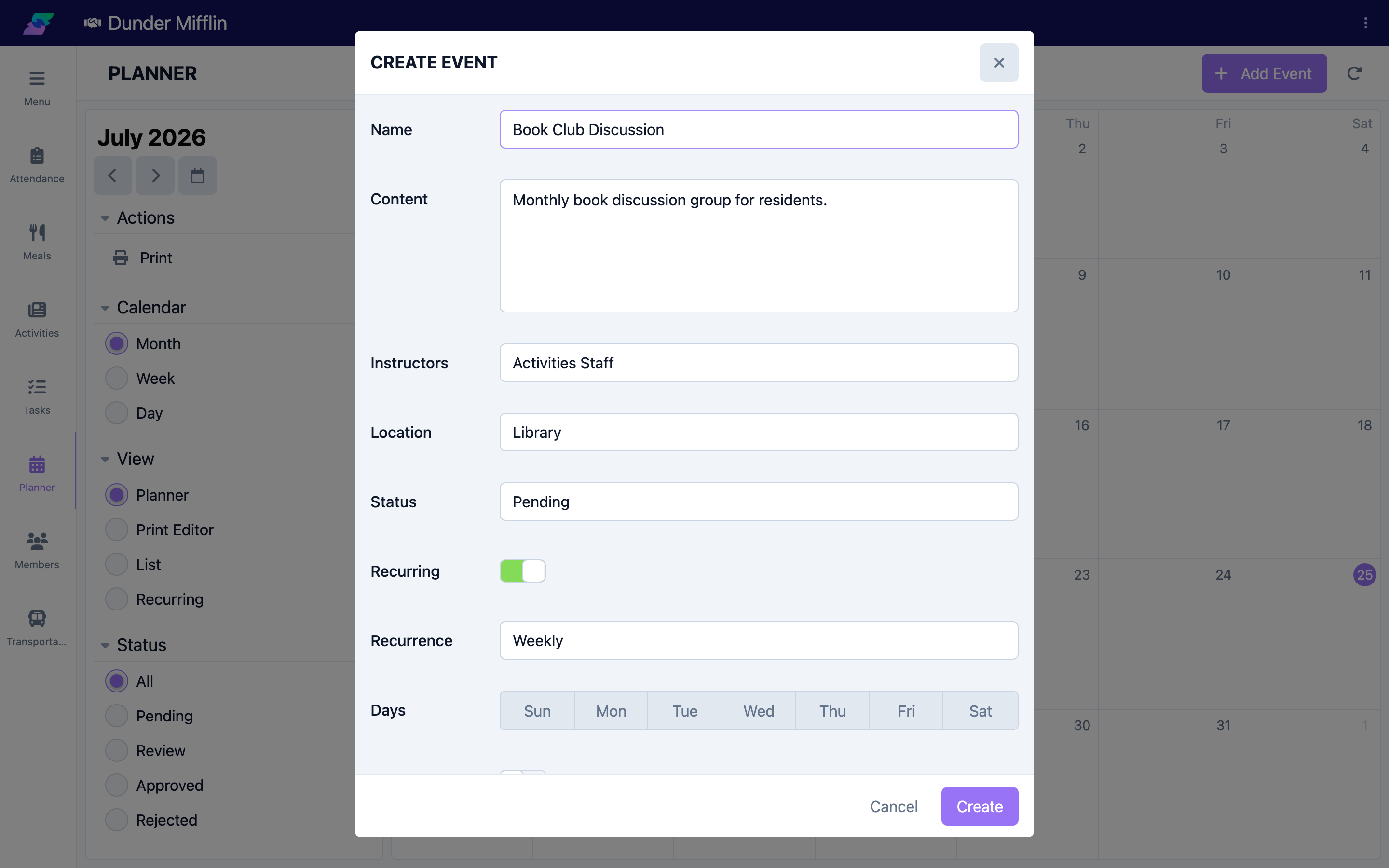
Turn on Recurring, then choose a Recurrence:
- Weekly — select the days of the week it occurs, and set per-day times.
- Monthly — choose the position (first, second, third, fourth, fifth, or last) and the weekday.
Step 5: Save the event
Save the form. The event appears on the calendar, color-coded by its type.
Editing an Event
Open an event to edit it. Editing the event updates the whole series for a recurring event. Use the Copy action (the copy icon) to duplicate an event to new dates, the Comments action to discuss it with your team, or the delete action (trash icon) to remove it.
Editing a Single Occurrence
To change just one date of a recurring event, open that occurrence from the calendar. The occurrence form lets you set its Status (Active or Canceled) and override its name, content, instructors, location, all-day setting, and time for that day only. Canceled occurrences remain visible, crossed out, for the record.
Tips
- Recurrence is Weekly or Monthly — set up a repeating series once instead of adding each date.
- Set the event type so the calendar color and icon are consistent and easy to scan.
- Use Copy for one-off events that follow a similar format on a different date.
Troubleshooting
| Problem | Solution |
|---|---|
| The Add Event button is missing | You need the Care:Planner permission. Ask your administrator. |
| Recurrence options are not showing | Turn on the Recurring toggle first; the pattern options then appear. |
| I only want to change one date | Open that occurrence from the calendar and edit it there; editing the event itself changes the whole series. |
| The event is the wrong color | The color comes from the event type. Open the event and choose the correct type. |
Related Articles
- understanding-the-planner — Understanding the Planner
- approving-and-rejecting-events — Approving and Rejecting Events
- printing-and-exporting-schedules — Printing and Exporting Schedules