
Overview
The Medication Administration Record (MAR) is a monthly grid of a member's center-administered medications. Each medication appears as a row showing its name and details, alongside a grid of scheduled times down the side and the days of the month across the top. Every cell shows a status icon — scheduled, completed, held, refused, and more — so you can see at a glance what has been given and what is due. This article explains how to read and work in the MAR. To record an individual administration, see Recording Medication Administration.
Before You Begin
- You must be logged into Seniorverse with access to the Care module and medication permissions
- The member must have active, center-administered medications with a schedule
- Only center-administered medications generate MAR schedules; Profile Only medications are listed for reference
Steps
Step 1: Open the MAR Tab
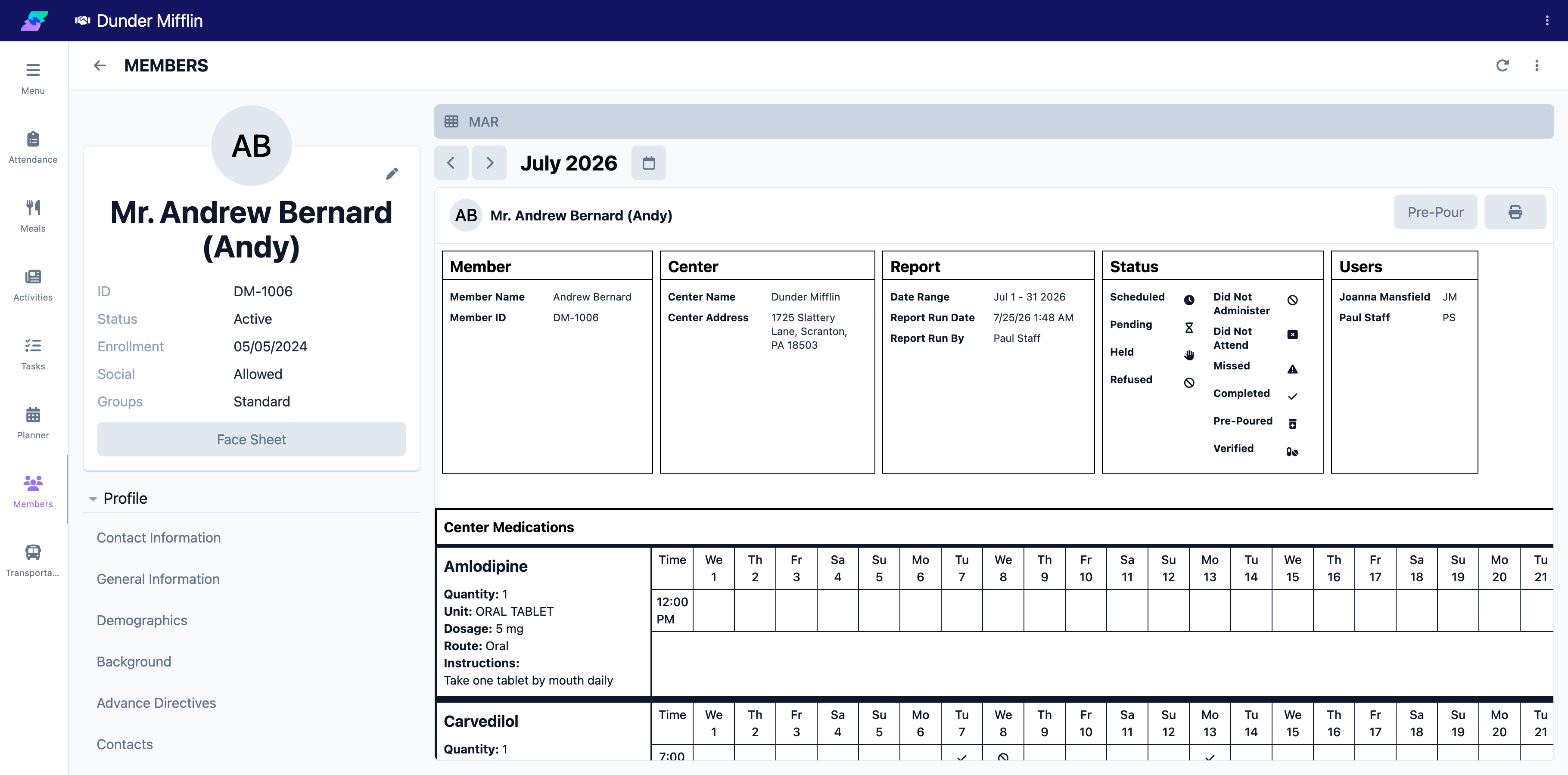
From the main navigation, select Care, then Members, and choose the member. Open the Care tab group and select the MAR tab. The record opens on the current month with legend cards for Member, Center, Report, Status, and Users at the top.
Step 2: Read the Grid and Sections
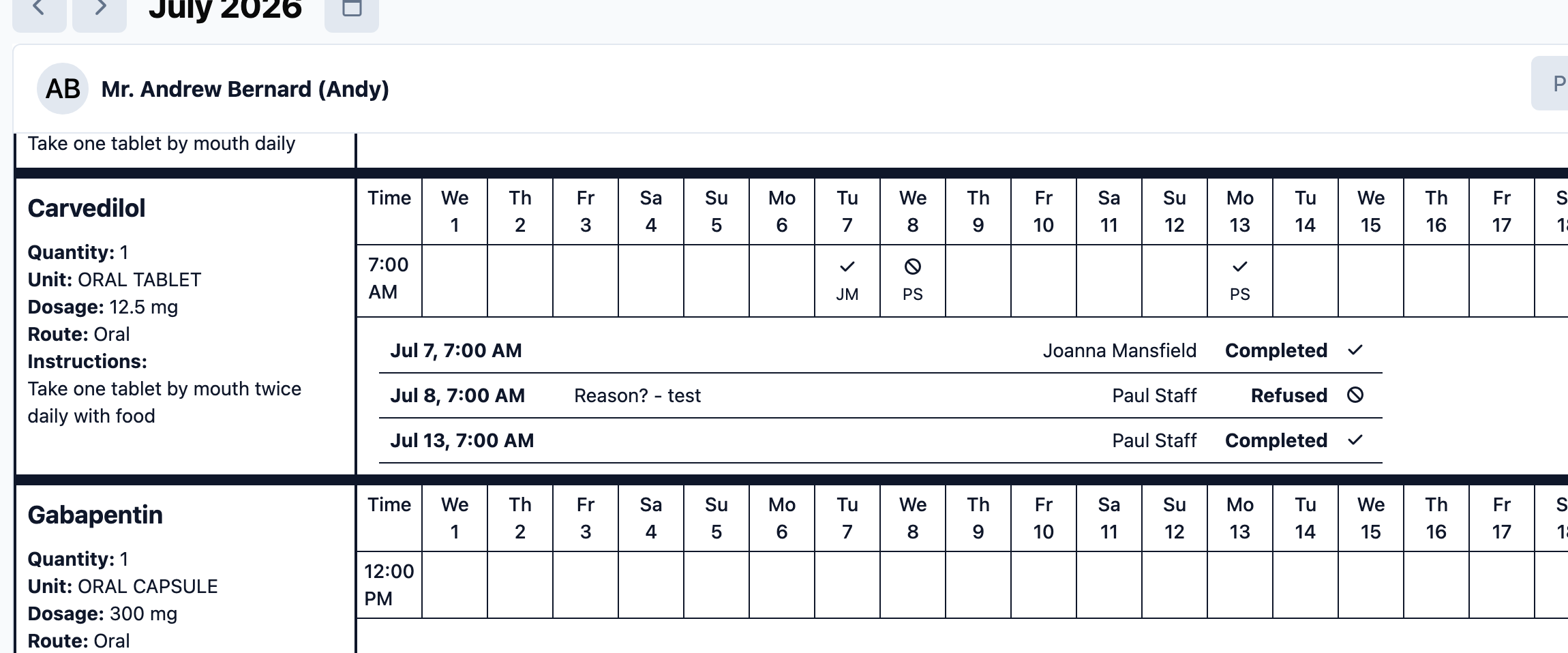
Medications are organized into Center Medications and Profile Only Medications. For each center medication, the left column shows the name, dosage details, and instructions. The grid to the right lists each scheduled Time as a row and each day of the month as a column, so every cell is one scheduled dose.
Step 3: Understand the Status Legend
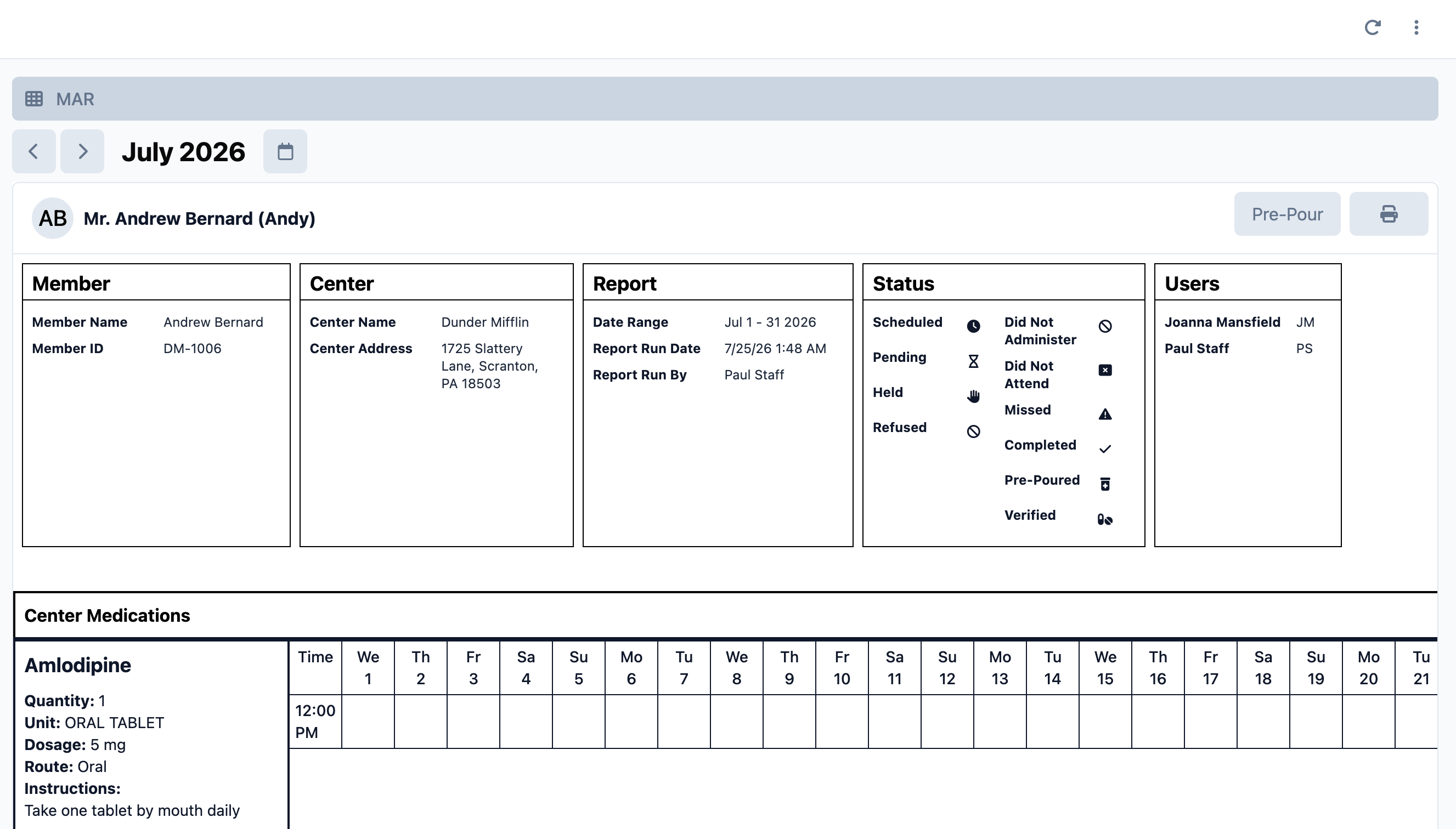
Each cell shows an icon for that dose's status. The Status legend explains them:
- Scheduled — due, not yet recorded
- Pending — in progress
- Completed — administered
- Held, Refused, Did Not Administer — not given, with a recorded reason
- Did Not Attend, Missed — the dose was not given because the member was absent or it was missed
- Pre-Poured and Verified — pre-pour and multi-dose handling states
A staff member's initials may appear on a cell to show who recorded it.
Step 4: Record an Administration from a Cell
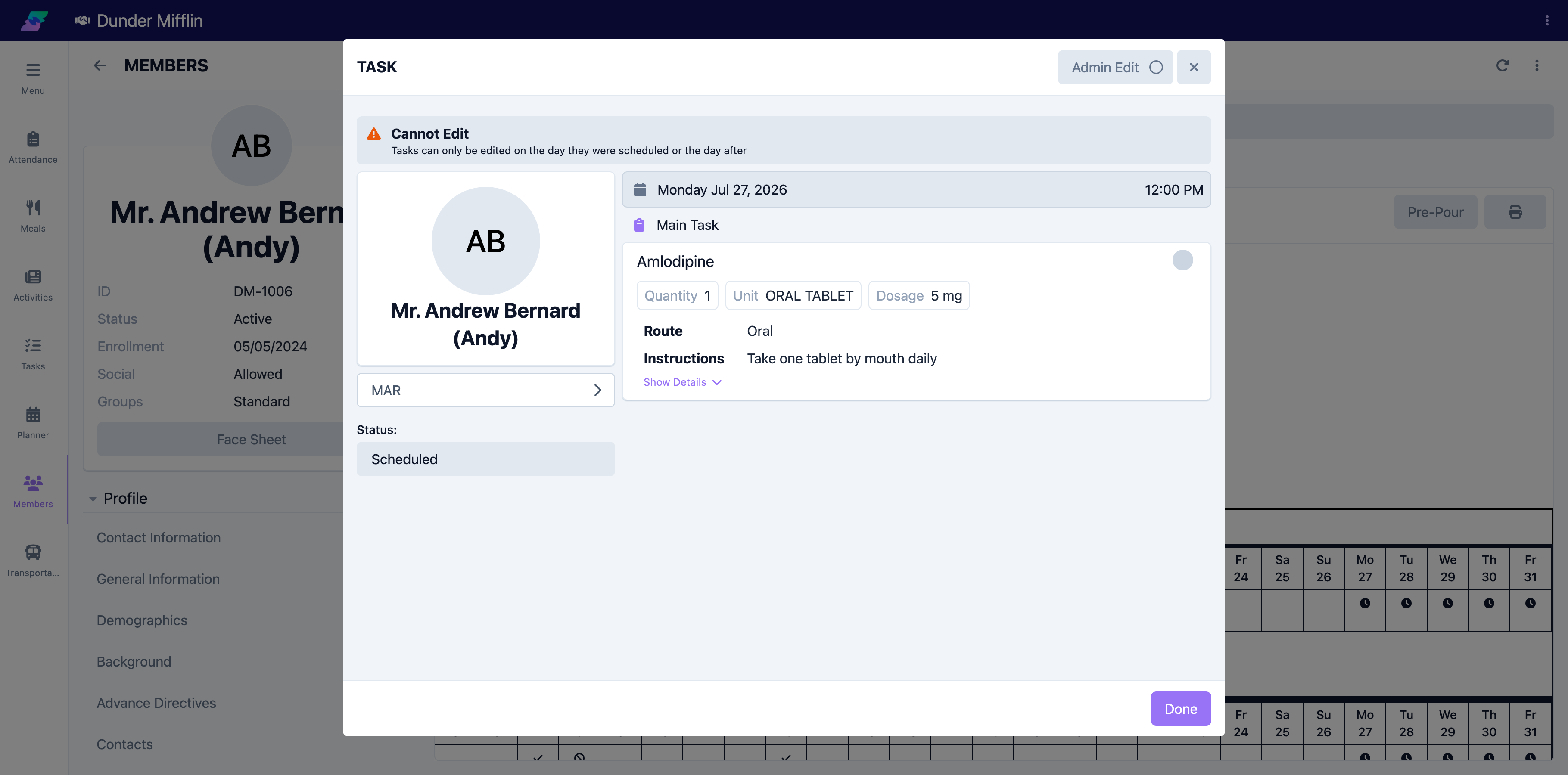
Select a scheduled cell to open the administration form for that dose, where you set the status and record who gave it and when. See Recording Medication Administration for the full flow.
Step 5: Pre-Pour, Verify Multi-Dose, and Print
When enabled for your center, use the header buttons for batch handling, then Save:
- Pre-Pour — enter pre-pour mode, mark the doses you have poured, and save
- Verify Multi-Dose — enter verify mode, mark the doses you have verified, and save
Select the Print button to generate a printable PDF of the MAR.
Tips
- Review the current day's column before a med pass to see what is already recorded and what is still due
- Watch for Missed and Did Not Attend icons when reconciling the day
- Use the pencil icon on a medication row to open and edit that medication
- Print the MAR for paper backup, audits, or handoffs
Troubleshooting
| Problem | Solution |
|---|---|
| MAR tab is not visible | The tab is in the Care tab group. Confirm you have Care module access and medication permissions. |
| No medications appear | The MAR shows center-administered, active medications with a schedule. Add or activate them on the Medications tab first. |
| A medication shows only under Profile Only | Profile Only medications are listed for reference and do not generate a schedule grid. Turn off Profile Only on the medication if it is administered at the center. |
| Pre-Pour or Verify Multi-Dose buttons are missing | These appear only when your center has pre-pour and multi-dose handling enabled and the medication is configured for it. |