
Overview
"Content options" are the lists and values Seniorverse uses throughout the platform — things like the positions you can assign to staff, member demographics choices, contact types, meal statuses, and care task roles. You configure them in two places, both on the Center > Setup page:
- Structured tabs — some options have their own add-and-edit tables, including Meal Types, Benefit Types, Charge Codes, Billing Plans, Service Providers, and Admin Tasks. Use these tabs when they exist.
- The Content tab — an advanced editor for the remaining option lists and field values that do not have a dedicated tab, such as staff positions, name prefixes and suffixes, demographics, contact types and relationships, insurance types, meal statuses, nurse-note types, custom fields, and care task roles.
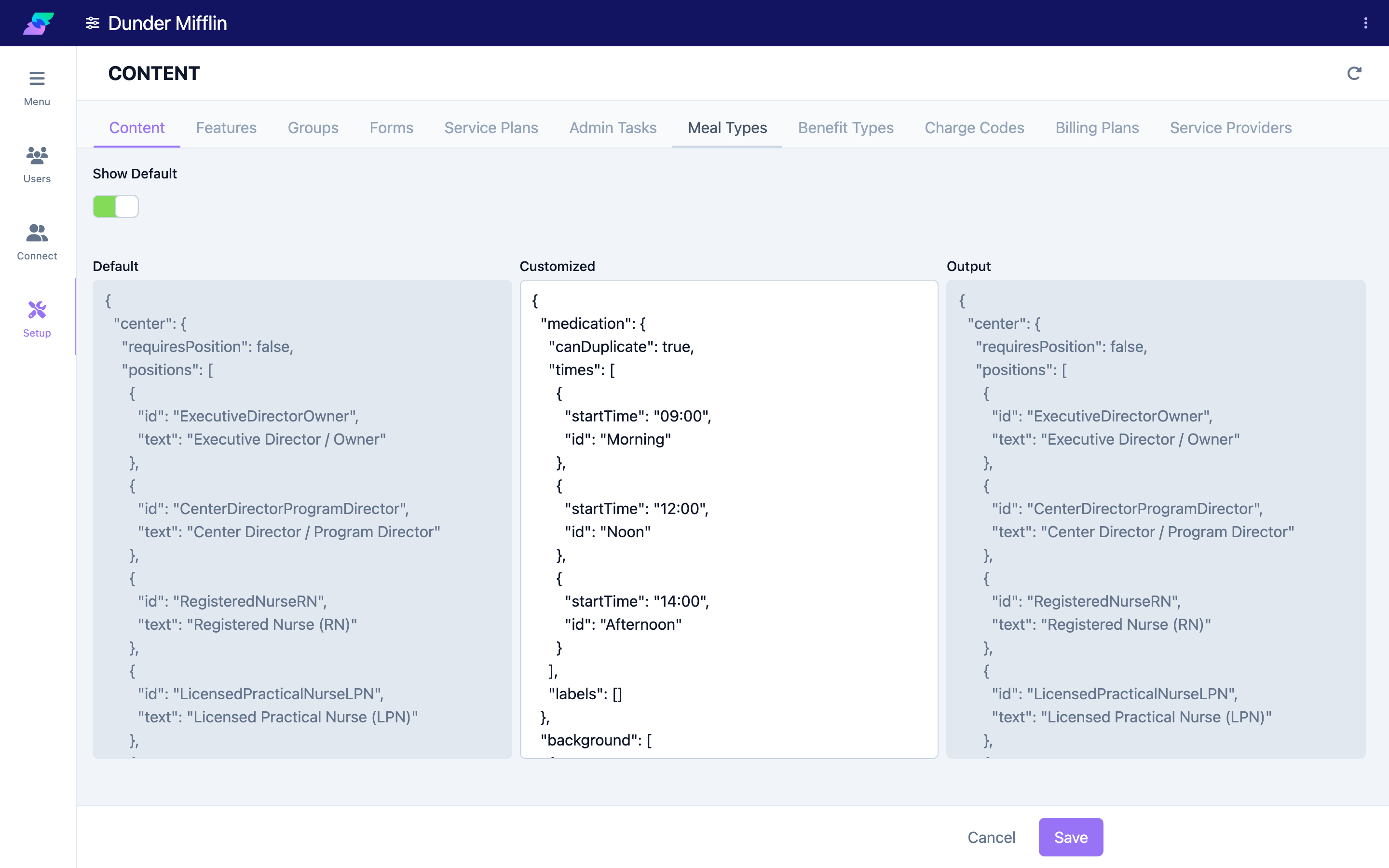
The Content tab is a JSON editor. It shows Seniorverse's Default values for reference, your Customized values (the ones you edit), and the combined Output. Because it is a raw editor, changes here are best made carefully — many centers configure it with help from Seniorverse support.
Permissions: Viewing content requires the Center:Contents:View scope and editing requires Center:Contents:Edit. The structured tabs sit under the Setup page, which requires Center:Setup:View.
Before You Begin
- You need the Center:Contents:View and Center:Contents:Edit scopes to view and change content.
- Prefer a structured tab (such as Meal Types or Benefit Types) over the Content tab when one exists for what you want to change.
- The Content tab expects valid JSON; an invalid entry is rejected with an error. Copy your current values somewhere safe before editing.
Steps
Step 1: Open Center > Setup
Select Center from the navigation, then Setup.
Step 2: Use a structured tab when one exists
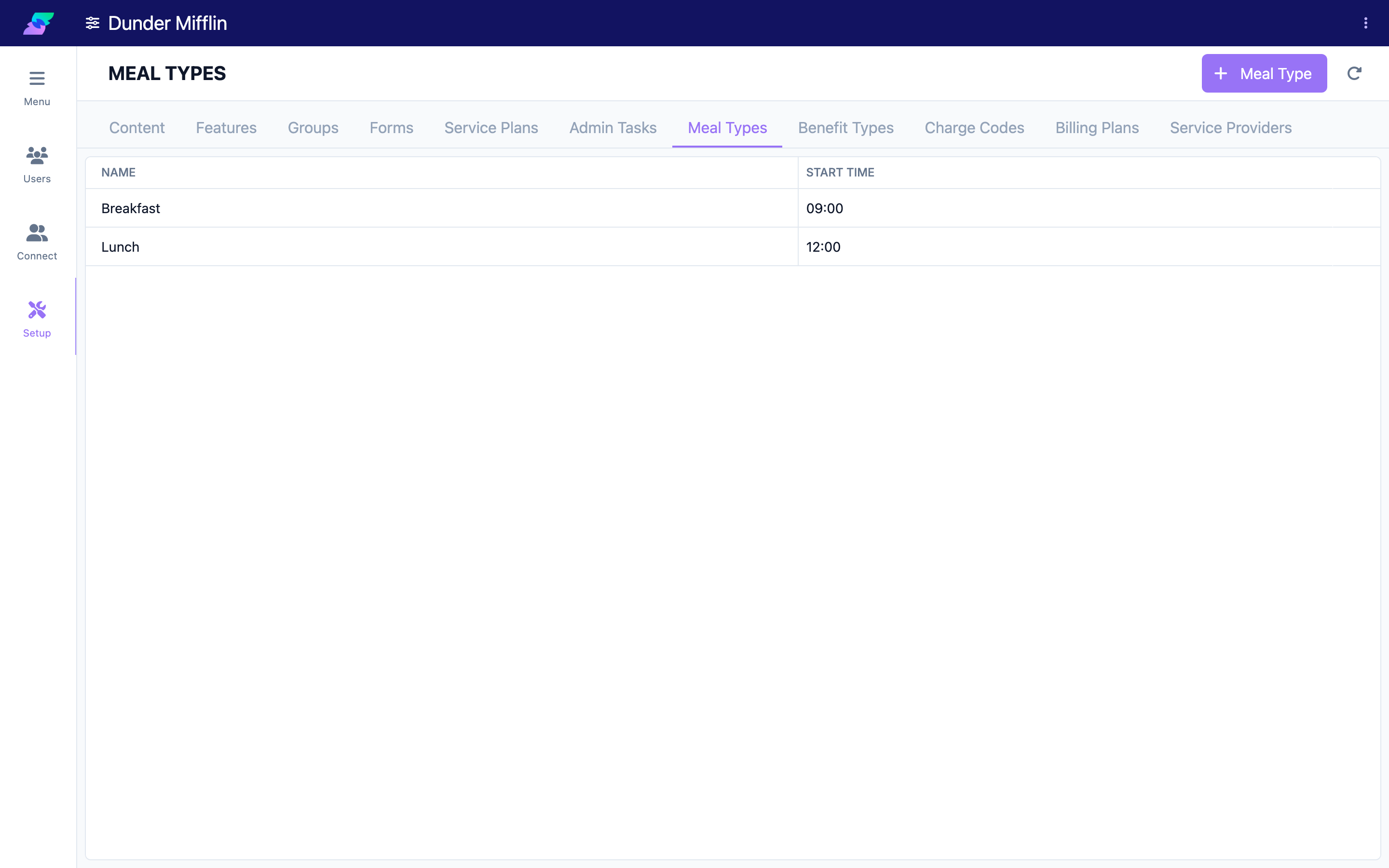
For options that have their own tab — for example Meal Types or Benefit Types — open that tab and use the Add button (and the row actions) to create or edit entries, then save.
Step 3: Open the Content tab for other options
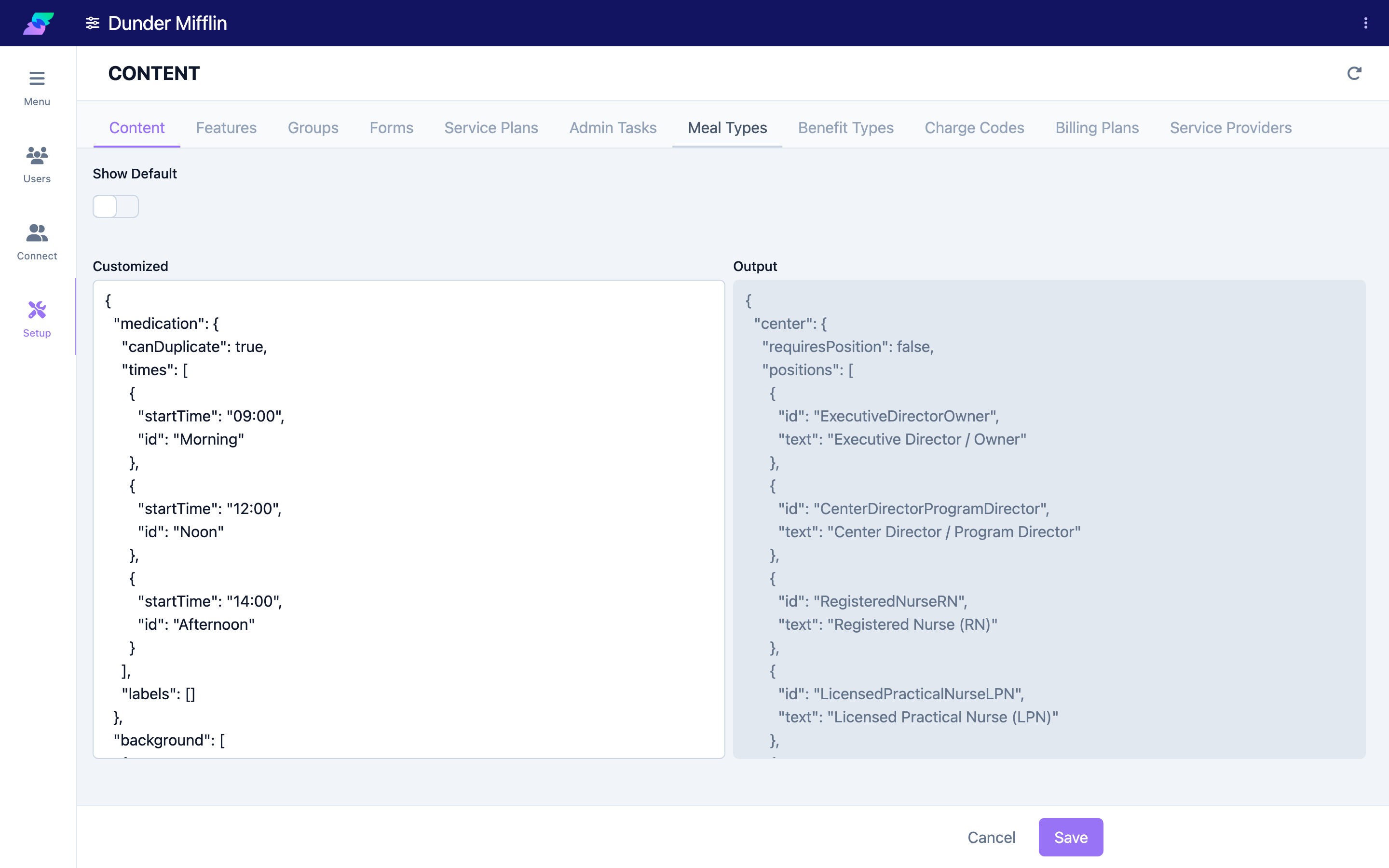
For option lists without a dedicated tab (positions, demographics, contact types, custom fields, task roles, and more), open the Content tab. Turn on Show Default to view Seniorverse's reference values alongside your Customized entry.
Step 4: Edit and save
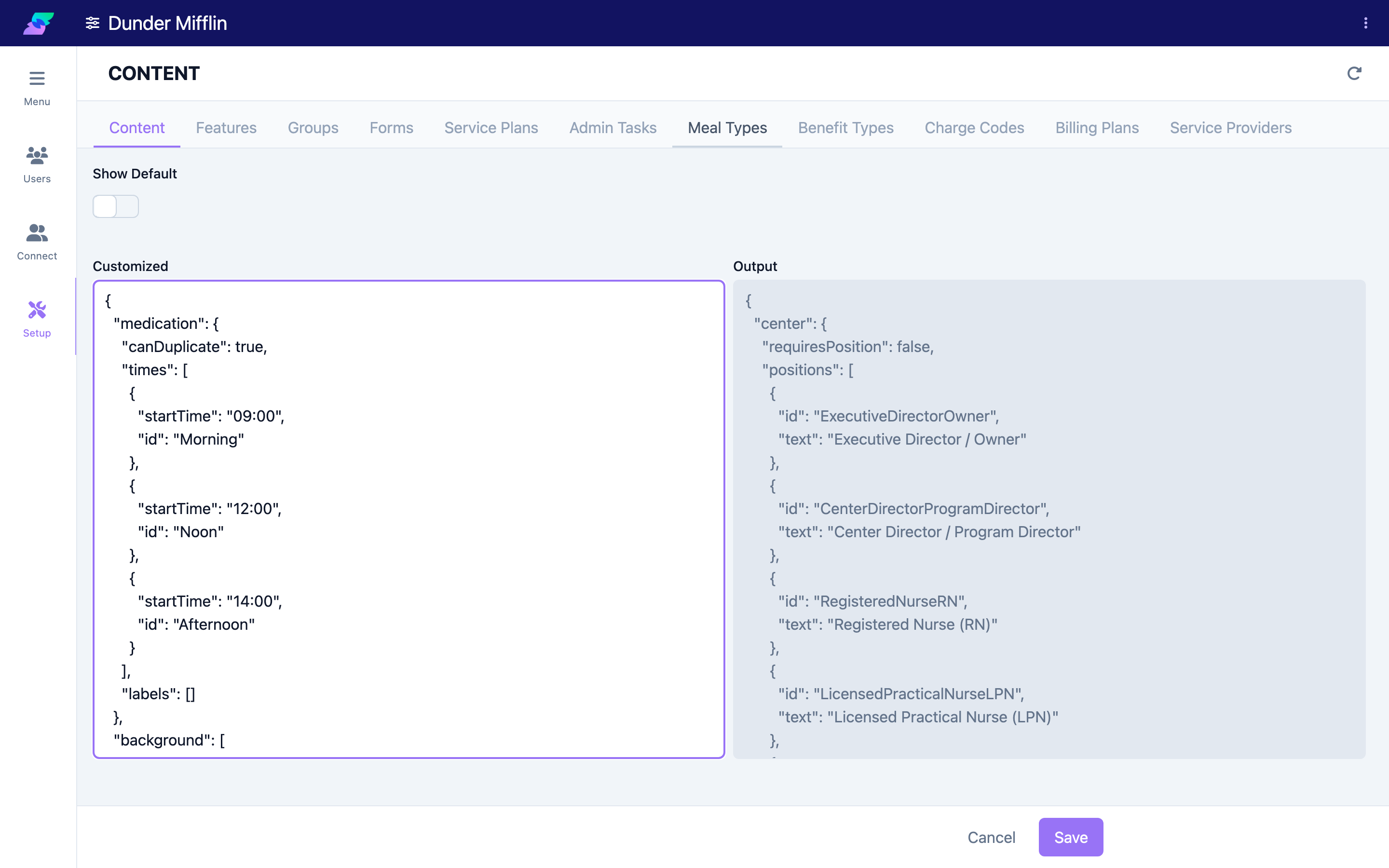
Edit the Customized JSON, keeping it valid, then save. Review the Output to confirm the combined result is what you expect. If the JSON is invalid, Seniorverse shows an error and does not save.
Tips
- Reach for structured tabs first. They are safer and easier than the Content JSON editor for the options they cover.
- Keep the Default open while you edit. Use Show Default to see the exact shape Seniorverse expects before changing the Customized value.
- Positions and Task Roles live here. Staff positions and care task roles are defined in content — update them here, then assign them to users (see Managing User Roles).
- Get help for large changes. Because it is raw JSON, involve Seniorverse support for anything beyond a small edit.
Troubleshooting
| Problem | Solution |
|---|---|
| The Content tab shows a restricted message | You need the Center:Contents:View scope to view and Center:Contents:Edit to change content. Ask an administrator to grant them. |
| Your edit will not save | The Content tab requires valid JSON. Check for a missing comma, quote, or bracket — the editor flags "Invalid JSON." |
| A new option is not appearing in dropdowns | Save the change, then refresh the page where you expect the option; some pages load their lists once per session. |
| You are not sure where an option is configured | If it has a dedicated Setup tab, use that; otherwise it is in the Content tab. Contact Seniorverse support if you cannot find it. |