
Overview
Templates are the reusable structures that every assessment and shareable form in Seniorverse is built from. You create and edit them in Care > Form Templates. Each template's Type decides how it behaves:
- Assessment — a clinical evaluation completed by staff. Assessment templates can be flagged as Service Plan so a completed assessment can seed a member's care plan.
- Form — a document that can be shared with a family member through Connect to review, complete, and sign. Form templates never feed the care plan.
A template is organized as pages > sections > questions, and you build that structure visually in the Form Builder. When someone starts an assessment or form for a member, the template's structure is copied into the new record, so later edits to the template do not change assessments already in progress.
Before You Begin
- Your role needs access to Care > Form Templates (the Form Templates item must appear in the Care sidebar).
- Decide whether you are building an Assessment or a Form before you start — this can be changed while editing, but it is easier to set up front.
- If any questions should pull from or write back to member records (contacts, vitals, conditions, and so on), review how that member data is structured first.
Steps
Step 1: Open Form Templates
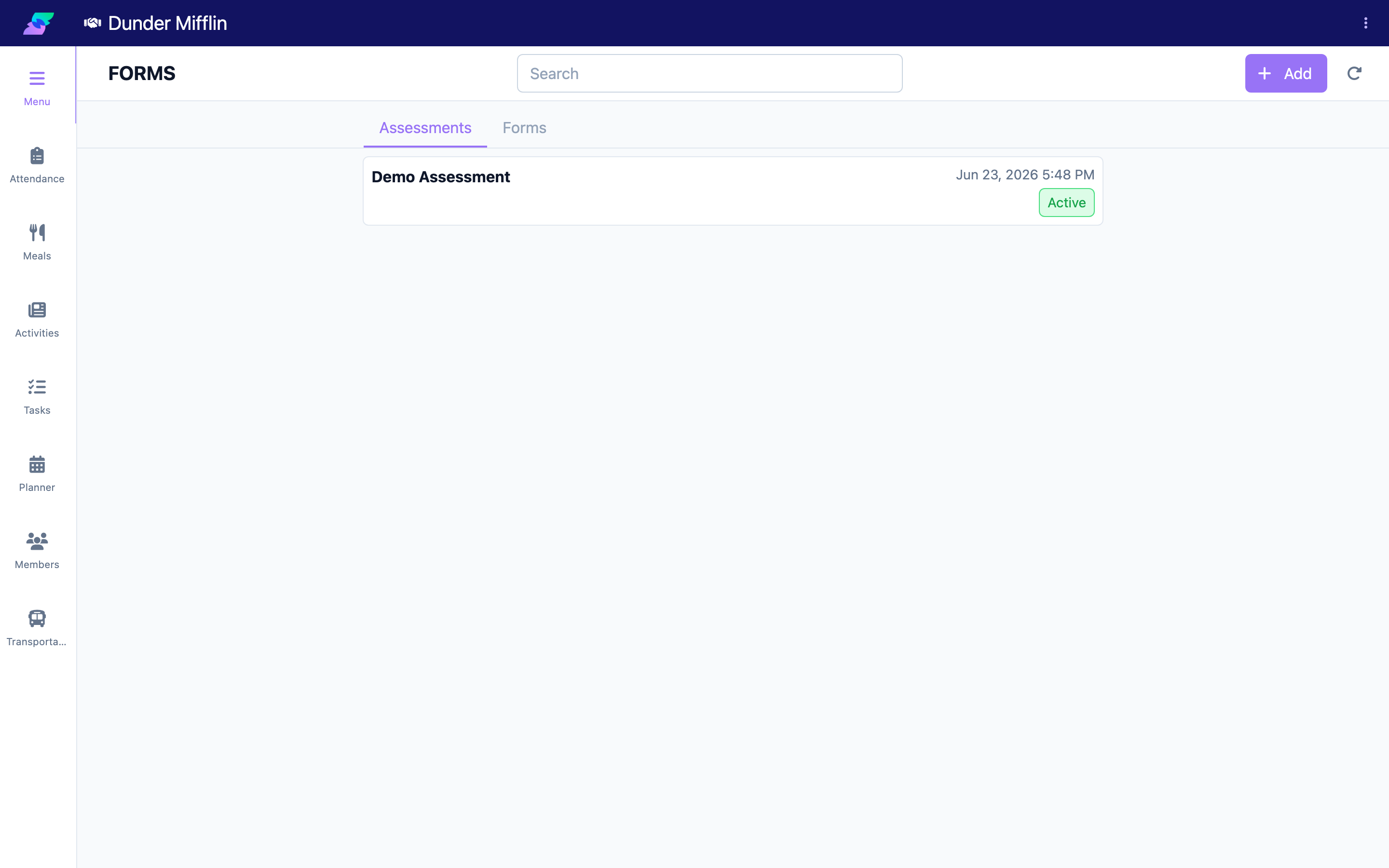
From the Care sidebar, select Form Templates. The page opens with two tabs, Assessments and Forms, so you can manage each type separately. Use the search box to find an existing template or scan the list.
Step 2: Add a template and set its details
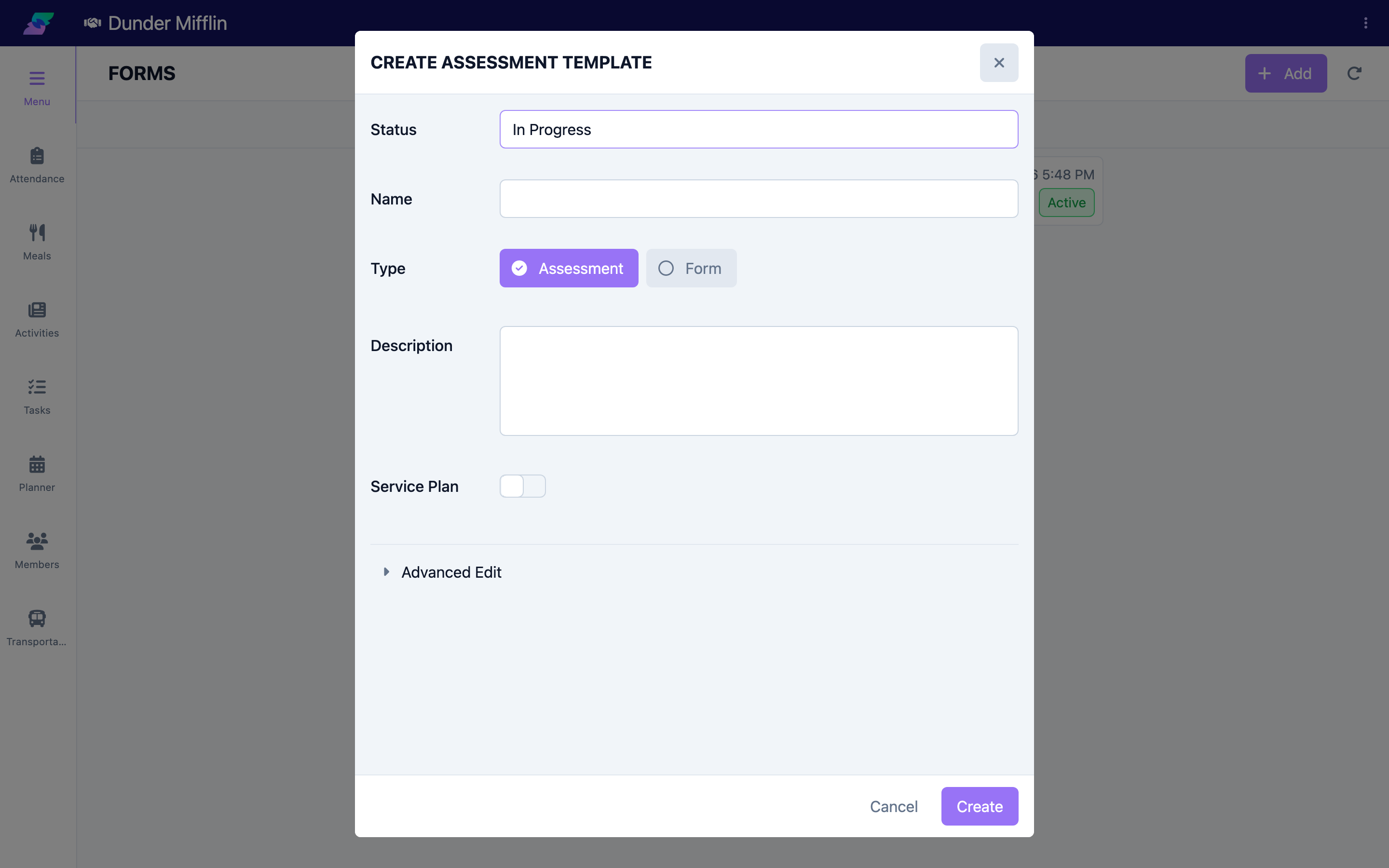
Select Add. In the template details dialog, set:
- Status — start as In Progress; set to Active when it is ready to use, or Inactive to retire it
- Name — how the template appears in lists and when staff create assessments
- Type — Assessment or Form
- Description — a short explanation of when to use it
- Service Plan — a toggle available only for Assessment templates; enable it if a completed assessment should be able to create a care plan (choosing Form automatically turns this off)
Step 3: Add pages and sections in the Form Builder
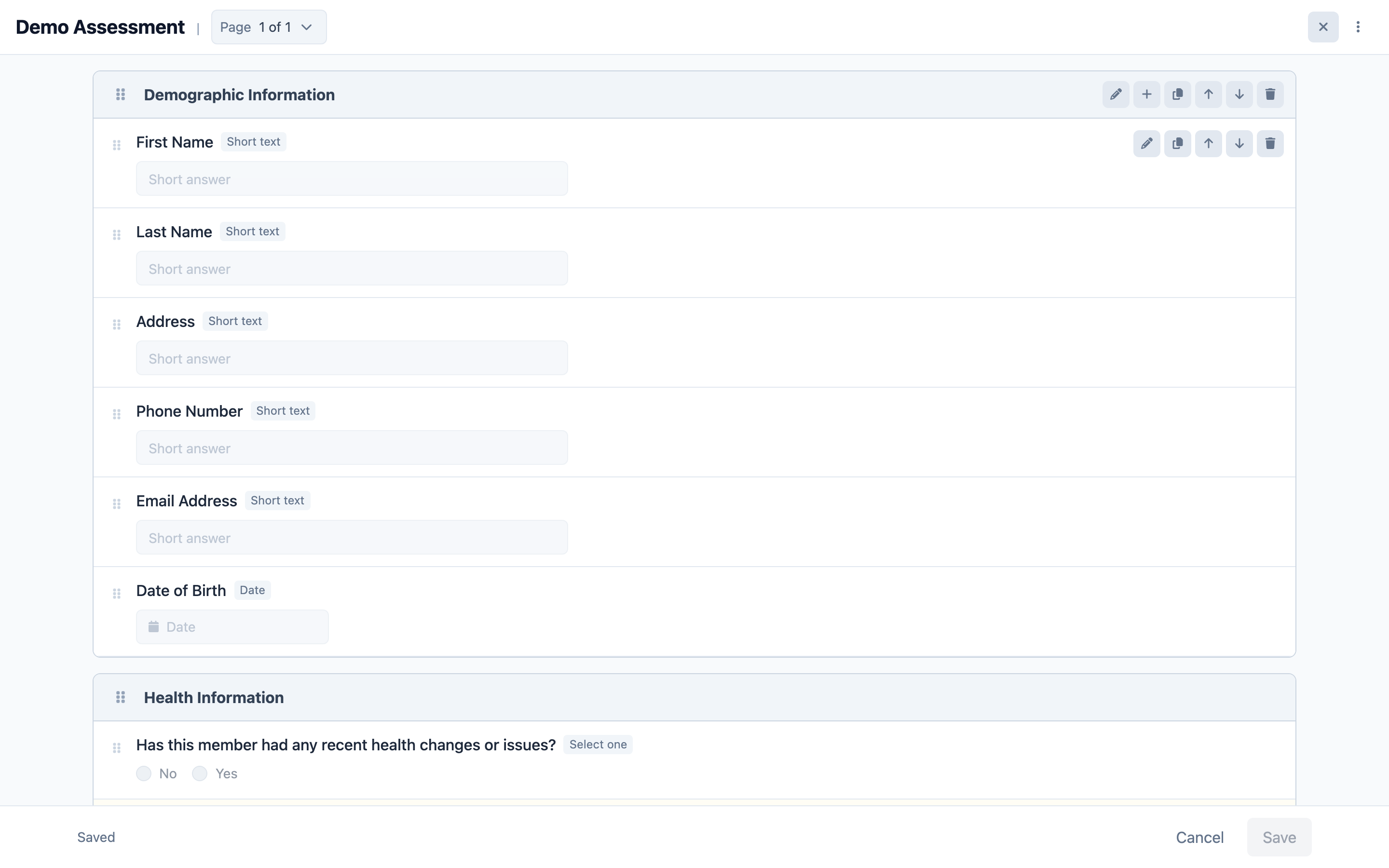
Saving the details opens the Form Builder. Start with Add page, then Add section inside the page. Pages group the form into steps; sections group related questions within a page. You can rename, reorder (move up/down), duplicate, and delete pages and sections.
Step 4: Add questions and choose a question type
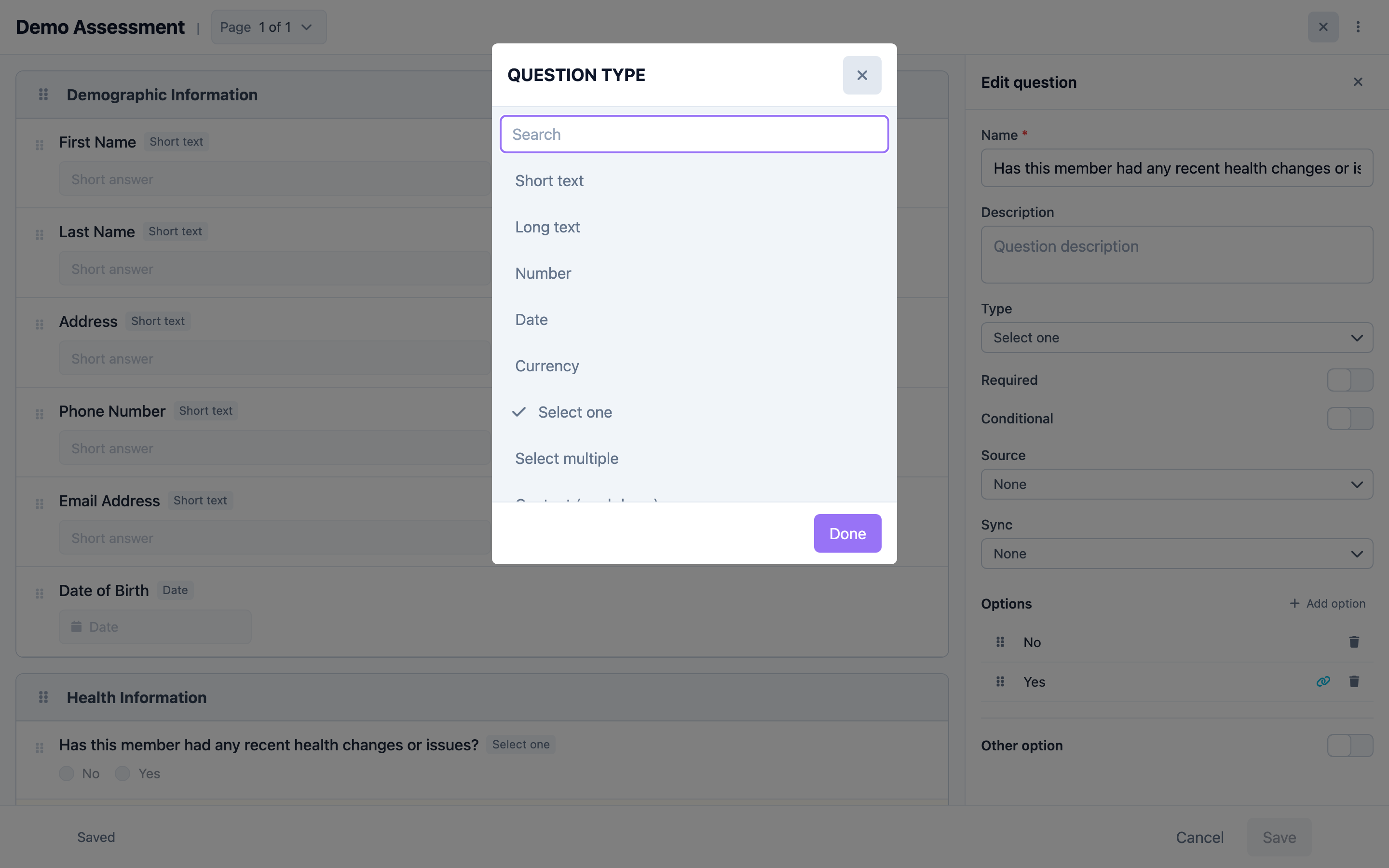
Within a section, add a question and choose its Question type. Available types include:
- Short text, Long text — free text
- Number, Currency, Date — typed values
- Select one, Select multiple — pick from options you define
- Content (markdown) — read-only instructions or headings, with no answer
- Table — a grid where you define columns
- Body assessment — a body-diagram question
- Contacts, Medications, Conditions, Allergies, Vitals, Directives — questions that pull the member's existing records
For each question you can set a Name and Description, mark it Required, add an Other option, and set a Default value (for text, number, date, and currency types).
Step 5: Define options, scores, and columns
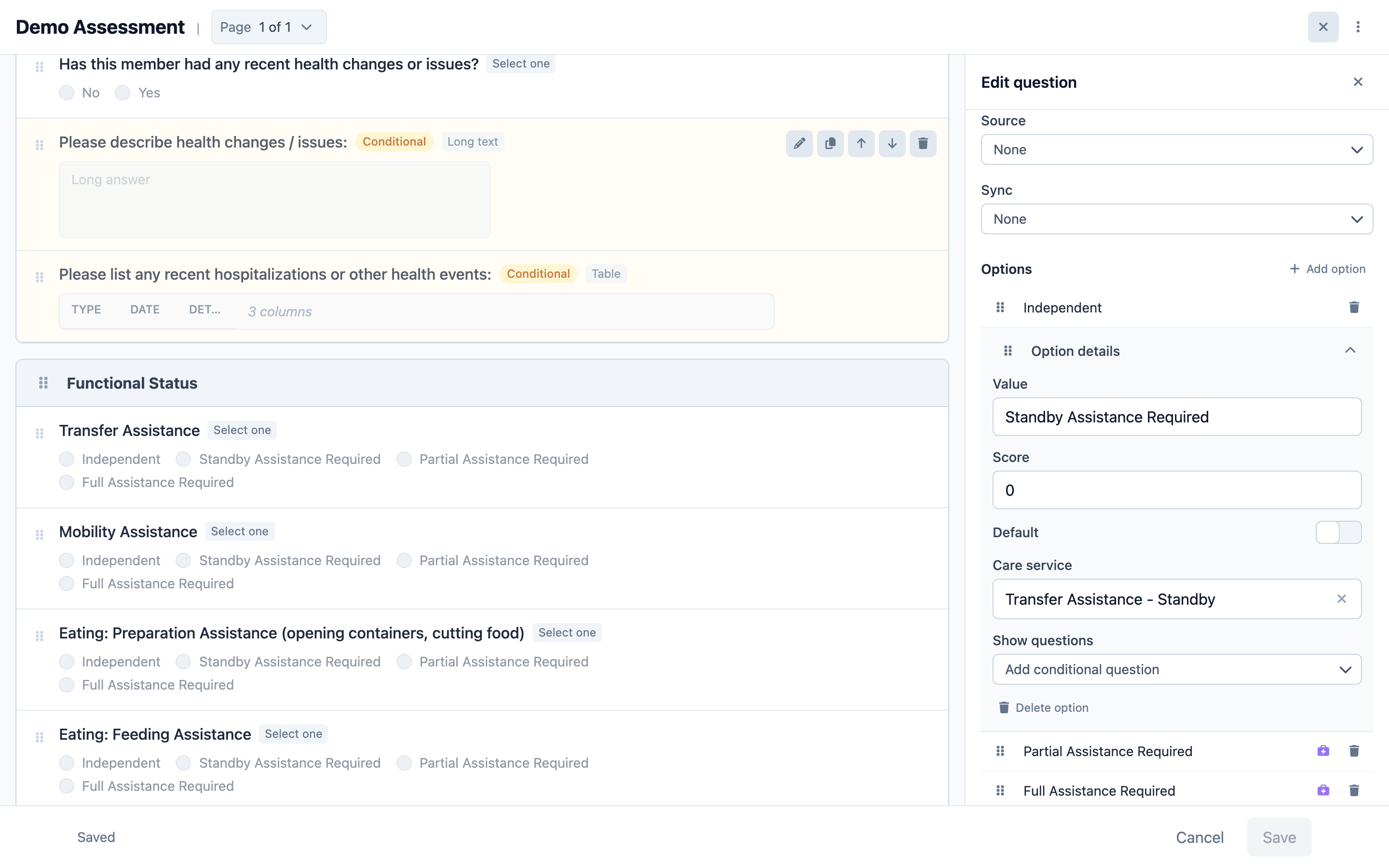
For Select one and Select multiple questions, add each Option with its value. An option can optionally carry a Score and be linked to a Care service. For Table questions, define each Column with a Key, Label, and field type. This is also where you configure conditional logic: an option can be set to Show questions so follow-up questions only appear when that option is chosen.
Step 6: Connect questions to member data (Source and Sync)
Two optional settings let a question exchange data with the member's record:
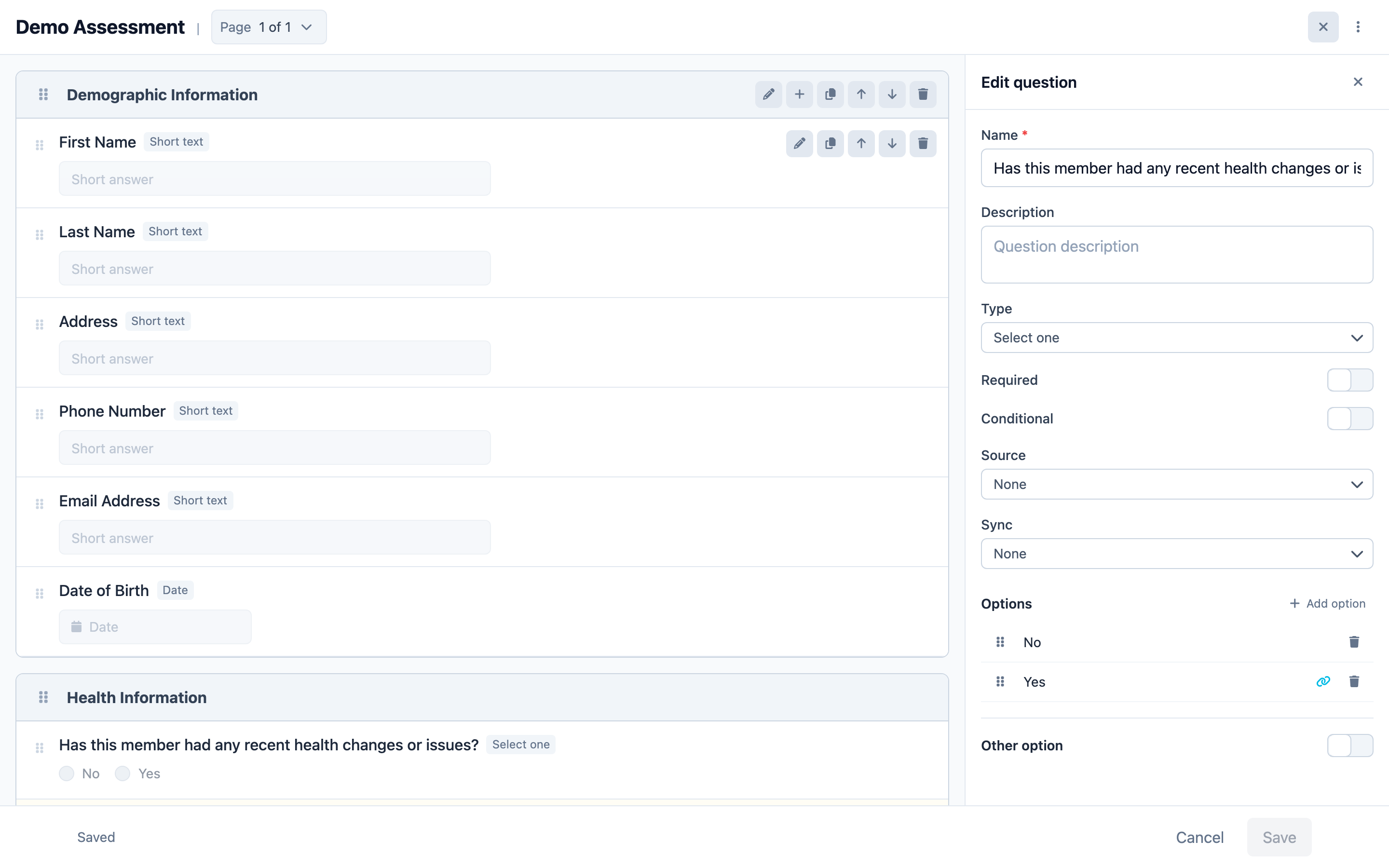
- Source — pre-fills the answer from existing member data when the assessment is opened (available for text, number, date, currency, and select questions).
- Sync — marks the answer to be written back to the member's record. During review, staff Accept or Reject each synced answer, and accepted values update the member. Only questions with a Sync target become accept/reject items on the review step.
Step 7: Resolve validation and activate the template
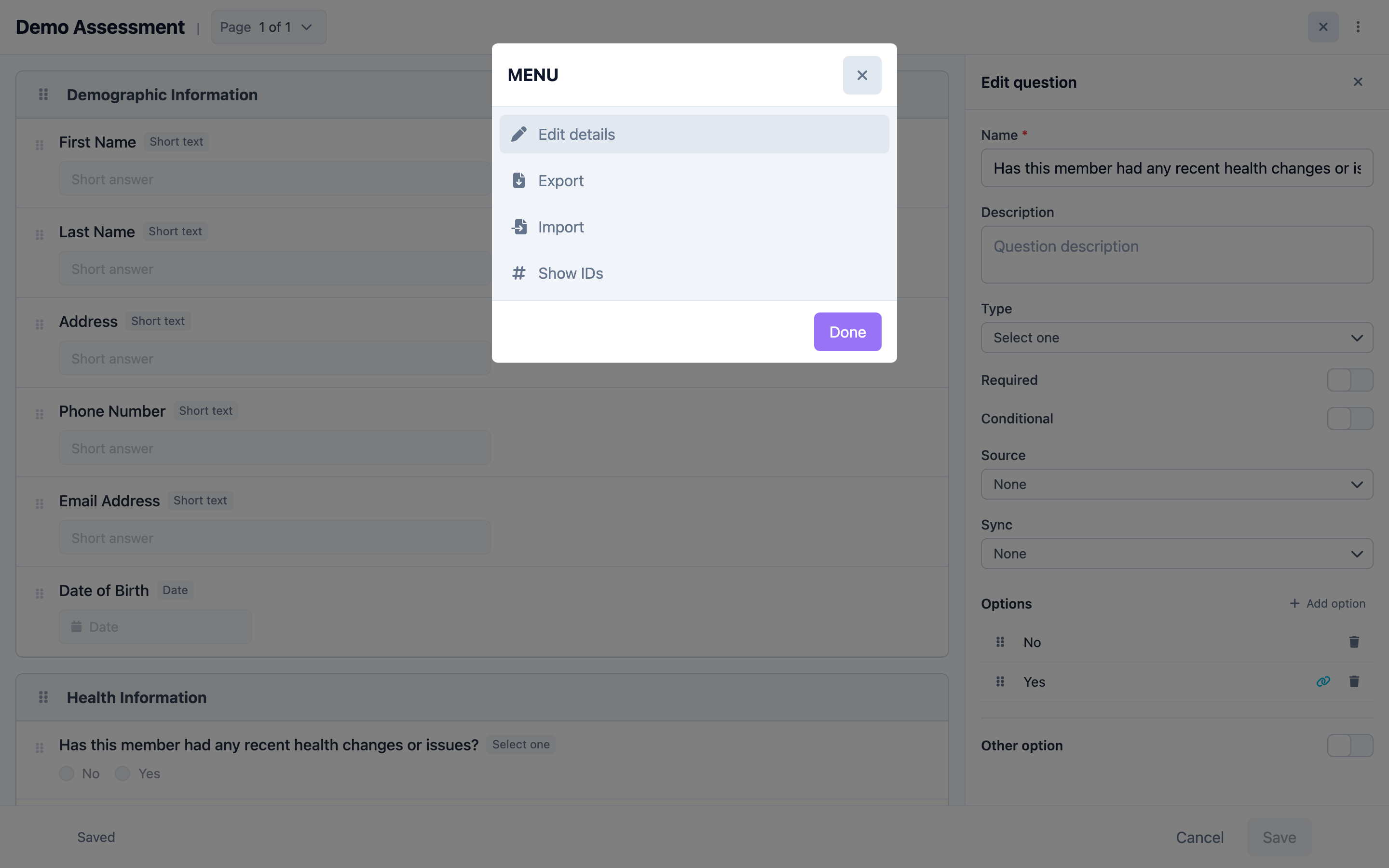
The builder shows a live status: Unsaved changes, Saved, or Fix validation errors with a count of issues. Resolve any validation issues, then reopen the template details (Edit details) and set Status to Active so it becomes available to staff. The same menu also has separate Export and Import actions to copy a JSON structure between templates, and Show IDs to see the underlying identifiers when troubleshooting conditional logic.
Tips
- A template must be Active to be selectable when creating an assessment or form — In Progress and Inactive templates are hidden from staff.
- Keep Assessment and Form types on their matching tab: assessments feed clinical review and (optionally) care plans; forms are what you share with families.
- Only questions with a Sync target can be accepted into the member's record, so set Sync on the questions whose answers should update the member profile.
- Editing a template does not alter assessments that were already created from it — republish and have staff start a fresh assessment to pick up changes.
Troubleshooting
| Problem | Solution |
|---|---|
| The Form Templates item is missing from the Care sidebar | This page is permission-gated. Ask an administrator to grant your role access to Form Templates. |
| My template does not appear when staff create an assessment | Its Status must be Active, and its Type must match the tab staff are using (Assessment vs Form). |
| The Service Plan toggle is missing | It only appears for Assessment templates. Forms cannot feed a care plan; switch the Type to Assessment if a plan is needed. |
| Answers are not updating the member record on accept | The question needs a Sync target defined in the builder. Without it, the answer is recorded but never syncs and does not appear as an accept/reject item. |
| The builder shows "Fix validation errors" and won't finalize | Open the flagged items and correct them (for example, options missing values or table columns missing keys) until the status reads Saved. |