
Overview
The Demographics report summarizes your member population across several categories — Age, Race / Ethnicity, Gender, Marital Status, and Zip Code — with a Details table for the underlying records. It is useful for grant applications, compliance, and planning. This article shows you how to open the report, choose which tables to show, and print it.
Before You Begin
- You need Reports access. If you cannot open the Reports area, contact your administrator.
- Member profiles should include demographic information for accurate results.
Steps
Step 1: Open the Demographics Report
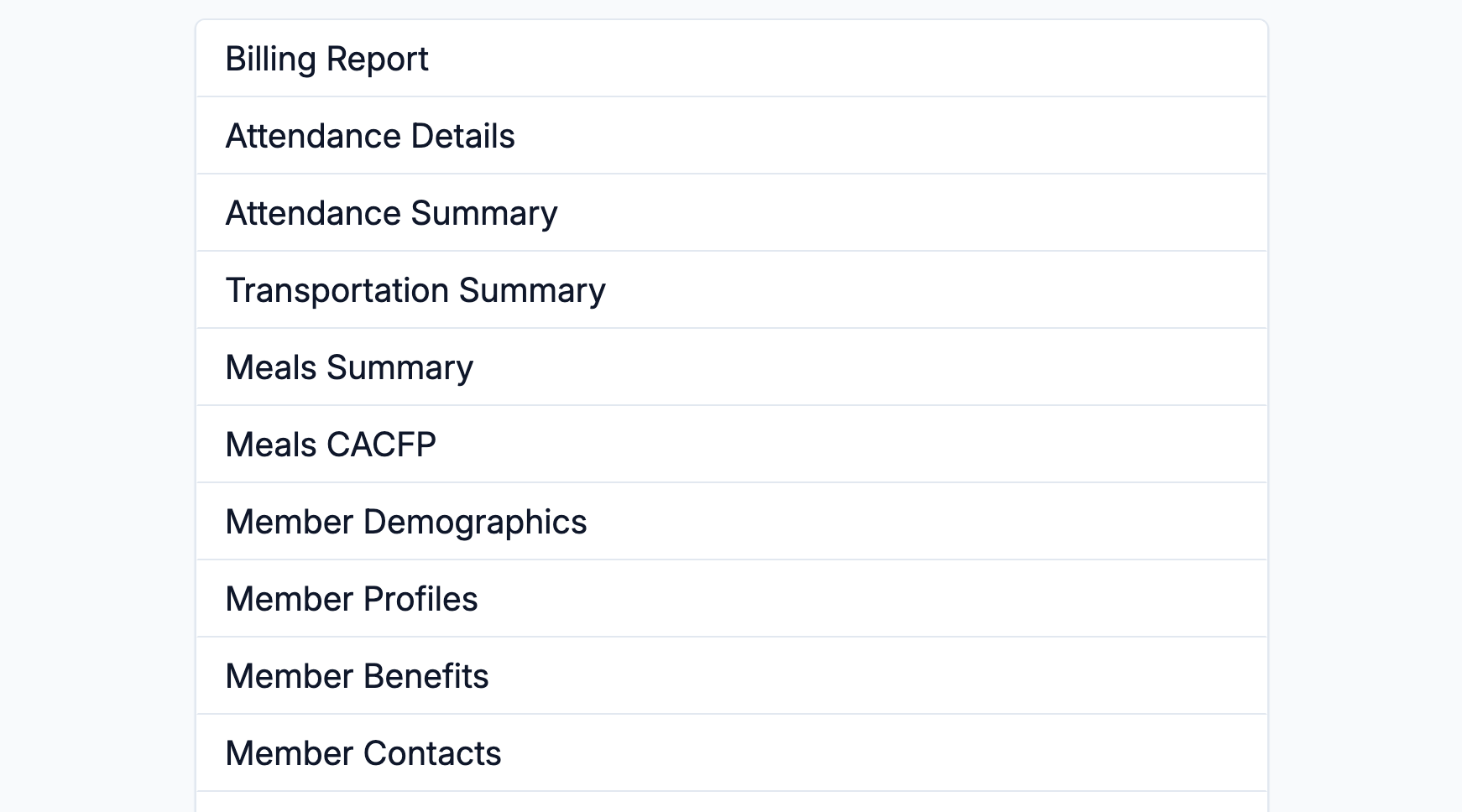
Select Reports from the main navigation, then choose Member Demographics from the list.
Step 2: Choose Which Tables to Show
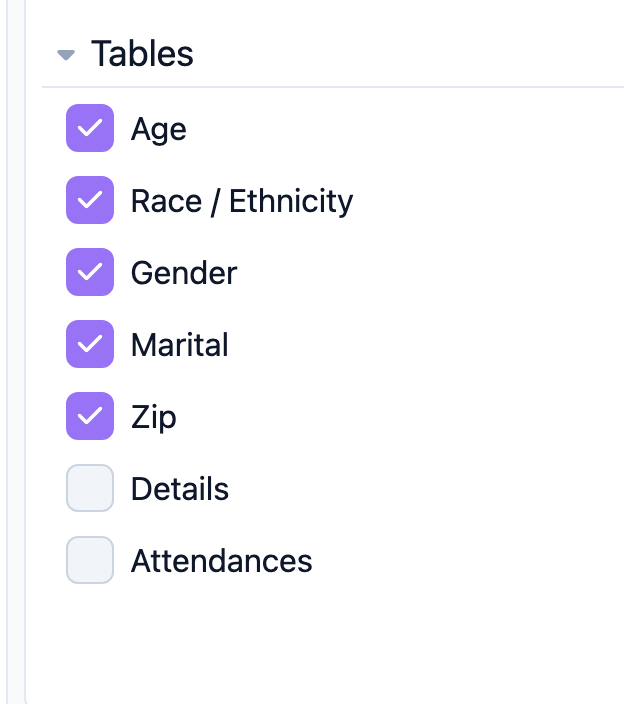
Use the Tables option to select the breakdowns you want to include:
- Age
- Race / Ethnicity
- Gender
- Marital
- Zip
- Details (the underlying member records)
- Attendances
Step 3: Review the Breakdowns
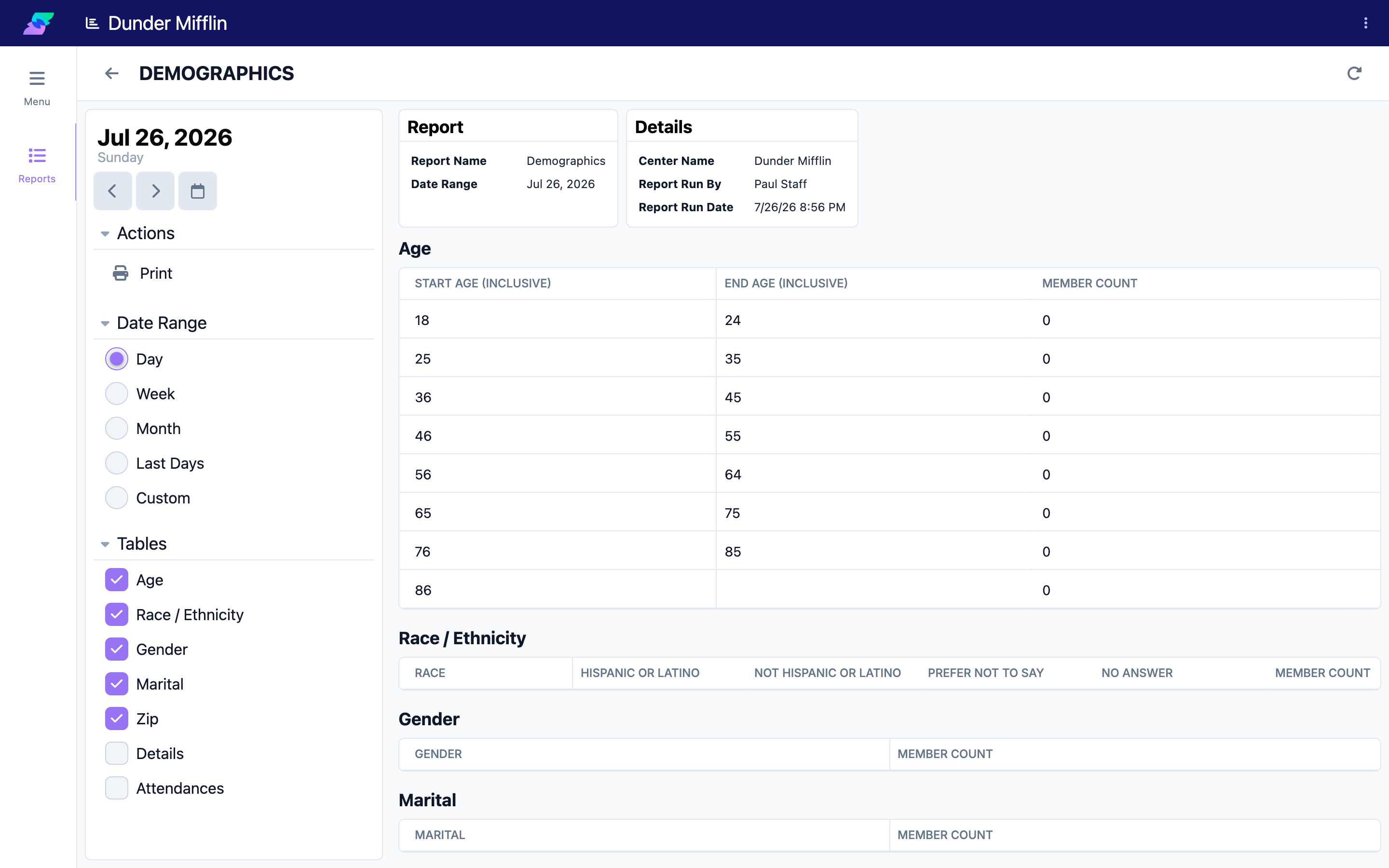
Each selected table shows how your members are distributed across that category. Use the breakdowns to understand your population and to gather the figures you need for reporting.
Step 4: Print the Report
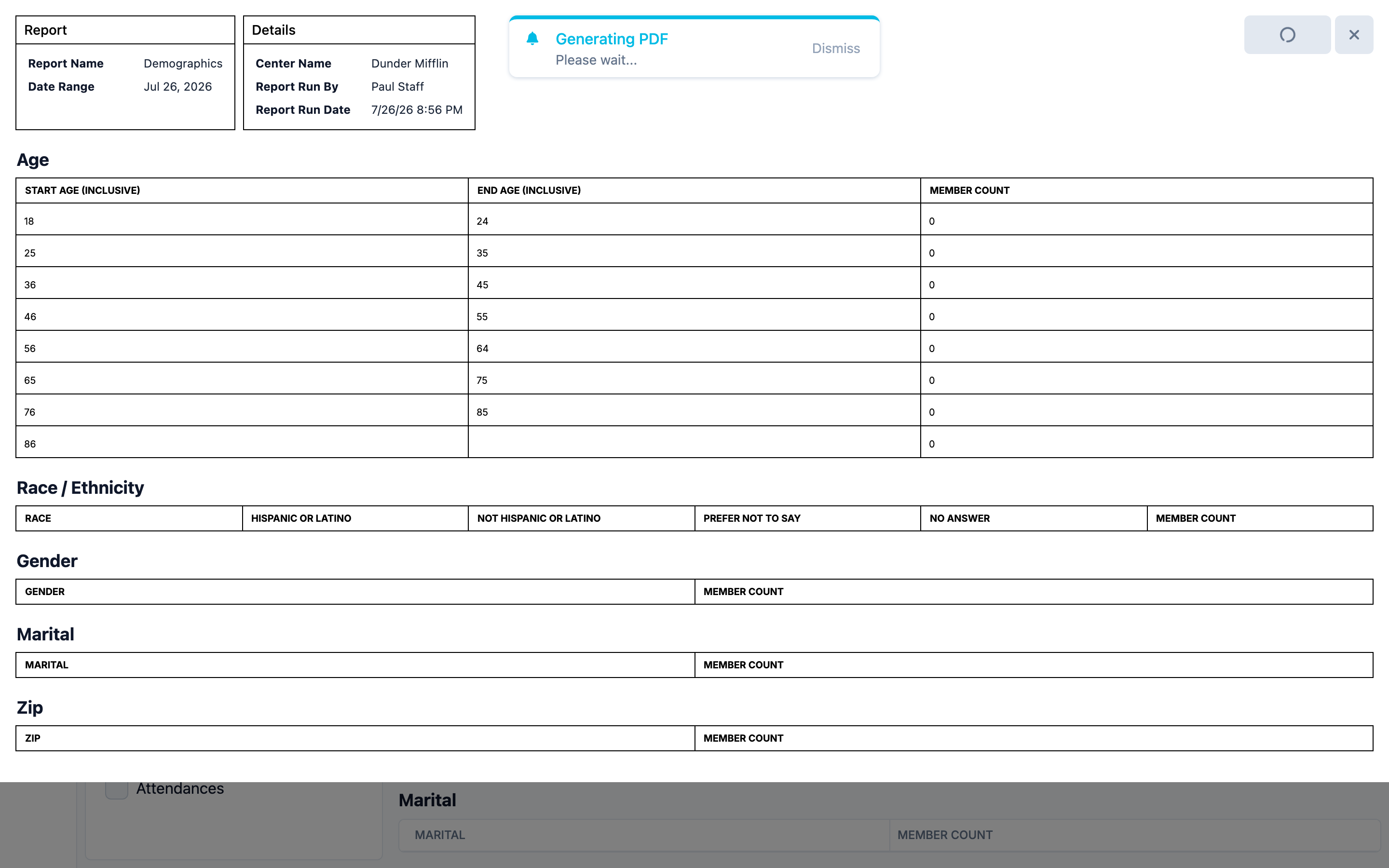
Use the report's print action to open the print dialog, where you can print the report or save it as a PDF to include with applications or submissions.
Tips
- Show only the tables you need. Selecting a smaller set of tables keeps the printed report focused.
- Complete member profiles first. Members without demographic details cannot be counted accurately.
- Save a PDF for your records. Printing to PDF gives you a snapshot you can attach to grant or compliance paperwork.
Troubleshooting
| Problem | Solution |
|---|---|
| The report shows incomplete data, or a category shows all zeros | Member profiles are missing that field. Update the affected profiles with birthdate, gender, race/ethnicity, marital status, and zip code, then run the report again. |
| The report is slow to load | For a large population, allow a moment for the report to calculate. |
| I do not see Member Demographics in the list | The report may be turned off for your center. Ask your administrator to enable it. |