
Overview
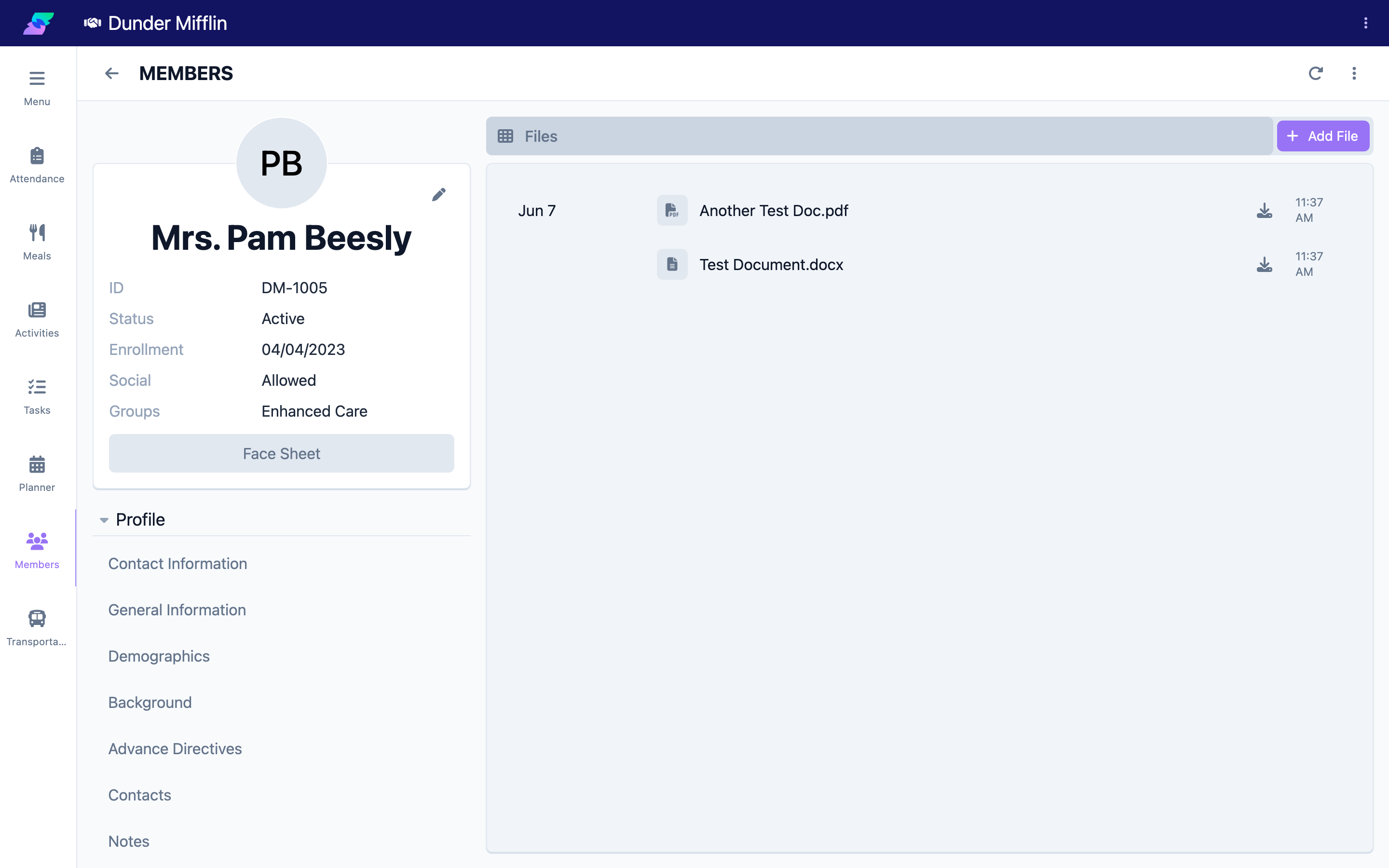
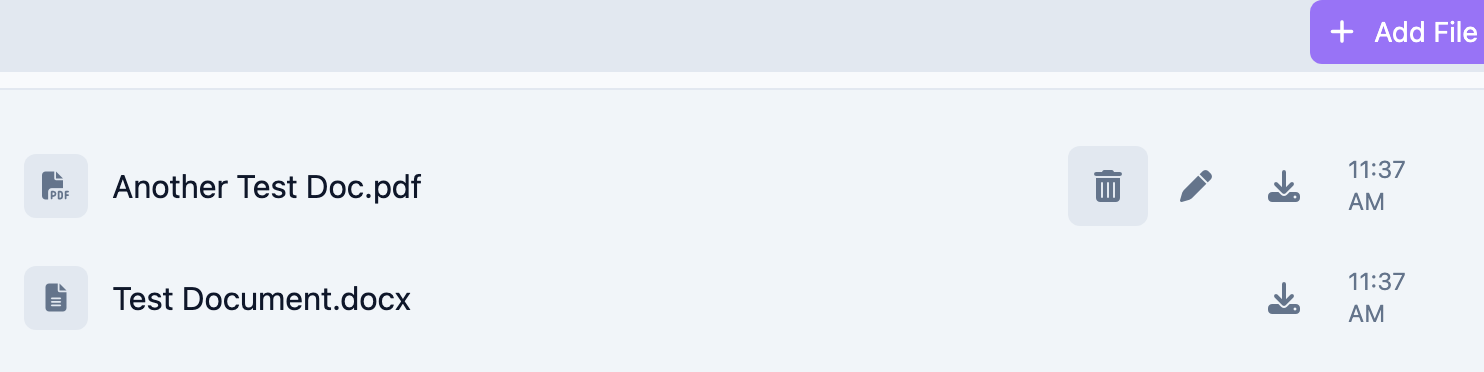
The Files tab stores documents attached to a member — medical records, identification, consent forms, and other attachments. Files are listed by upload date, newest first. This article covers uploading, finding, downloading, and deleting files.
For photos (profile photo, activity photos, and kiosk check-in photos), see Taking and Managing Photos; those are handled separately from document files.
Before You Begin
- You must be logged in with permission to view and manage member files.
- Have the file saved on your device before you start.
Steps
Step 1: Open the Files tab
- Open the member and select the Profile group.
- Select the Files tab.
Step 2: Add a file
- Select Add File.
- Choose the file from your device. It uploads and appears in the list; an uploading indicator shows while it processes.
Step 3: Find a file
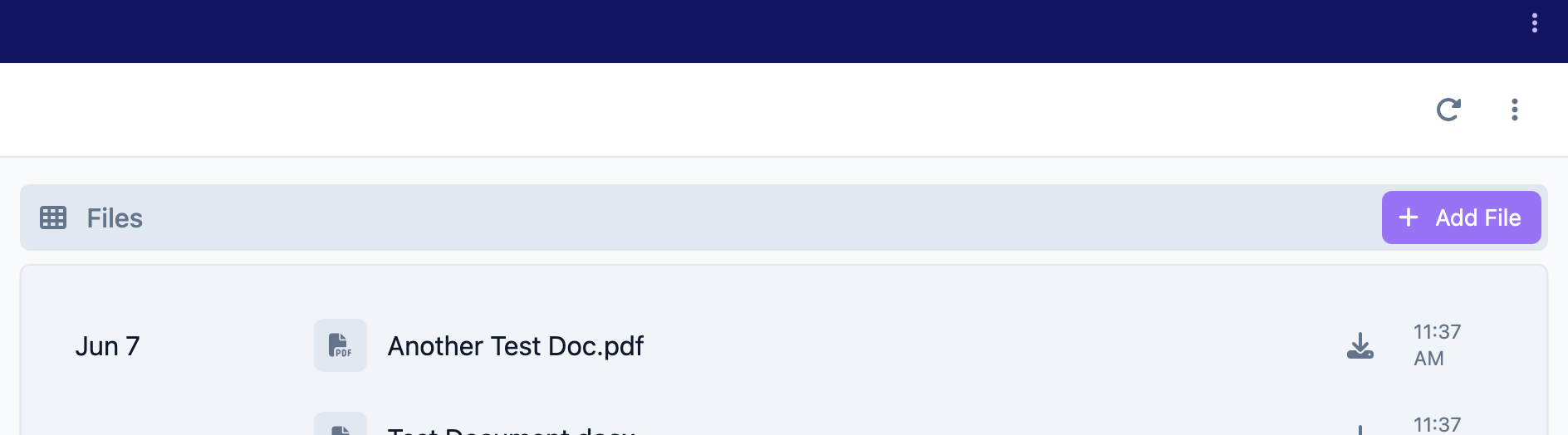
Files are grouped by date with the most recent first. Scroll to locate the file you need.
Step 4: Download a file
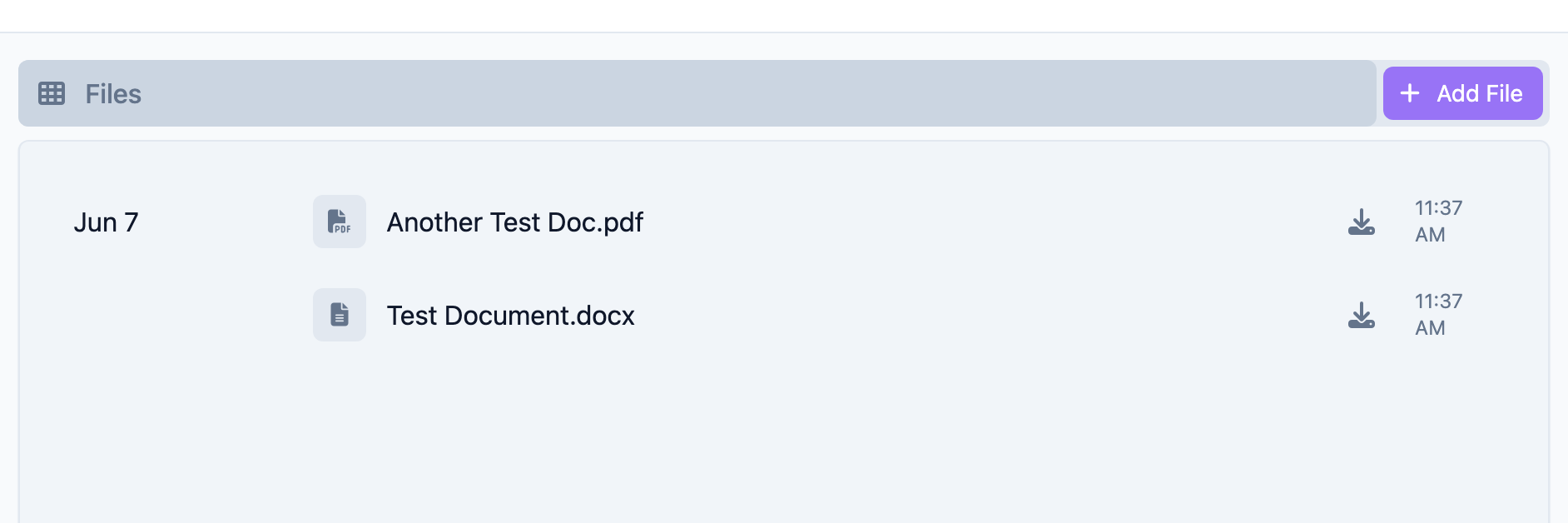
Select the download action on the file to save it to your device.
Step 5: Delete a file
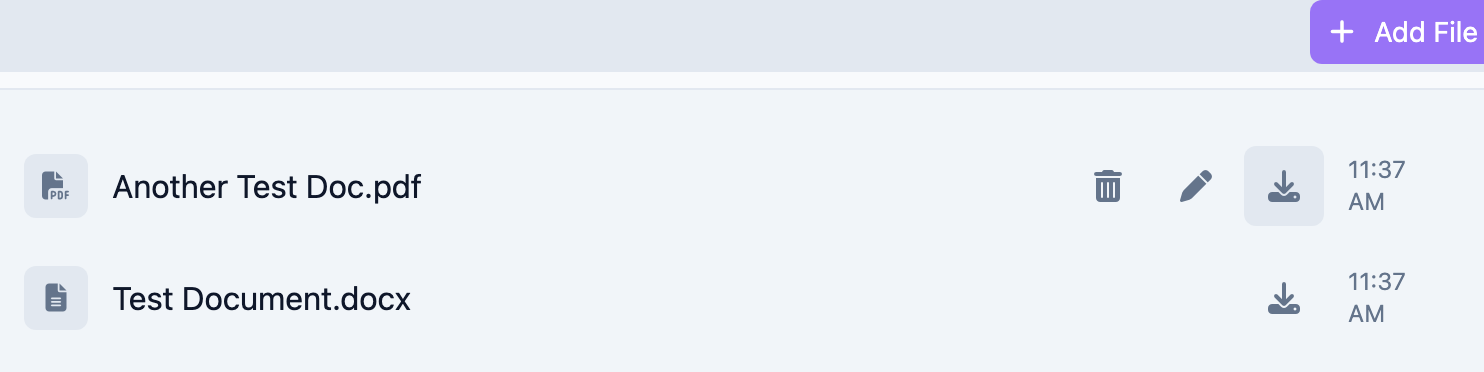
Select the file's delete action and confirm. Deleted files cannot be recovered.
Tips
- Name files descriptively before uploading (for example, "Insurance-Card-2026.pdf") so they are easy to identify later.
- Upload promptly so member records stay current.
- Files are for documents. Use the Files tab for PDFs and scans; use the member photo and activity features for pictures.
- Double-check before deleting — deletion is permanent.
Troubleshooting
| Problem | Solution |
|---|---|
| The Add File button is missing or disabled | Confirm your role has permission to manage member files. |
| A file will not upload | Check your connection, reduce the file size, and upload one file at a time. |
| I cannot find an older file | Files are grouped by date, newest first — scroll down to older dates. |
| A downloaded file seems corrupted | Download again; if it persists, the original may have been damaged before upload. |