
Overview
A charge code is a reusable price item — how a unit of attendance, transportation, or a service is measured and priced. Charge codes hold a default rate, then attach to benefit types (with their own effective-dated rates) so the same item can be priced differently per program and over time.
Before You Begin
- You need Billing access for your center.
- Know the code's unit of measure (each, hour, or minute) and its dollar amount.
Steps
Step 1: Open the Charge Codes tab
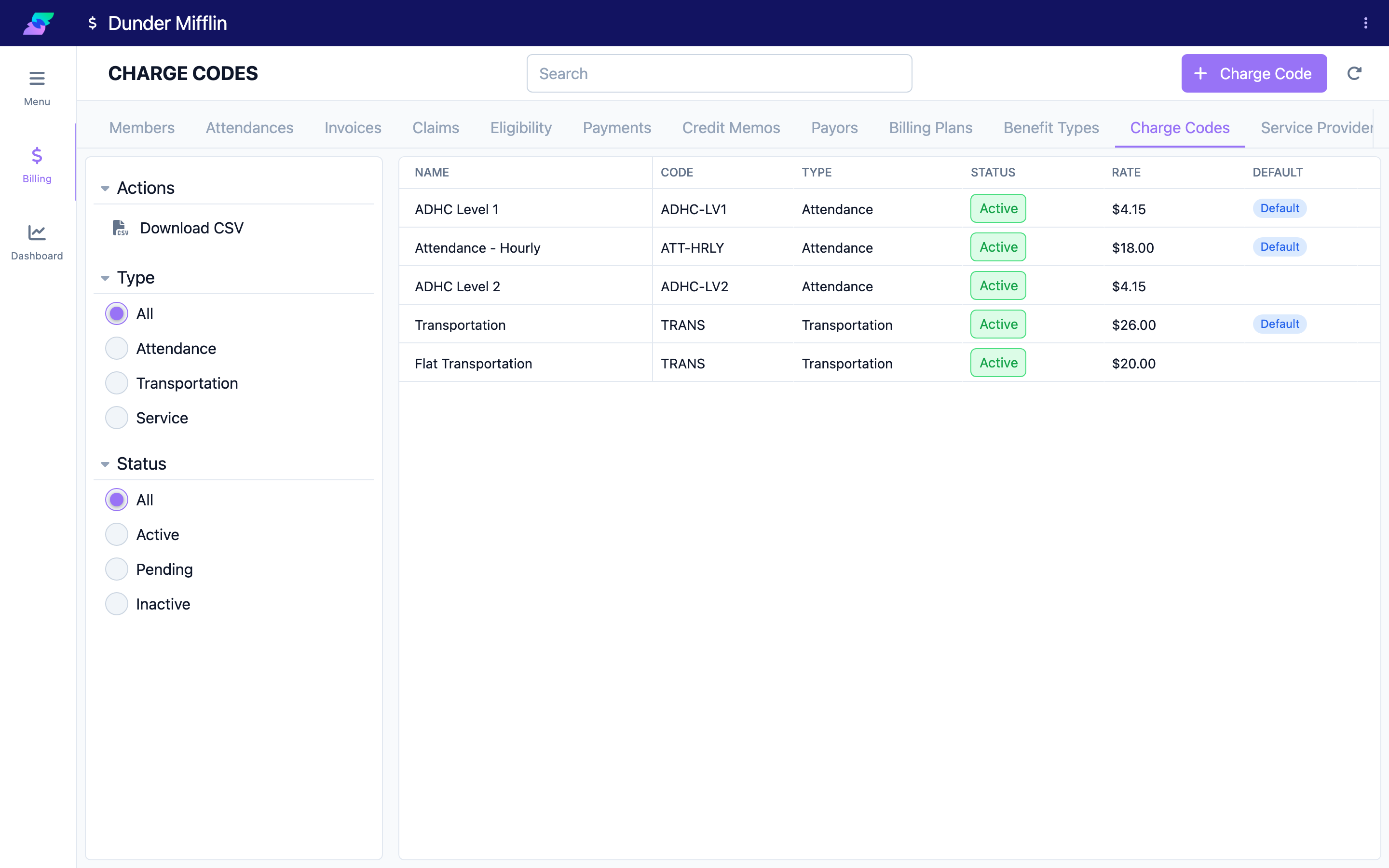
On the Billing page, select the Charge Codes tab, then select the Charge Code button to open the new charge-code form.
Step 2: Enter Name, Code, and Type
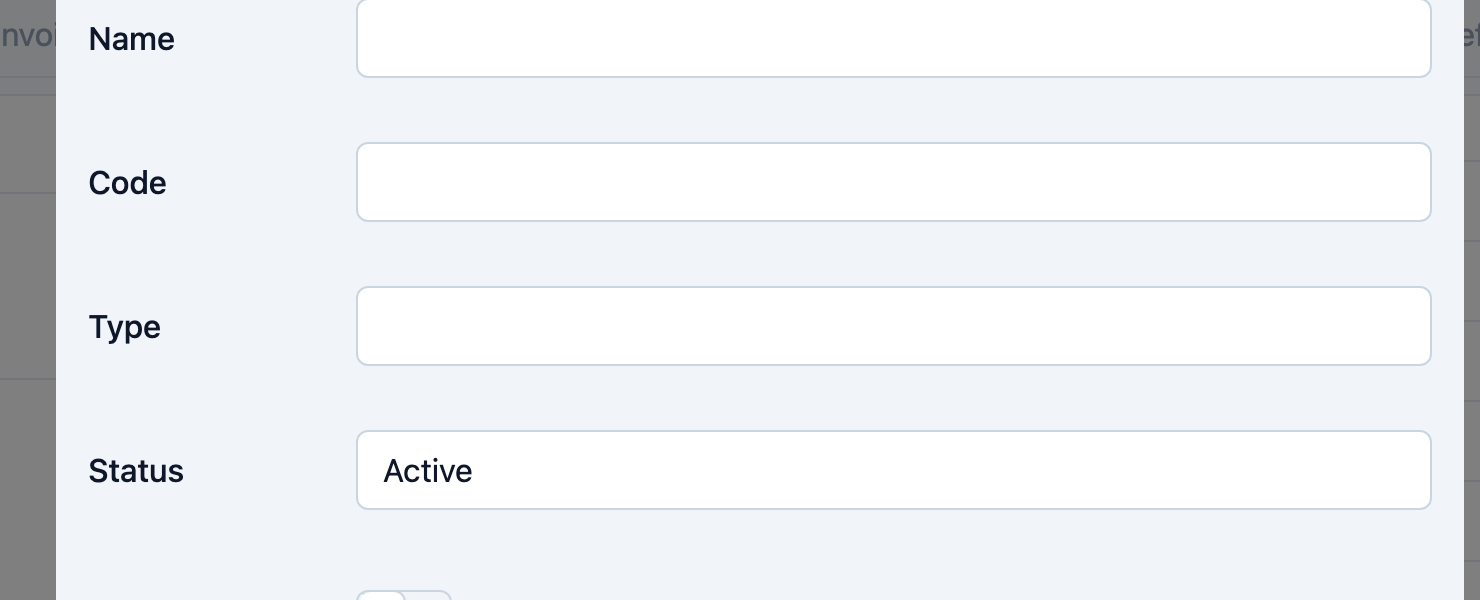
Enter a Name and a Code. The Code must be unique within your center — the form will not save a duplicate.
Choose the Type:
- Attendance — time or days a member is present.
- Transportation — trips to and from the center.
- Service — an individual service delivered.
Step 3: Set Status and Default
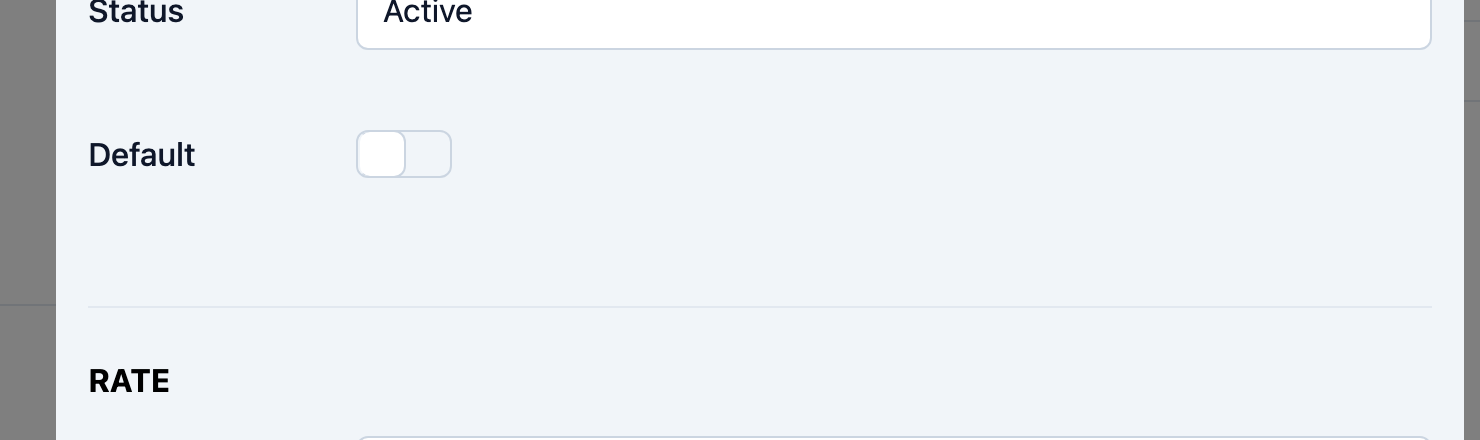
Set the Status (Active, Inactive, or Pending; new codes default to Active).
Turn on Default to make this the automatically selected charge code for its type. Only one code per type can be the default, so if another code of the same type is already the default you must clear it first.
Step 4: Configure the Rate
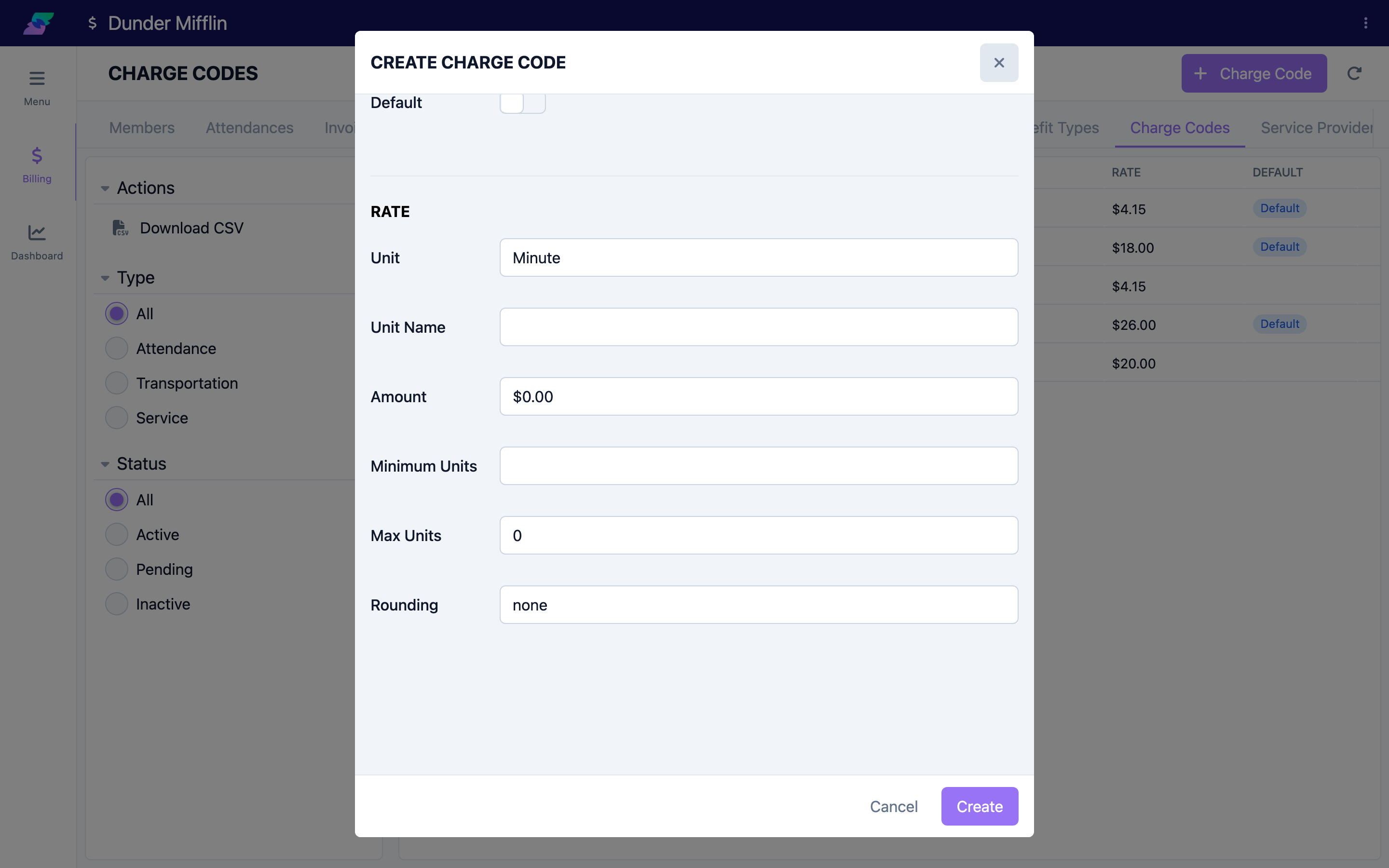
In the Rate section, set how the item is measured and priced:
- Unit — Each, Hour, or Minute.
- Unit Name — an optional display label that overrides the unit name (for example "Half Day").
- Amount — the dollar rate per unit.
For Hour and Minute units you can also set rounding and limits:
- Minimum Units — the smallest quantity billed.
- Max Units — a cap on units per line.
- Rounding — choose Decimal (round to a set number of decimal places) or Threshold (split time into an Increment and round up or down at a Threshold).
For the Each unit, rounding does not apply.
Step 5: Save, then attach to a benefit type
Select Save (or Create). The rate you entered is the code's default rate.
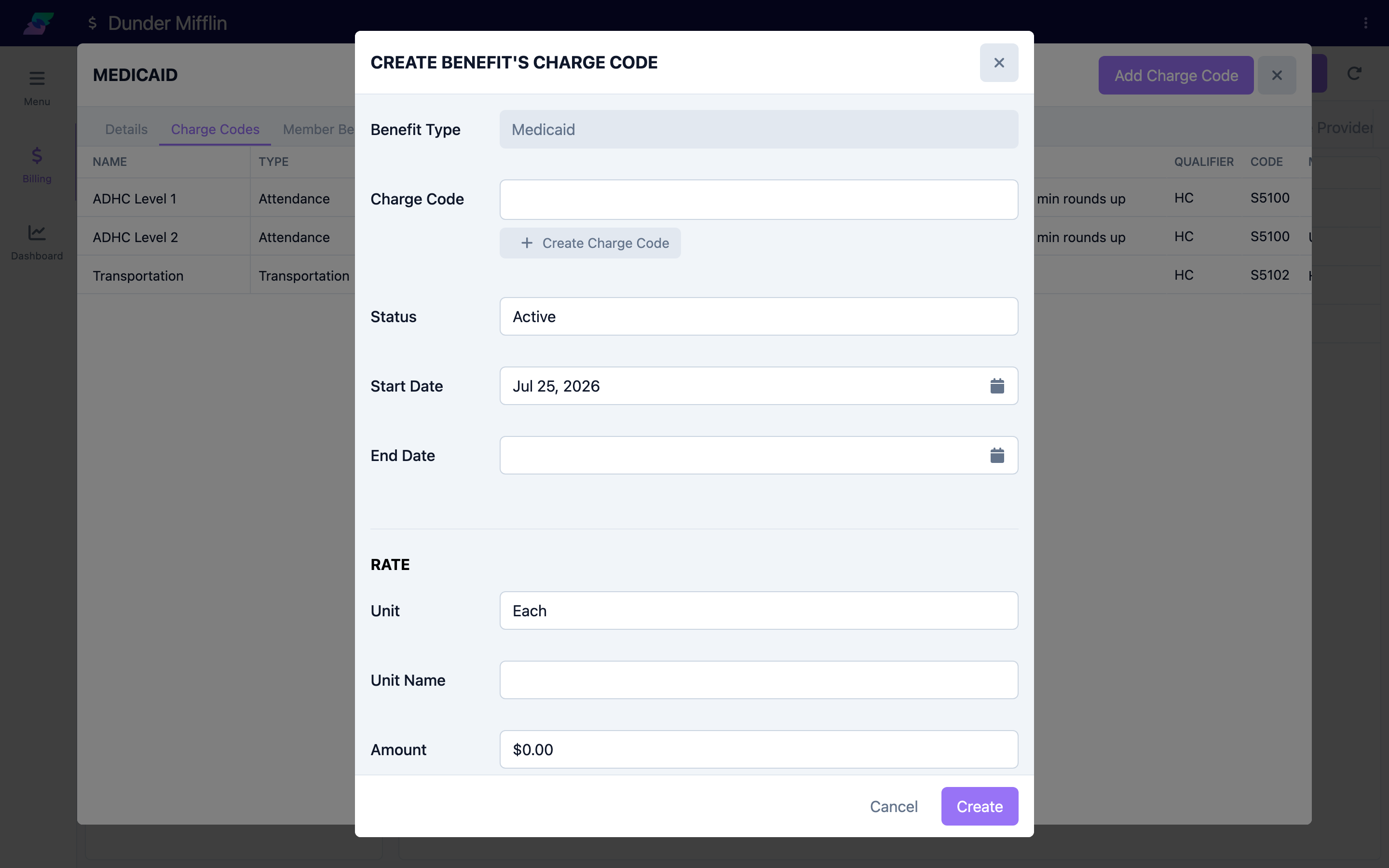
To put the code to work, attach it to a benefit type: open a benefit type, go to its Charge Codes tab, and add the code. The link is effective-dated — it has its own Start Date, End Date, Status, and rate that starts from the charge code's default but can be overridden per benefit type. See "Configuring Benefit Types" for the full flow.
Tips
- To change a rate over time, do not overwrite the old one. Use Duplicate (the copy button in an existing charge code) or add a new effective-dated rate on the benefit type so history is preserved. Duplicating a charge code creates a copy with "(Copy)" appended to the name and code.
- Mark your most common code for each type as Default so it is selected automatically for new member benefits.
- Use a clear, stable Code — it must stay unique and is used to identify the item across benefit types.
Troubleshooting
| Problem | Solution |
|---|---|
| The form will not save | Name, Code, and Type are required, and the Code must be unique within the center. |
| The Default toggle will not stick | Another charge code of the same type is already the default. Clear that one first, then set this code as default. |
| The rounding fields are missing | Rounding only applies to the Hour and Minute units. The Each unit has no rounding. |
| The charge code cannot be deleted | It is linked to one or more benefit types. Remove those links first, or set the code to Inactive instead. |
Related Articles
- configuring-benefit-types — Configuring Benefit Types
- understanding-the-billing-module — Understanding the Billing Module
- creating-billing-plans — Creating Billing Plans
- setting-up-service-providers — Setting Up Service Providers