
Overview
The Billing Report shows your center's billing figures for a date range. A Grand Total box always shows the total and a breakdown by payor. Below that, you can view the line items as Details (each billing record) or Summary (a per-member total for each day in the period), filter by benefit type and status, and export the results.
Before You Begin
- You need Reports access. If you cannot open the Reports area, contact your administrator.
- Attendance should be complete for the date range you want to bill.
- Benefit types should be configured so filtering and totals are accurate.
Steps
Step 1: Open the Billing Report
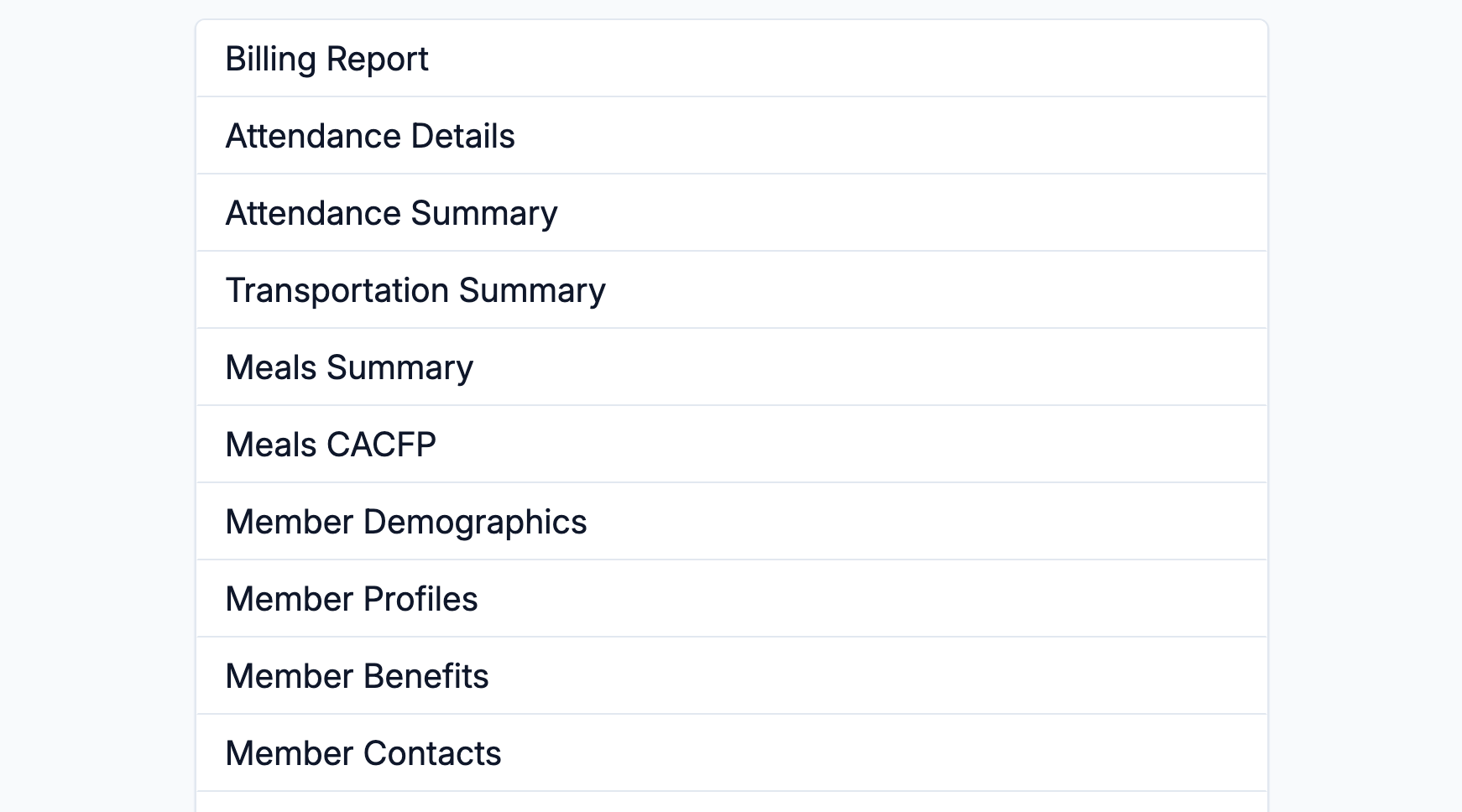
Select Reports from the main navigation, then choose Billing Report from the list.
Step 2: Choose Details or Summary
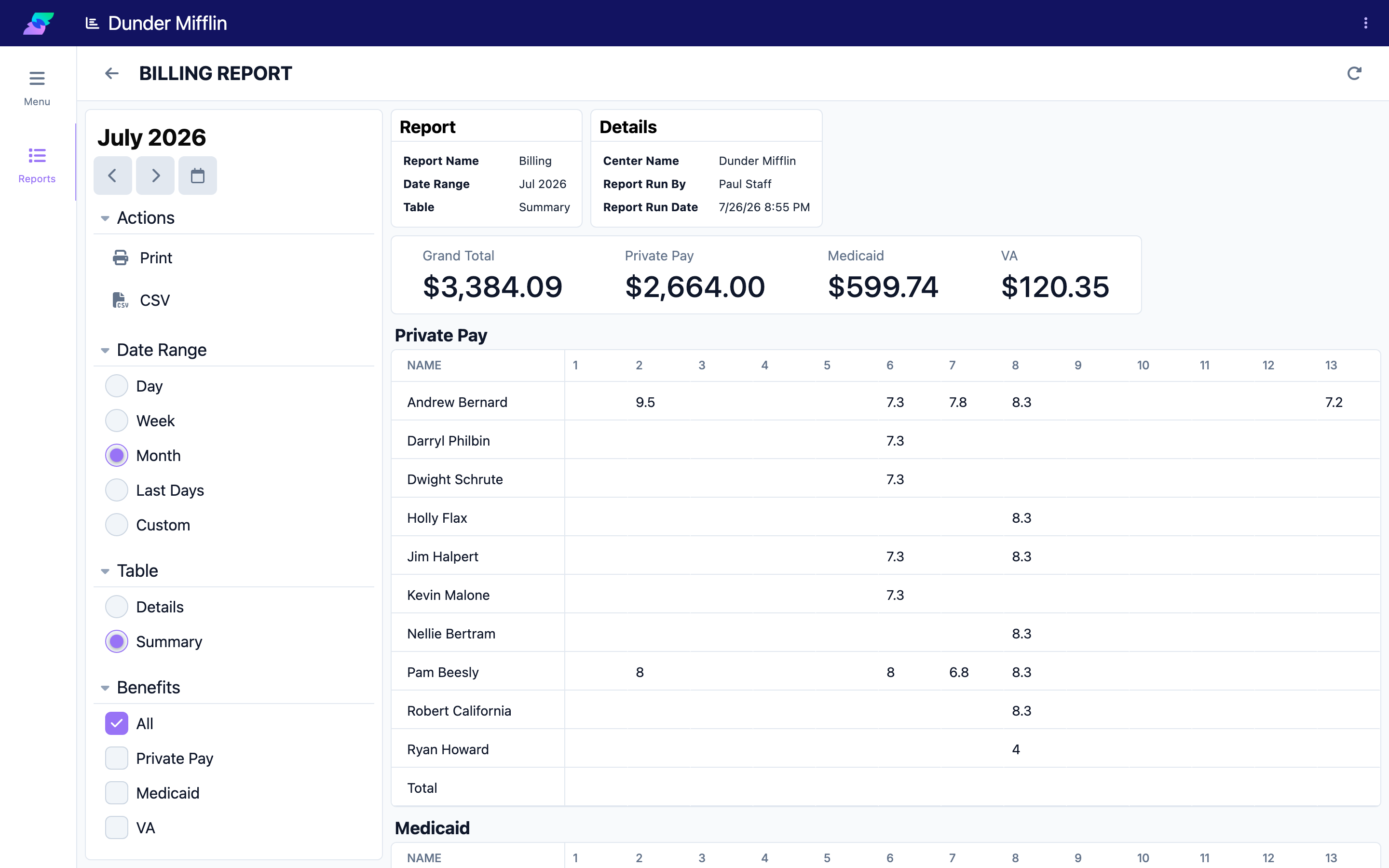
Switch the report's table between two views:
- Details — line-by-line billing records for each member and service date.
- Summary — each member's billed quantity for every day in the period, with a total per member.
The Grand Total box above the table — with the total and a breakdown by payor — stays visible in both views.
Step 3: Set the Date Range
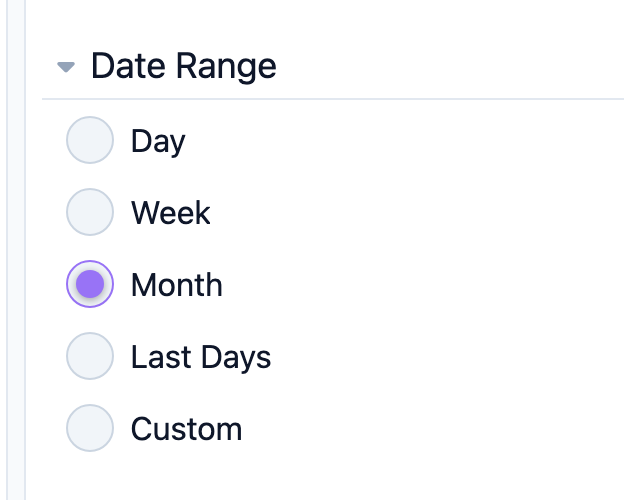
Choose the time period — Day, Week, Month, or a Custom range. The report refreshes for the selected period.
Step 4: Filter by Benefit Type and Status
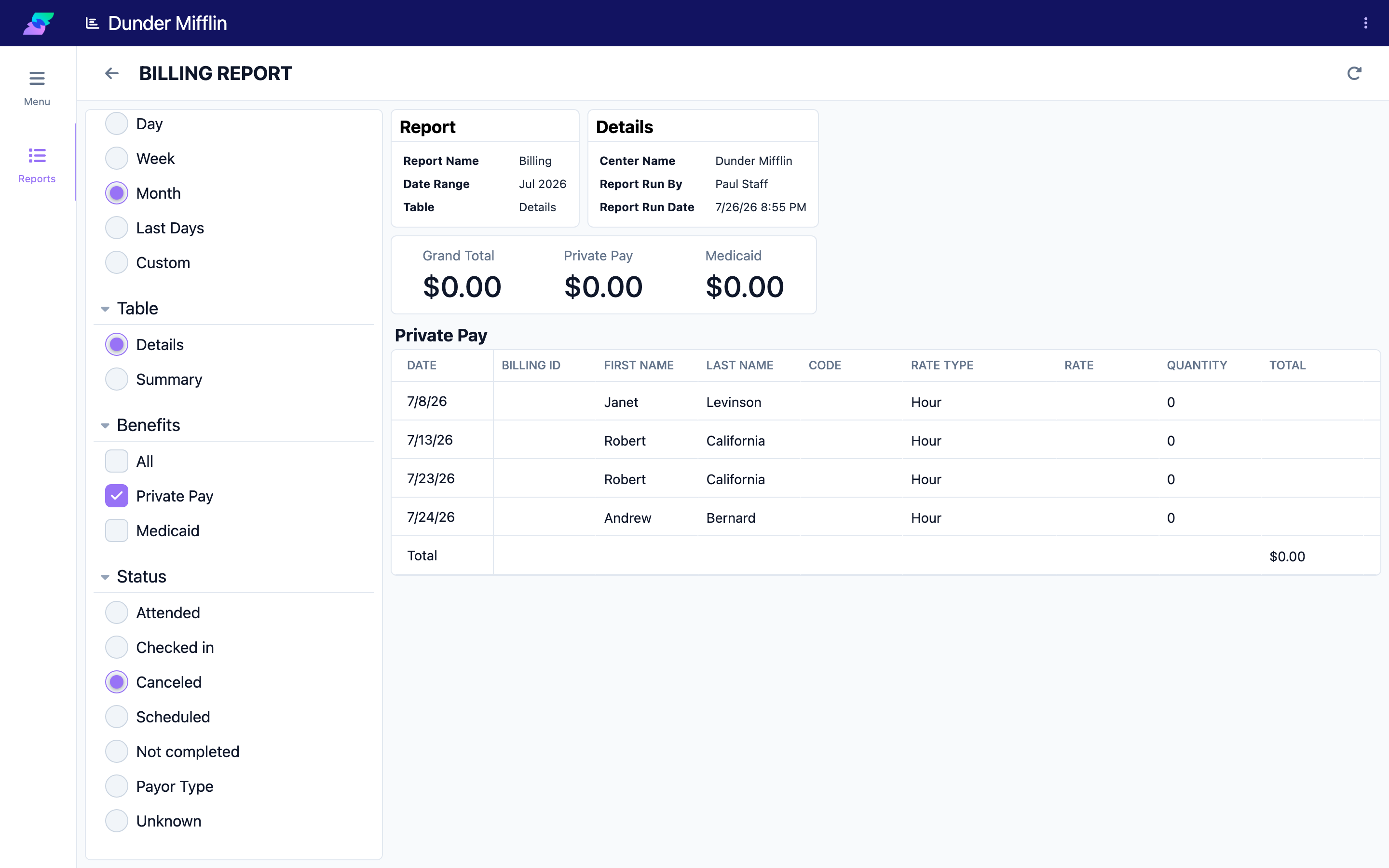
Narrow the report using the available filters:
- Benefit Types — include only the benefit types (payors) you want.
- Status — limit the report to records with a particular attendance status.
Step 5: Export the Report
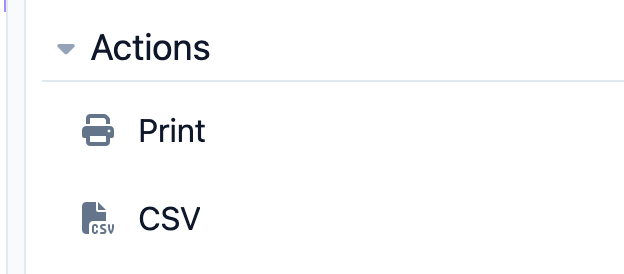
Use the report's actions to export:
- Print — open the print dialog to print or save as PDF.
- CSV — download the data for use in a spreadsheet.
Tips
- Use the Grand Total box for a quick financial picture. The total and payor breakdown stay visible no matter which table view or filters you choose.
- Filter before you export. Limiting to the benefit types and status you need keeps the export focused.
- Reconcile Details against attendance. The Details view helps you confirm each billed record ties back to real attendance.
Troubleshooting
| Problem | Solution |
|---|---|
| The report shows no data | Confirm the date range includes days with attendance, and that you have not filtered out every benefit type. |
| Billing amounts look wrong | Check the member's benefit configuration and that attendance records have the correct benefit type. |
| The report is slow to load | Narrow the date range or reduce the number of benefit types selected. |