
Overview
Meal types define the meals your center records — such as Breakfast, Lunch, or a Snack — and control what staff see on the Meals page. For each meal type you can set a start and end time, add-on options (toggle columns), and entry fields (value boxes with units, such as fluids). You manage meal types directly from the Meals page.
Before You Begin
- You must be logged into Seniorverse with Care module access.
- You need permission to manage meals for your center.
- Decide on the meal types, add-on options, and entry fields your center needs.
Steps
Step 1: Open Edit Meal Types
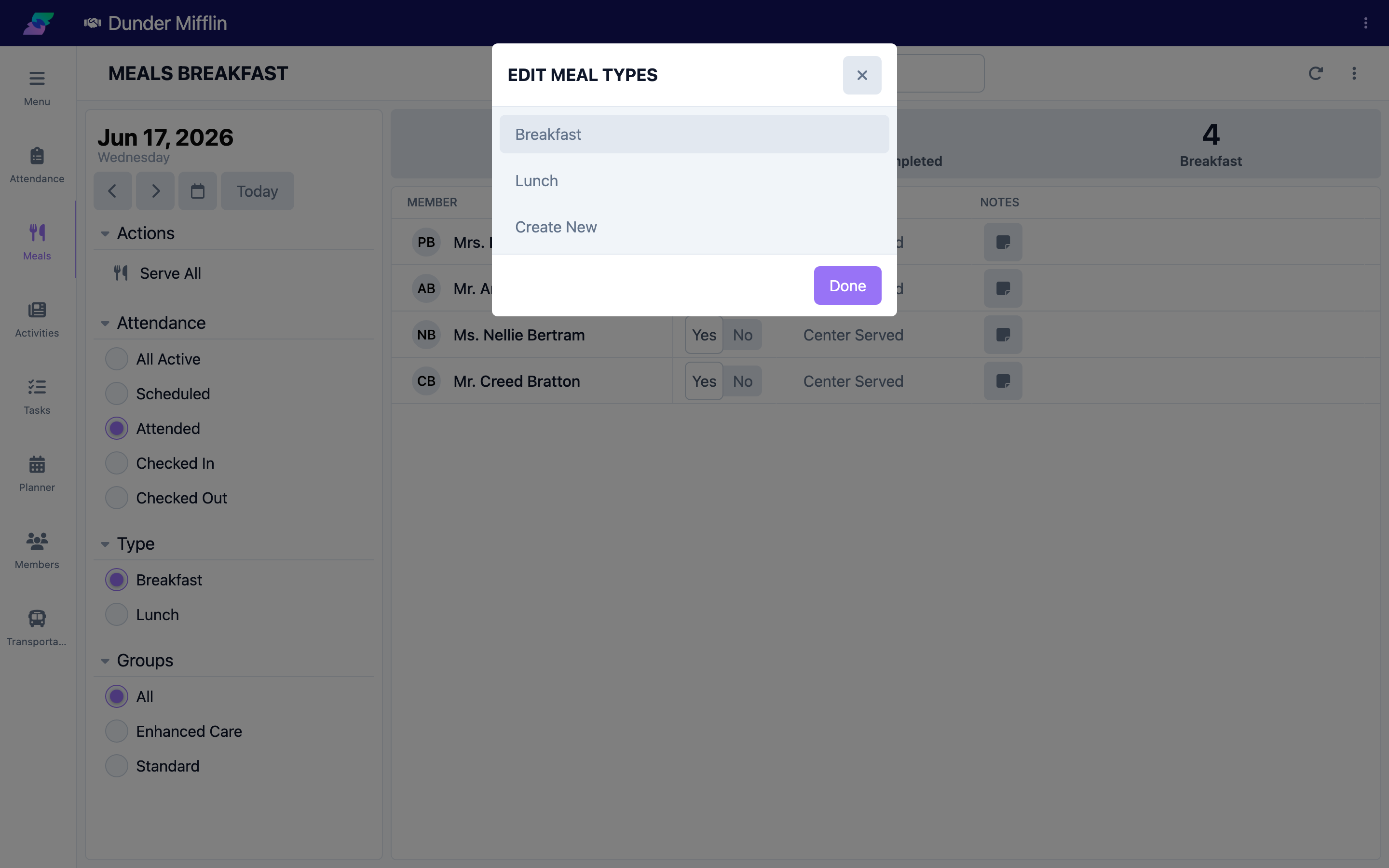
On the Meals page, open the page menu and select Edit Meal Types. A list of your existing meal types opens, with a Create New option.
Step 2: Create or open a meal type
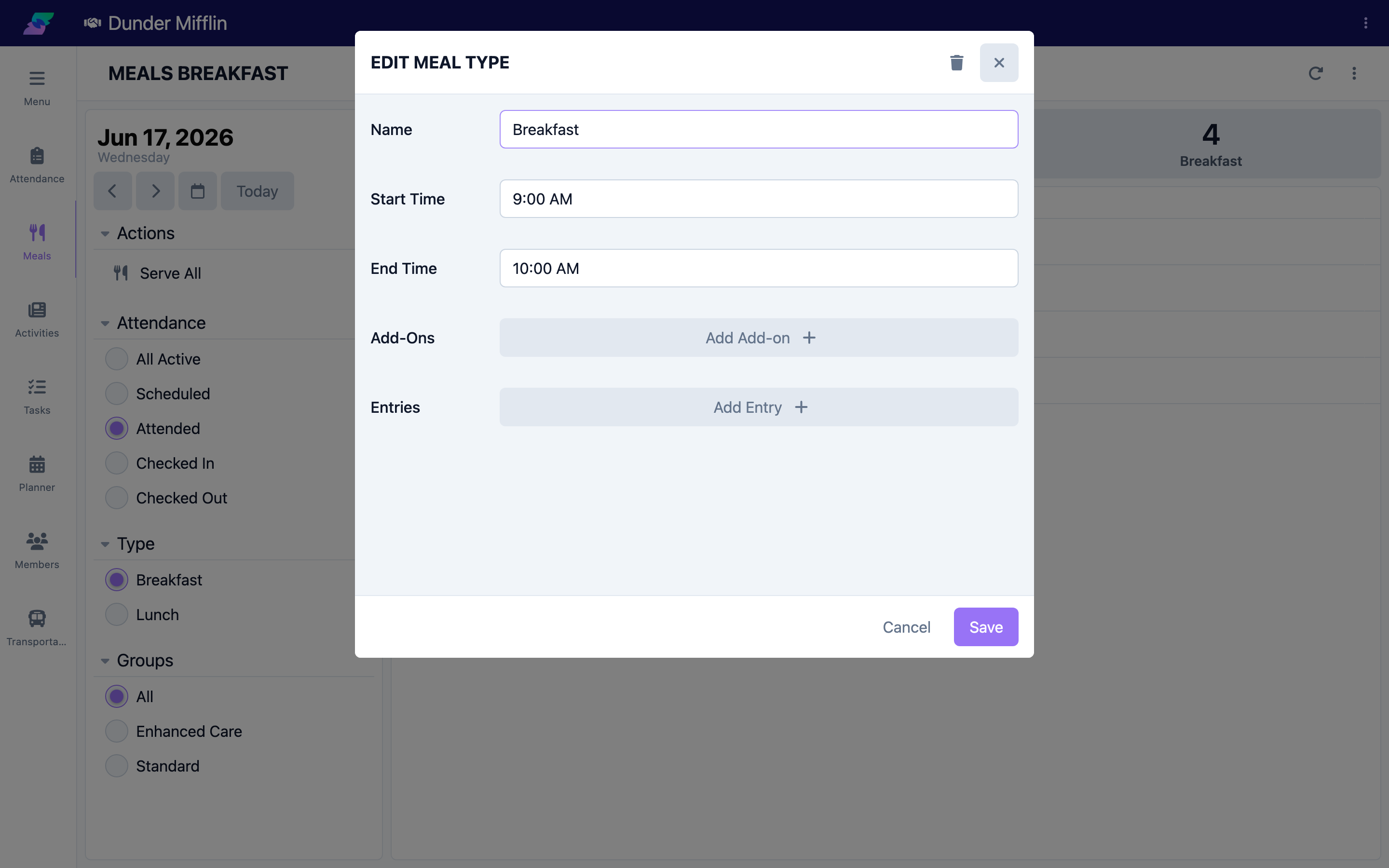
Select Create New to add a meal type, or select an existing one to edit it. The Meal Type form opens.
Step 3: Enter the name and times
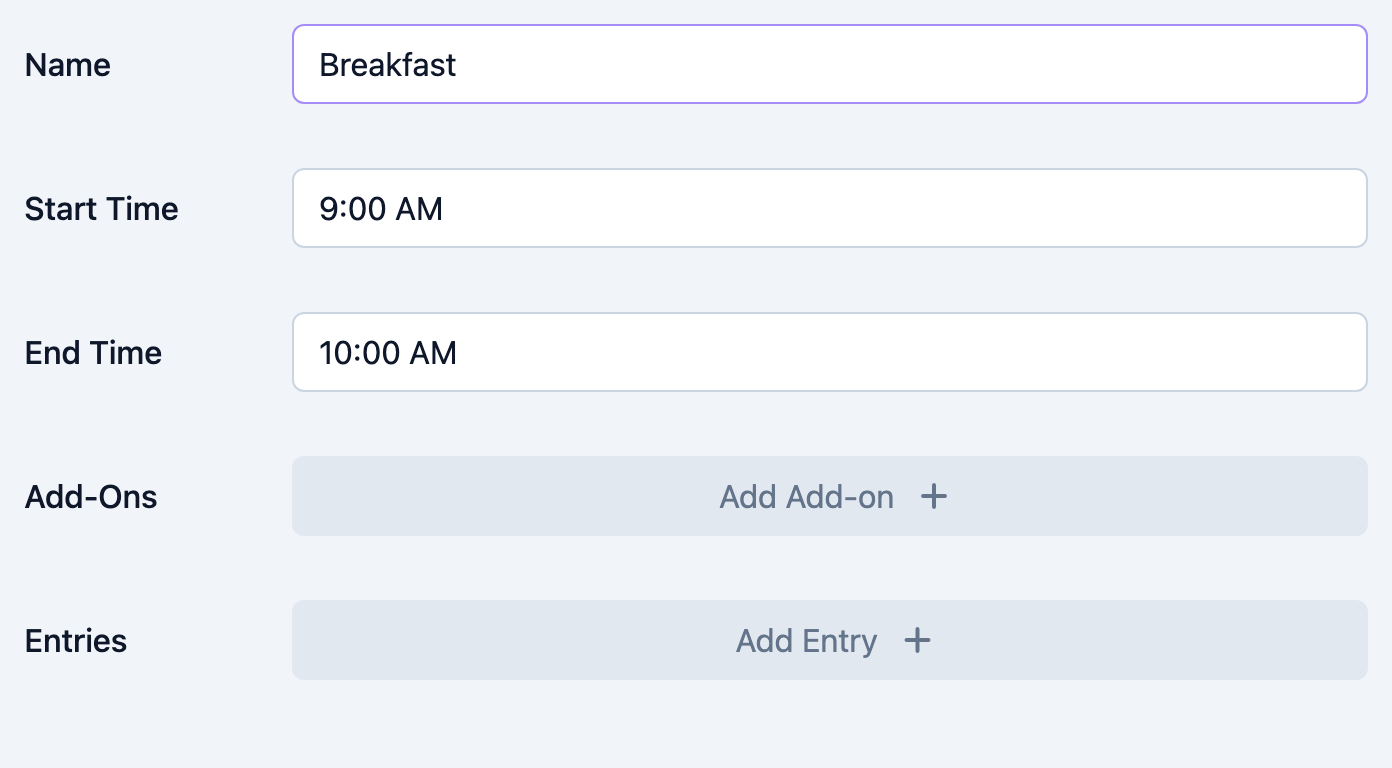
Enter a Name (required), then set the Start Time and End Time for the meal. The times help staff record the right meal at the right part of the day.
Step 4: Add add-ons
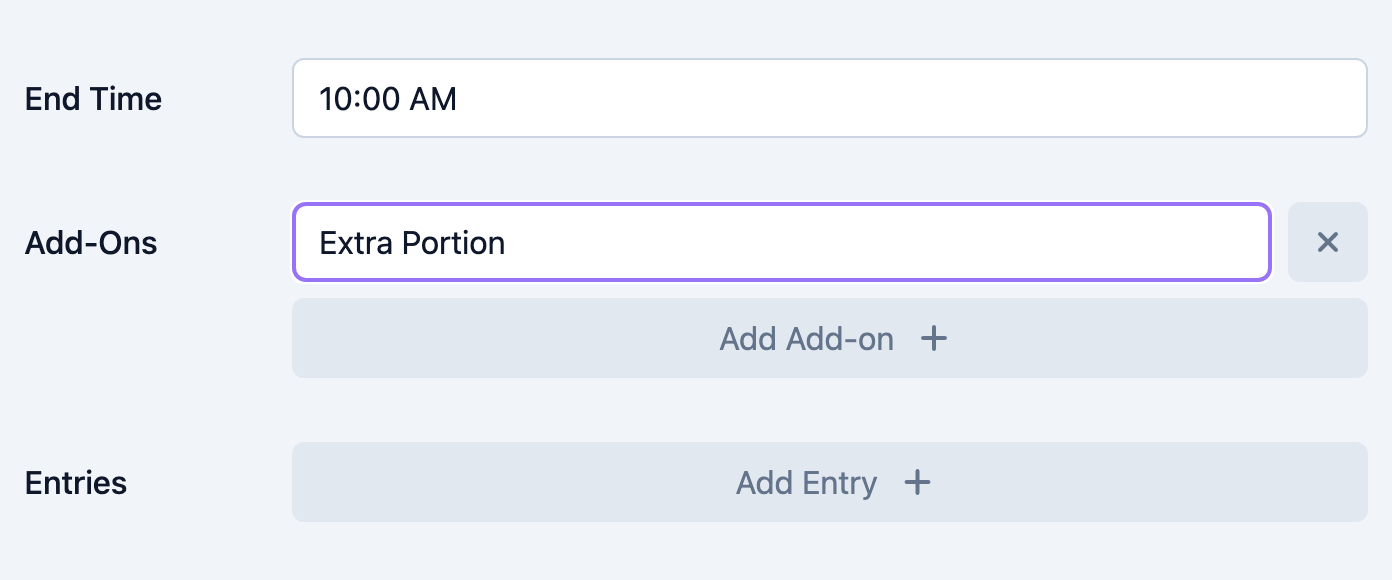
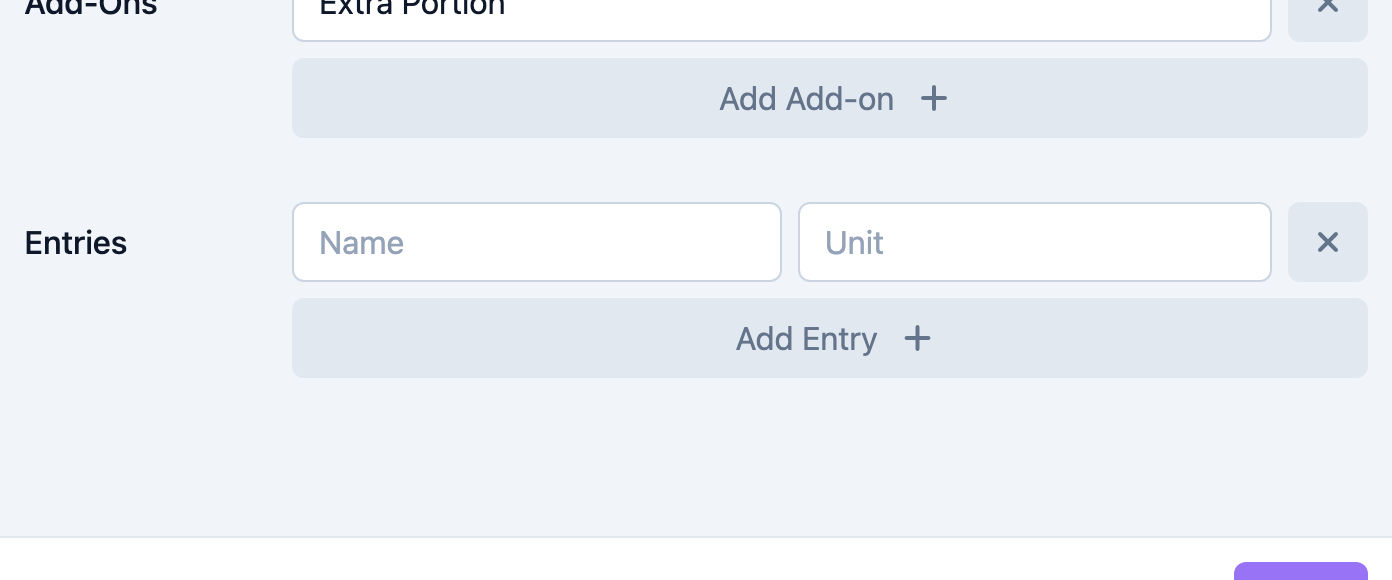
Under Add-ons, select Add Add-on and type a short label for each option (for example, "Extra Portion" or "Substitute"). Each add-on becomes a toggle column on the Meals page. Remove an add-on with the ✕ button.
Step 5: Add entries and save
Under Entries, select Add Entry and enter a Name and a Unit for each field (for example, "Fluids" with unit "oz"). Each entry becomes a value box on the Meals page. Save the form to apply your changes.
Tips
- Use clear, short names — staff see them as column headers and buttons on the Meals page.
- Set start and end times so the page defaults to the meal that matches the current time of day.
- Add-ons are simple on/off items; use entries when you need to capture a measured amount with a unit.
Troubleshooting
| Problem | Solution |
|---|---|
| I do not see Edit Meal Types | Open the page menu on the Meals page. If it is missing, you may not have permission to manage meals — ask an administrator. |
| A new meal type is not on the Meals page | Confirm you saved the form, then select it in the Type selector. |
| Add-ons or entries are not showing for staff | They apply to the specific meal type you edited. Confirm staff have the correct meal selected. |
| I need to remove an add-on or entry | Open the meal type, select the ✕ next to the item, and save. |
Related Articles
- understanding-the-meals-page — Understanding the Meals Page
- recording-meal-service — Recording Meal Service
- recording-meal-completion — Recording Meal Completion
- adding-meal-notes-and-dietary-info — Adding Meal Notes and Dietary Info