
Overview
A plan template is a reusable service plan structure assembled from your center's Goals and Services libraries. Instead of building a service plan from scratch each time, staff can start a plan from a template and have its goals and services pre-filled. Templates are managed under Care > Service Plans, on the Service Plans tab.
Because templates are built from the Goals and Services libraries, set those up first — a template is a curated selection of goals and services, not a place to define new ones.
Before You Begin
- You need Care planning access to Care > Service Plans.
- Create the goals and services you want to include first, on the Goals and Services tabs of the same page. See Managing Care Goals.
Steps
Step 1: Open the Service Plans library
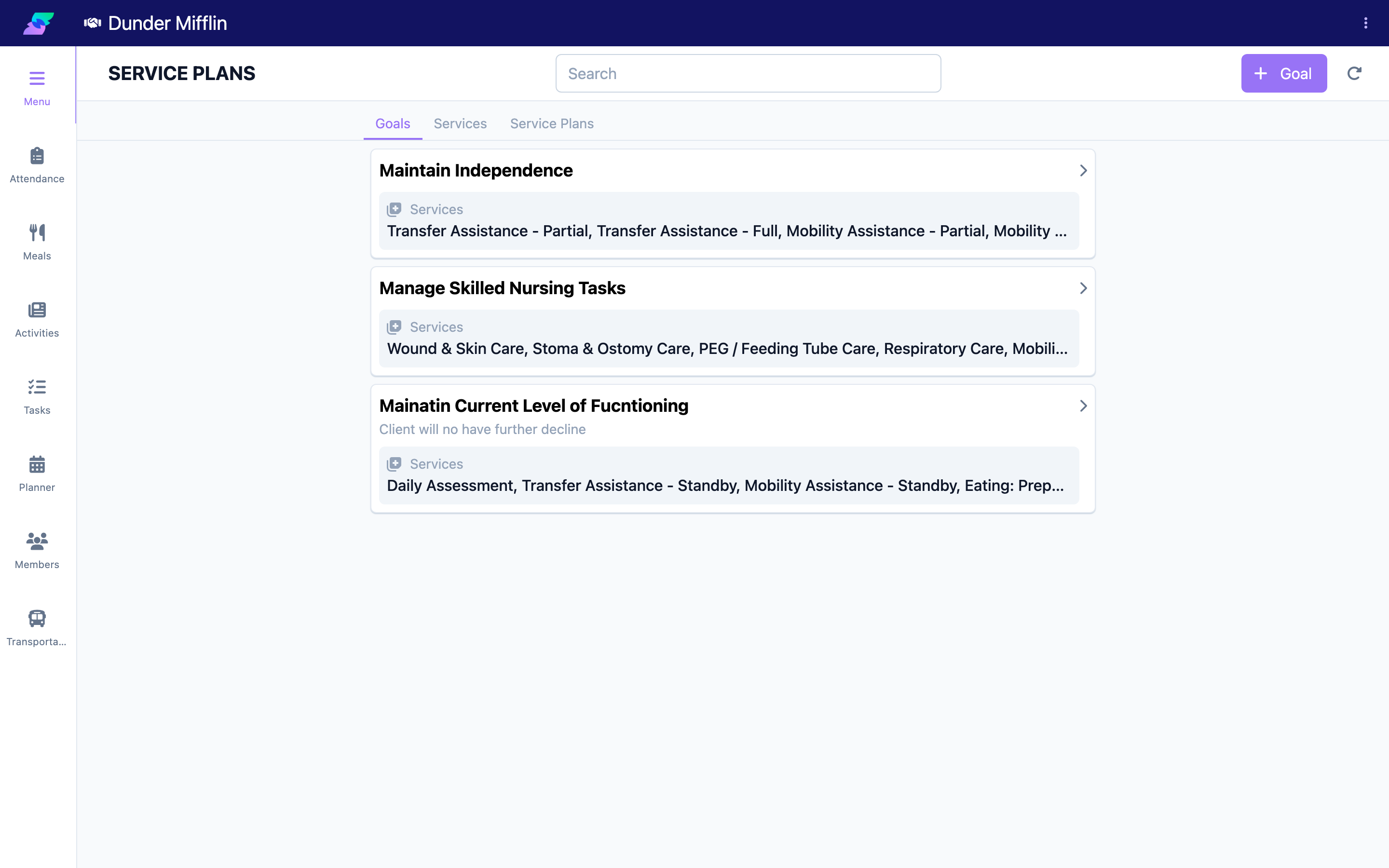
From the Care sidebar, select Service Plans. The page has three tabs: Goals, Services, and Service Plans. The Goals and Services tabs hold your reusable building blocks; the Service Plans tab holds your plan templates.
Step 2: Open the Service Plans tab and add a template
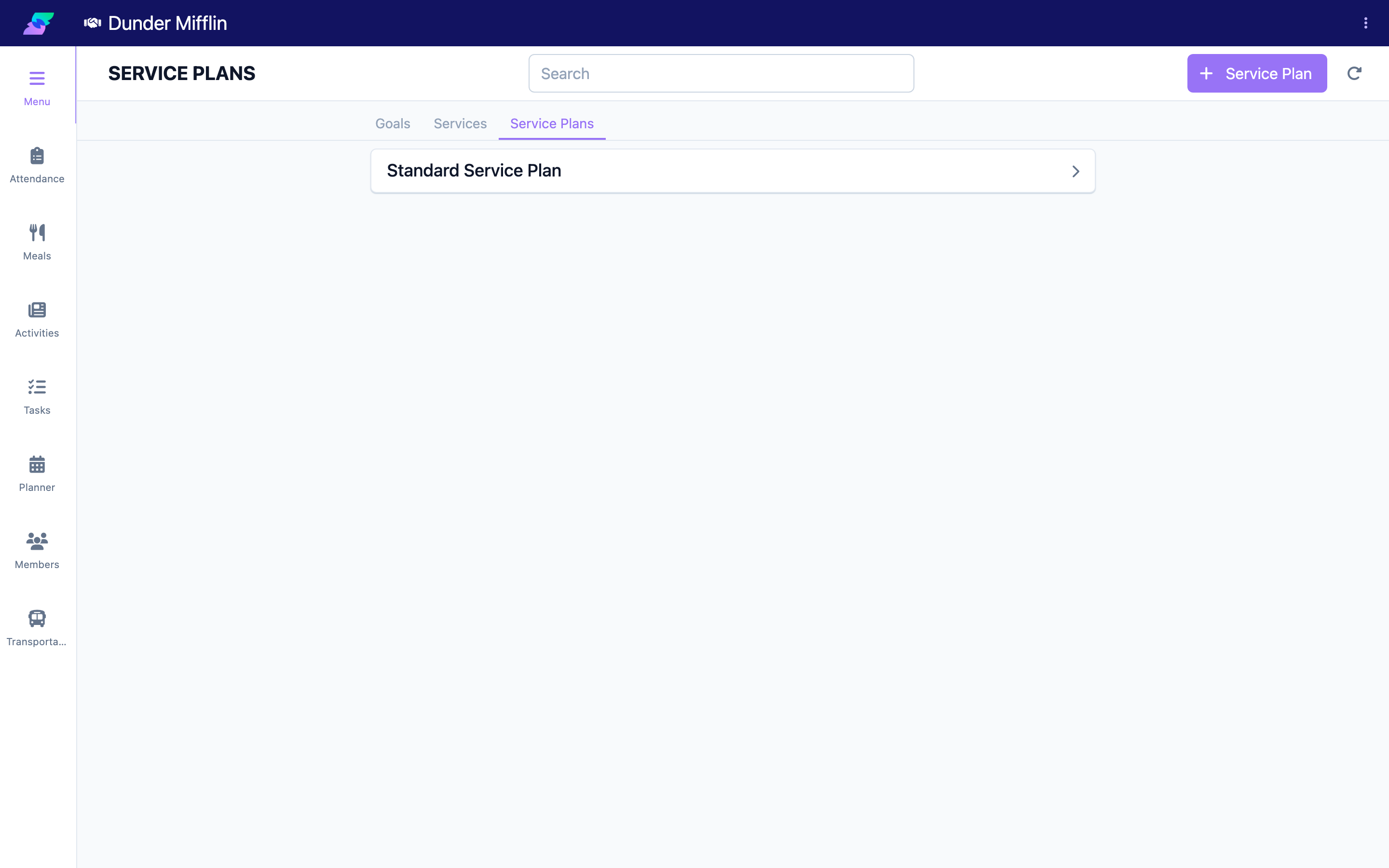
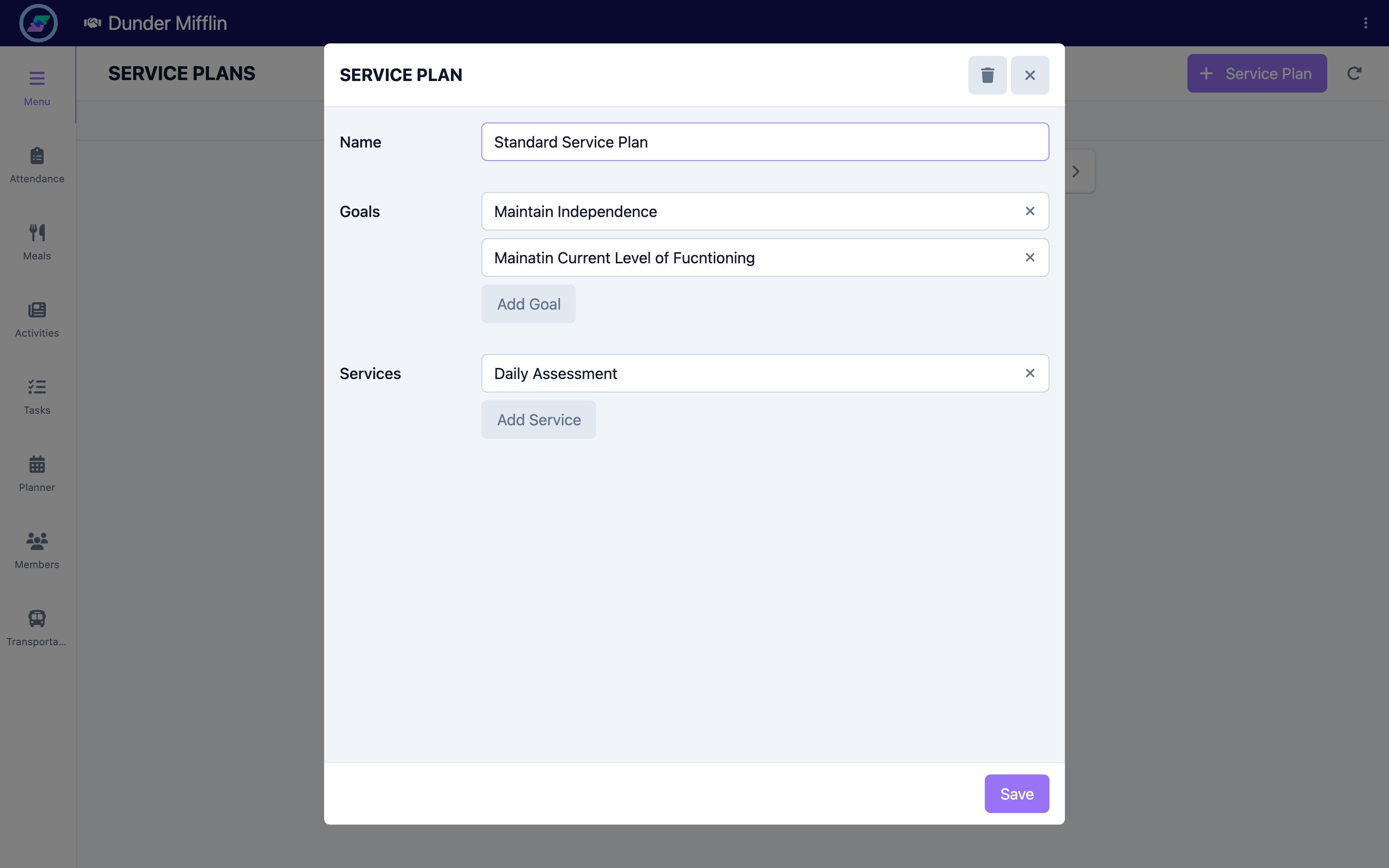
Select the Service Plans tab, then select Service Plan to create a new template. The template editor opens.
Step 3: Name the template
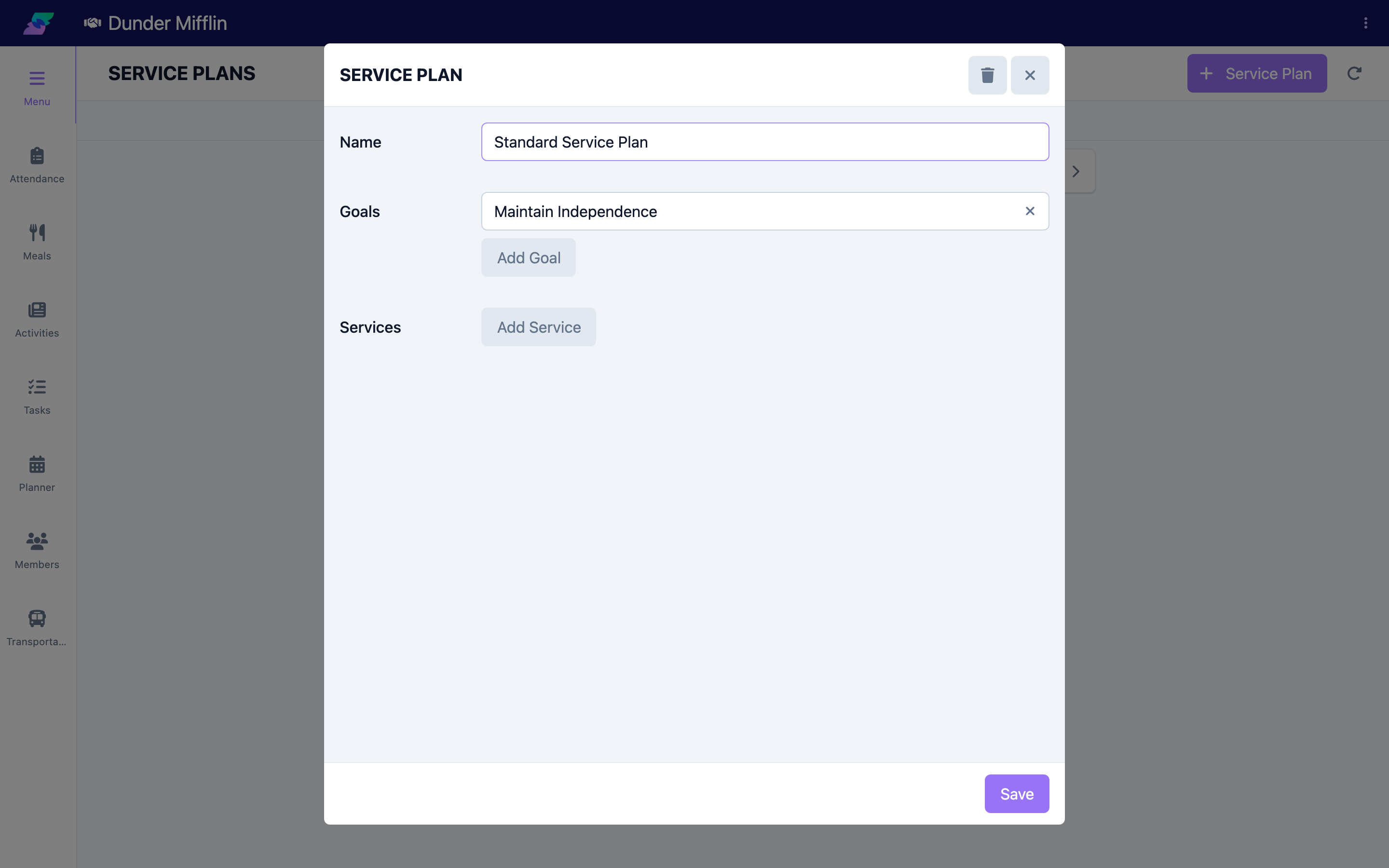
Enter a Name that clearly identifies the template's purpose (for example, "Fall Prevention" or "Cognitive Support"), so staff can pick the right one when starting a plan.
Step 4: Add goals from the library
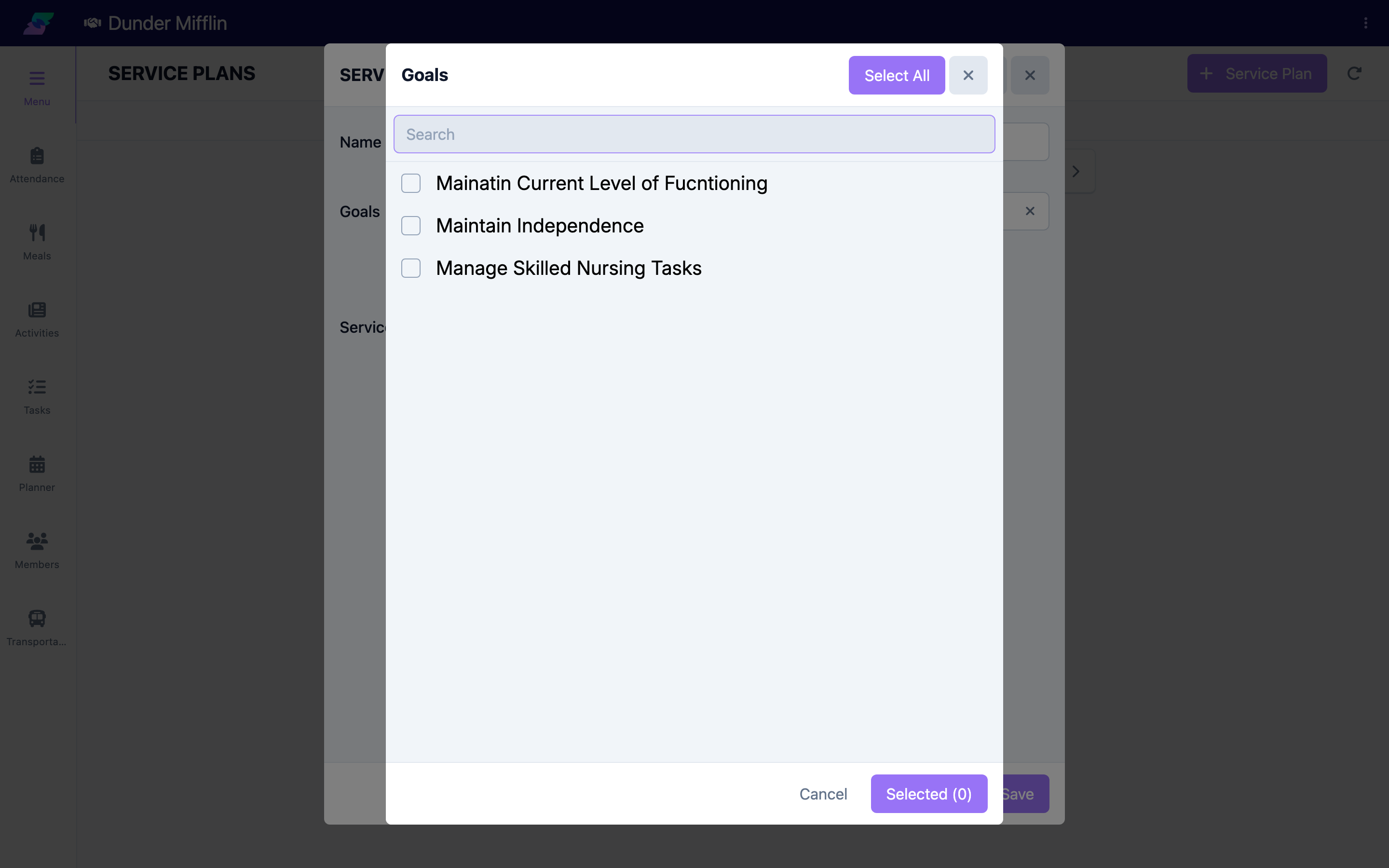
In the Goals section, select Add Goal and choose goals from your center's Goals library. Added goals appear in a list you can reorder by dragging or remove with the delete control.
Step 5: Add services from the library
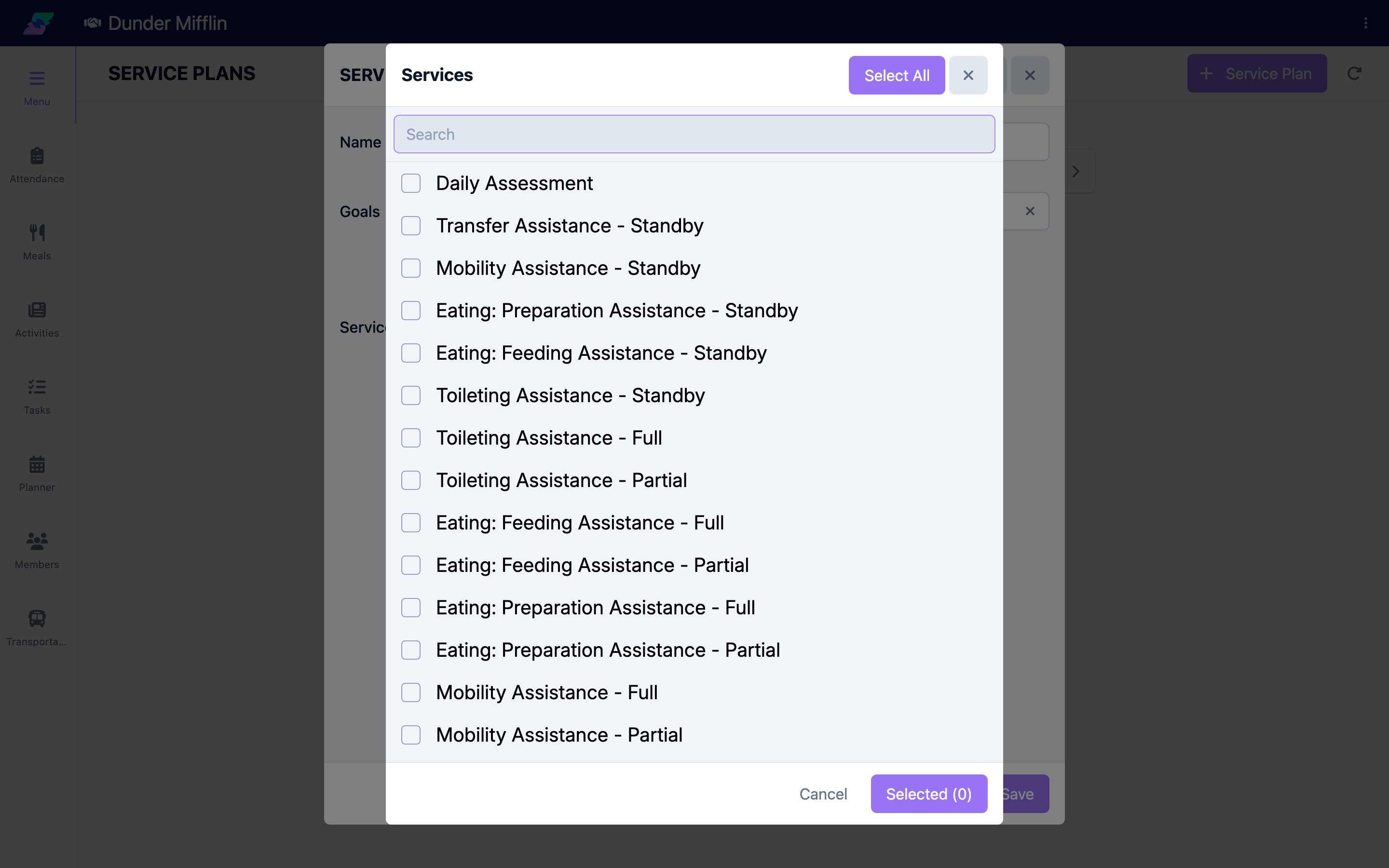
In the Services section, select Add Service and choose services from your center's Services library. When you add a service, its linked goal is included automatically so the plan stays coherent. Reorder or remove services as needed.
Step 6: Save the template
Select Save to store the template. It is now available whenever staff create a service plan. To remove a template later, open it and use the delete control.
Step 7: Apply a template to a member
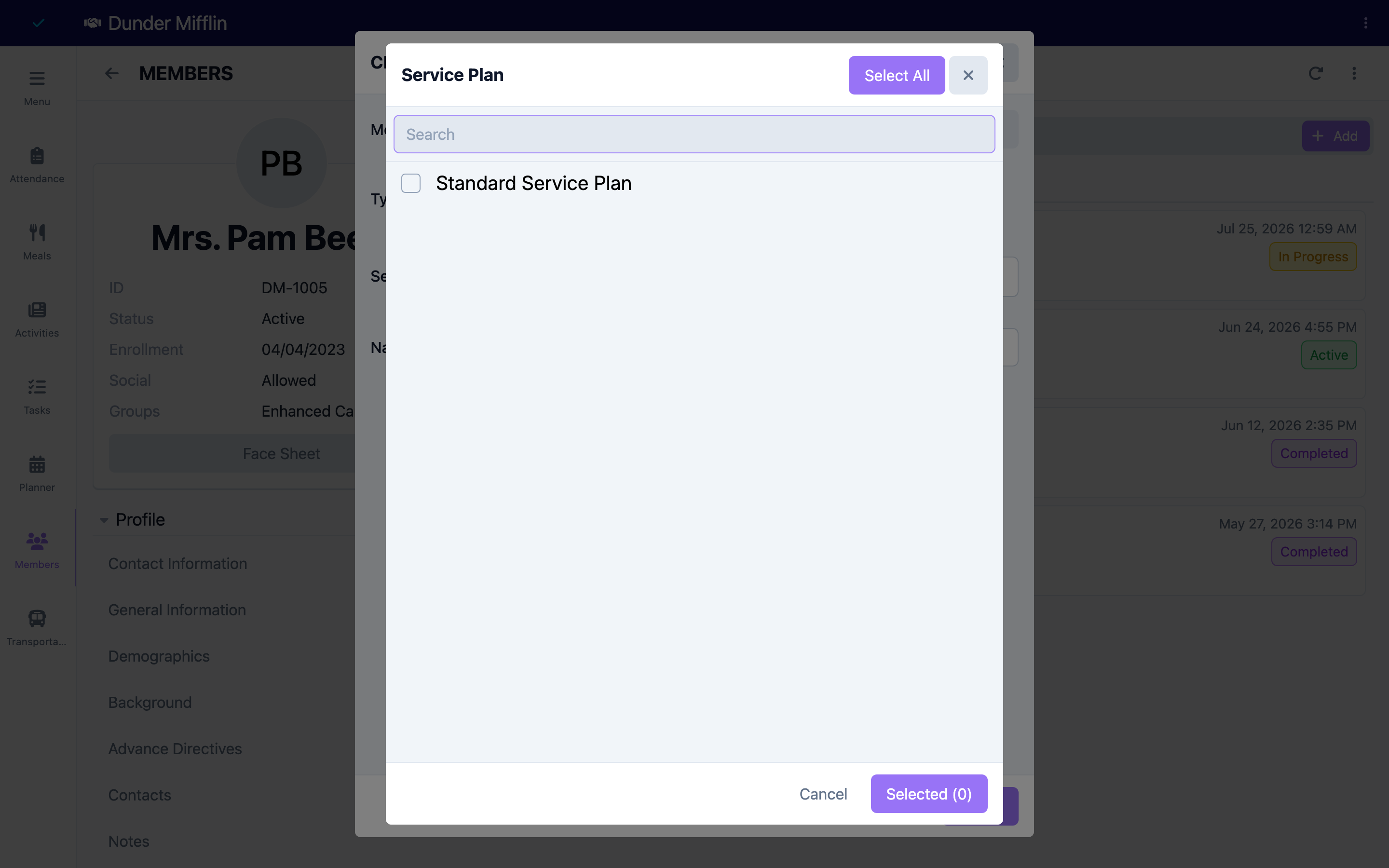
To use a template, open a member and go to the Care > Service Plans tab, select Add, and in the Service Plan dialog set the Type to Service Plan and choose your template. The template's goals and services pre-populate the new plan, which you can then tailor to the member. See Building Service Plans.
Tips
- Build your Goals and Services libraries before creating templates — a template only references existing goals and services.
- Adding a service automatically pulls in its linked goal, so you can start from services and let the goals follow.
- Use clear, purpose-based template names so staff select the right one without opening each.
- Templates are a starting point; staff can add, remove, or adjust goals and services after applying one to a member.
Troubleshooting
| Problem | Solution |
|---|---|
| The Service Plans item is missing from the Care sidebar | This page is permission-gated. Ask an administrator to grant your role Care goals access. |
| No goals or services appear when building a template | Templates pull from the Goals and Services libraries. Create goals and services on those tabs first. |
| My template does not appear when staff create a plan | Confirm it was saved on the Service Plans tab. Staff must choose the Service Plan type in the Service Plan dialog to see templates. |
| Goals and services are missing after applying a template | The template only includes what was added to it. Add the missing goals and services to the template, or add them directly to the member's plan. |