
Overview
Seniorverse includes a set of reports that help you track attendance, billing, meals, transportation, and member information. This article explains how to open the Reports area, lists the reports you may see, and describes how several reports split into different views such as Summary and Details.
The reports available at your center are set by an administrator, so your list may include only some of the reports described here.
Before You Begin
- You need Reports access. If you cannot open the Reports area, contact your administrator.
- Reports pull from data already recorded in Seniorverse (attendance, benefits, meals, and so on), so complete records give the most accurate results.
Steps
Step 1: Open the Reports Area
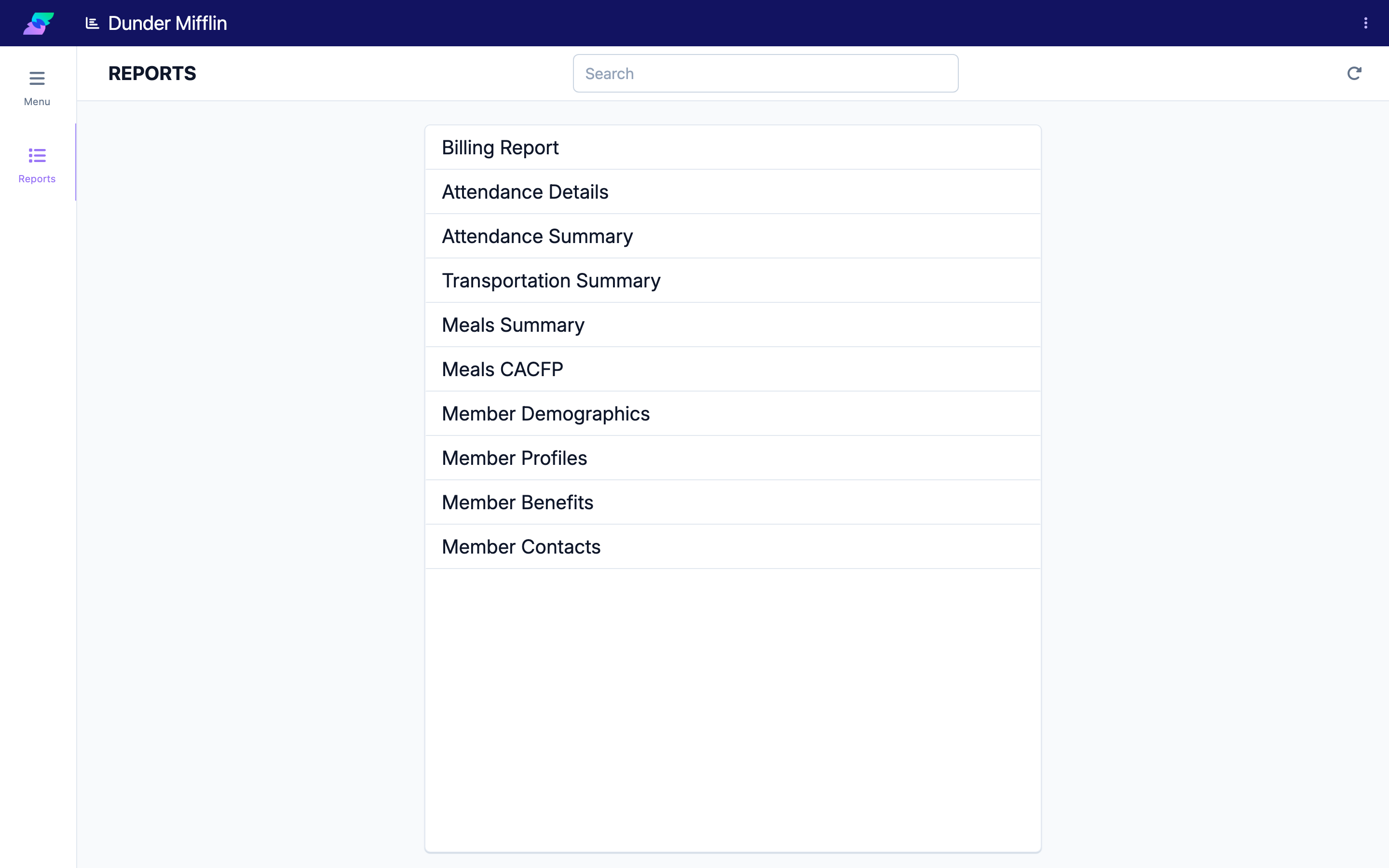
Select Reports from the main navigation. The Reports list opens, showing the reports enabled for your center.
Step 2: Find a Report
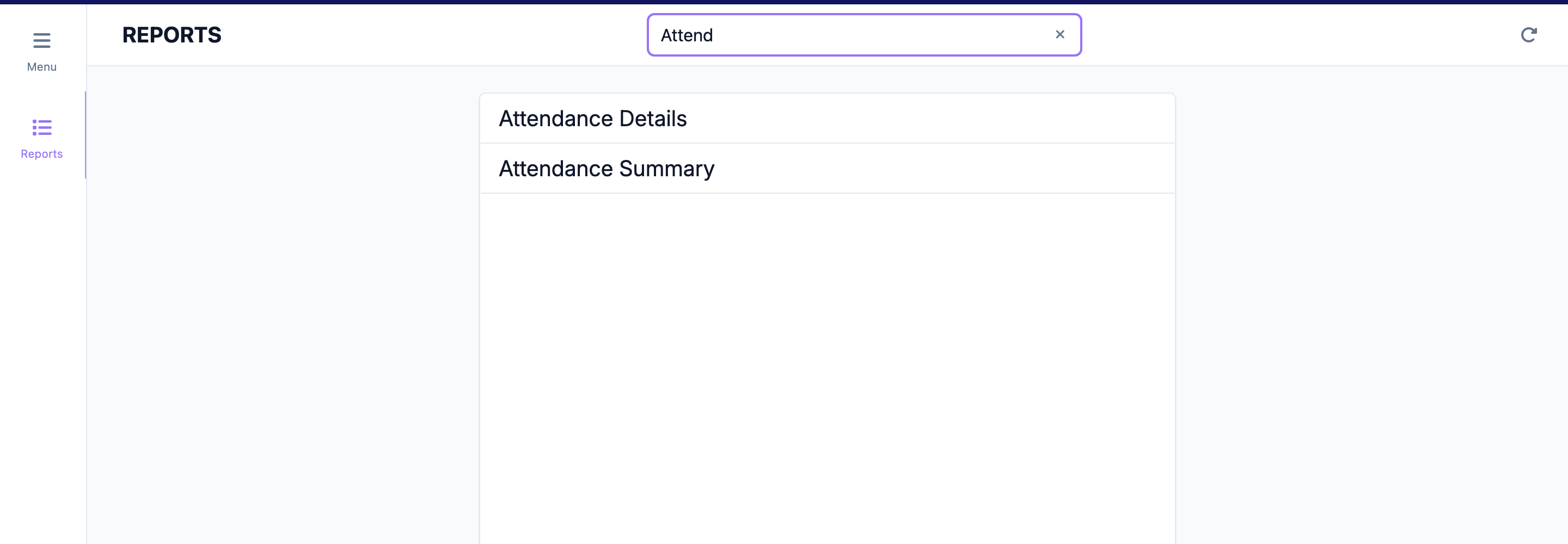
Use the search box at the top of the list to filter by name, then select a report to open it.
Step 3: Set the Date Range and View
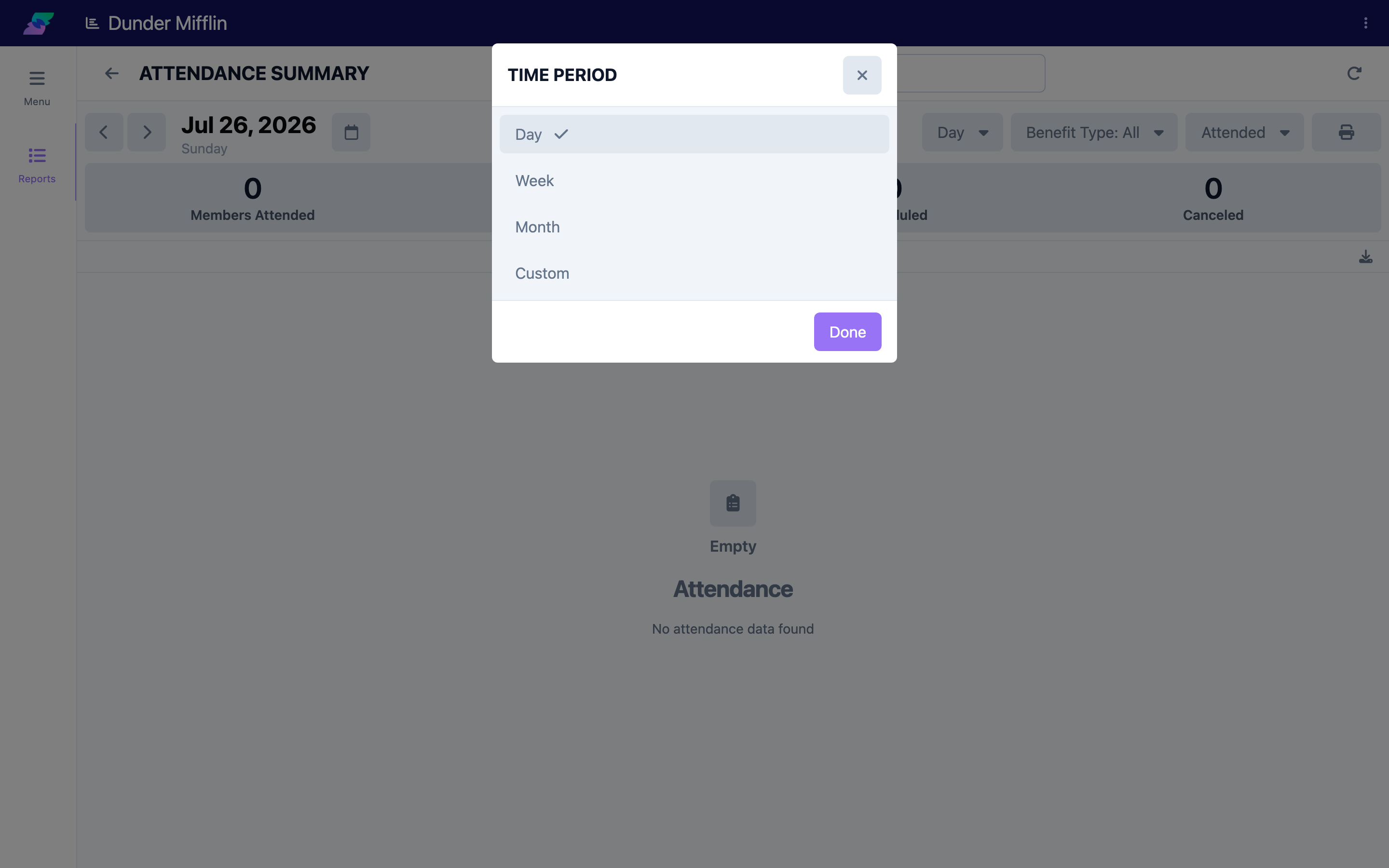
Most reports let you choose a time period — Day, Week, Month, or a Custom range — and several offer more than one view or tab. The report updates as you change these options.
Available Reports
Your Reports list is drawn from the following. An administrator can turn individual reports on or off per center, so you may not see every one.
Billing
| Report | What it covers |
|---|---|
| Billing Report | Billing figures for a date range, with a Grand Total box (total plus a breakdown by payor) and a table viewable as Details (line items) or Summary (per-member totals by day). Offers print and CSV export. |
Attendance
| Report | What it covers |
|---|---|
| Attendance Summary | Attendance totals for the period — members attended, attendances, scheduled, and canceled, plus a count per benefit type — followed by a per-member grid with a column for each day. |
| Attendance Details | A list of records needing attention, totals broken out by benefit type, and the individual attendance records (check-in, check-out, time, units) grouped under each benefit type. |
Meals
| Report | What it covers |
|---|---|
| Meals Summary | Meals served per member, with a column for each meal type your center has configured. |
| Meals CACFP | The CACFP view, with counts such as Meals, Total, ADP, Free, Reduced, and Paid. |
Transportation
| Report | What it covers |
|---|---|
| Transportation Summary | Transportation activity for the period, with Trip Summary, Member Summary, and Attendance Details views. |
Members
| Report | What it covers |
|---|---|
| Member Profiles | Member roster and profile details (name, IDs, status, enrollment, contact fields, and more). |
| Member Benefits | Each member's benefits, including benefit type, status, start and end dates, days, and rate details. |
| Member Contacts | Member contacts, including type, phone numbers, email, and notes. |
| Member Demographics | Population demographics grouped into Age, Race / Ethnicity, Gender, Marital Status, and Zip Code. |
Tips
- Set the date range first. Confirming the period before you read or export a report prevents surprises and keeps exports the right size.
- Switch views for the level of detail you need. Use a Summary or totals view for a quick picture, and a Details view when you need line-by-line records.
- Do not see a report you need? It may be turned off for your center. Ask your administrator to enable it.
Troubleshooting
| Problem | Solution |
|---|---|
| I cannot open the Reports area | Your account may not have Reports access. Contact your administrator to request it. |
| A report I expected is not listed | Reports are enabled per center. Ask your administrator to turn on the report you need. |
| A report shows no data | Check the date range and any filters — the selected period may not contain matching records. |
| A report is slow with a large range | Narrow the date range or apply filters to reduce the amount of data being processed. |
| An export is empty | Make sure the on-screen report shows data first. An empty report produces an empty export. |