
Overview
You can generate a PDF of your Planner schedule to post at the center or share with staff. The PDF reflects the current calendar period and your filters, and the Print Editor view lets you fine-tune the printed layout before you generate it.
Before You Begin
- You must be logged into Seniorverse with Care module access.
- You need the Care:Planner permission (or Care:FullAccess).
Steps
Step 1: Frame the schedule
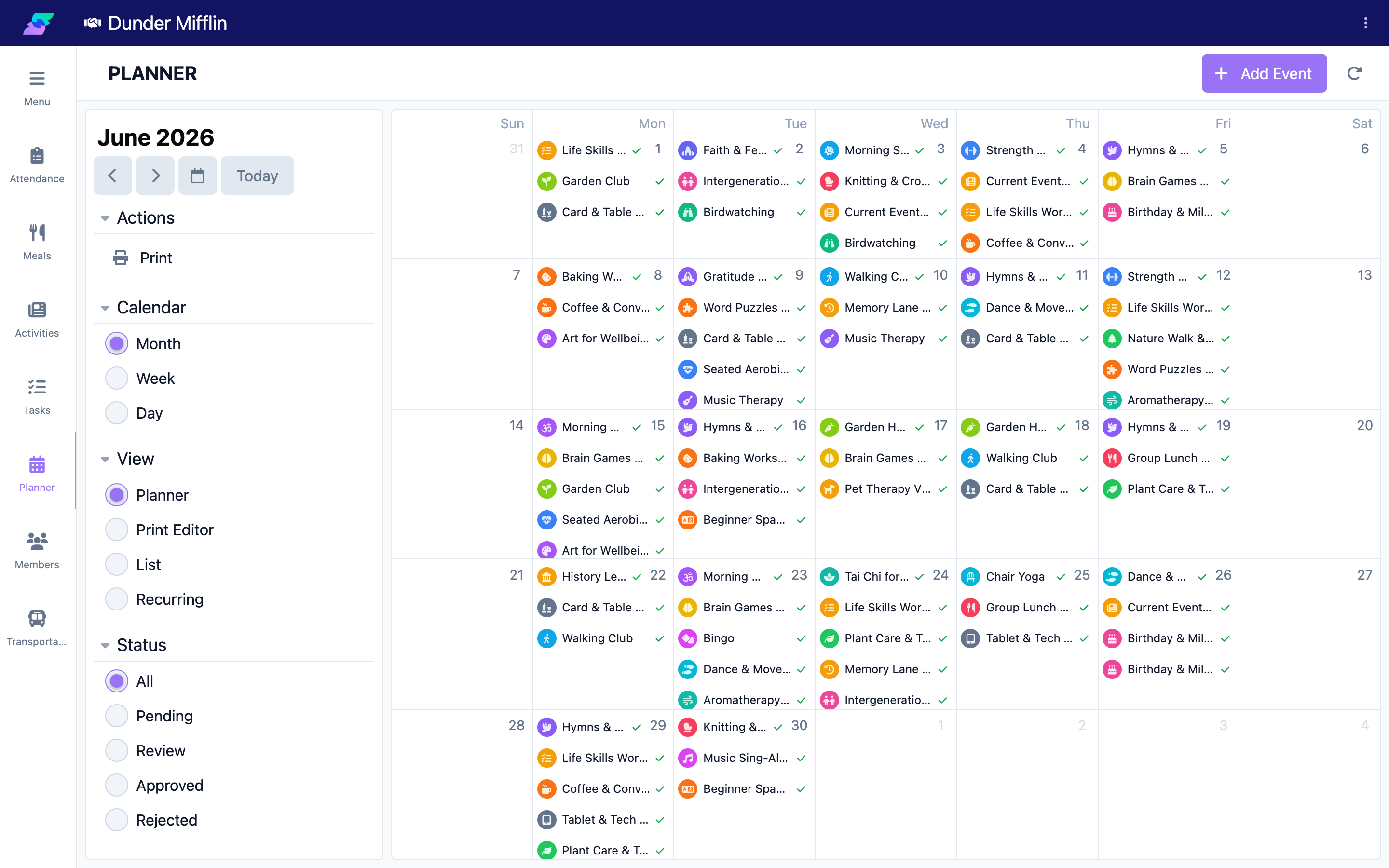
On the Planner page, set the Calendar period (Month, Week, or Day) and navigate to the dates you want. The PDF is based on what is on screen. Use the Groups filter to limit which groups are included.
Step 2: Set weekends
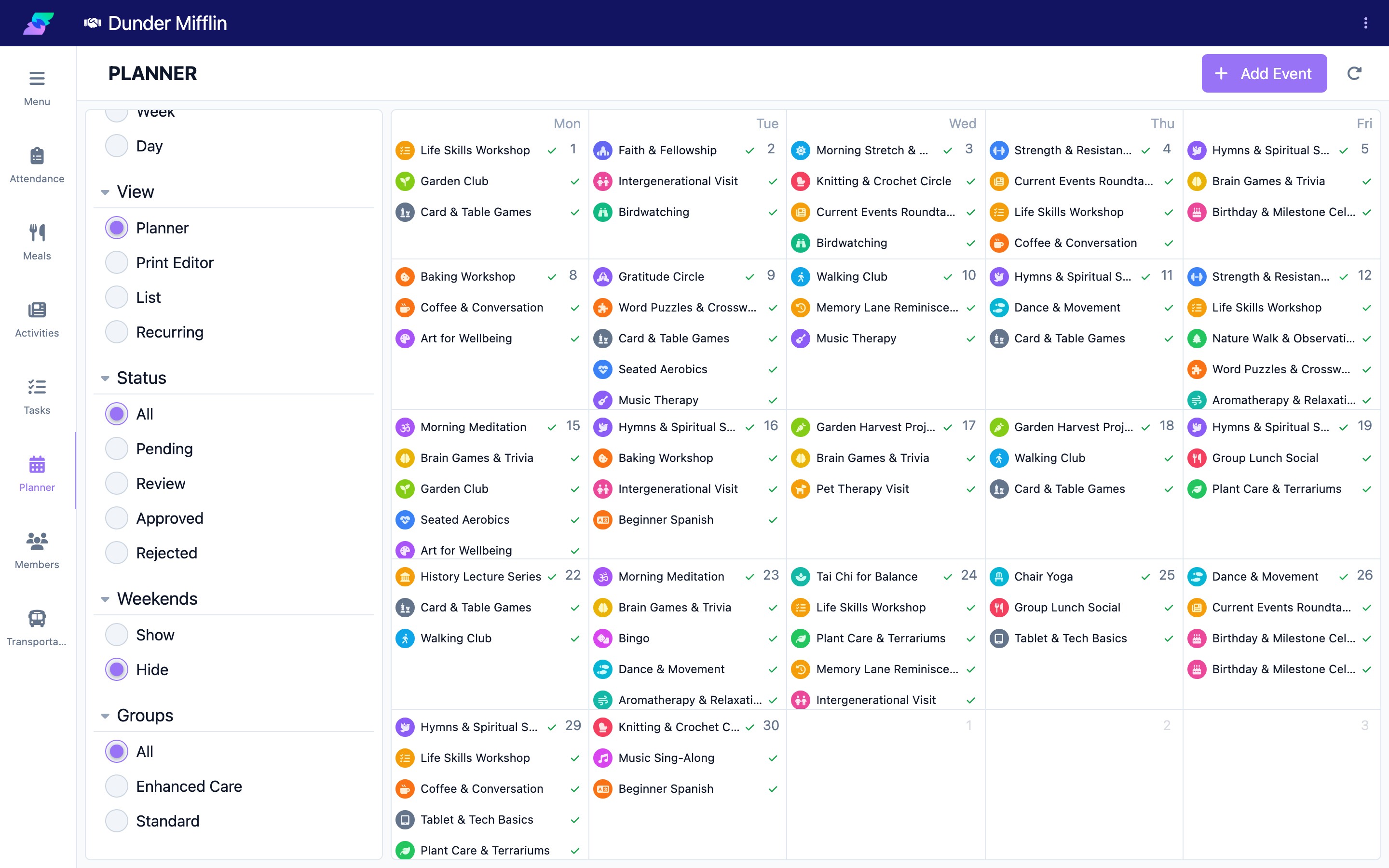
Use the Weekends filter to show or hide weekend days in the output, depending on your center's operating days.
Step 3: Fine-tune with the Print Editor (optional)
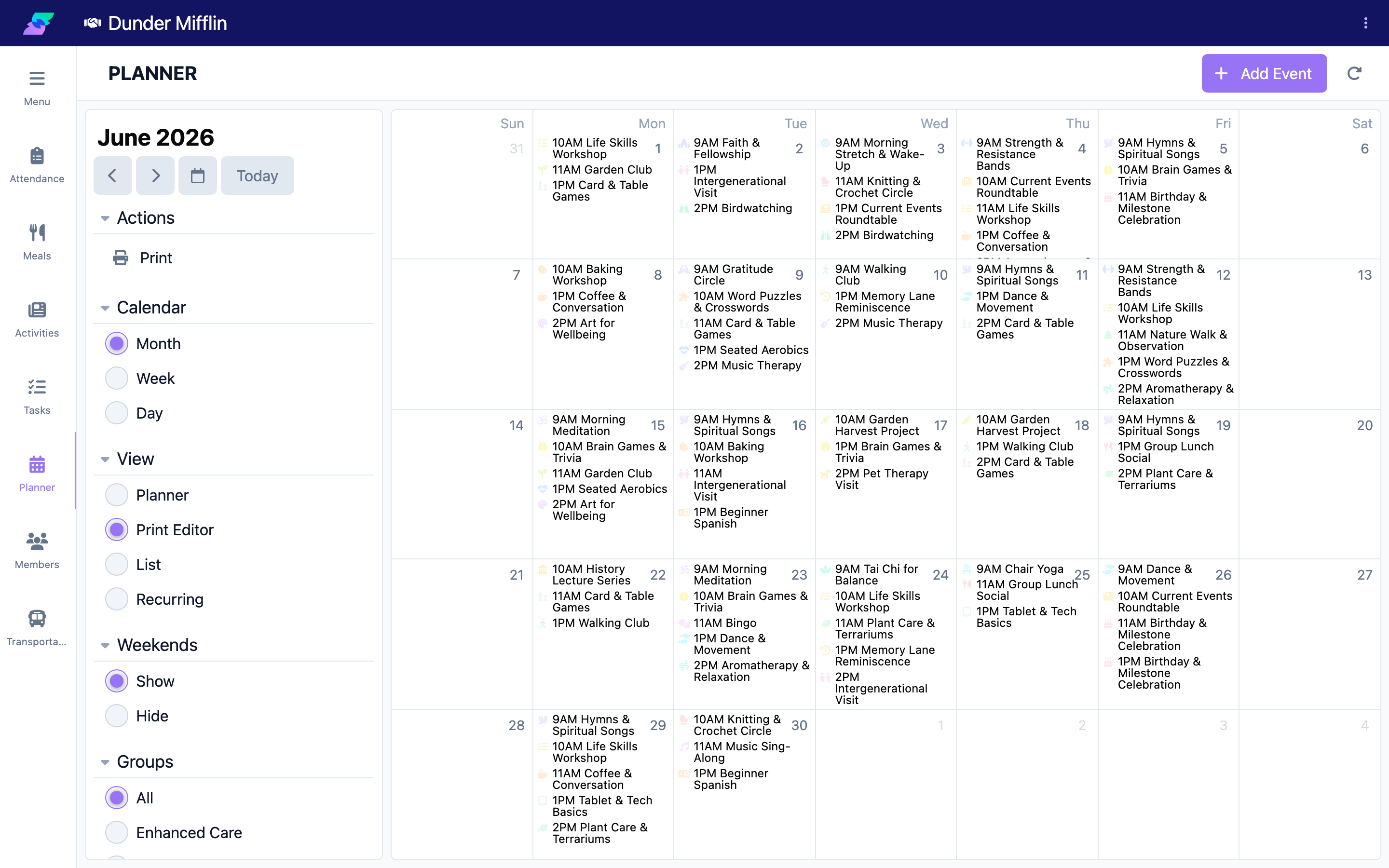
Switch the View selector to Print Editor to preview the print layout (approved events only). Here you can set the Font Size (Small, Medium, or Large) and toggle Icons on or off. You can also open an individual event to adjust its printed display name, font size, or hide its icon or time — and choose whether the change applies to that day or to all occurrences.
Step 4: Generate the PDF
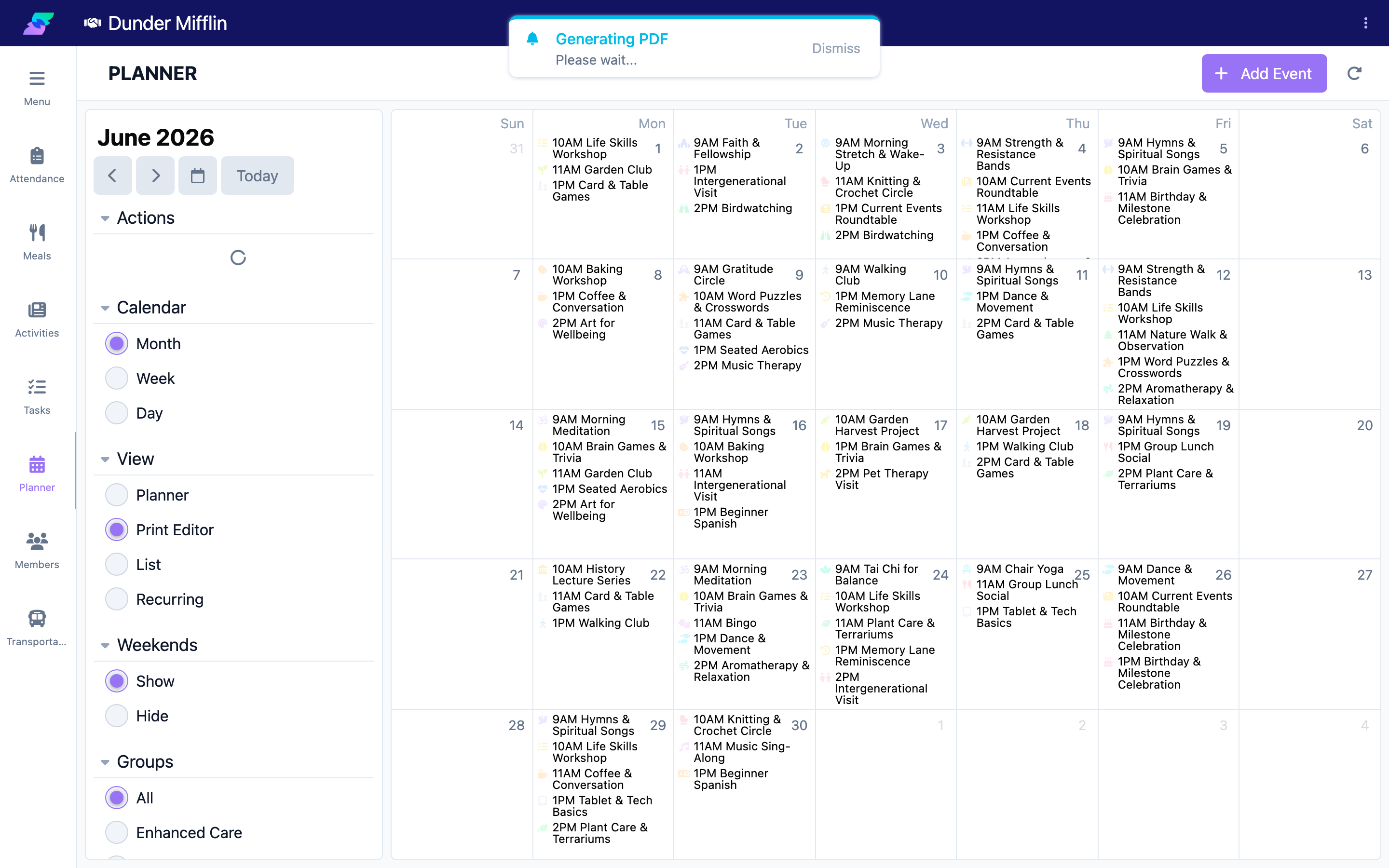
Open the Actions menu and select Print. Seniorverse generates a landscape, Letter-size PDF of the schedule, named for your center and the month.
Tips
- Keep the period reasonable — a single week prints more legibly than a long range.
- Set your Groups and Weekends filters before printing; the PDF follows what is on screen.
- Use the Print Editor to tidy the layout (font size, icons, per-event display names) before generating.
Troubleshooting
| Problem | Solution |
|---|---|
| The Print action is missing | You need the Care:Planner permission. Ask your administrator. |
| The PDF is missing events | Check your Status and Groups filters. The Print Editor preview shows approved events only. |
| The layout is cramped | Reduce the period (for example, one week), lower the Font Size in the Print Editor, or hide icons. |
| Weekends are missing | Set the Weekends filter to show before generating the PDF. |
Related Articles
- understanding-the-planner — Understanding the Planner
- using-week-month-and-day-views — Using Week, Month, and Day Views
- creating-and-editing-events — Creating and Editing Events