
Overview
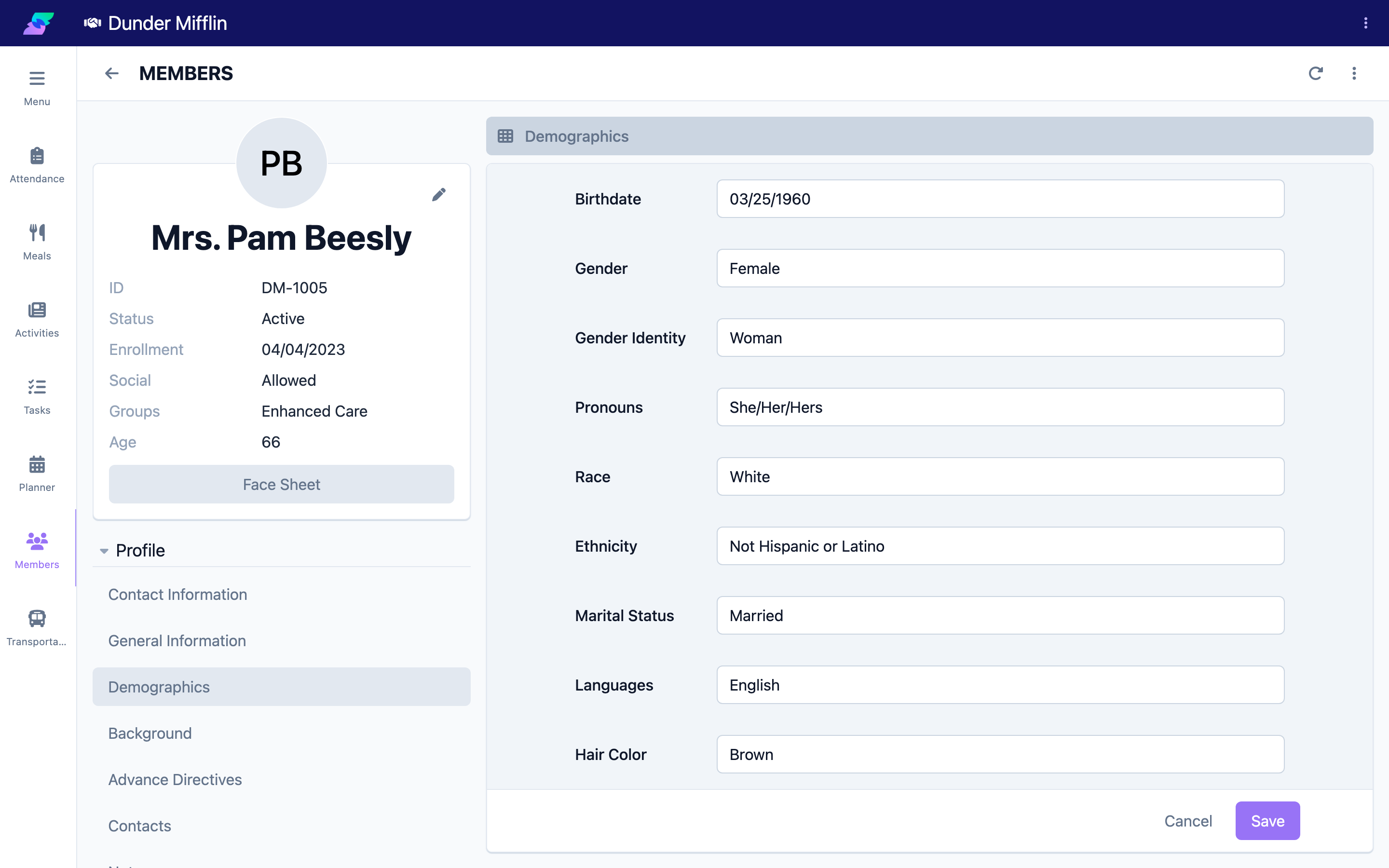
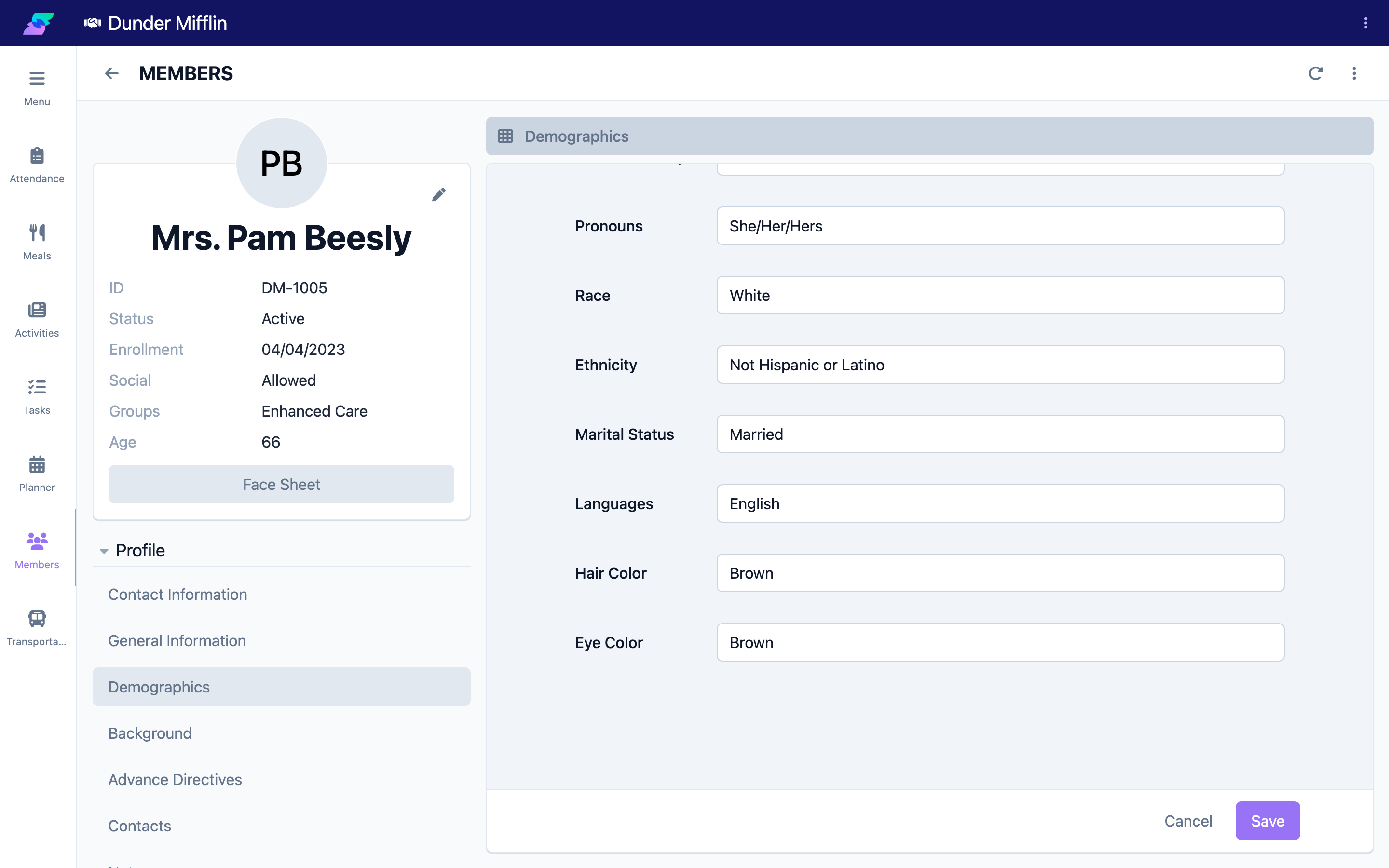
The Demographics tab records a member's personal details: birthdate, gender, gender identity, pronouns, race, ethnicity, languages, marital status, and physical descriptors. Accurate demographics support personalized care, reporting, and the member's Face Sheet.
Note: A member's Social Security number is part of the core member record (shown as Social, controlled by the Allow Social setting), not the Demographics tab.
Before You Begin
- You must be logged in with permission to view and edit demographics.
- Open the member's profile before you start.
Steps
Step 1: Open the Demographics tab
- Open the member and select the Profile group.
- Select the Demographics tab.
Step 2: Set the birthdate
Enter the Birthdate. The member's age is calculated from this date, so accuracy matters for eligibility and reporting.
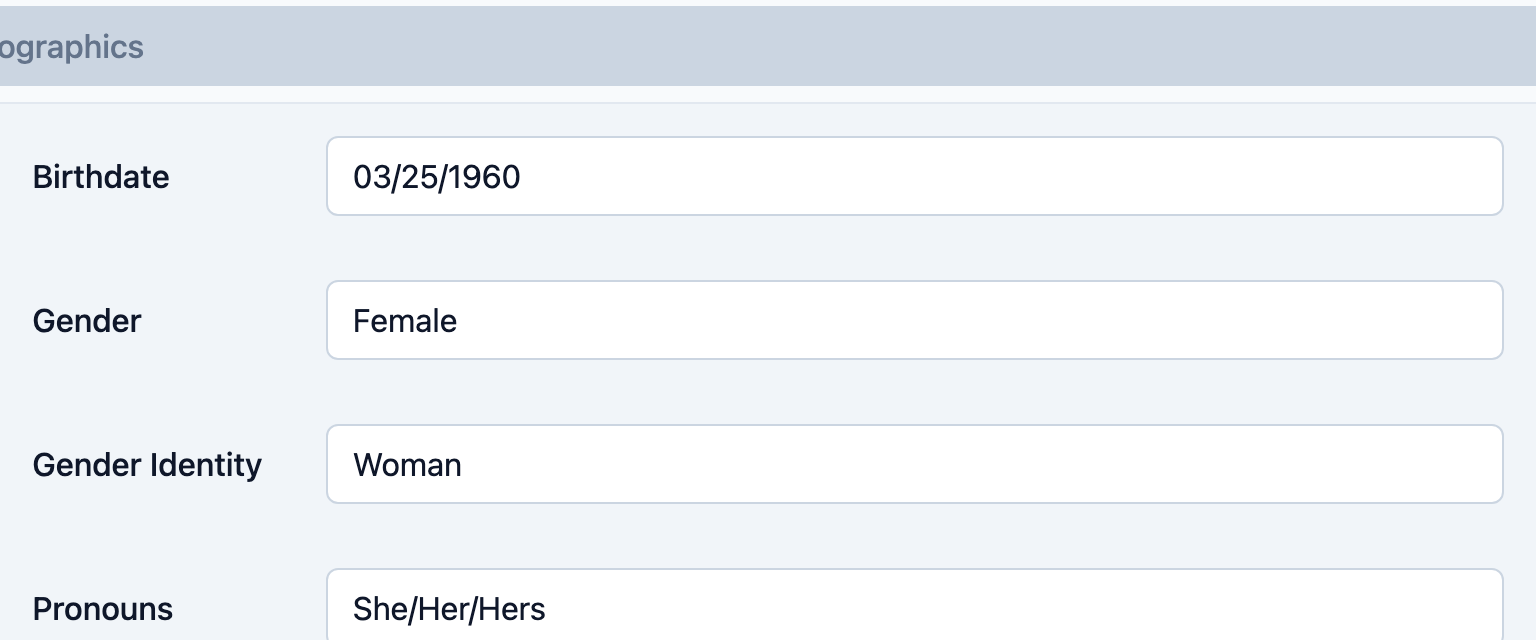
Step 3: Set gender, gender identity, and pronouns
- Gender — the member's gender.
- Gender Identity — options include Woman, Man, Transgender Woman, Transgender Man, Nonbinary, Other, and Prefer Not to Say.
- Pronouns — options include He/Him/His, She/Her/Hers, They/Them/Theirs, Other, and Prefer Not to Say.
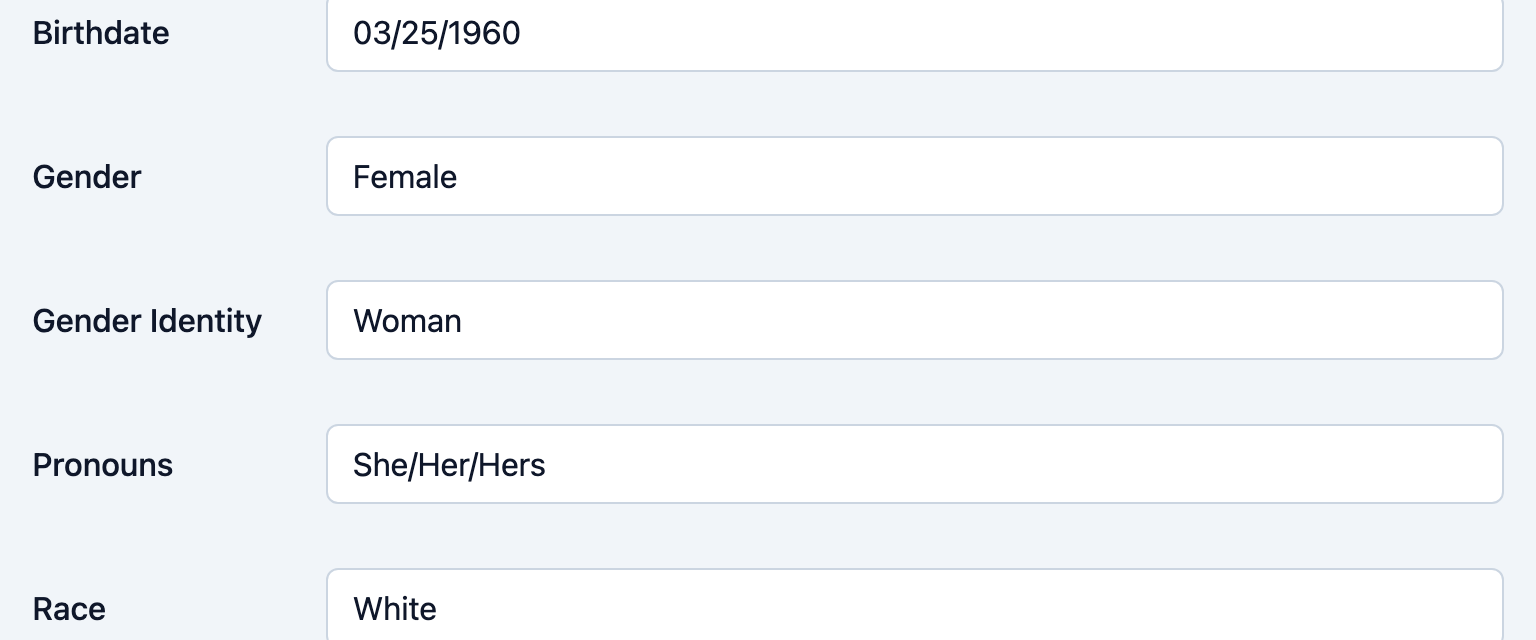
Step 4: Set race, ethnicity, and marital status
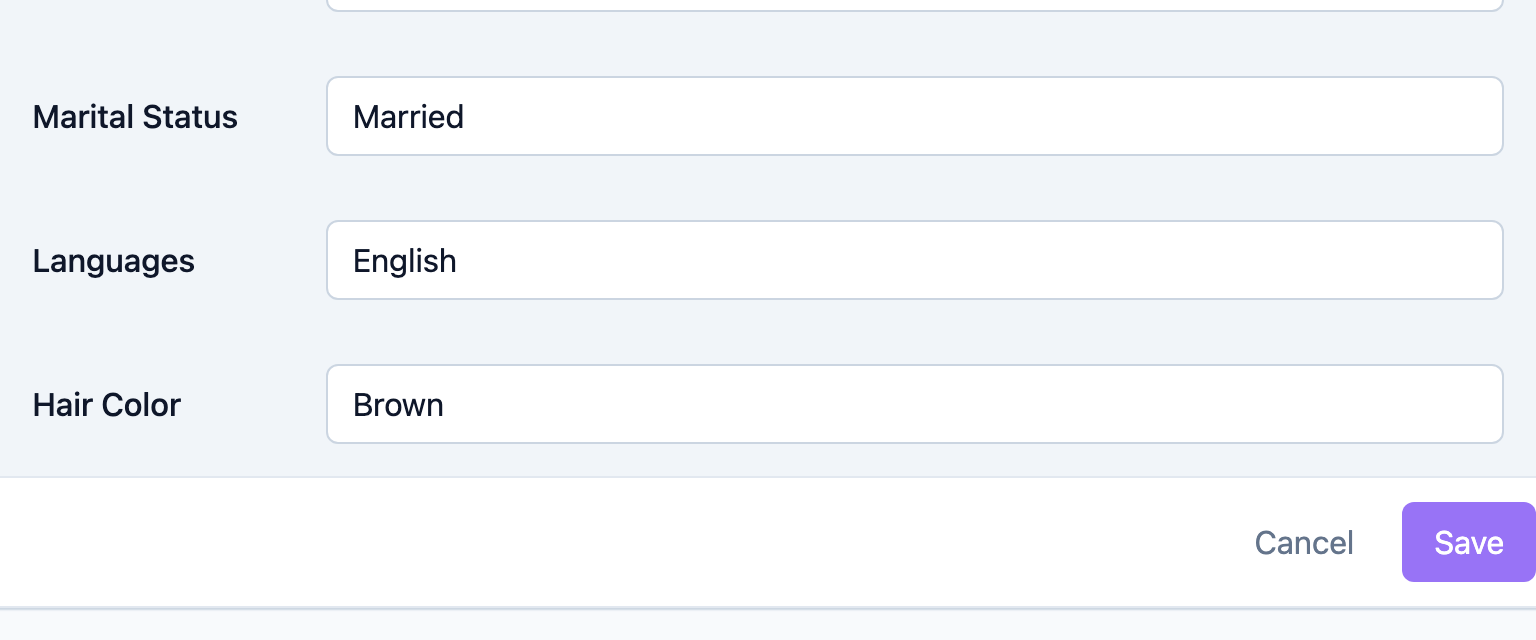
Record the member's Race, Ethnicity, and Marital Status.
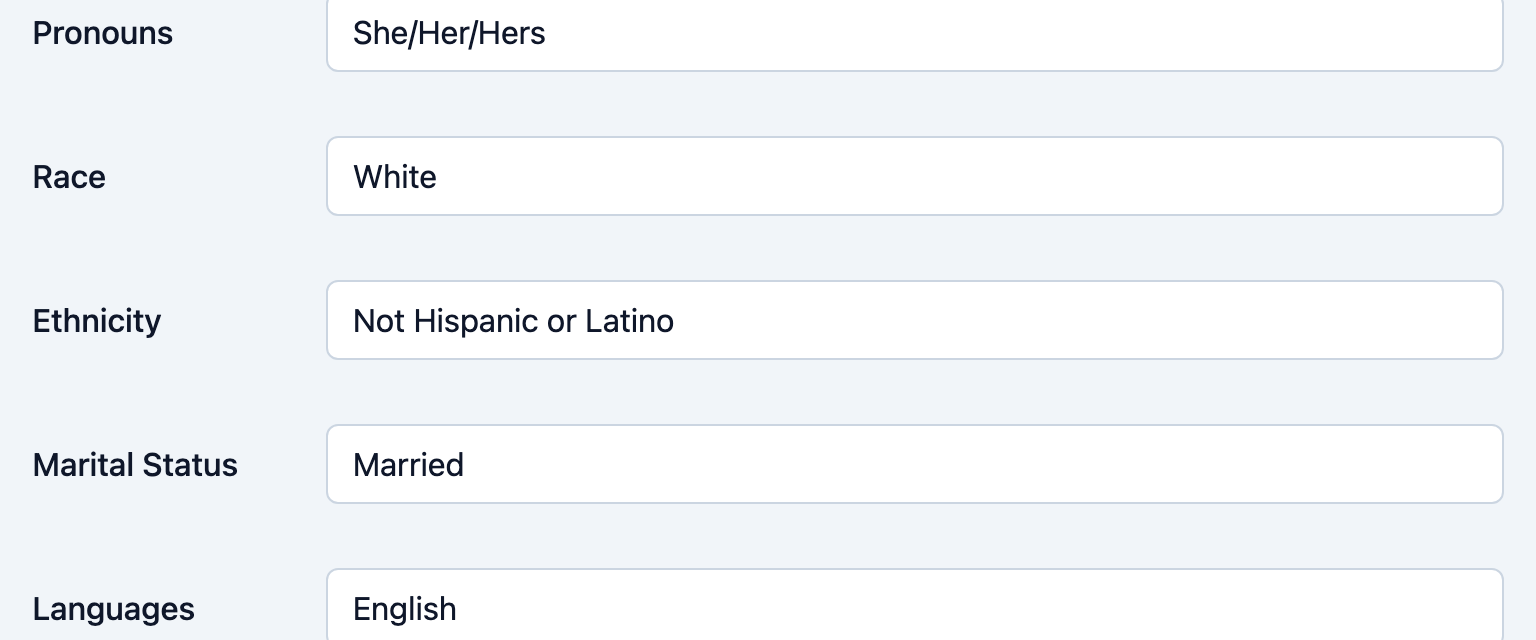
Step 5: Set languages and physical descriptors
Use Languages to capture the language(s) the member communicates in, and record the Hair Color and Eye Color descriptors that appear on the Face Sheet.
Step 6: Save your changes
Save your changes on the Demographics tab. The updated values appear immediately, and the age recalculates if you changed the birthdate.
Tips
- Confirm the birthdate against a document to keep age and eligibility correct.
- Record all languages the member uses so staff can communicate effectively.
- Hair and eye color help identification — they print on the Face Sheet used for appointments and transfers.
- Social Security is separate. Manage it and its visibility through the member's core record and the Allow Social setting, not here.
Troubleshooting
| Problem | Solution |
|---|---|
| The age looks wrong | Re-check the Birthdate for a transposed month/day or the wrong year. |
| I cannot edit demographic fields | You may lack edit permission for demographics — contact your administrator. |
| A value did not save | Re-enter the value and save again on the Demographics tab; refresh if needed. |