
Overview
Most care tasks are generated automatically from members' medications and care plan services. When you need a task that is not already scheduled, you can add one directly: a Care Task for a specific member (a PRN medication or a service) from the Care Tasks tab, or an Admin Task schedule from the Admin Tasks tab.
Before You Begin
- You must be logged into Seniorverse with Care module access.
- Adding a Care Task requires the Care Tasks feature and the Medications or Care Plans feature.
- Adding an Admin Task requires the Admin Tasks feature and the Care:AdminTasks:View permission.
Steps
Step 1: Open the correct tab
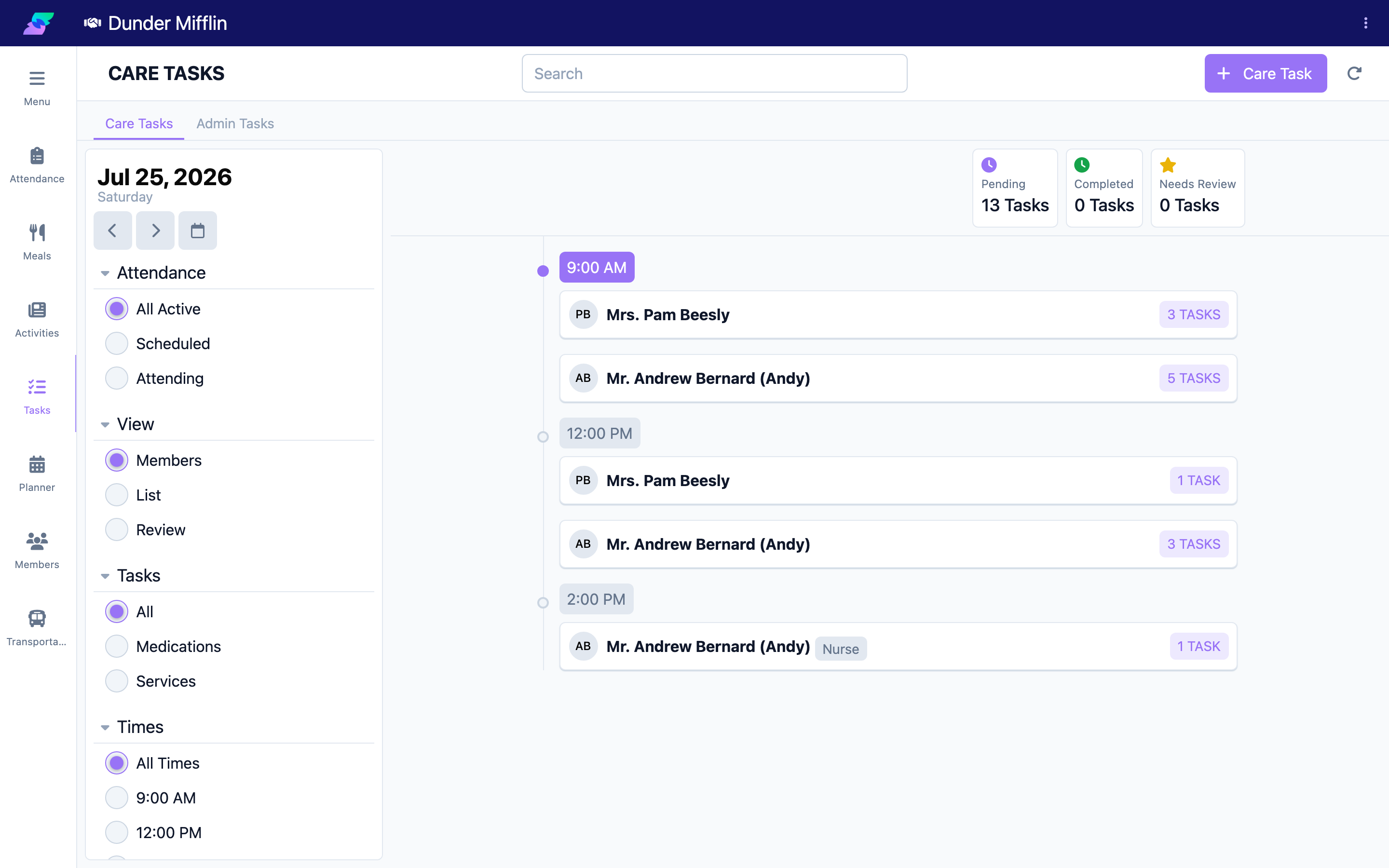
Select Care, then Tasks. Use the Care Tasks tab for a member care task, or the Admin Tasks tab for an administrative task.
Step 2: Start a Care Task
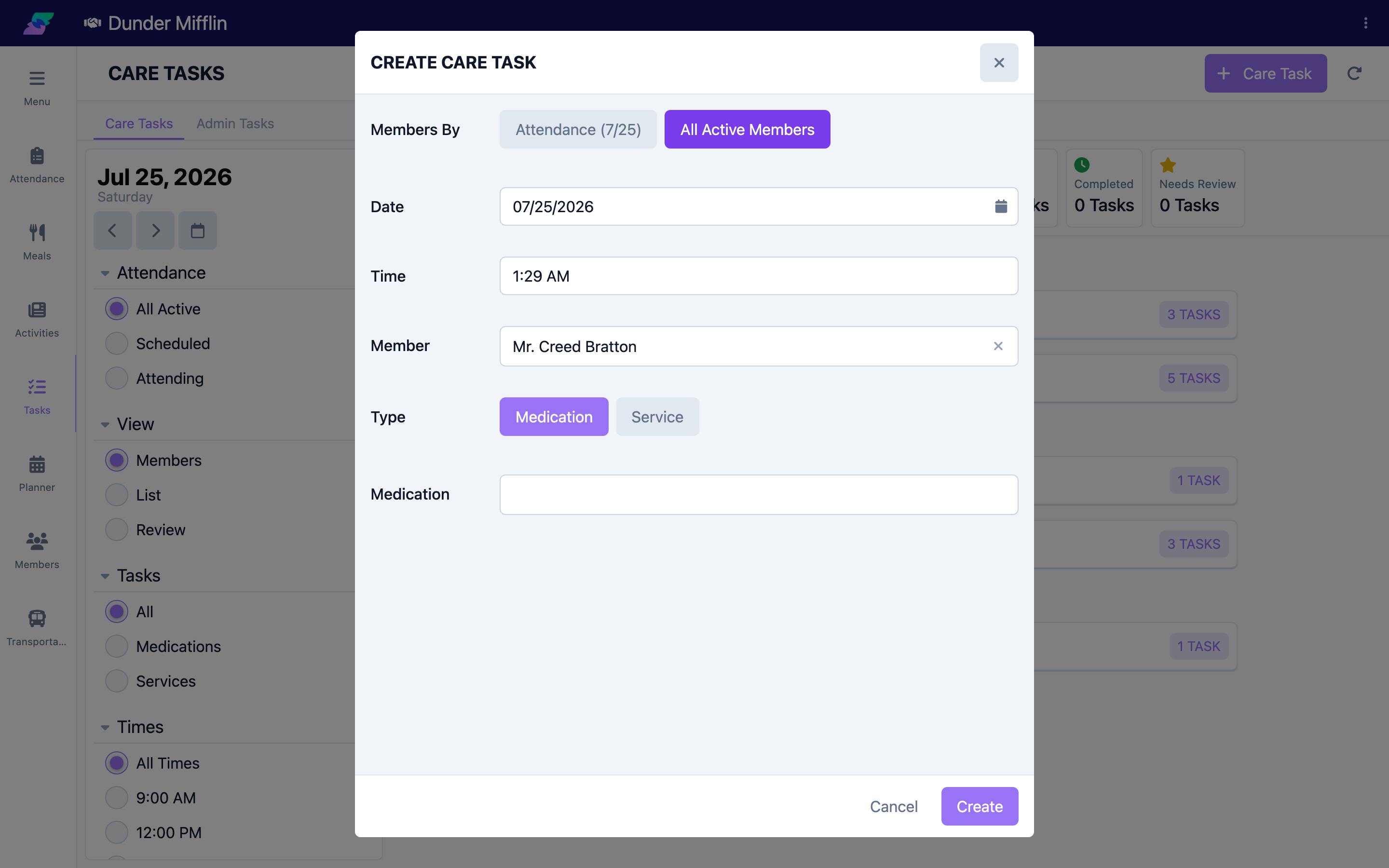
On the Care Tasks tab, select Care Task. In the form, choose Members By (Attendance for the date, or All Active Members), set the Date and Time, and select the Member.
Step 3: Choose the Care Task type
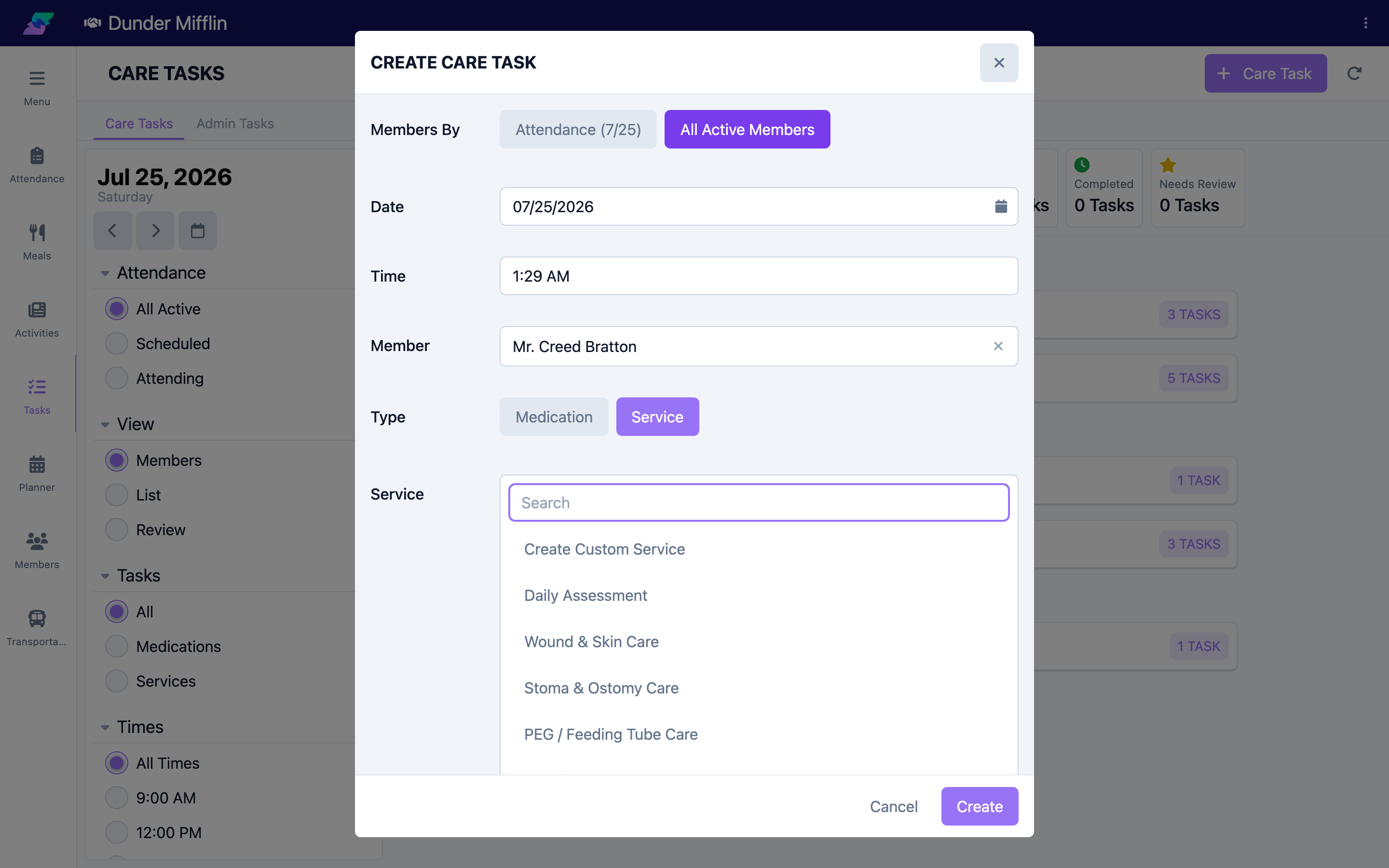
Select a Type:
- Medication — then pick a PRN medication from the member's list.
- Service — then pick a care plan service, or Create Custom Service and enter a Name and Description. (This requires the member to have an active service plan.)
Save to create the task; it appears on the Care Tasks list for that date.
Step 4: Start an Admin Task
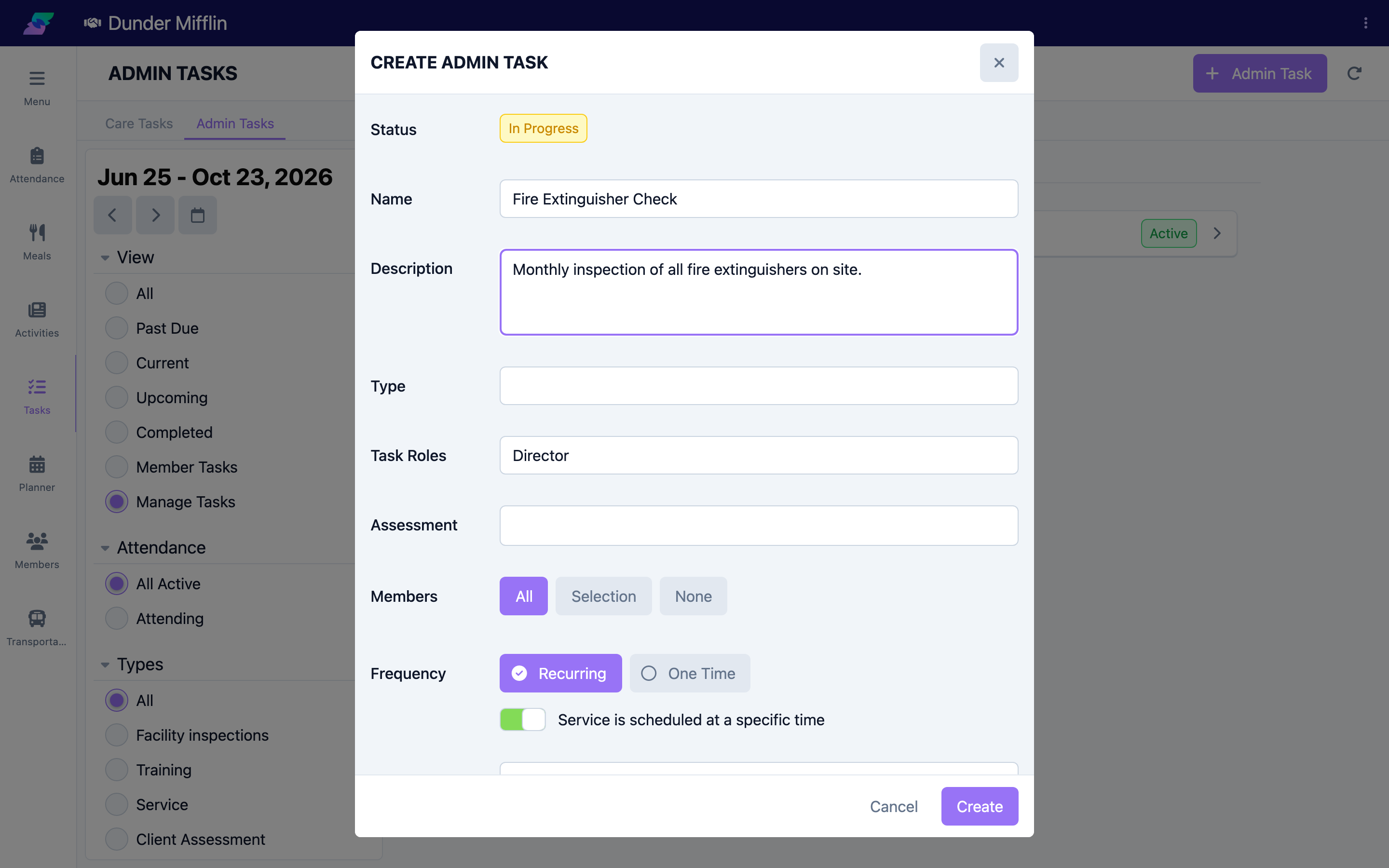
On the Admin Tasks tab, select Admin Task. Enter the Status, Name, Description, Type, and Task Roles, and optionally link an Assessment.
Step 5: Set members, schedule, and save
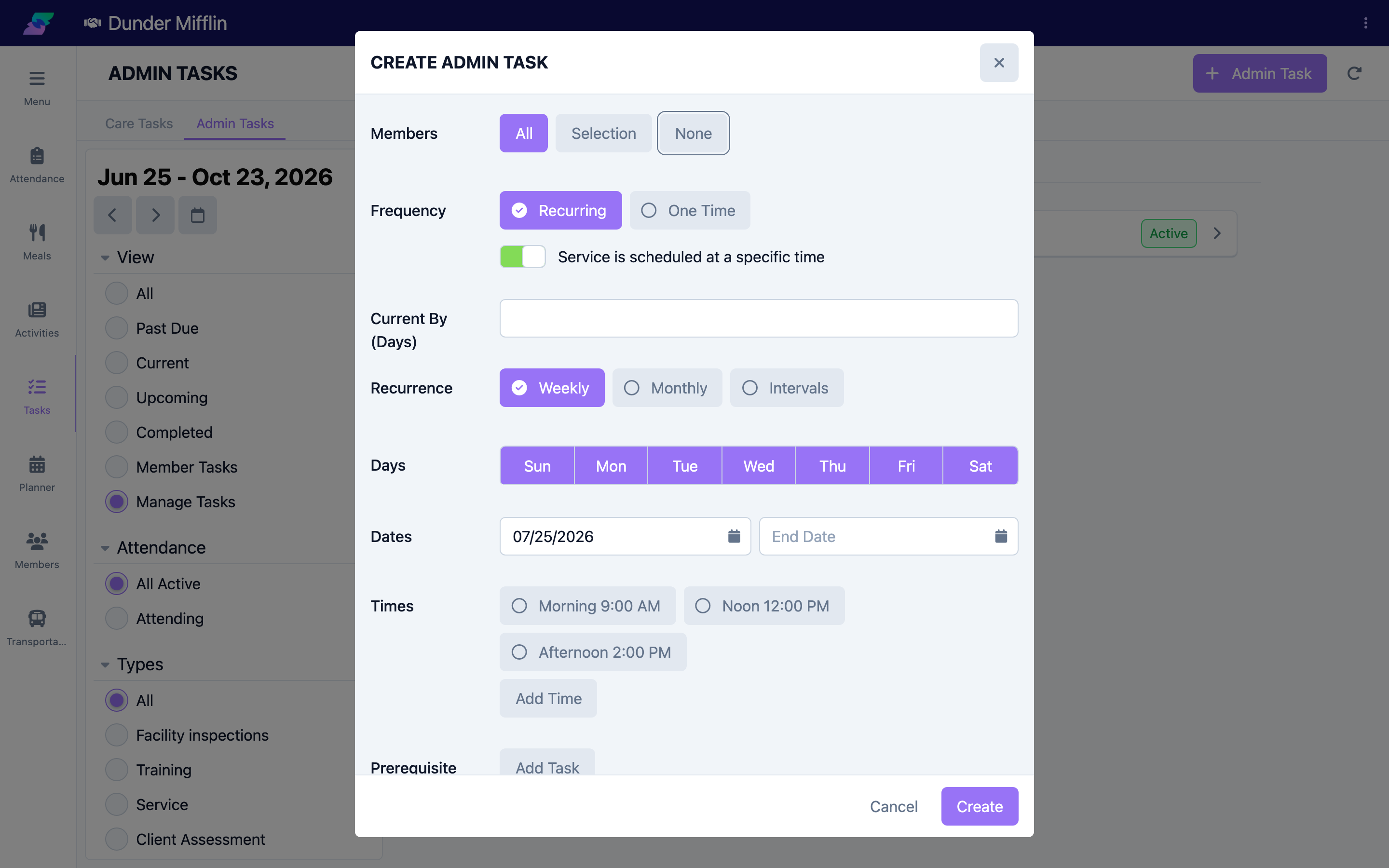
Choose Members (All, Selection, or None), set the Frequency (Recurring or One Time) and any recurrence, then save. The admin task generates instances for the chosen members.
Tips
- Use a Care Task for a one-off need for a single member, such as an as-needed (PRN) medication or a custom service.
- Use an Admin Task for recurring or facility-wide work that should generate tasks on a schedule.
- Task roles on an admin task control which staff are responsible for the generated tasks.
Troubleshooting
| Problem | Solution |
|---|---|
| The Care Task button is missing | It requires the Care Tasks feature plus the Medications or Care Plans feature. Ask an administrator. |
| A member has no active service plan | Service-type care tasks need an active service plan. Create one in the member's record first, or use a custom service where allowed. |
| The Admin Task button is missing | Admin Tasks must be enabled and you need the Care:AdminTasks:View permission. |
| The new task is not visible | Confirm you are on the correct tab and date, and clear any filters. |
Related Articles
- understanding-the-tasks-page — Understanding the Tasks Page
- viewing-and-completing-care-tasks — Viewing and Completing Care Tasks
- managing-admin-tasks — Managing Admin Tasks