
Overview
Attendance reporting in Seniorverse comes in two forms: Attendance Summary gives you a stats bar of attendance totals by payor plus a per-member grid across the period, and Attendance Details gives you an exceptions list and per-benefit records for the same period. Both draw from the attendance you record on the Attendance page. This article shows you how to open each report, set the period, read the results, and export them.
Before You Begin
- You need Reports access. If you cannot open the Reports area, contact your administrator.
- Attendance should be recorded for the period you want to report on.
- For accurate grouping, make sure member benefits are set up correctly.
Steps
Step 1: Open an Attendance Report
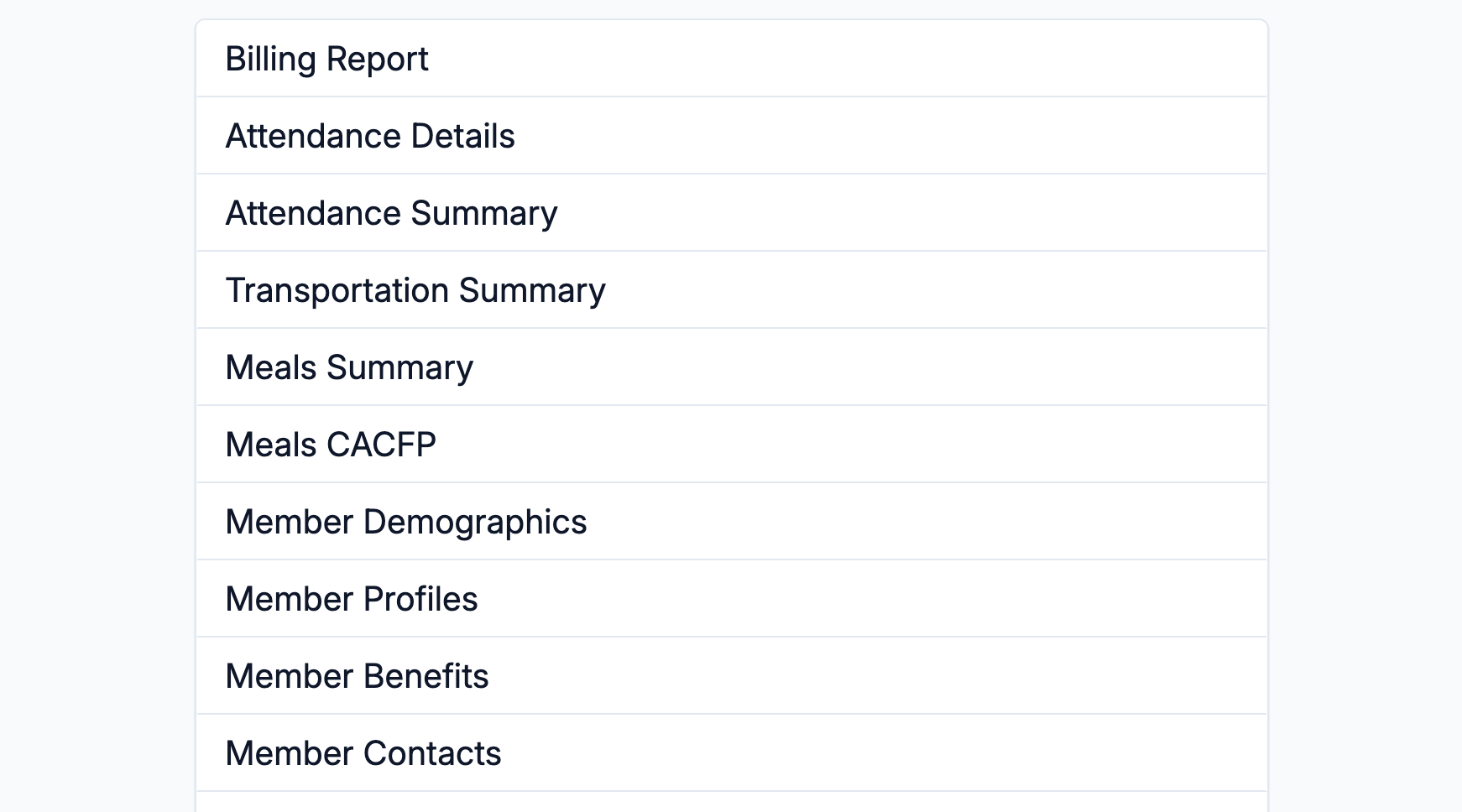
Select Reports from the main navigation, then choose Attendance Summary or Attendance Details from the list. Each opens its own view of the same underlying attendance data — to switch between them, return to the Reports list and select the other one.
Step 2: Set the Date Range and Payor
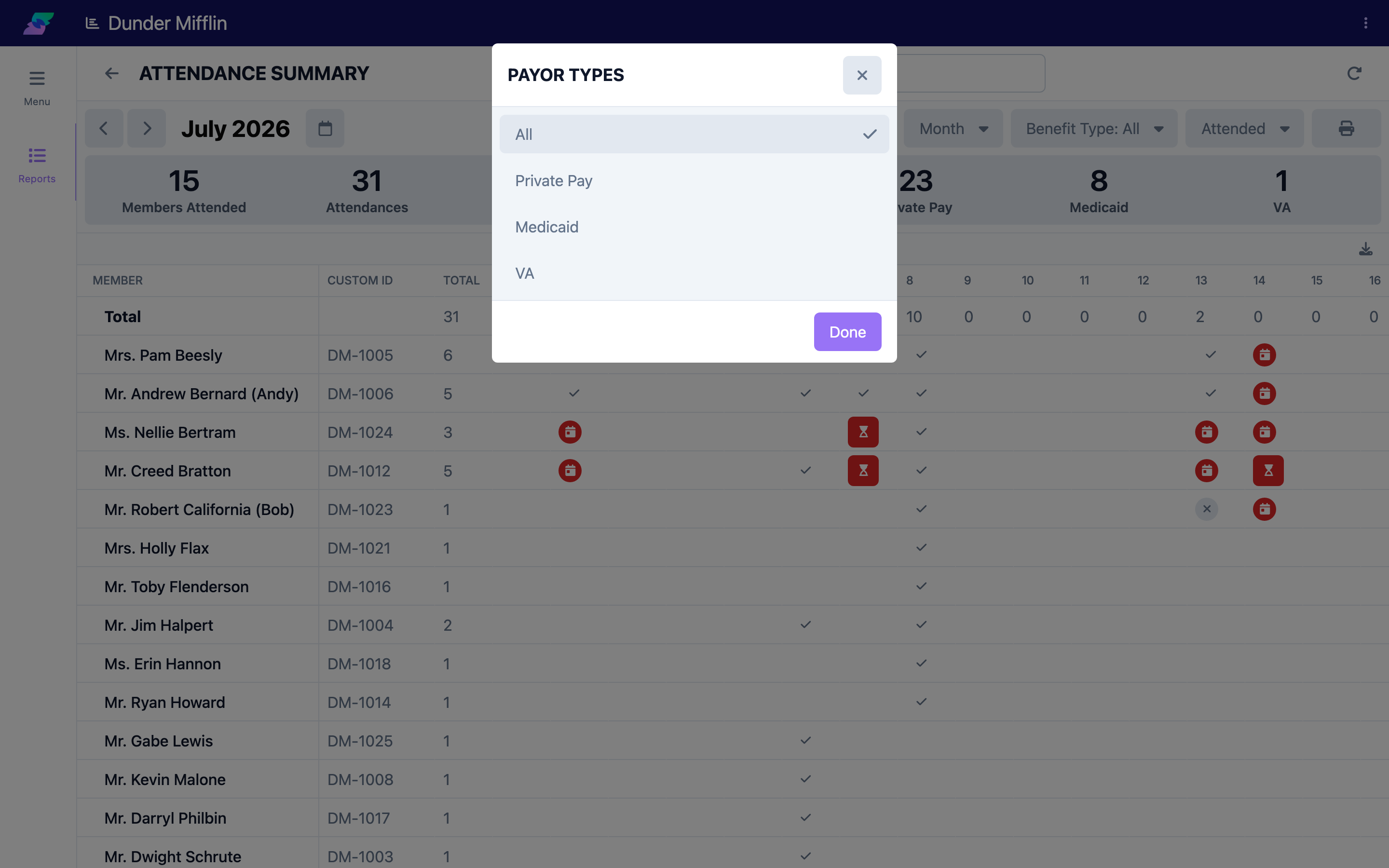
Choose the time period for the report — Day, Week, Month, or a Custom range. You can also focus on a single payor type or leave it set to All. The report updates as you change these.
Step 3: Read the Attendance Summary
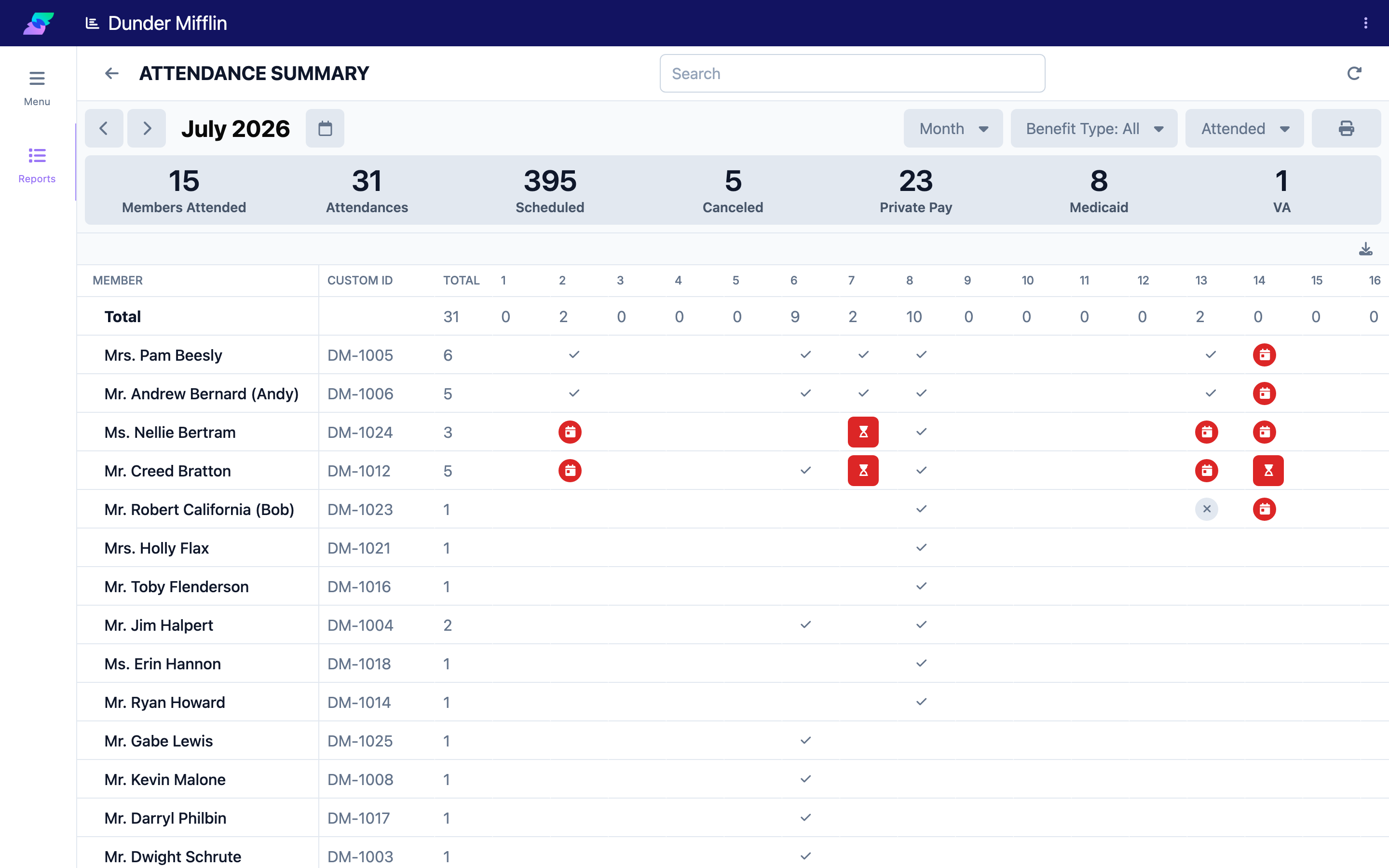
The Attendance Summary view opens with a stats bar showing totals for the period — Members Attended, Attendances, Scheduled, and Canceled — followed by a count for each benefit type (payor). Below that, a per-member grid lists Member, Custom ID, a Total, and a column for each day in the range, with a check mark or status icon showing what happened that day.
Step 4: Switch to Attendance Details
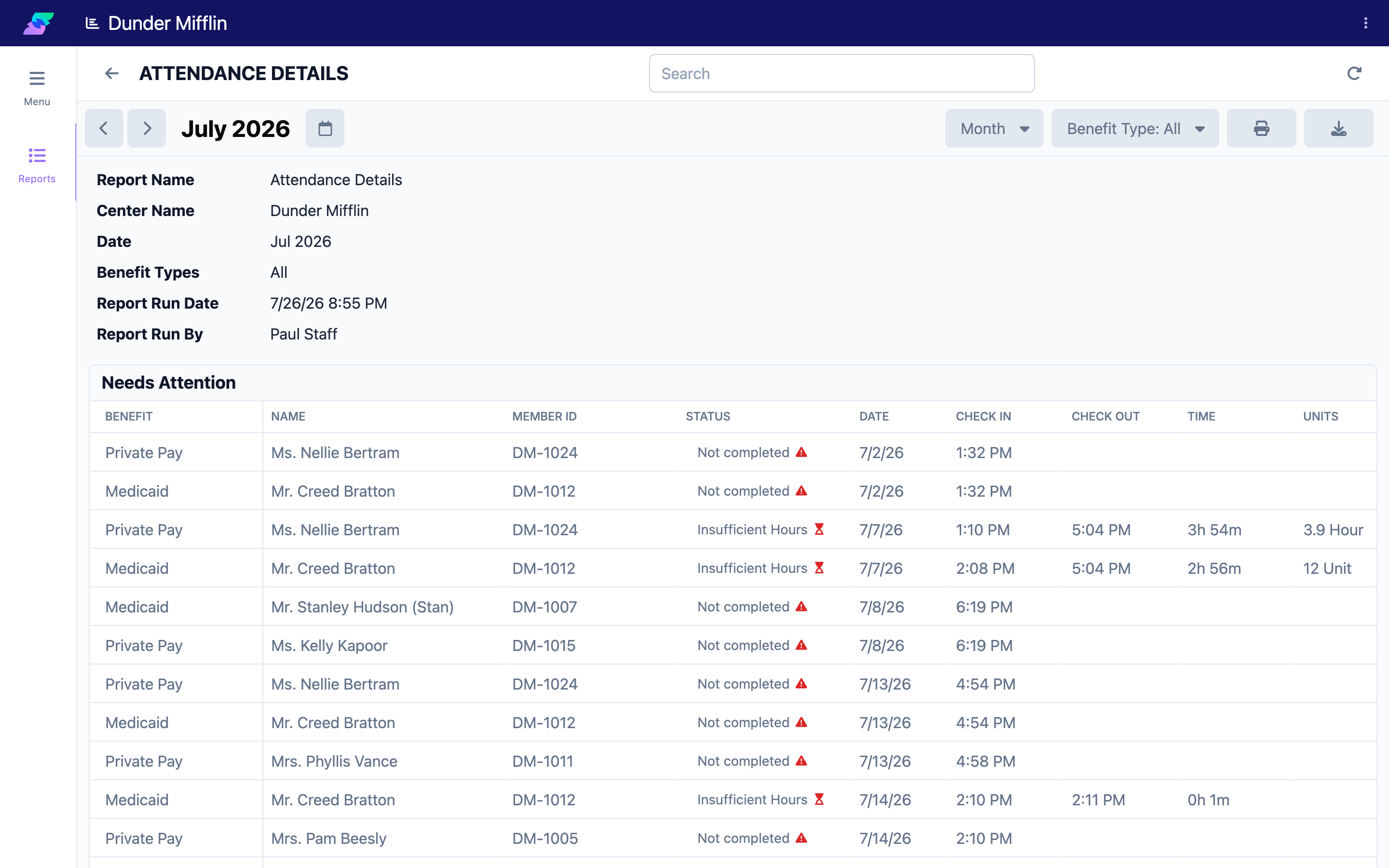
The Attendance Details view opens with report details, then a Needs Attention table listing records that need review (such as insufficient hours or incomplete check-outs), a Totals table broken out by benefit type (Members, Attended, Canceled, Time, Units), and finally the individual attendance records grouped under each benefit type, with Check In, Check Out, Time, and Units for each.
Step 5: Export the Report
Use the report's actions to print the report (save as PDF from the print dialog) or download it as a CSV file for use in a spreadsheet. Exports include the data for your current period and view.

Tips
- Use the Summary for billing prep. Totals by payor give you a quick check before you generate invoices.
- Use the Details grid to spot gaps. The per-day columns make missing or unexpected attendance easy to see.
- Keep ranges reasonable. Running a month at a time keeps large centers' reports fast and readable.
Troubleshooting
| Problem | Solution |
|---|---|
| No data appears | Confirm attendance was recorded for the selected period, and check the payor filter is not excluding everything. |
| Attendance shows an unexpected payor | The payor comes from the member's benefit at the time of attendance. Check the member's benefits and the attendance record. |
| The report is slow | Narrow the date range or focus on a single payor to reduce the amount of data. |
| An export is empty | Make sure the report shows data on screen first. An empty report exports empty. |