
Overview
The Contacts tab stores the people connected to a member — emergency contacts, family, physicians, hospitals, and payors. Each contact has a type, one or more relationships, contact methods, and communication preferences. This article shows how to add, edit, and remove contacts.
Before You Begin
- You must be logged in with permission to edit member profiles.
- Contact Type and Relationships options are configured for your center.
Steps
Step 1: Open the Contacts tab
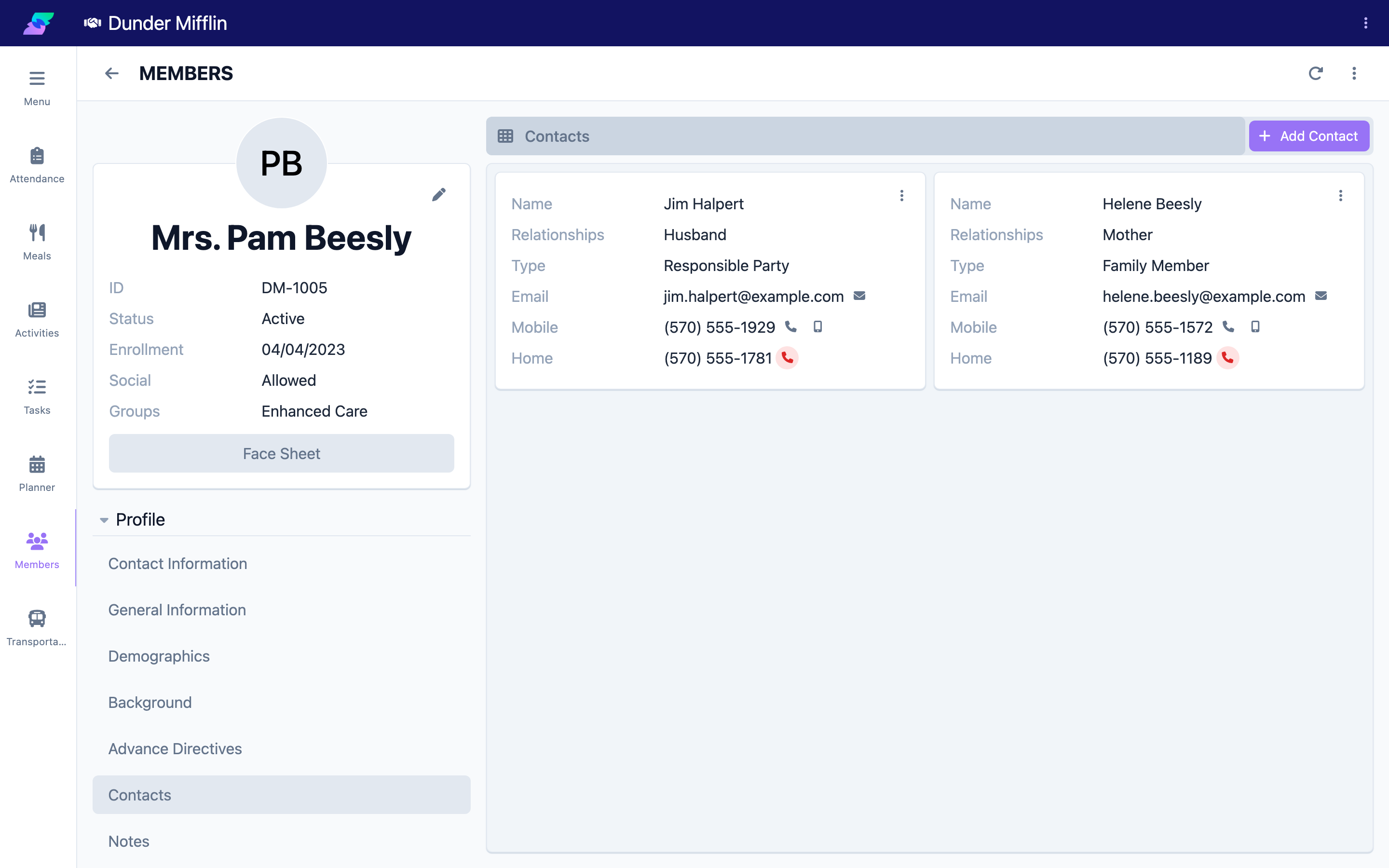
- Open the member and select the Profile group.
- Select the Contacts tab.
Step 2: Add a contact and set type and relationships
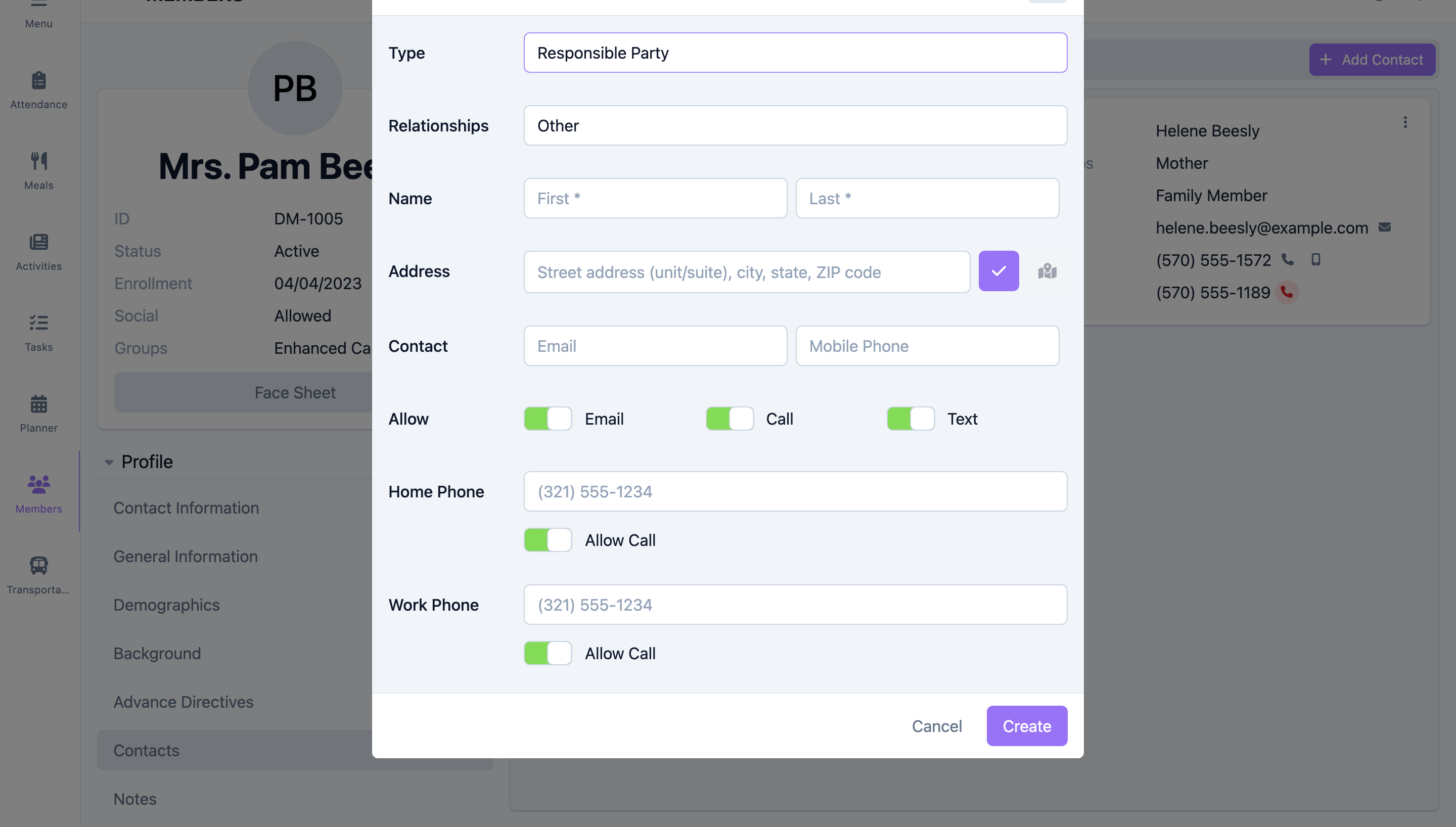
- Select Add Contact.
- Choose a Type (required).
- Select one or more Relationships (required) — this is a multi-select.
Step 3: Enter the name and address
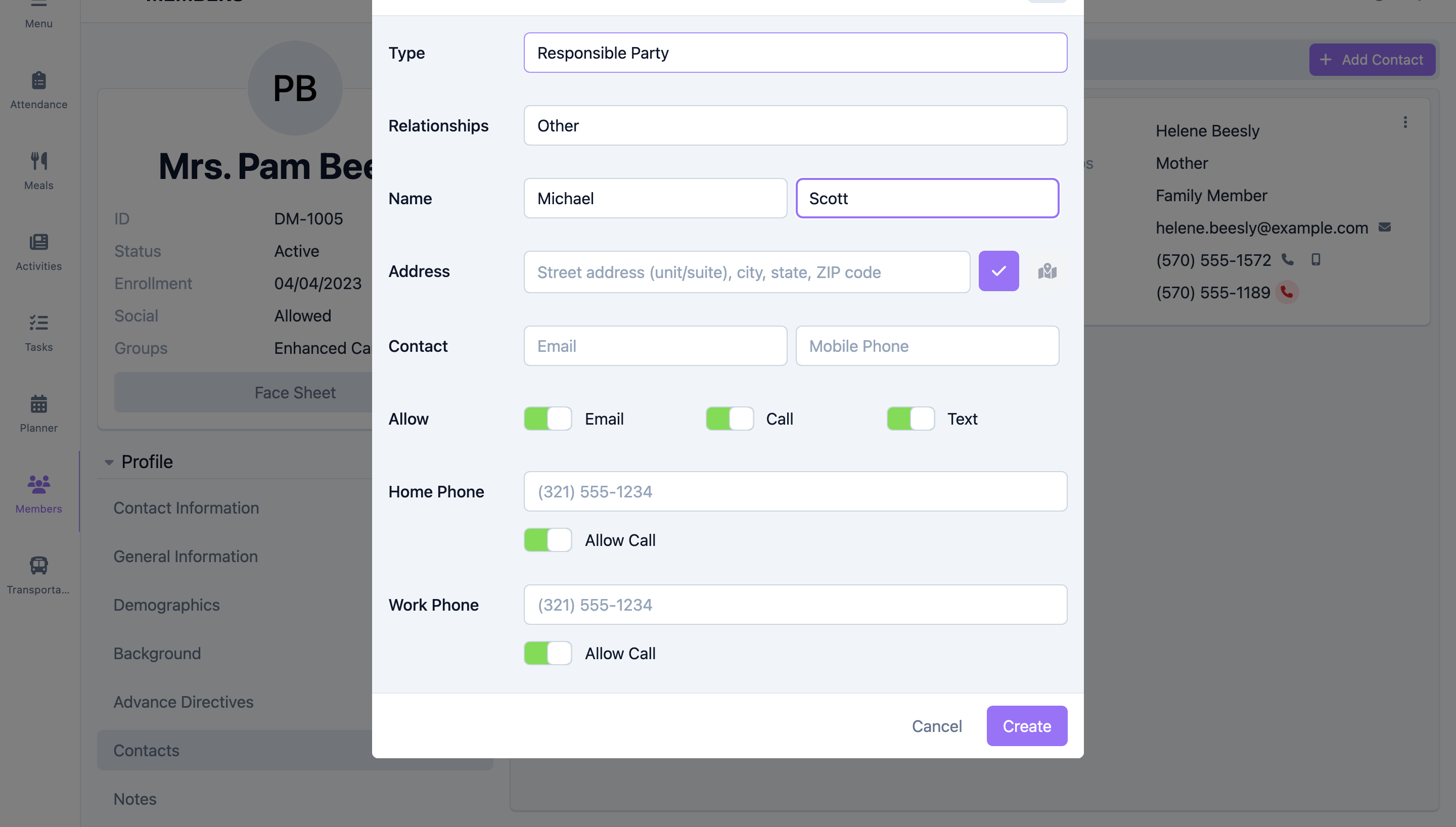
Enter the First Name and Last Name (required). For a Hospital type, a single Name field is used instead. Add the Address if you have it.
Step 4: Enter phone, email, and preferences
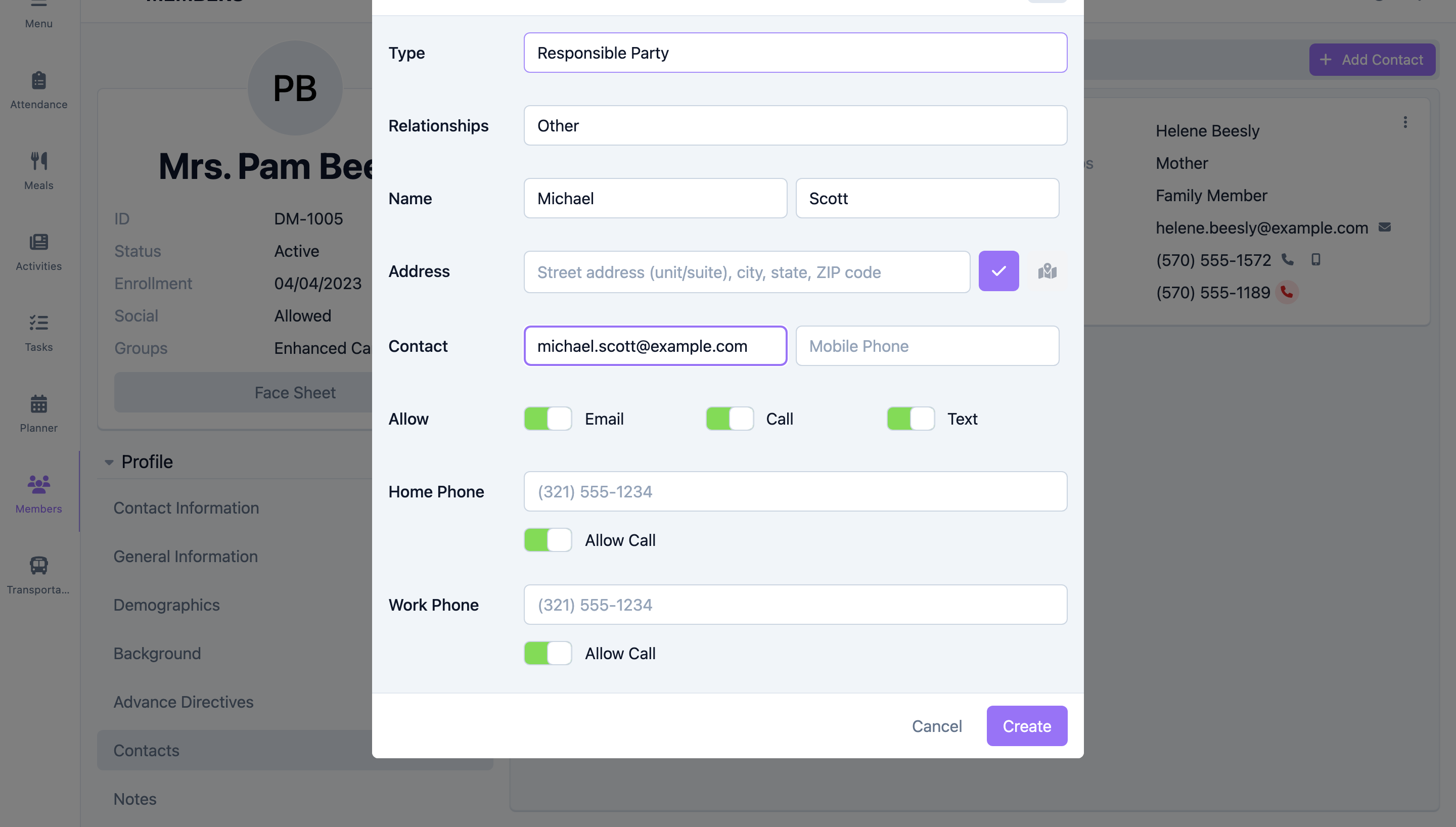
- Enter the mobile Phone and Email.
- Use the Allow toggles (Email, Call, Text) to record how this contact may be reached.
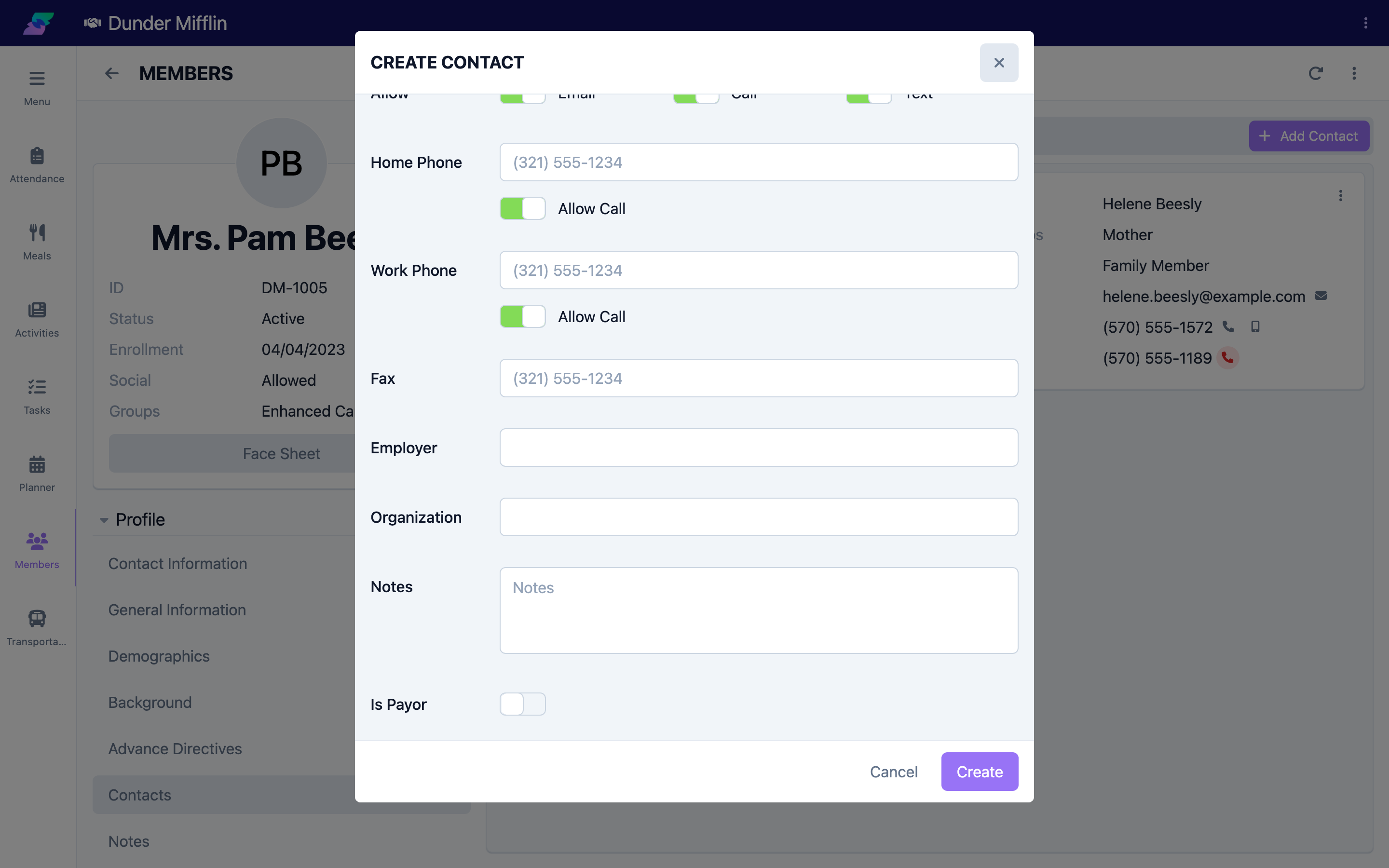
- Add a Home Phone and Work Phone, each with its own Allow Call toggle, if needed.
Step 5: Add extra details and mark a payor
Add Fax, Employer, Organization, and Notes as needed. Turn on Is Payor if this contact is financially responsible for the member. When Is Payor is on, an email address is required so the payor can be synced.
Step 6: Save, then edit or remove contacts
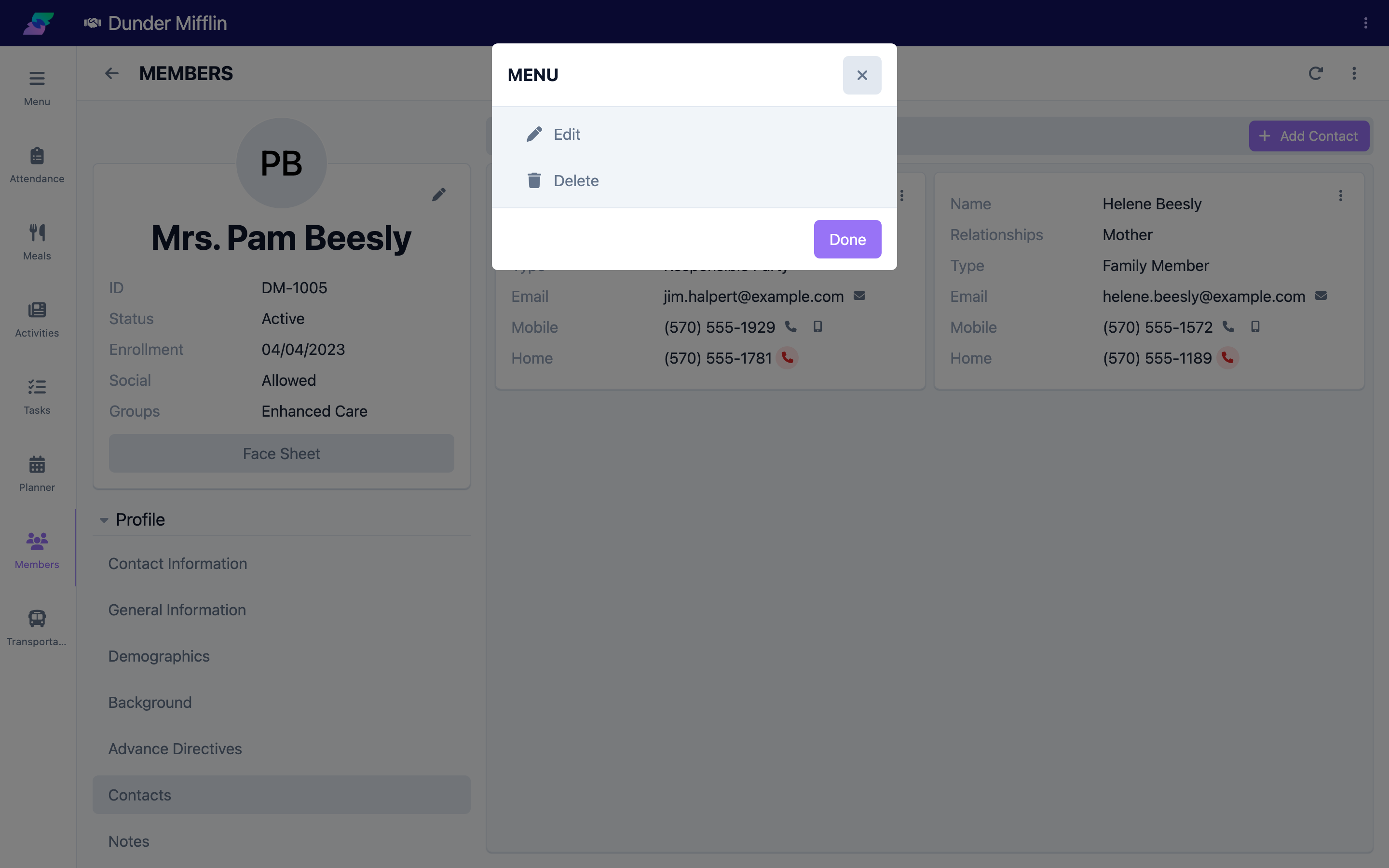
Select Create. Each contact appears as a card. Select the card's overflow menu (⋮) for Edit to change it, or Delete (with confirmation) to remove it.
Tips
- Add more than one emergency contact so someone can always be reached.
- Use Relationships (plural). A contact can hold several relationships at once — select all that apply.
- Mark payors correctly. The Is Payor toggle links the contact into billing; it requires an email address.
- Use Notes to disambiguate contacts who share a relationship (for example, two daughters).
Troubleshooting
| Problem | Solution |
|---|---|
| I cannot add or edit contacts | You may lack edit permission for member profiles — contact your administrator. |
| The contact will not save | Type, First Name, and Last Name are required (Hospital uses a single Name). If Is Payor is on, an email is required. |
| I deleted a contact by mistake | Contacts are removed on delete; re-enter the contact to restore the information. |
| A phone number looks odd | Numbers are reformatted for display after saving; re-open the contact to confirm the digits. |