
Overview
Care tasks are the medication and service duties due for members on a given day. They are generated from members' medications and care plan services (plus any custom service tasks). You open a task, complete any required steps — vitals, journal, or questions — and record its status. Where task review is enabled, a reviewer can later mark completed tasks as reviewed.
Before You Begin
- You must be logged into Seniorverse with Care module access.
- You need the Care:Tasks:View permission.
- Marking tasks as reviewed requires the Task Review feature and the Care:Tasks:Review permission.
Steps
Step 1: Open the Care Tasks tab
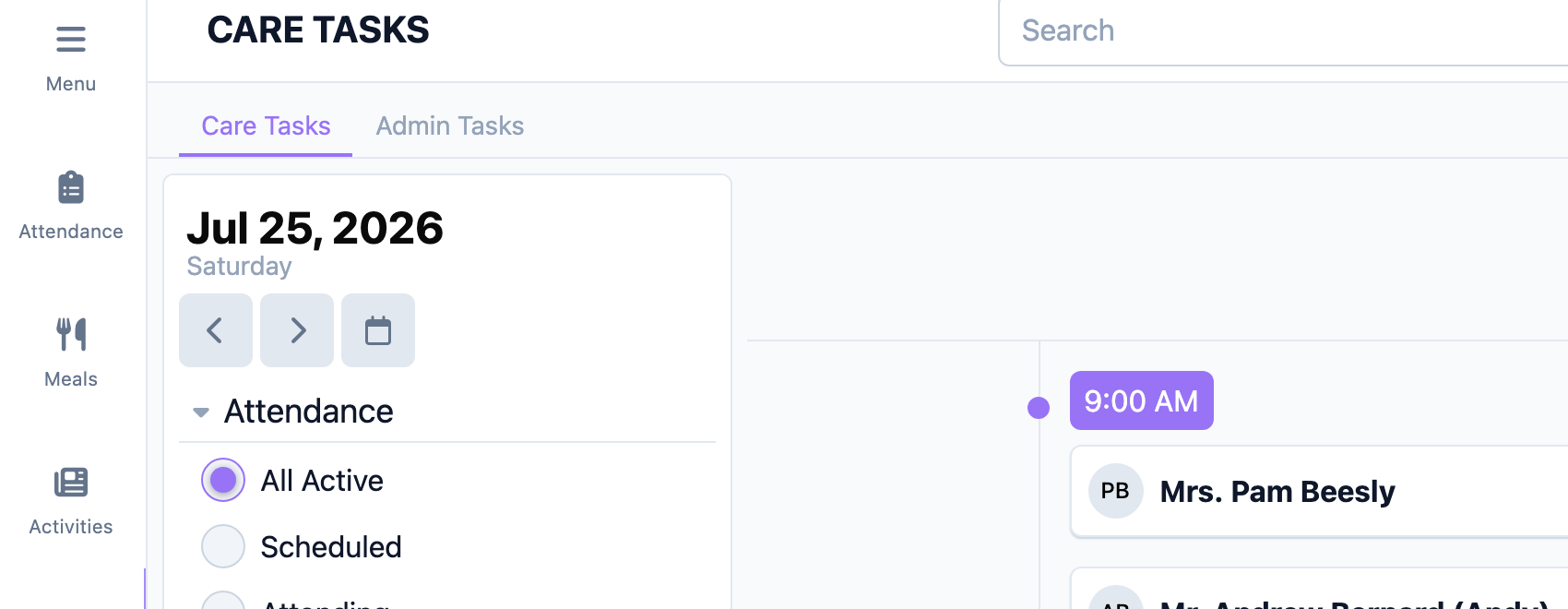
Select Care, then Tasks. Confirm the date on the Care Tasks tab.
Step 2: Find the task
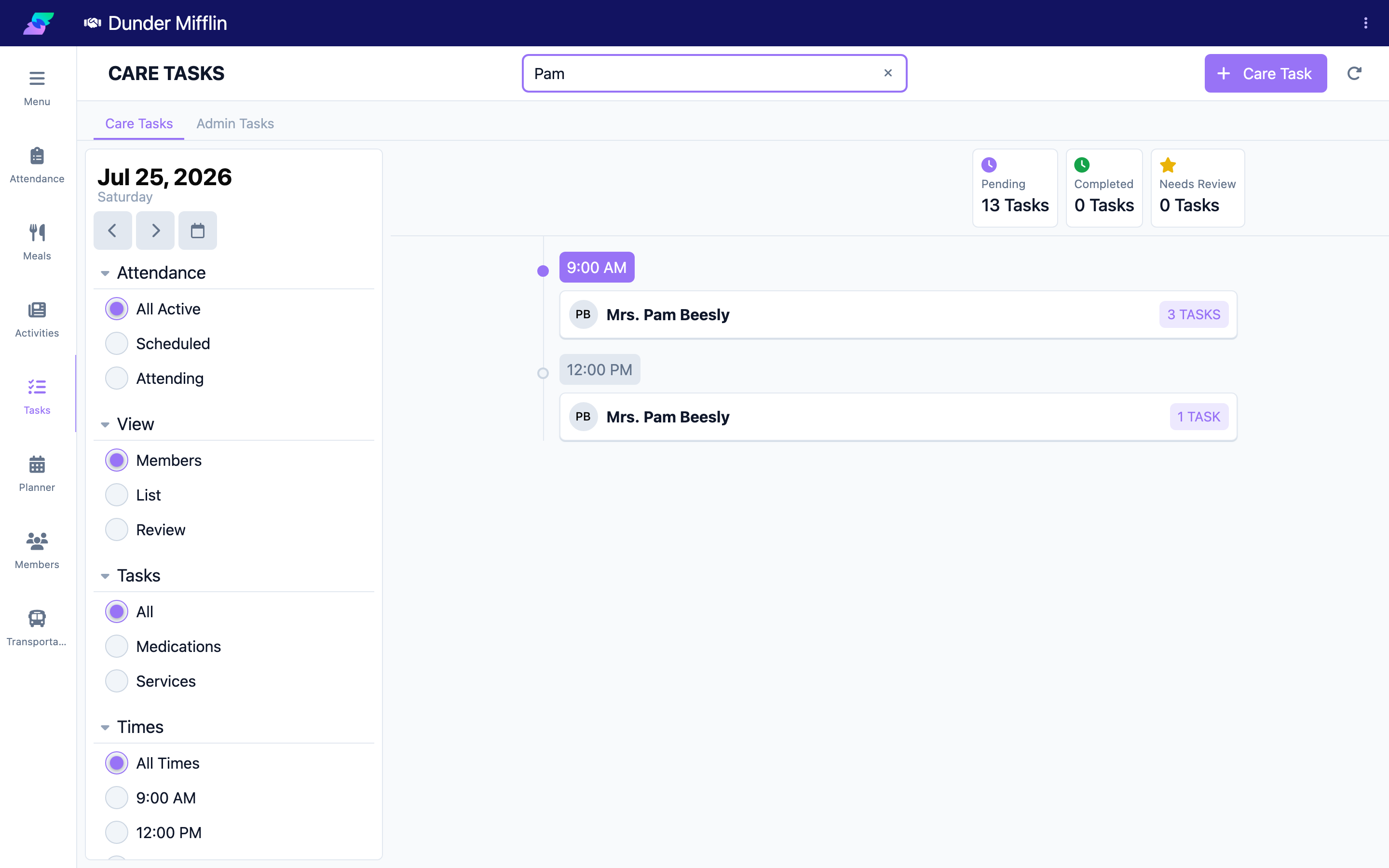
Use the filters — Attendance, Tasks (All / Medications / Services), Times, Members, and Administered By — or the View selector (Members or List) to locate the task. Search by name if needed.
Step 3: Open the task
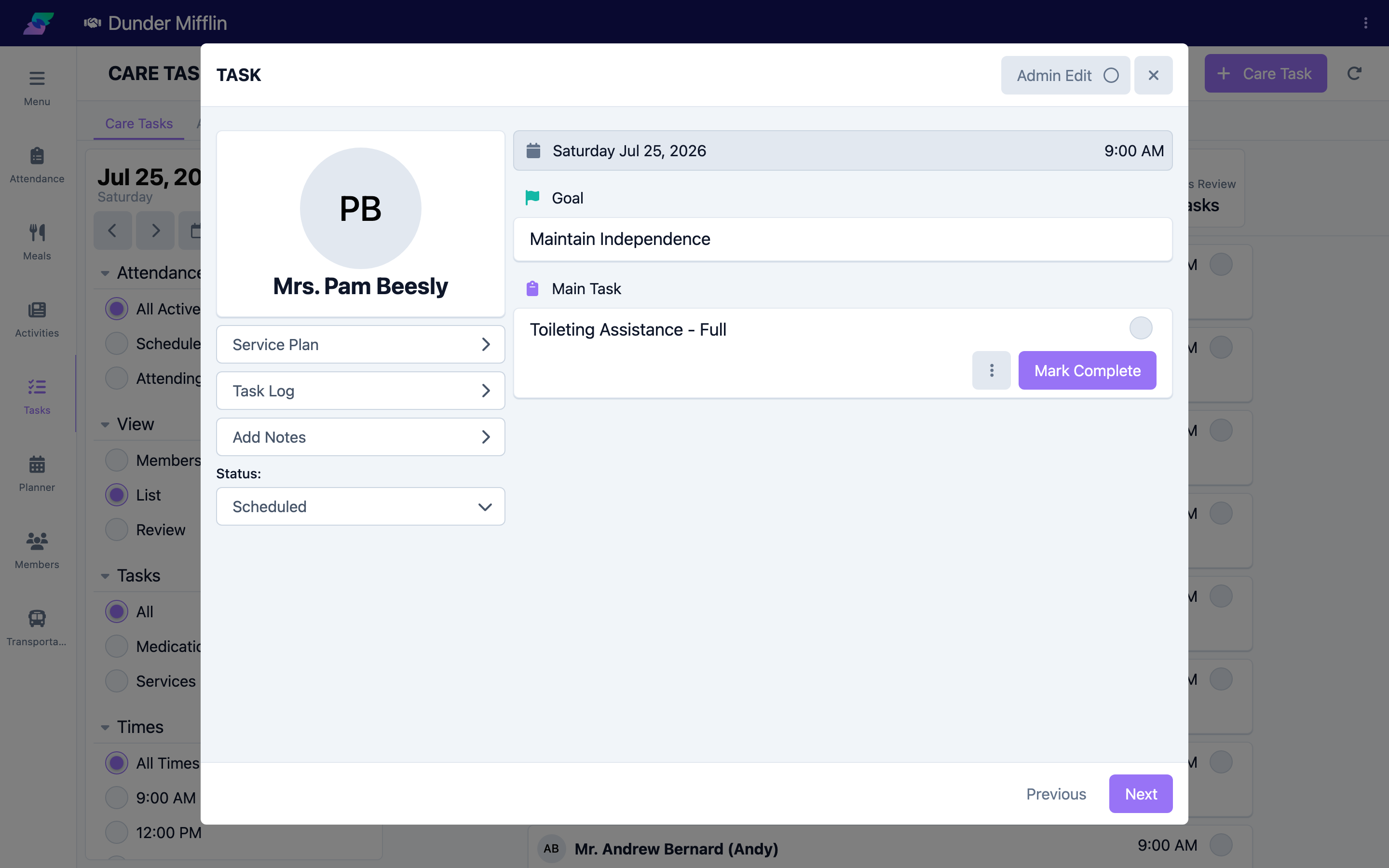
Select the task card to open its detail. Review the member, the task content, any special notes, and the task roles it is meant for.
Step 4: Complete required steps
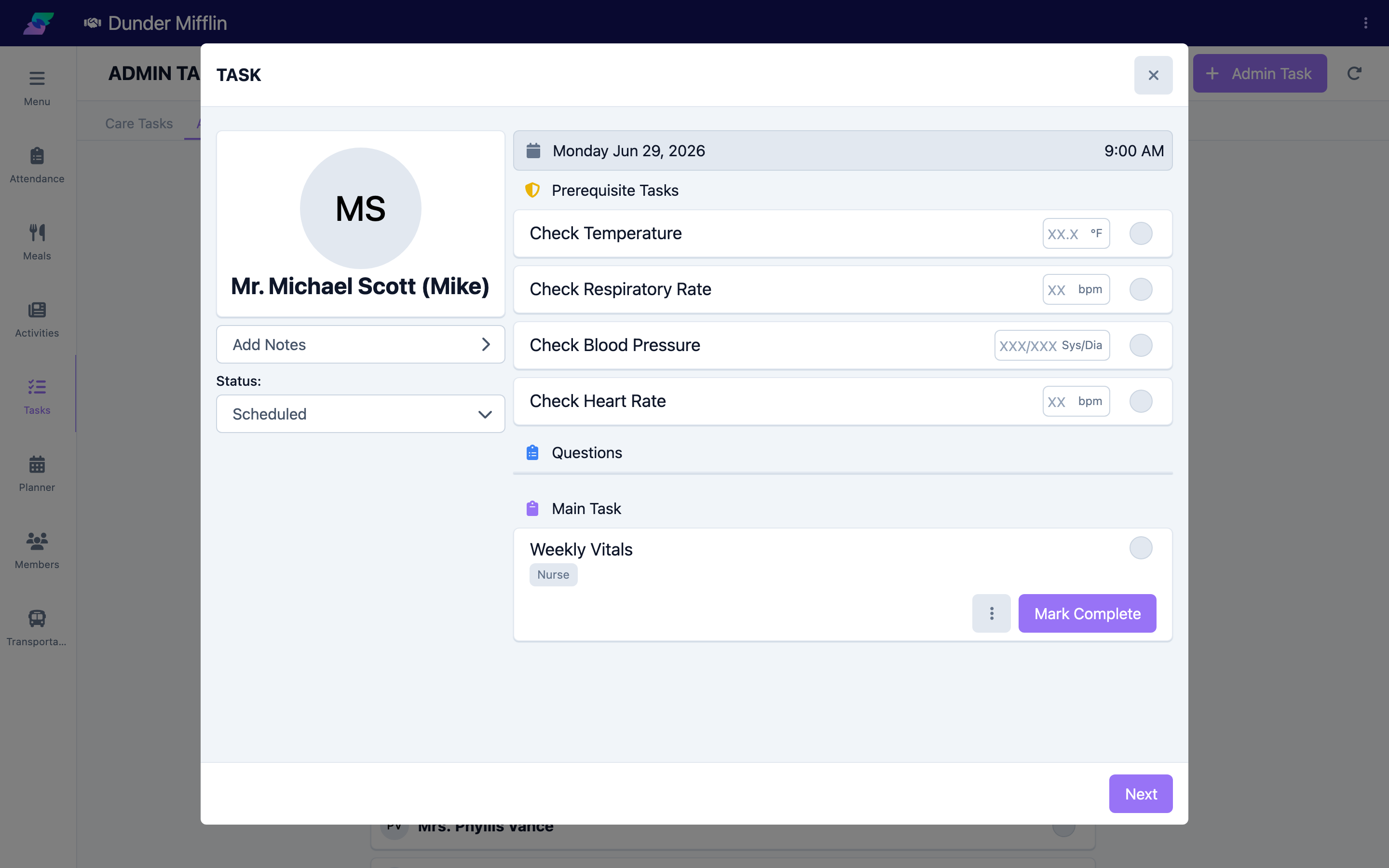
Depending on the task, you may need to record a vital, answer questions, or write a journal entry before completing. The task prompts you if a required step is missing.
Step 5: Record the status
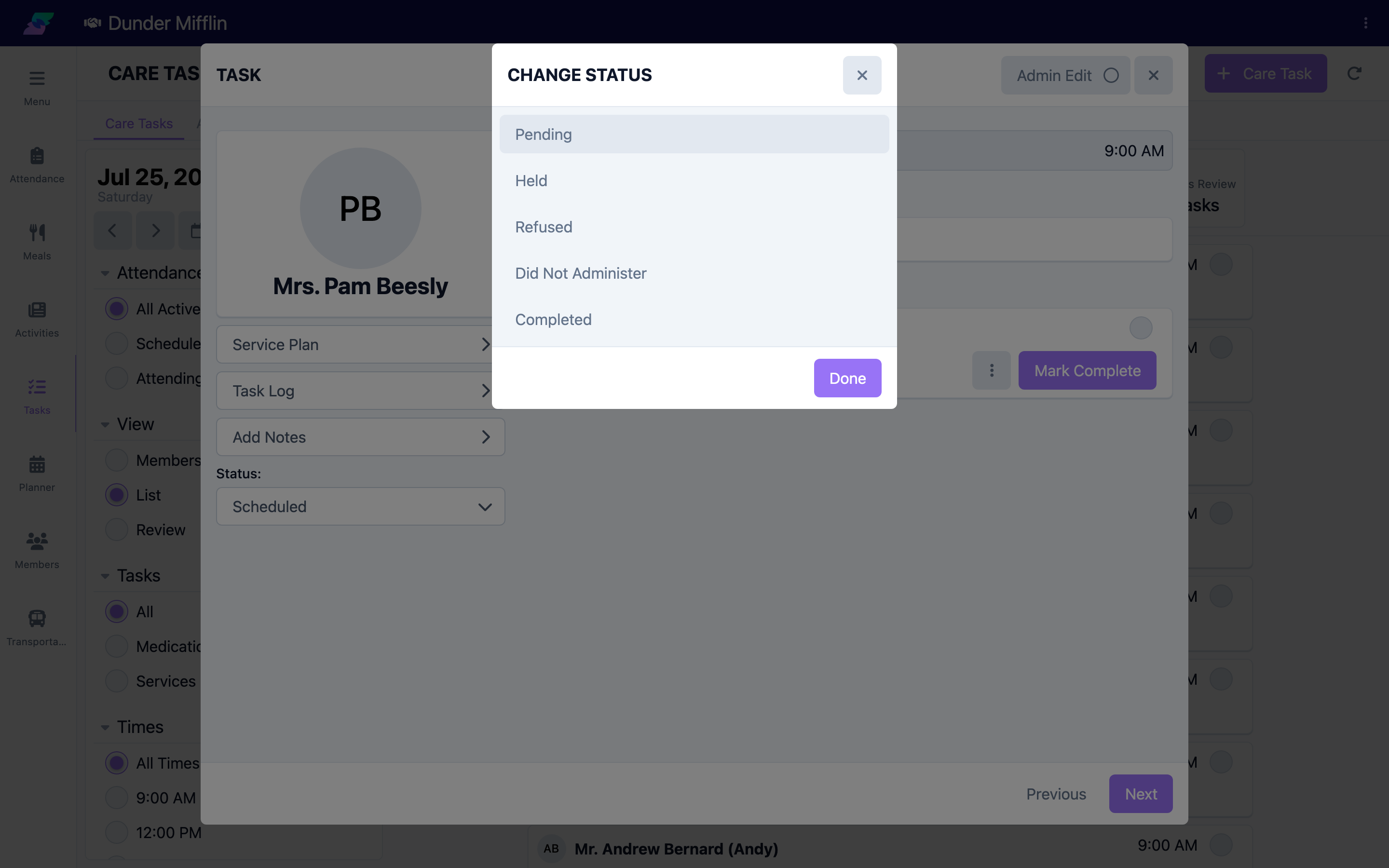
Select Complete to mark the task Completed, or open the status options to choose another status. Statuses include Pending, Completed, and your center's configured refused statuses (for example, "Not Administered"); medications set for pre-pour or multi-dose add options such as Pre-Poured, Verified, or Not Verified. Completed tasks show a green check on the card.
Step 6: Review completed tasks (when enabled)
If task review is enabled, switch the View filter to Review to see tasks needing review. Open a task and select Mark Reviewed; a reviewed task shows a Reviewed label, which you can undo if needed.
Screenshot coming soon — Review view with Mark Reviewed
Tips
- Complete tasks right after performing the care action so records stay accurate.
- Use the Administered By filter to focus on tasks for your role.
- If a required vital or journal is missing, the task will not complete until you add it.
Troubleshooting
| Problem | Solution |
|---|---|
| No tasks appear | Confirm the date and clear the Attendance, Times, or Members filters. The empty state also lists your assigned task roles. |
| The task will not complete | A required step may be missing — record the vital, answer required questions, or add the journal entry, then complete. |
| I cannot mark tasks reviewed | Task review requires the Task Review feature and the Care:Tasks:Review permission. |
| I completed the wrong task | Reopen it and change the status (for example, back to Pending), then complete the correct task. |
Related Articles
- understanding-the-tasks-page — Understanding the Tasks Page
- managing-admin-tasks — Managing Admin Tasks
- creating-new-tasks — Creating New Tasks