
Overview
Meal reporting in Seniorverse has two views: Meals Summary shows the meals served to each member, and Meals CACFP shows the counts you need for CACFP (Child and Adult Care Food Program) reporting. Both draw from the meal service recorded at your center. This article shows you how to open the report, set the period, read each view, and export the results.
Before You Begin
- You need Reports access. If you cannot open the Reports area, contact your administrator.
- Meals should be recorded for the period you want to report on.
- Your center's meal types should be configured, since the Summary view has a column for each one.
Steps
Step 1: Open a Meal Report
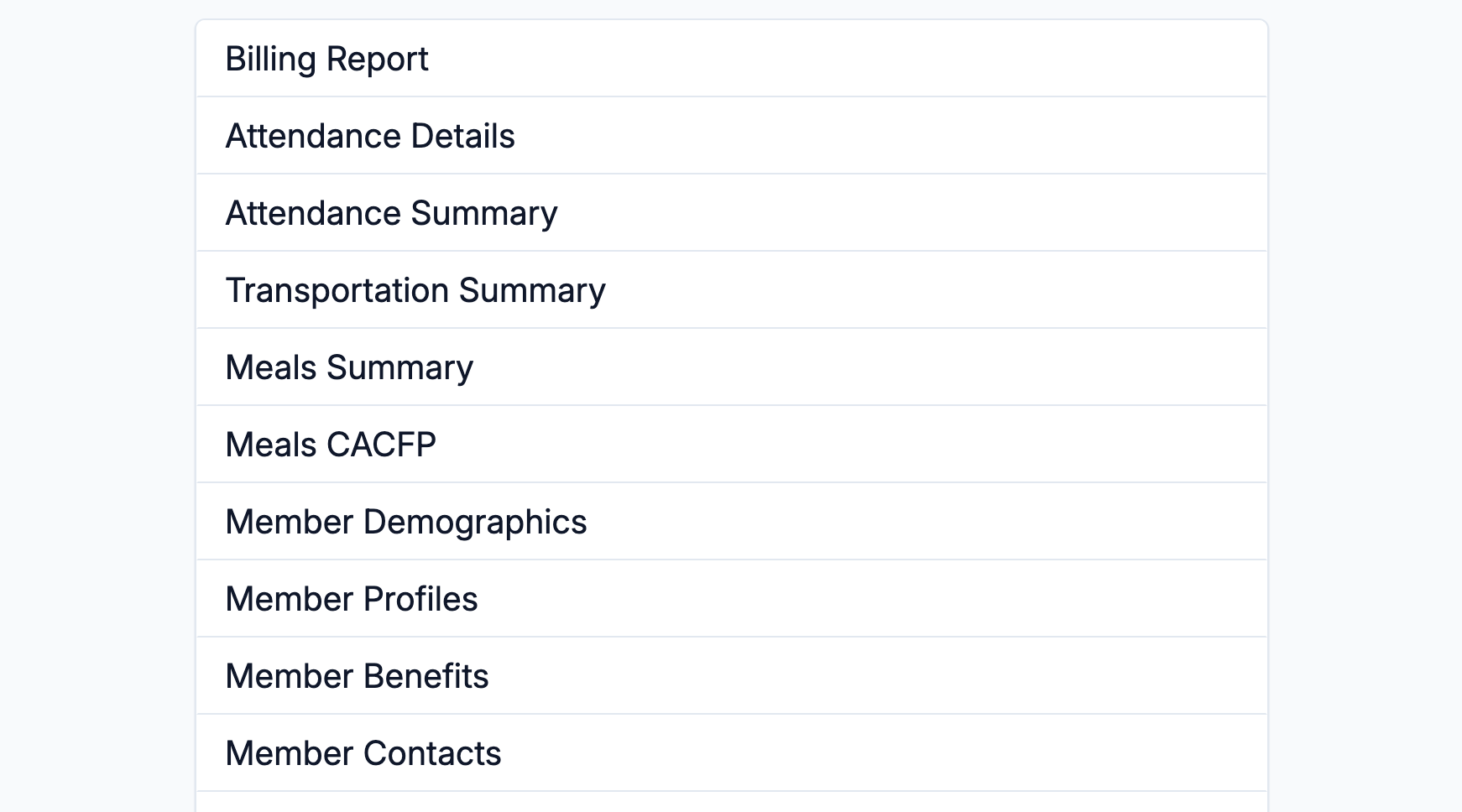
Select Reports from the main navigation, then choose Meals Summary or Meals CACFP from the list. Both open the same meal report, and you can switch between the Summary and CACFP views inside it.
Step 2: Set the Date Range
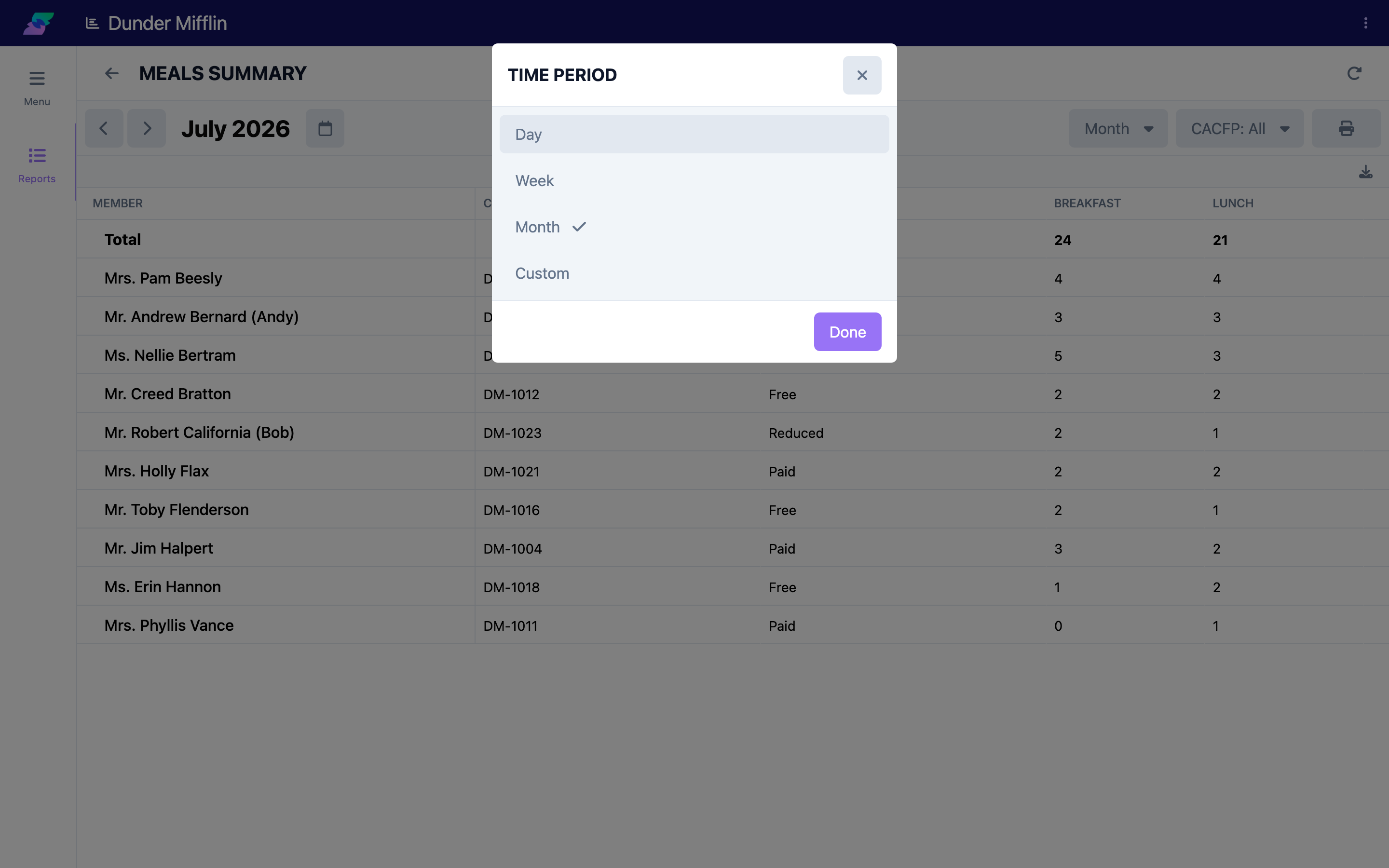
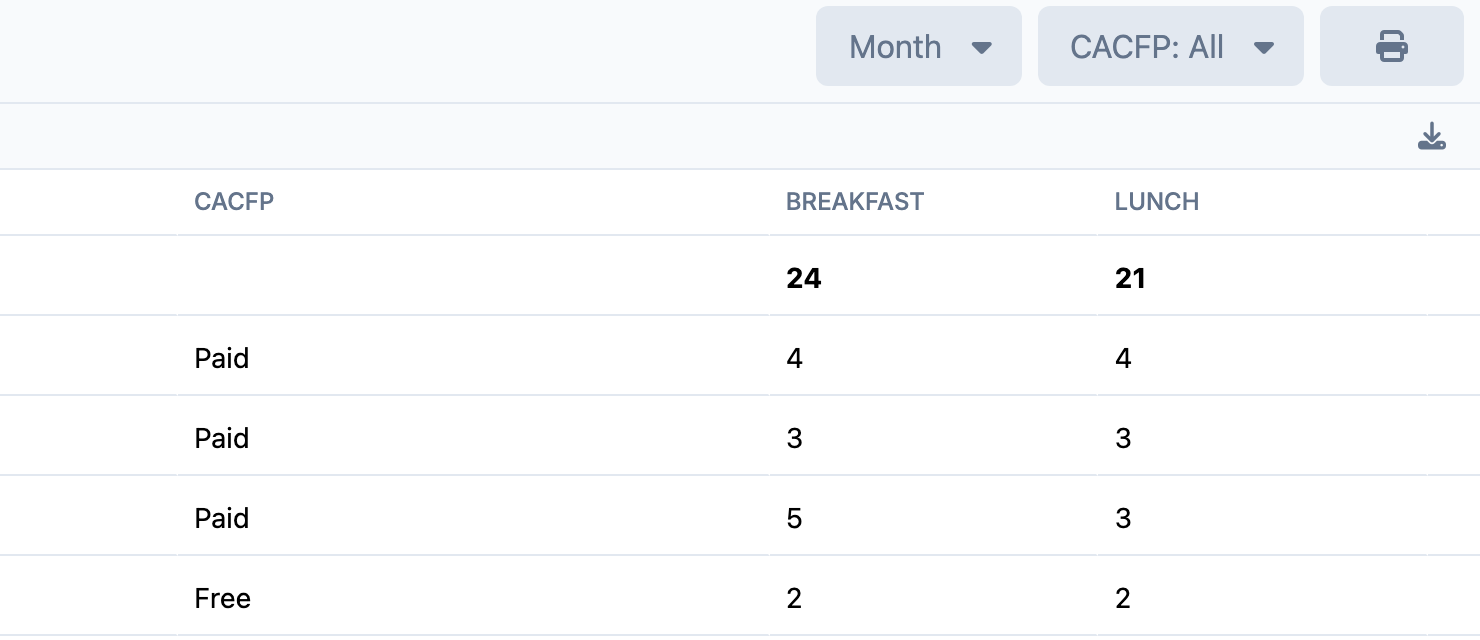
Choose the time period for the report — Day, Week, Month, or a Custom range. The report updates for the selected period.
Step 3: Read the Meals Summary
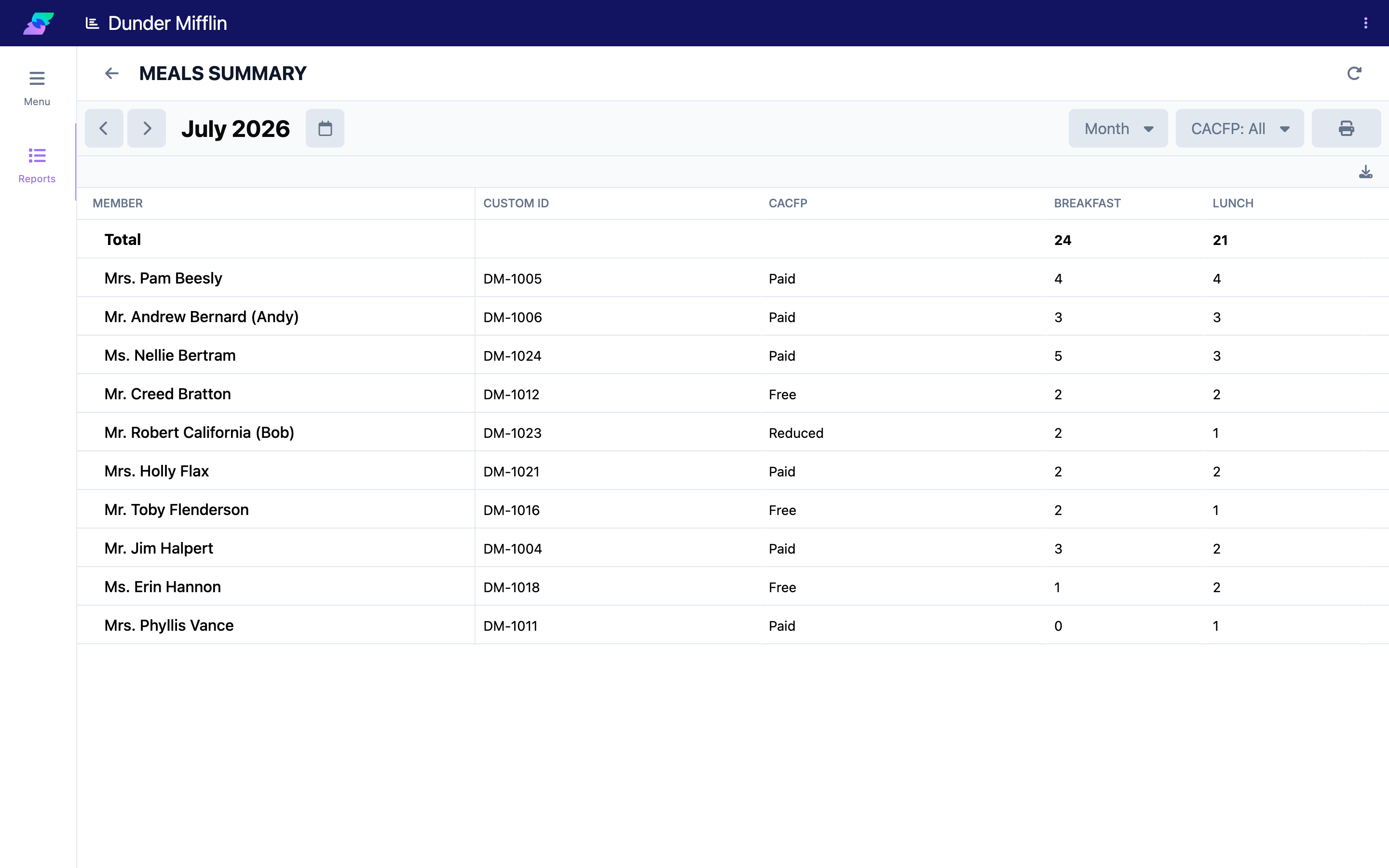
The Summary view lists members with the meals served to each. Columns include:
- Member
- Custom ID
- CACFP
- One column for each meal type your center has configured (for example, breakfast, lunch, or snack)
Step 4: Switch to the CACFP View
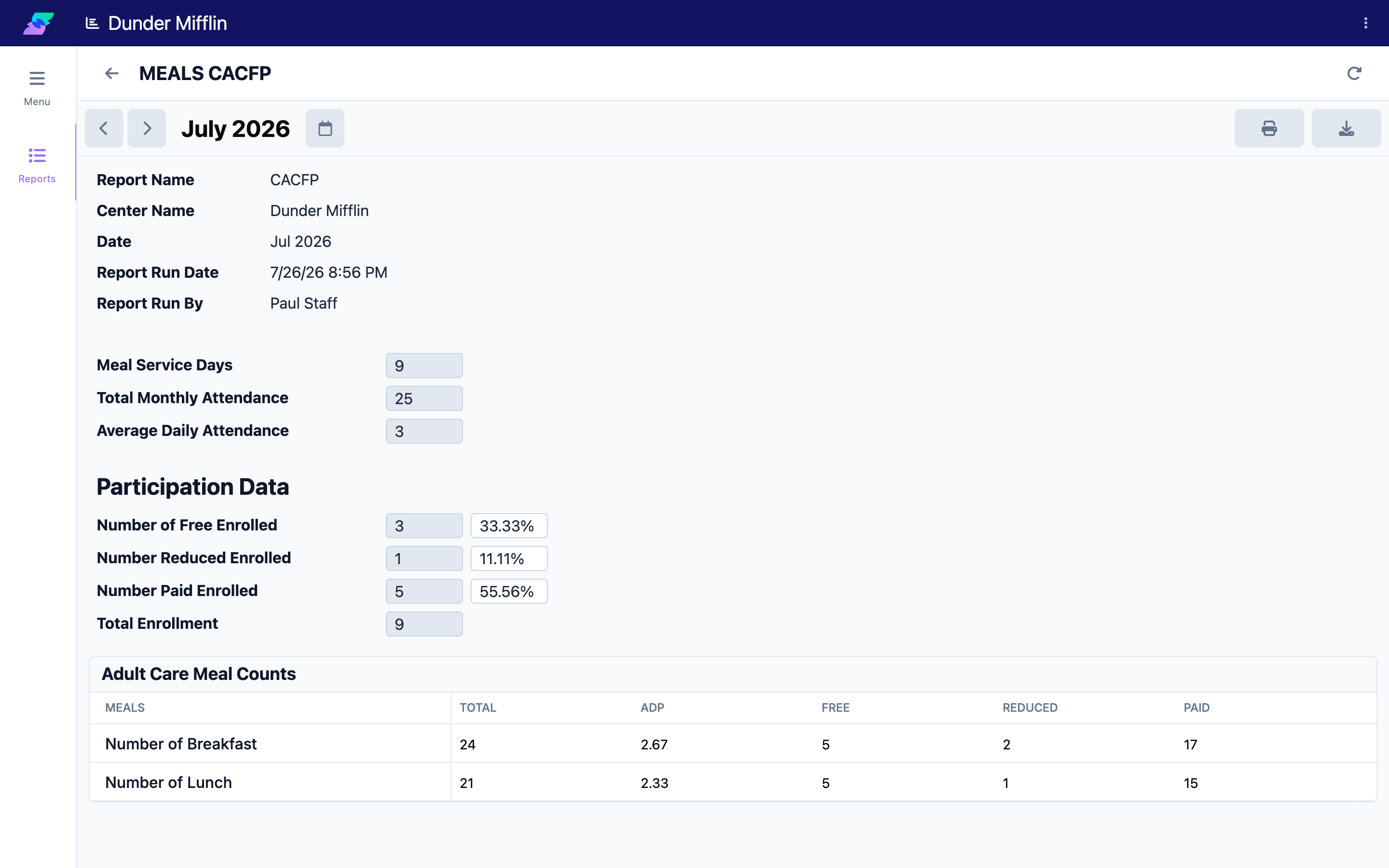
The CACFP view shows the counts used for food-program reporting, including:
- Meals
- Total
- ADP (average daily participation)
- Free
- Reduced
- Paid
Step 5: Export the Report
Use the report's actions to print the report (save as PDF from the print dialog) or download it as a CSV file for use in a spreadsheet.
Tips
- Match the period to your reporting cycle. Set the range to the month you are reporting for before exporting CACFP figures.
- Confirm your meal types are set up. The Summary view only shows a column for each meal type your center has configured.
- Use CSV for record-keeping. Downloading the report keeps a copy for your files alongside on-screen review.
Troubleshooting
| Problem | Solution |
|---|---|
| The report shows no data | Confirm meals were recorded for the selected period and that the date range is not set to future dates. |
| A meal type is missing from the Summary | The Summary shows a column for each configured meal type. Add or adjust meal types in your center's setup if one is missing. |
| A member is missing | Members appear when they have meal data in the selected period. Check the range and that the member attended. |
| An export is empty | Make sure the report shows data on screen first. An empty report exports empty. |