
Overview
You can download an invoice as a PDF, download a receipt once it's paid, or export the invoice details as a CSV. The invoice PDF is generated on the server when the invoice is finalized and stored with the invoice, so downloading a finalized invoice pulls that saved PDF. A Draft has no finalized PDF yet, so downloading one generates a copy on demand.
Before You Begin
- You need access to the Billing module.
- The saved invoice PDF exists only after the invoice is finalized.
- Download Receipt appears only once the invoice has payments.
Steps
Step 1: Open the invoice actions menu
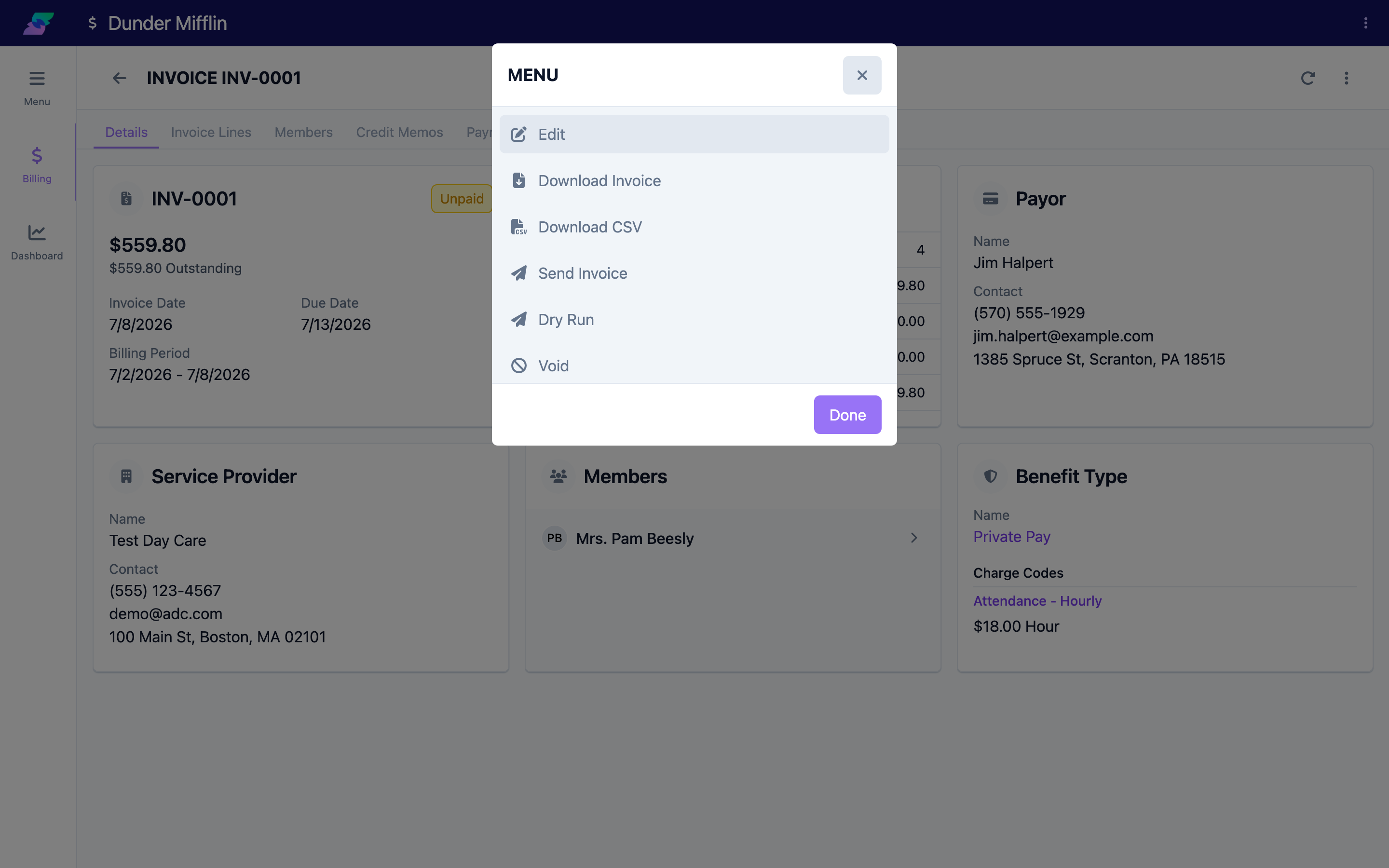
Open the invoice and open its actions menu. The download options available depend on the invoice's state.
Step 2: Download the invoice PDF
Choose Download Invoice. For a finalized invoice, this downloads the PDF that was generated at finalization and stored with the invoice. For a Draft (which has no saved PDF), it generates a PDF on demand so you still get a copy.
Step 3: Download a receipt
Once the invoice has been paid, choose Download Receipt (also available as the primary Receipt button on a Paid invoice). This produces a receipt reflecting the payments recorded against the invoice.
(Screenshot not available: no invoice in the demo center currently has a recorded payment, so "Download Receipt" never appears in the actions menu to capture — it only shows up once a payment exists.)
Step 4: Export a CSV
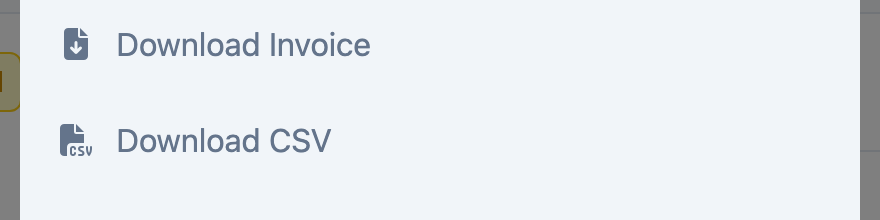
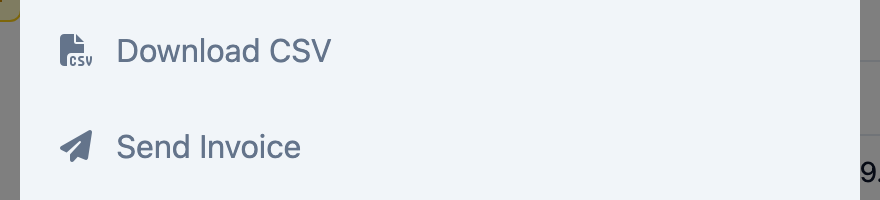
Choose Download CSV to export the invoice as a spreadsheet. The CSV includes the invoice reference, dates, and billing period; the payor and service provider details; every line item with quantity, rate, amount, and balance; any credits and payments; and a summary of subtotal, credits, payments, and outstanding balance. The file is named Invoice-<ref>.csv.
Step 5: Export the whole list (optional)
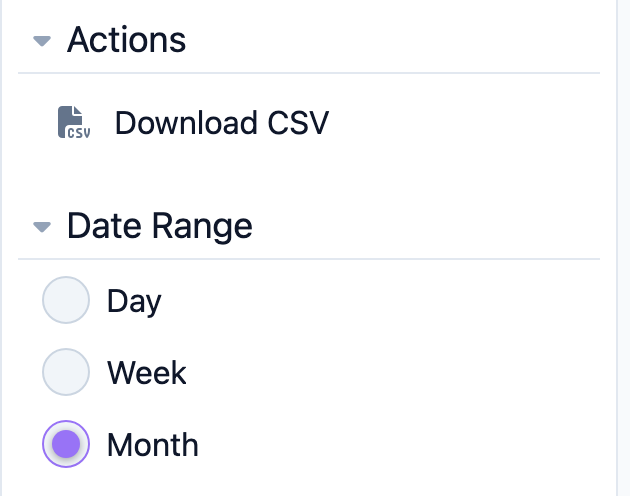
To export many invoices at once, go to Billing → Invoices, apply your filters and date range, then use the Download CSV action in the list's Actions filter. This exports every invoice currently shown in the list.
Tips
- The invoice PDF is produced server-side at finalization, so the downloaded file matches exactly what the payor is emailed.
- A Draft has no stored PDF — the download you get is an on-demand copy for review, not the official finalized document.
- Use the per-invoice Download CSV for one invoice's detail, and the list's Download CSV action for a batch export.
Troubleshooting
| Problem | Solution |
|---|---|
| The PDF looks like a preview, not the final document | The invoice is still a Draft. Finalize it to generate and store the official PDF. |
| Download Receipt isn't available | The invoice has no payments yet. A receipt appears only after payments are recorded. |
| The downloaded PDF is missing | The finalized PDF wasn't stored. Re-run Finalize, or use Download Invoice on the Draft to generate a copy on demand. |
| The CSV is empty or incomplete | Open the invoice and confirm it has line items; drafts compute totals live, so let the detail finish loading before exporting. |
Related Articles
- the-invoice-lifecycle — The Invoice Lifecycle
- finalizing-an-invoice — Finalizing & Sending an Invoice
- viewing-and-editing-invoices — Viewing & Editing Invoices