
Overview
Permissions control what each staff member can see and do at your center. In Seniorverse you manage permissions from Center > Users — there is no separate "Settings" area, and there is no fixed list of job "roles" that grants access. Instead, each user's access is built from three independent parts:
- Super Access — a single switch that grants full control of everything at the center.
- Per-app permissions — for each Seniorverse app (Care, Reception, Outreach, Reports, Center, Billing, Driver) you choose Full Access, Limited Access (then pick specific scopes), or no access.
- Task Roles — a separate setting that controls which care tasks a user can see and complete. Task Roles are covered in their own article; this guide focuses on Super Access and per-app permissions.
Because access is assembled from these parts, two staff with the same job title can have very different permissions.
The seven apps
| App | Controls access to |
|---|---|
| Care | Day-to-day clinical work: attendance, meals, activities, care tasks, member profiles and records, and the planner |
| Reception | The Reception (front-desk check-in / check-out) experience |
| Outreach | The Outreach relationship-management app (contacts, pipelines, organizations, and clients) |
| Reports | The Reports app and the individual reports within it |
| Center | Center administration: managing users, Connect users, center content, and center setup |
| Billing | Billing and invoicing, including the billing dashboard |
| Driver | The Driver app for viewing and completing assigned transportation trips |
For each app you can turn on Full Access (everything in that app) or Limited Access (only the specific scopes you select). When an app is set to Full Access, an extra Admin Scopes section may appear for that app's more sensitive actions.
Note: You can only grant another user access to an app that you yourself have full access to. Options for apps you do not fully control are shown but disabled.
Center (administration) scopes
Because this article is aimed at administrators, here are the granular scopes under the Center app — the ones that govern who can administer the center:
| Scope | What it allows |
|---|---|
| Center:User:View | View users who have access to the center and their permissions |
| Center:User:Invite | Invite new users and assign their permissions |
| Center:User:Edit | Edit existing users' access and manage their permissions |
| Center:User:Delete | Remove users' access to the center |
| Center:ConnectUser:View / Invite / Edit | View, invite, and edit Connect users who have member access |
| Center:Contents:View / Edit | View and edit the center's content options |
| Center:Setup:View | Open the Setup page |
Before You Begin
- You need permission to edit users at your center (the Center:User:Edit scope, or Super Access).
- You cannot change your own permissions — another administrator must do that.
- You cannot grant, remove, or edit a user who has Super Access unless you have Super Access yourself.
- Only a user who already has Super Access can grant Super Access to someone else.
Steps
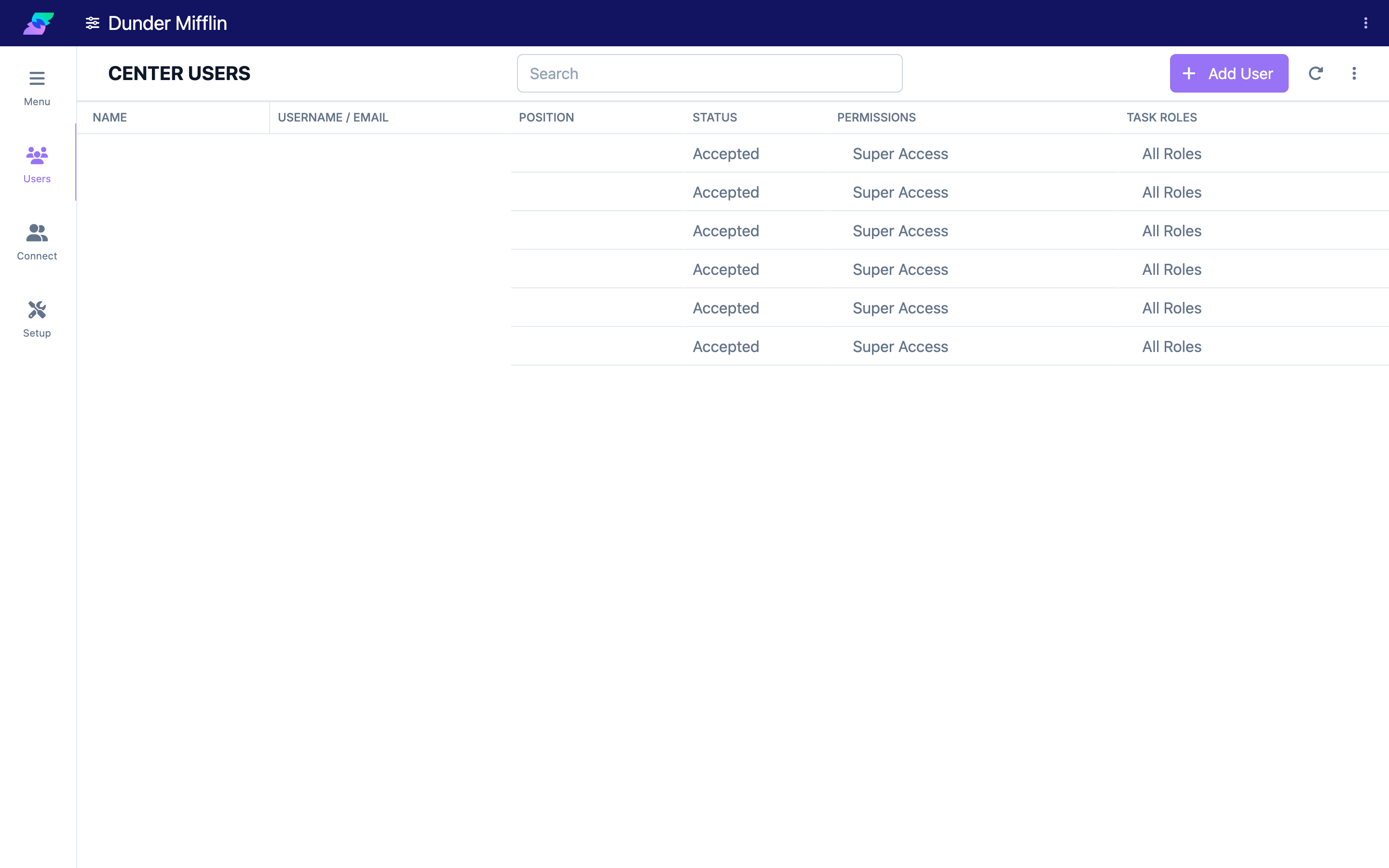
Step 1: Open Center > Users
Select Center from the navigation, then select Users. The Users table lists everyone with access to your center, along with their Position, Status, Permissions summary, and Task Roles.
Step 2: Open the user's permissions
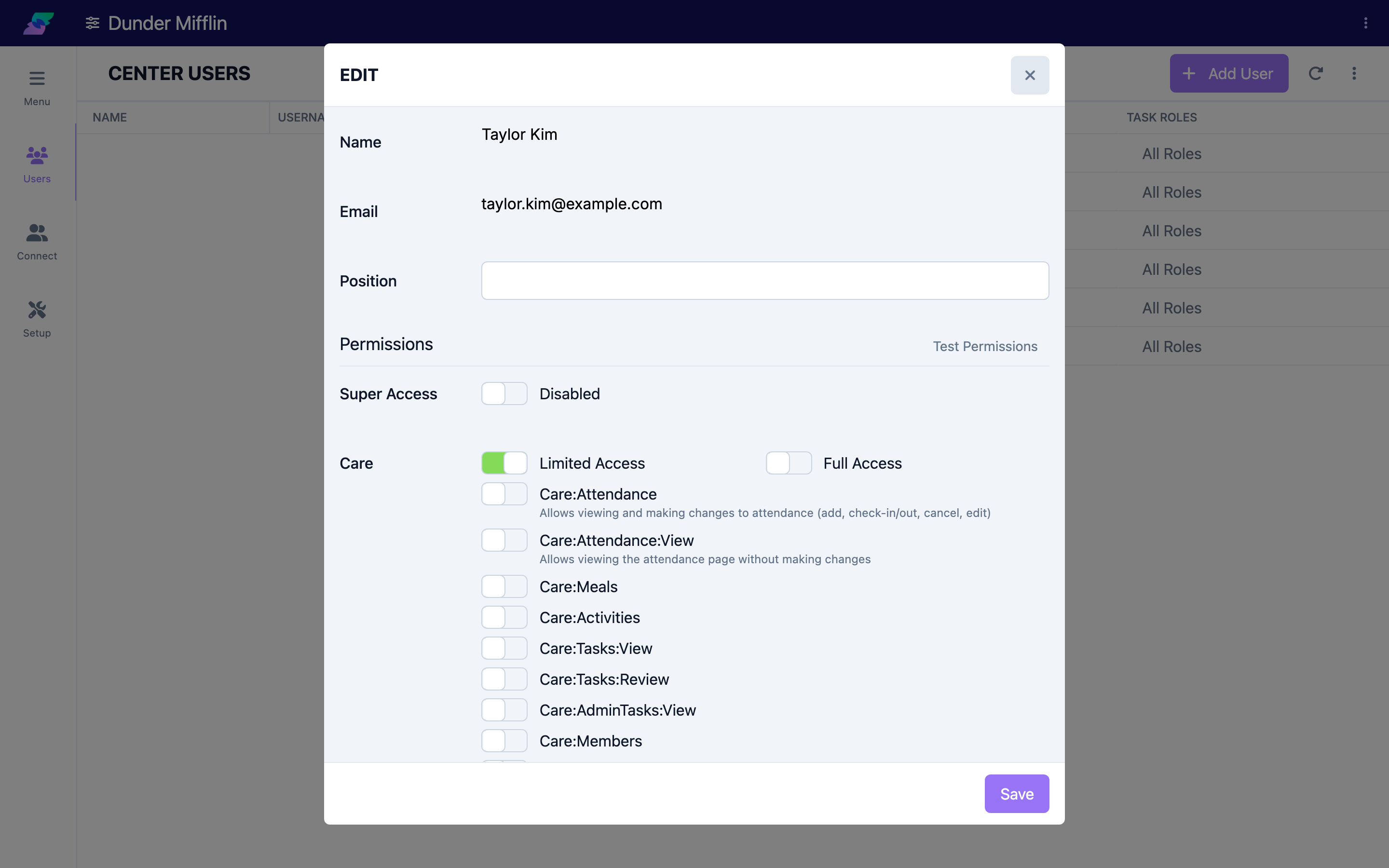
Find the person you want to update and select their Permissions summary (or their name) to open the edit panel. Scroll to the Permissions heading.
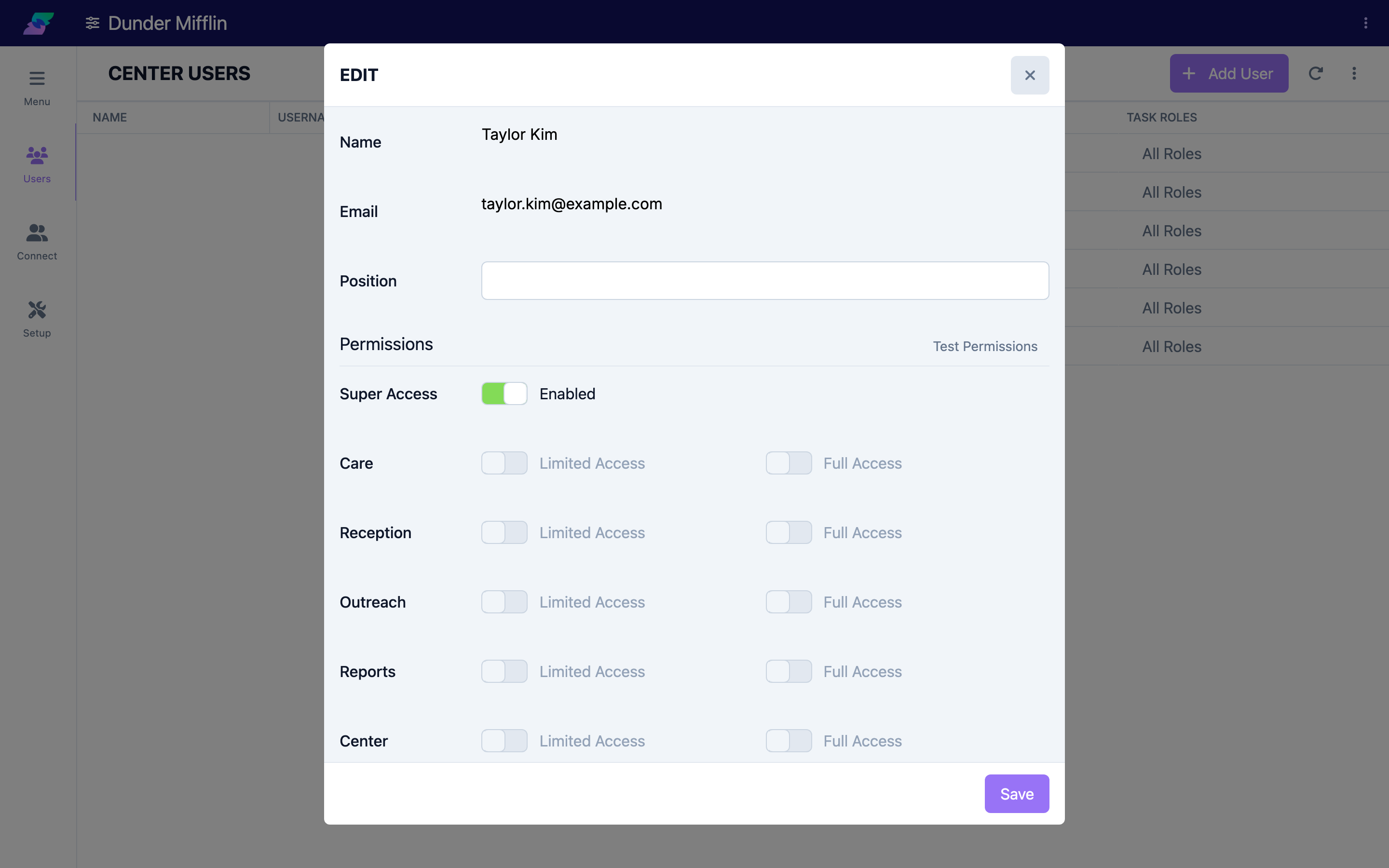
Step 3: Decide on Super Access
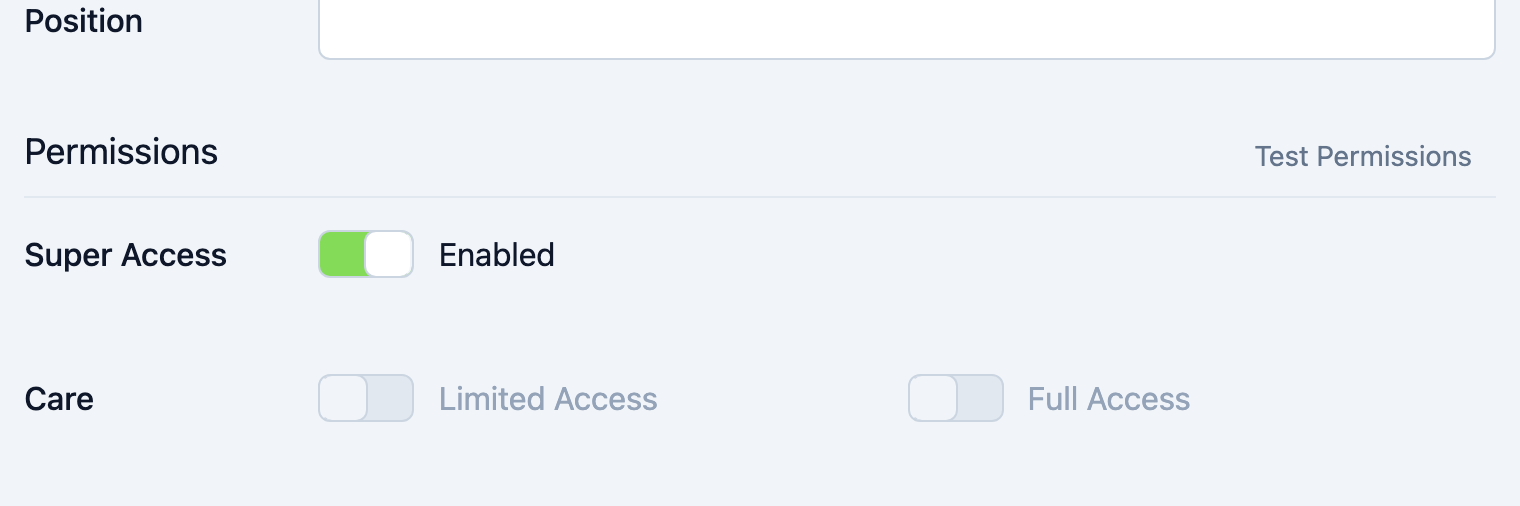
Under Super Access, turn the toggle Enabled only for administrators and center directors who should be able to do everything at the center. Leave it Disabled for everyone else and set per-app access instead.
The Super Access toggle appears only for accounts the individual manages themselves (Self accounts) and only when you have Super Access.
Step 4: Set each app to Full Access or Limited Access
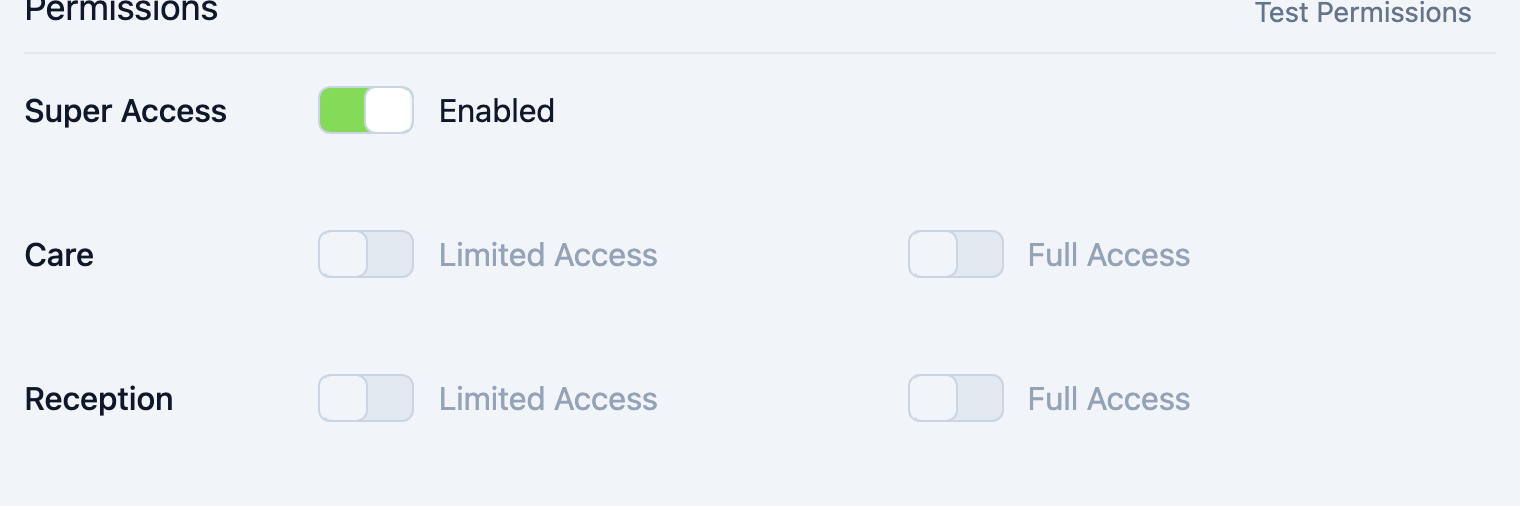
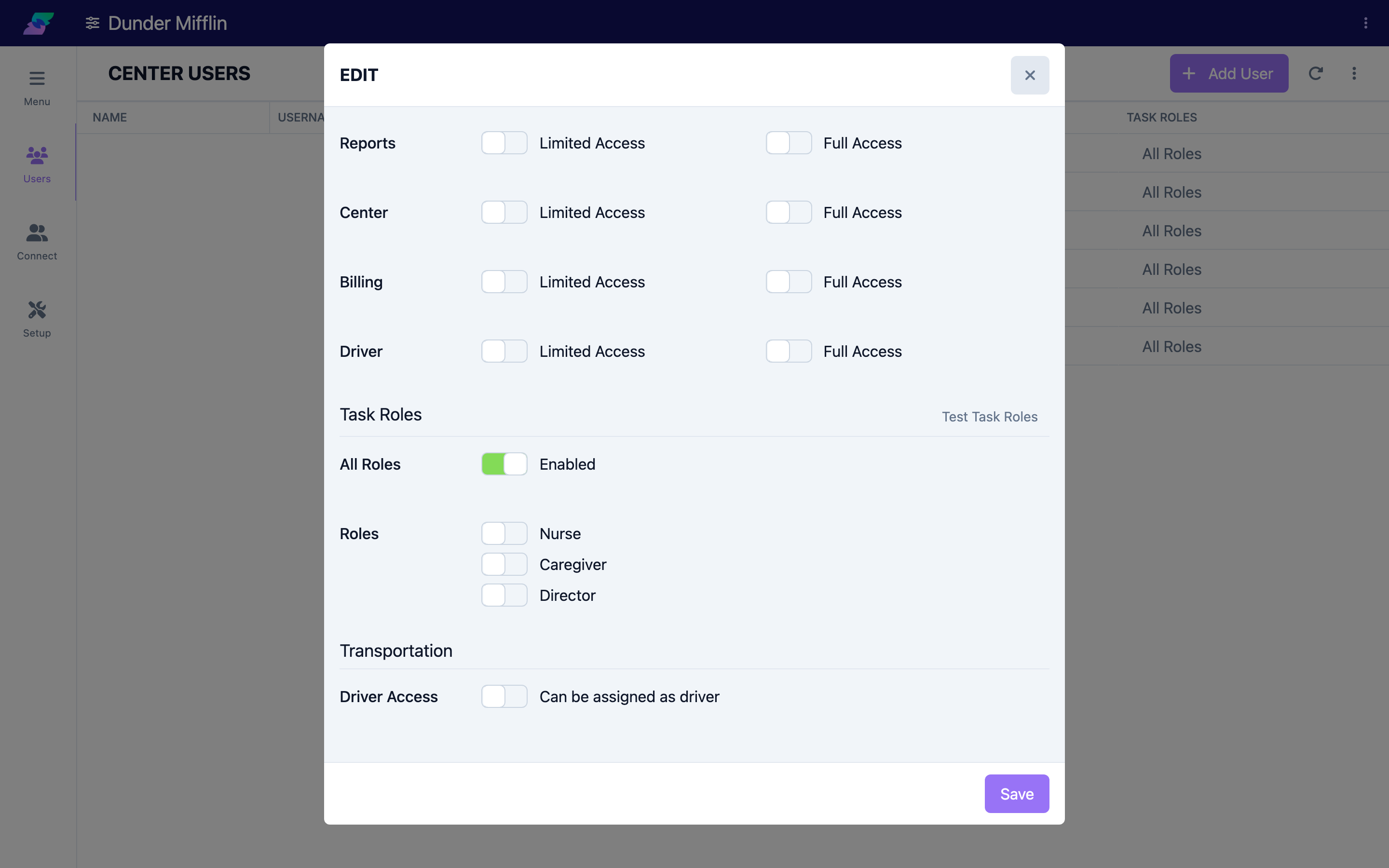
For each app (Care, Reception, Outreach, Reports, Center, Billing, Driver), choose how much access the user needs:
- Turn on Full Access to give the user everything in that app.
- Turn on Limited Access to grant only specific scopes (see the next step).
- Leave both off to give no access to that app.
Full Access and Limited Access are mutually exclusive — turning one on turns the other off.
Step 5: Choose granular scopes
When an app is set to Limited Access, a list of individual scopes appears. Turn on each scope the user should have — the description under each toggle explains what it allows. When an app is set to Full Access and has admin-level actions, an Admin Scopes section appears for those sensitive permissions.
Step 6: Save
Select Save to apply the changes. Ask the user to sign out and back in if they do not see the new access right away.
Tips
- Start with Limited Access. Grant only the scopes each person needs, then add more later. Reserve Super Access and per-app Full Access for administrators.
- Use the Center scopes to delegate carefully. For example, give a supervisor Center:User:Invite and Center:User:Edit without Super Access so they can manage staff but nothing else.
- Task Roles are separate. Permissions decide which apps and screens a user can reach; Task Roles decide which care tasks appear for them. Set both.
- Test before you rely on it. If you have Super Access, use the Test Permissions button to preview the platform exactly as the scopes you selected would experience it.
Troubleshooting
| Problem | Solution |
|---|---|
| The Super Access toggle is missing or disabled | Super Access can only be changed by a user who already has it, and it only appears for self-managed (Self) accounts. Ask an administrator with Super Access to make the change. |
| An app's toggles are grayed out | You can only grant access to apps you yourself have full access to. Ask an administrator with full access to that app. |
| You cannot edit a particular user | You cannot edit your own permissions, and you cannot edit a user who has Super Access unless you also have it. |
| The user still cannot reach a feature after saving | Confirm the correct app scope is on, then have the user sign out and back in to refresh their session. |
| Limited Access is on but no scopes appear to help | Limited Access reveals the scope list only for that app; scroll within the app's group to find the individual toggles. |