
Overview
A service plan is a member's individualized care plan — a set of goals and the services that support them, along with dates, notes, signatures, and supporting documents. You build service plans on the member's Service Plans tab, and you can start one three ways:
- From a Service Plan template — pre-fills the goals and services defined in a reusable template
- From an assessment — seeds the plan from a completed assessment that was flagged for the care plan
- Blank — start with an empty plan and add goals and services yourself
A new plan begins as In Progress. When it is ready you Activate it, and later you Mark Completed. A member can have only one active plan at a time.
Before You Begin
- You need Care planning access (the Service Plans tab must be visible on the member profile).
- The member must already exist in Seniorverse.
- To start from a template, your center's plan templates must be set up — see Using Plan Templates.
- To start from an assessment, complete an assessment whose template has Service Plan enabled — see Creating Assessments.
Steps
Step 1: Open the member's Service Plans tab
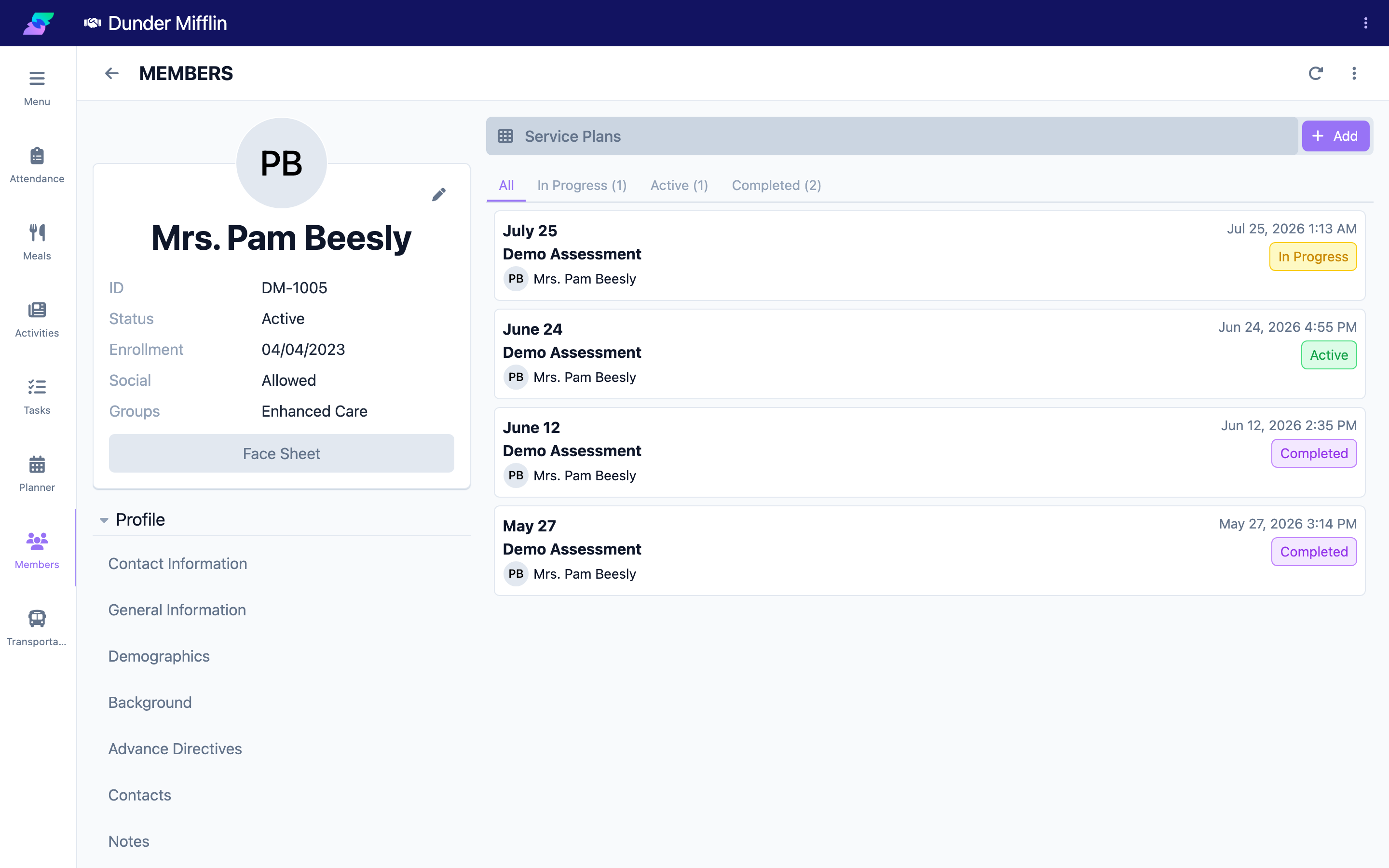
From the main navigation select Care, then Members, and open the member. Expand the Care tab group and select the Service Plans tab. Existing plans are listed with their status; you can filter by status using the tabs at the top of the list.
Step 2: Add a plan and choose how to start it
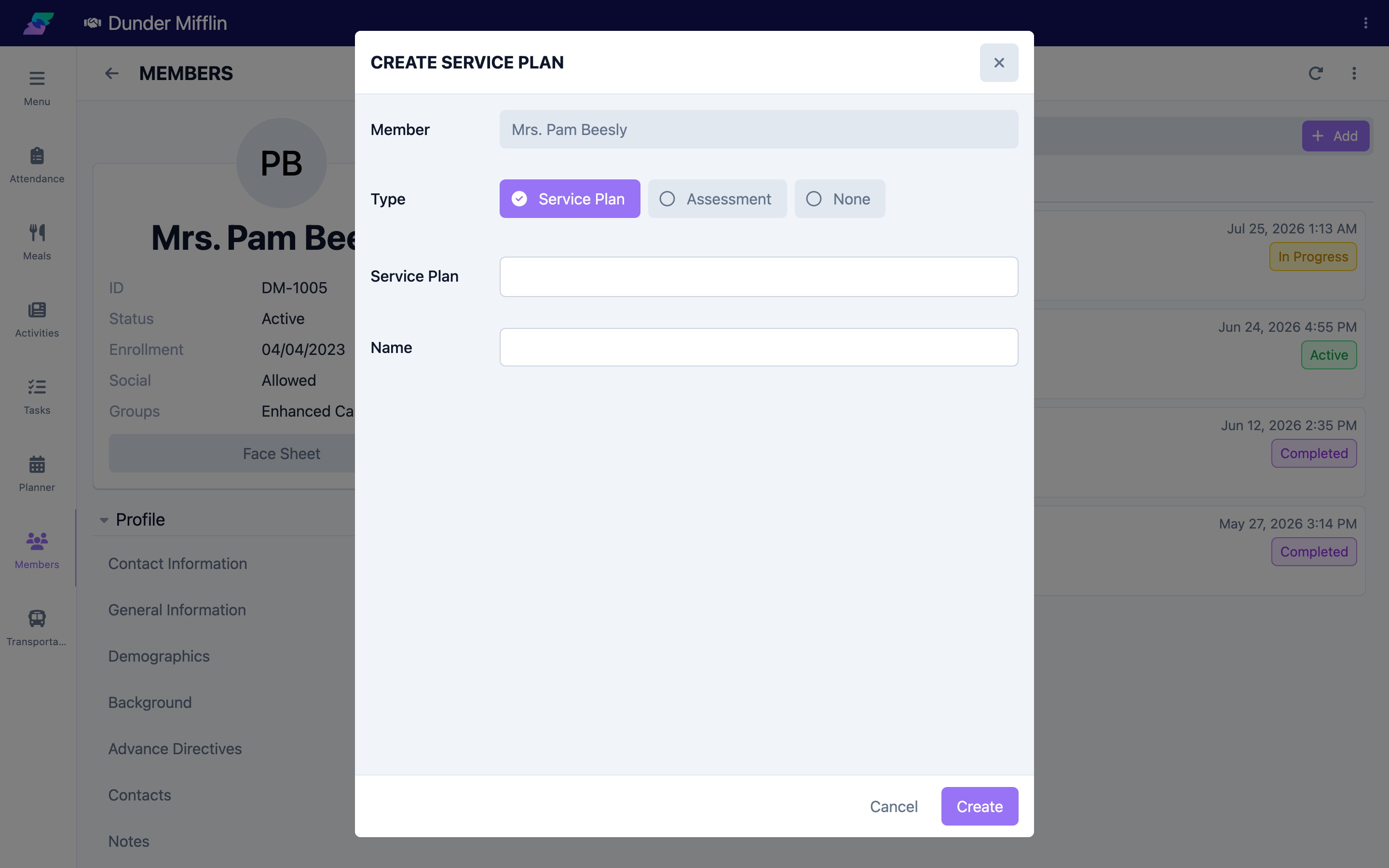
Select Add to open the Service Plan dialog. Confirm the Member, then choose a Type:
- Service Plan — select a plan template to pre-fill goals and services
- Assessment — select one of the member's assessments to seed the plan
- None — start blank
The Name fills in automatically when you pick a template or assessment; you can edit it. Save to create the plan (status In Progress).
Step 3: Set the plan details
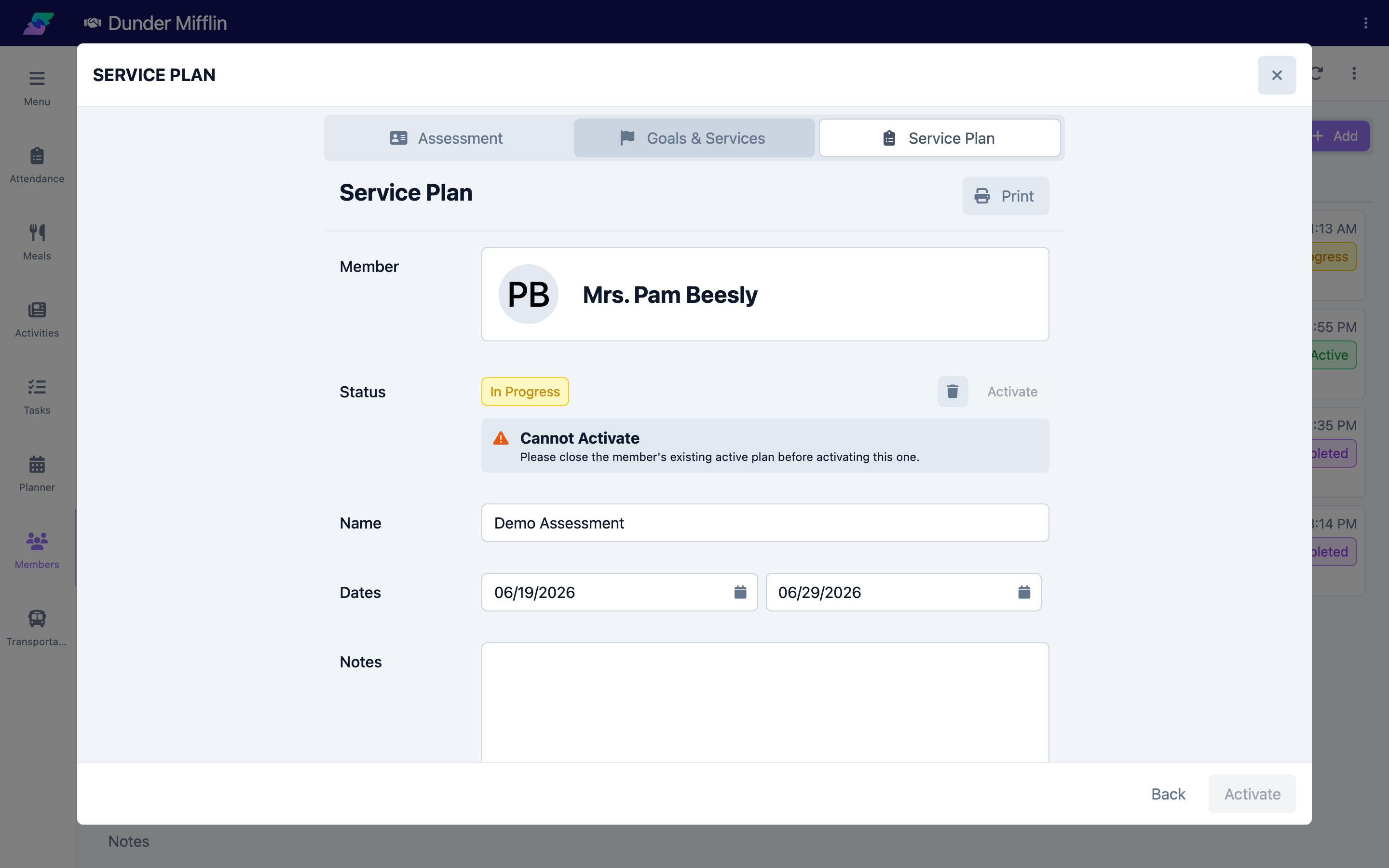
The plan opens with three tabs: Assessment, Goals & Services, and Service Plan. On the Service Plan tab, set the plan's Name, Dates (start and end), and Notes while it is In Progress. This tab also shows member information such as date of birth, start of care, diagnoses, and assessed items pulled into the plan. Once the plan is Active, its Name and start date become read-only — only the end date, notes, signatures, and documents can still be edited.
Step 4: Add goals
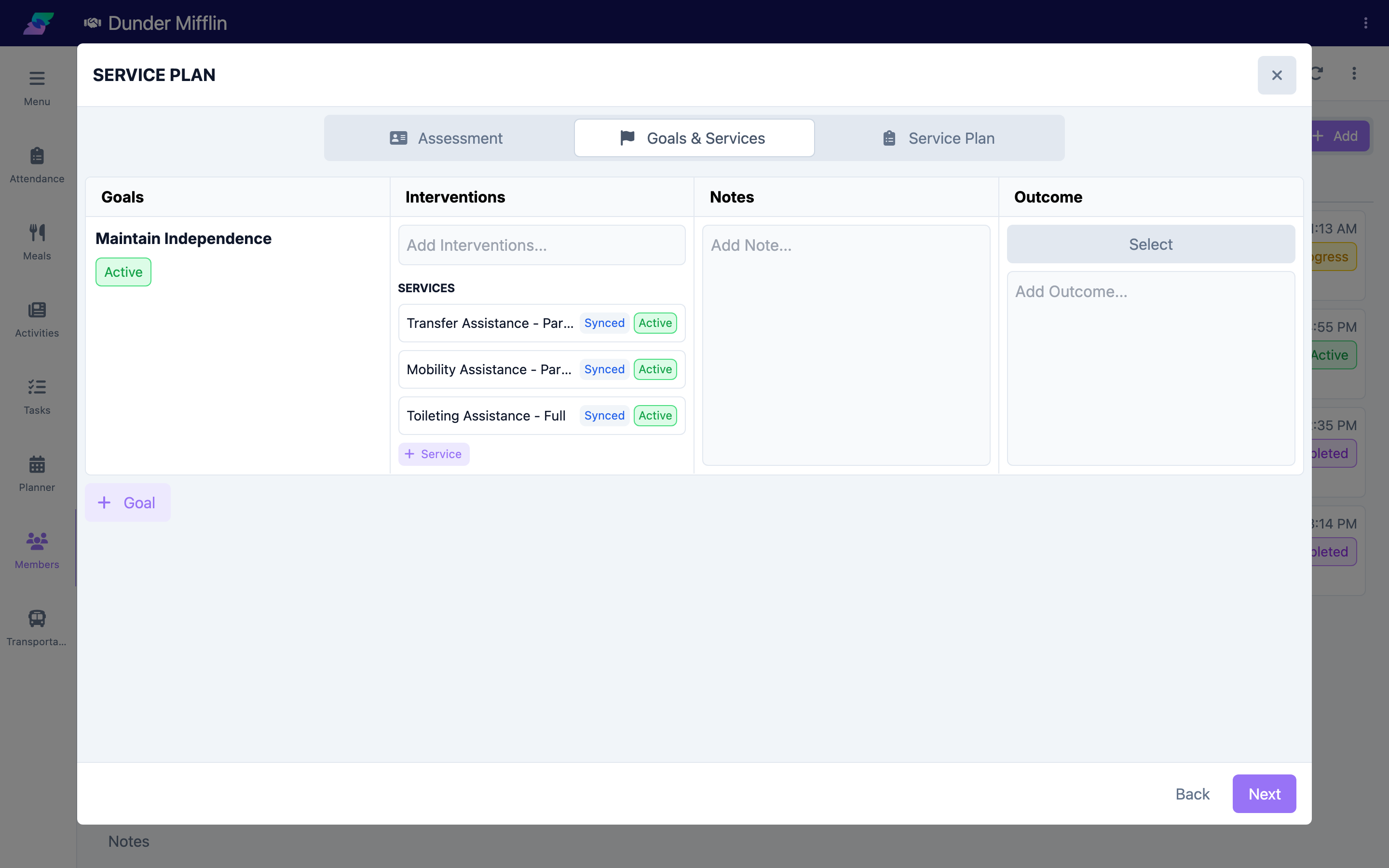
On the Goals & Services tab, select Add Goal. You can pick an existing goal from your center's Goals library or create a custom one. Each goal carries a Name, Description, and Interventions, and (within a plan) Start and End dates. Add as many goals as the member needs. For managing the underlying goals, see Managing Care Goals.
Step 5: Add services under each goal
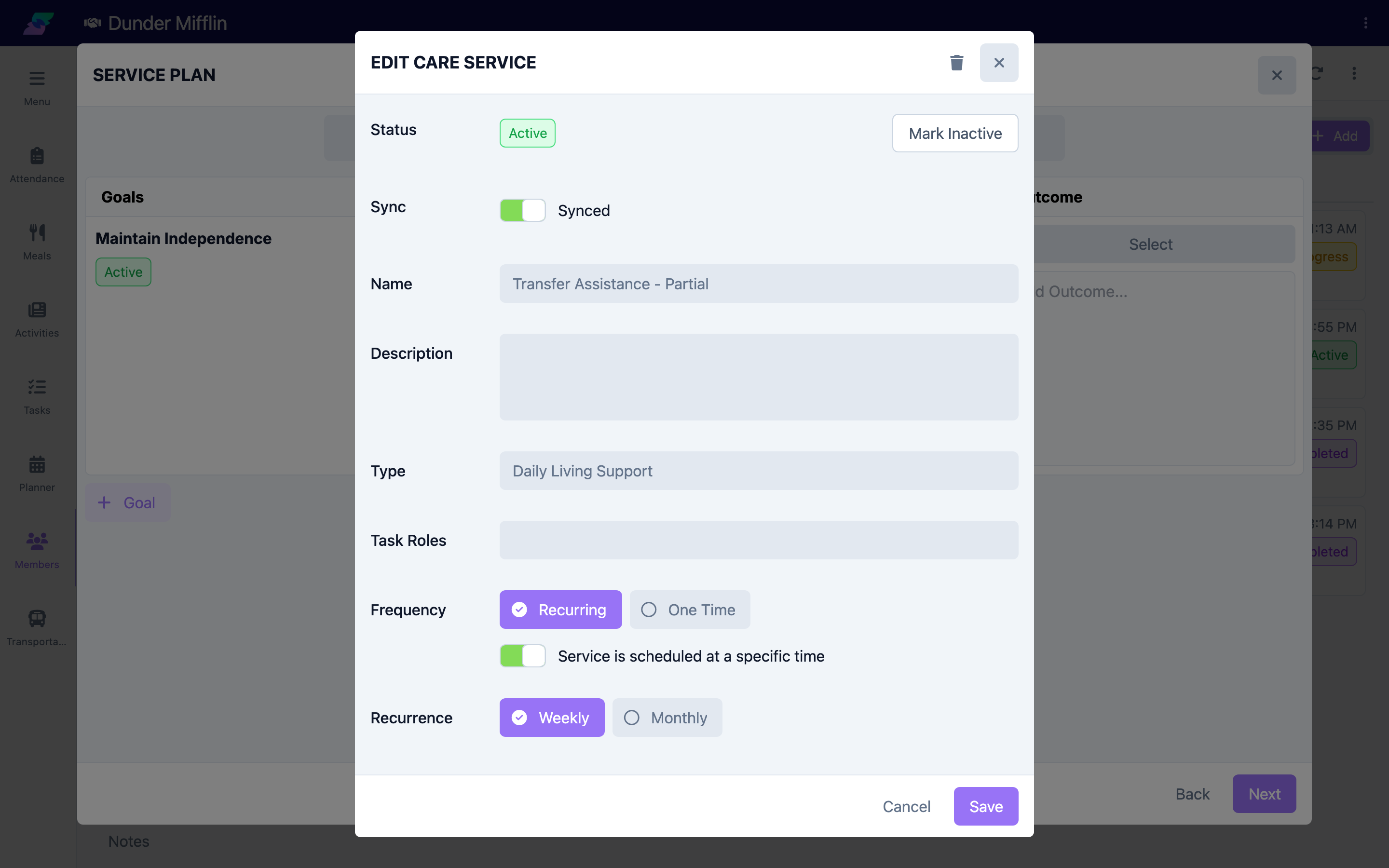
Under a goal, add a Service from your center's Services library. A service defines what staff do and when: its type, frequency (recurring, one-time, or ad-hoc), recurrence (weekly or monthly) and days, scheduled times, and its tasks. Services on an active plan generate the tasks staff complete each day.
Step 6: Capture signatures and attach documents
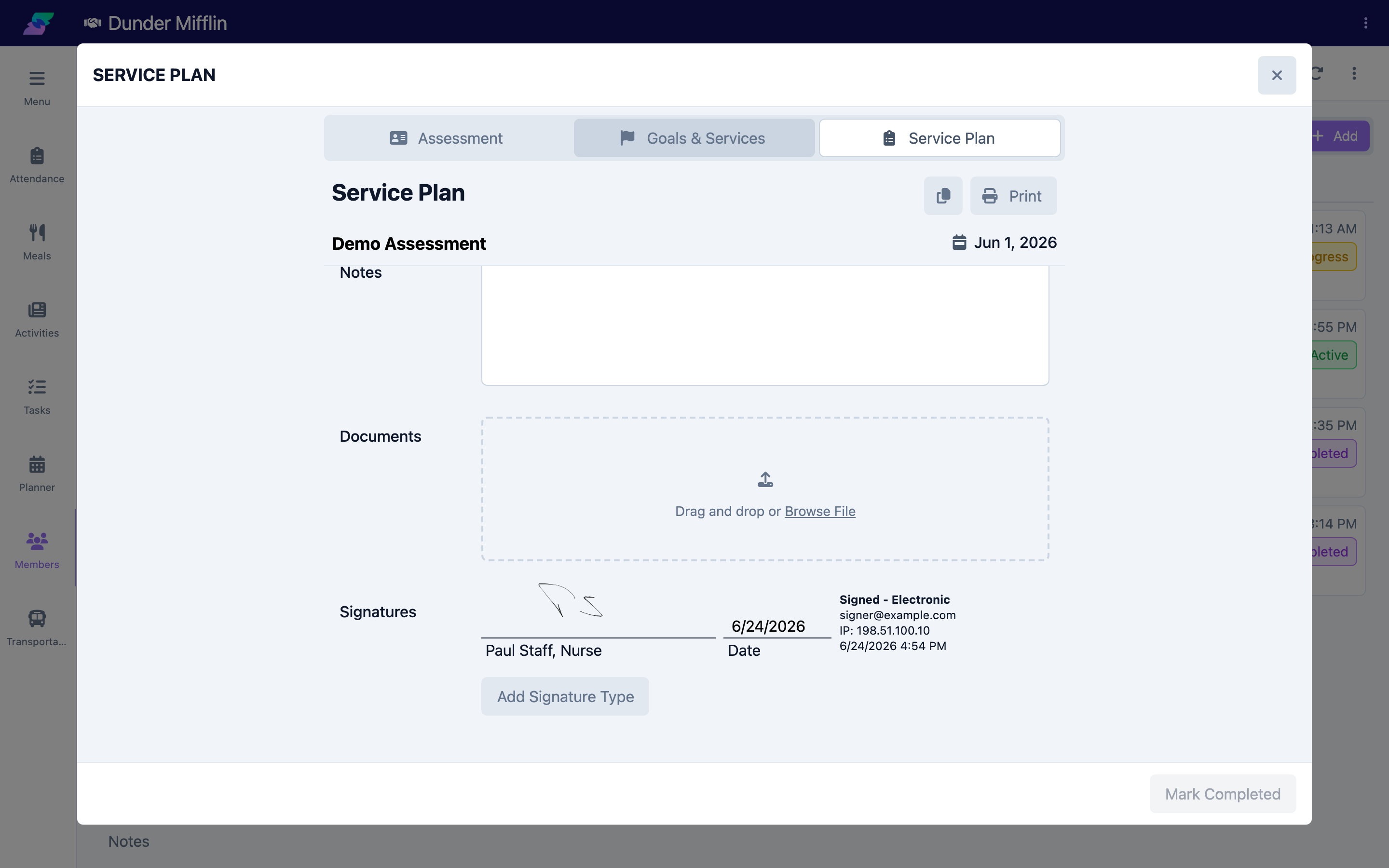
On the Service Plan tab, use the Signatures section to capture required sign-offs (electronic or manual) and the Documents section to attach supporting files. See Capturing Electronic Signatures for signature details.
Step 7: Activate the plan
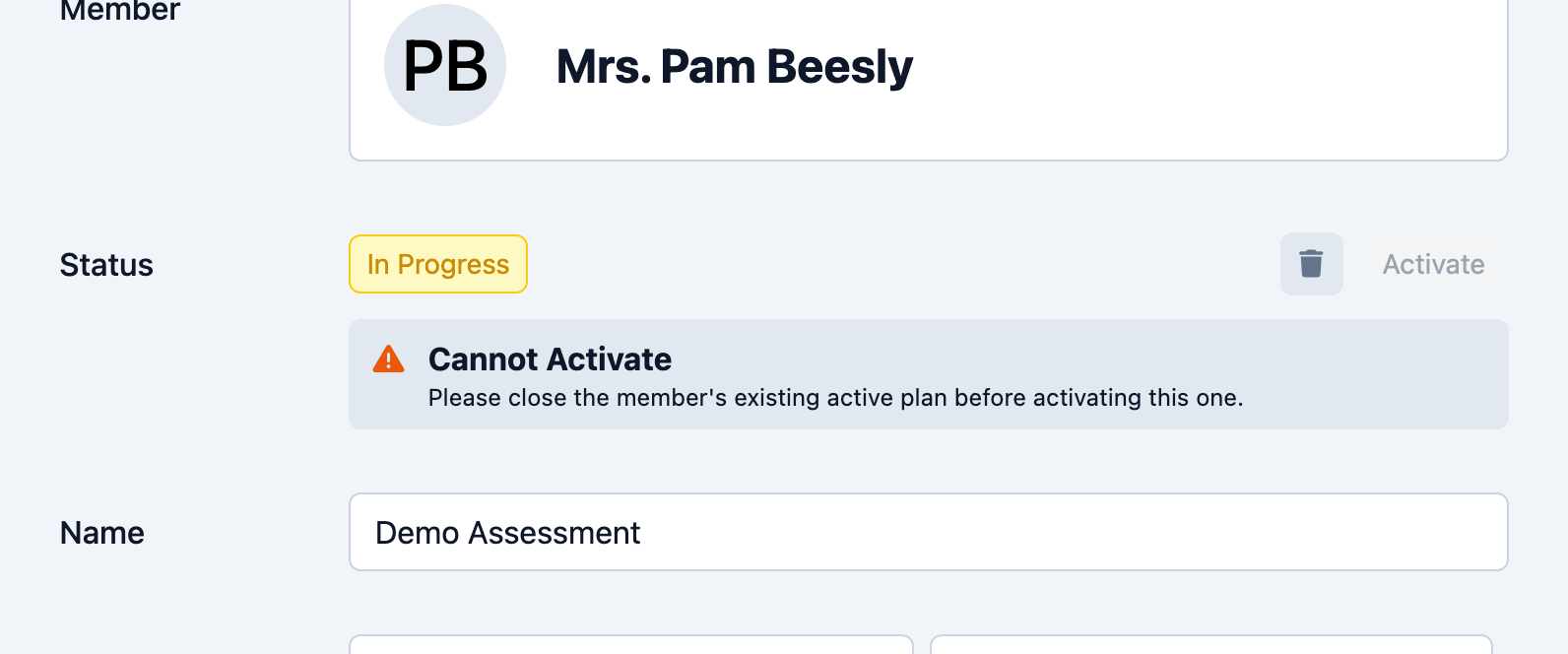
When the plan is ready, select Activate. Activation is final and sets the status to Active. If the member already has an active plan, close (complete) it first — only one plan can be active at a time.
Step 8: Mark completed when the plan ends
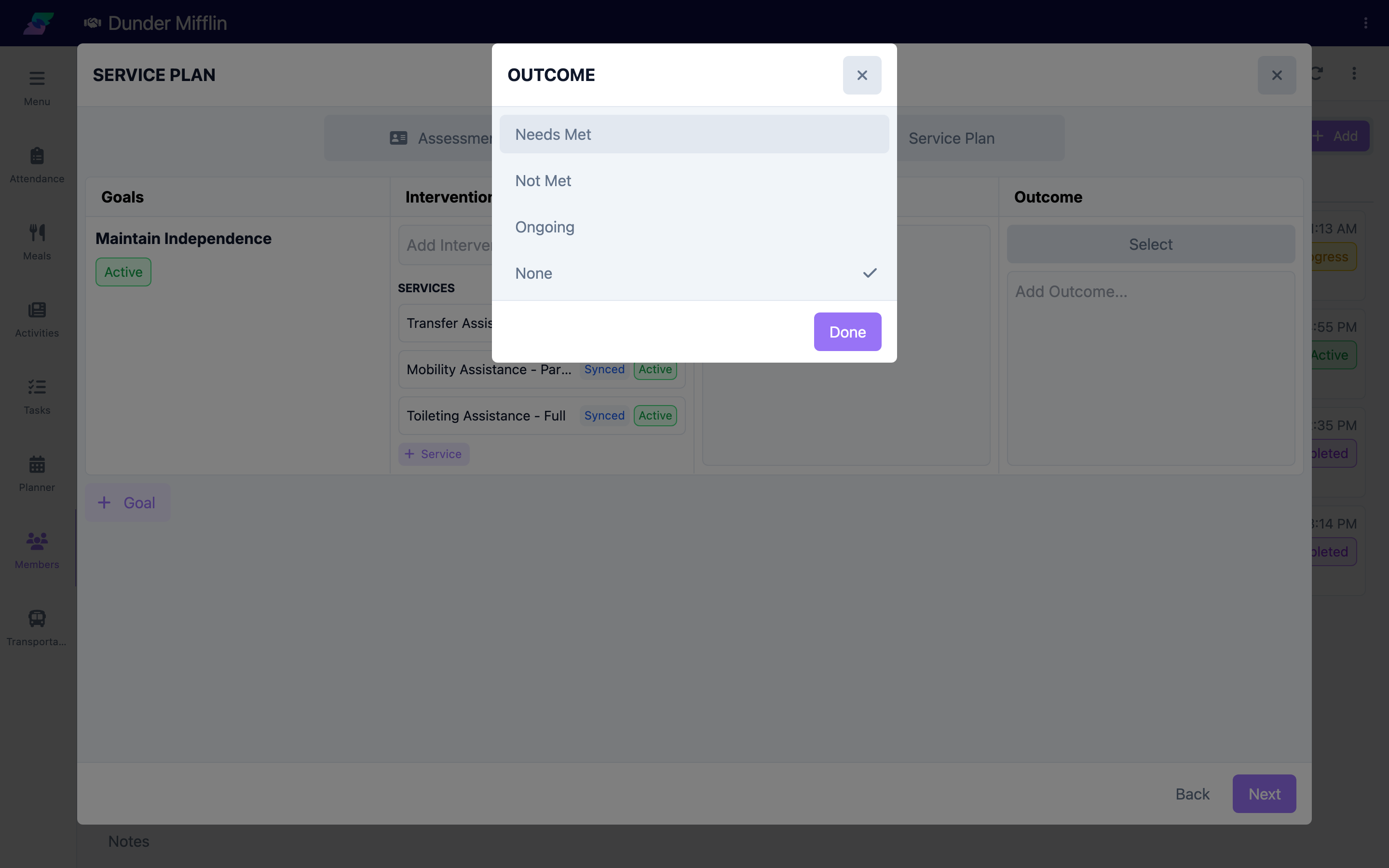
When the plan is no longer current, open it and select Mark Completed. Before you can complete it, provide an Outcome for every goal (Needs Met, Not Met, Ongoing, or None). Once completed, the plan is read-only.
Tips
- Starting from a template or a completed assessment saves time and keeps plans consistent — use None only when you need a fully custom plan.
- Only one plan can be Active per member. Mark the current plan completed before activating a new one.
- Services only generate daily tasks once the plan is Active — In Progress plans do not.
- You must record an outcome for every goal before a plan can be marked completed, so keep outcomes up to date as the plan progresses.
Troubleshooting
| Problem | Solution |
|---|---|
| The Service Plans tab is not visible | Care planning must be enabled for the center and your role must have Care access. If Assessments, Forms, and Service Plans are all hidden, contact your administrator. |
| No templates appear when I choose the Service Plan type | Plan templates are configured under Care > Service Plans. Ask an administrator to create one, or start from an assessment or a blank plan. |
| No assessments appear when I choose the Assessment type | Only the member's assessments are listed. To seed a plan, the assessment's template must have Service Plan enabled. |
| I cannot activate the plan | The member likely already has an active plan. Mark the existing active plan completed, then activate this one. |
| The Mark Completed button will not finish | Provide an outcome for every goal first. The plan cannot be completed while any goal has no outcome. |
| Services are not generating tasks | Confirm the plan status is Active and the service's schedule (frequency, days, and times) is set. |