
Overview
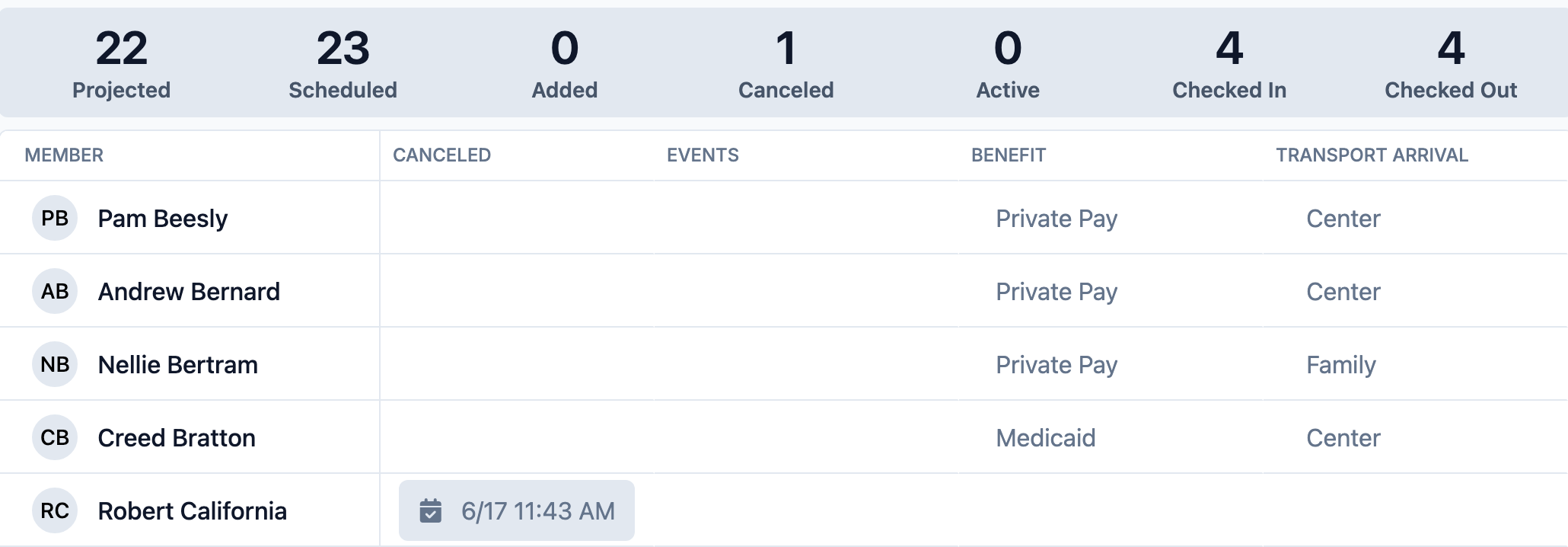
When a member will not attend on a scheduled day, record a cancellation on the Attendance page. Canceling documents the reason, clears any check-in or check-out for that day, and updates the day's projected count.
Before You Begin
- You must be logged into Seniorverse with Care module access.
- You need the Care:Attendance permission (or Care:FullAccess).
- The member should be scheduled for the date you are canceling.
Steps
Step 1: Open the Attendance page and confirm the date
Select Care, then Attendance, and set the date selector to the day you are canceling.
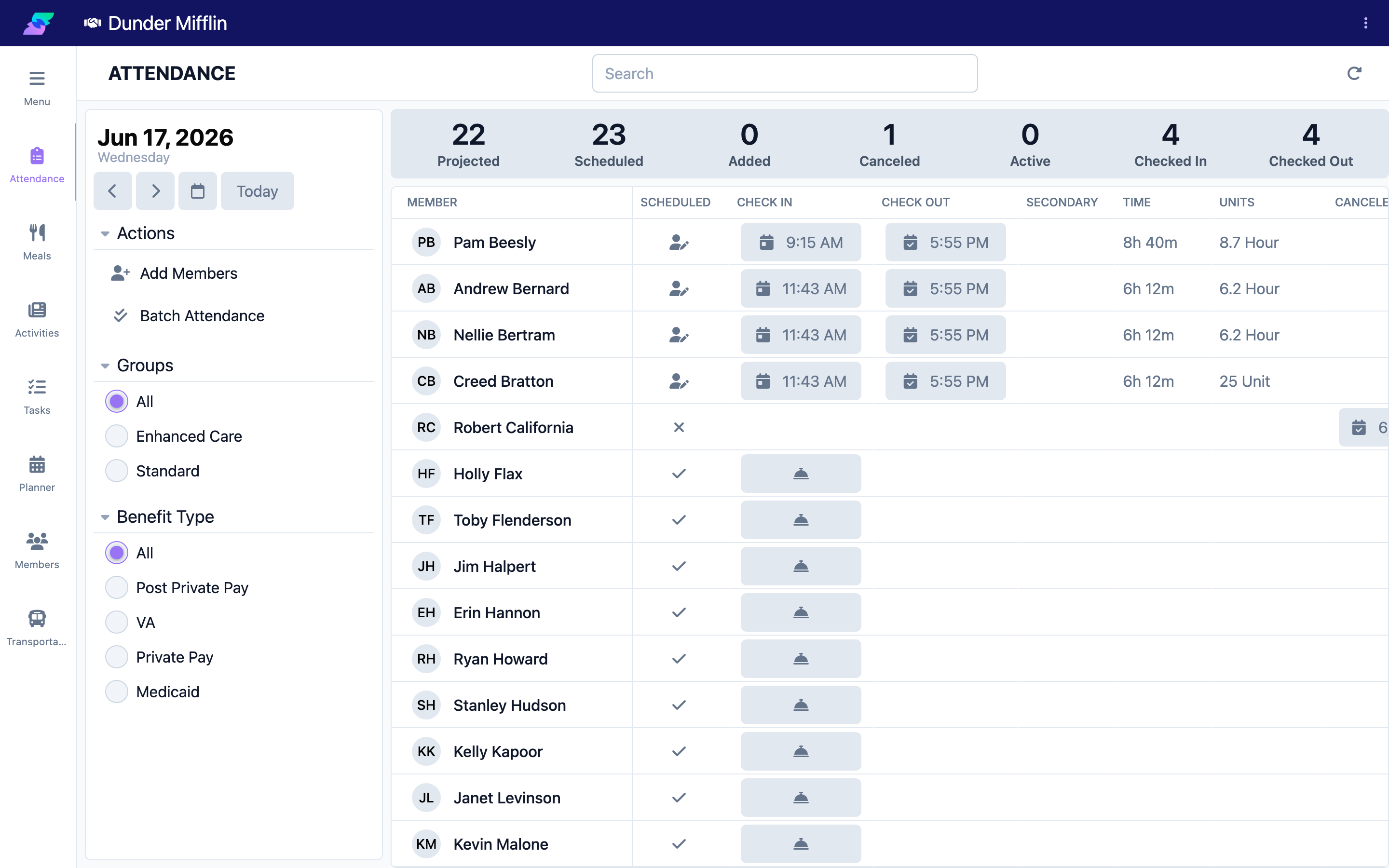
Step 2: Find the member
Use the search box or the Groups and Benefit Type filters to locate the member.
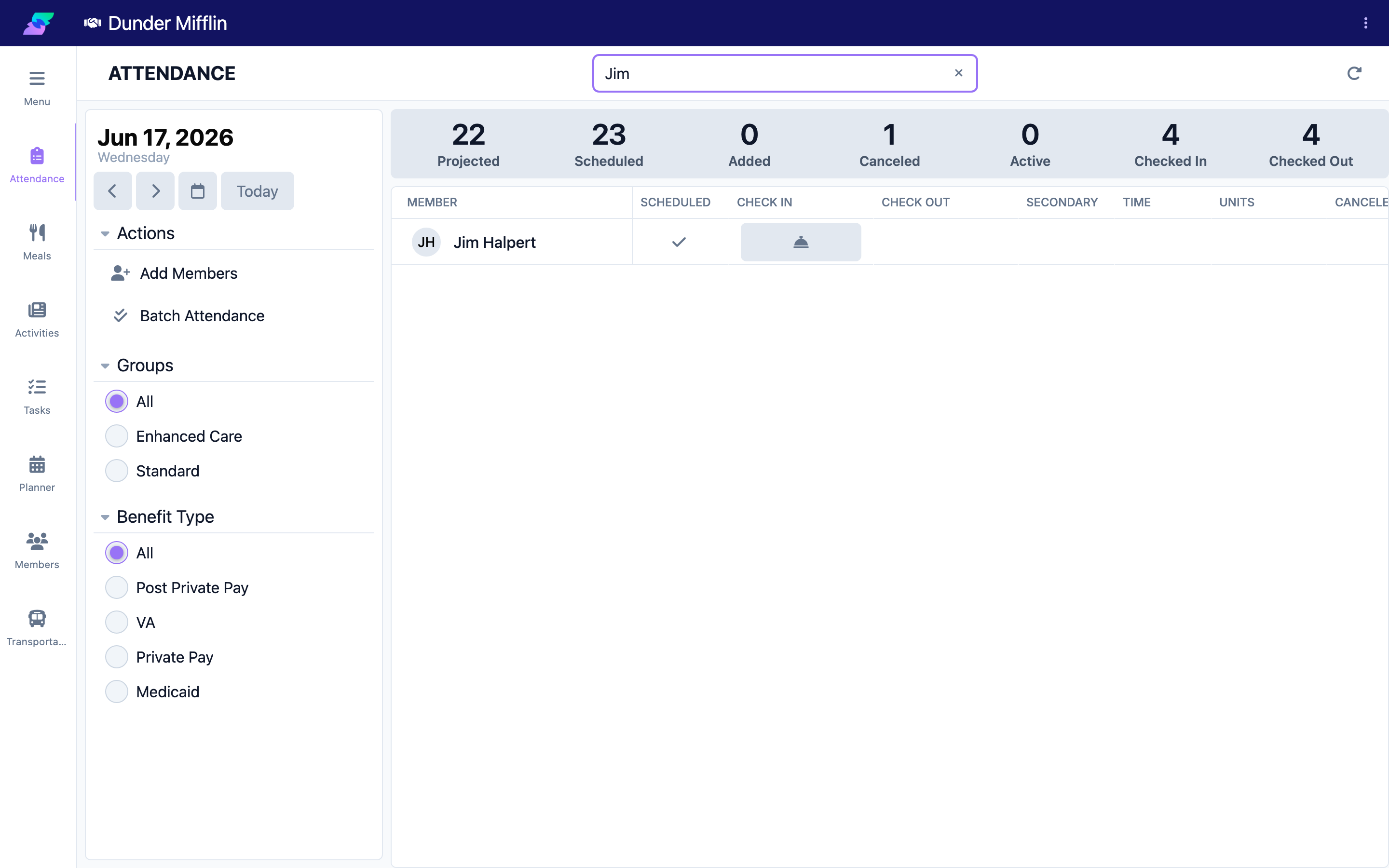
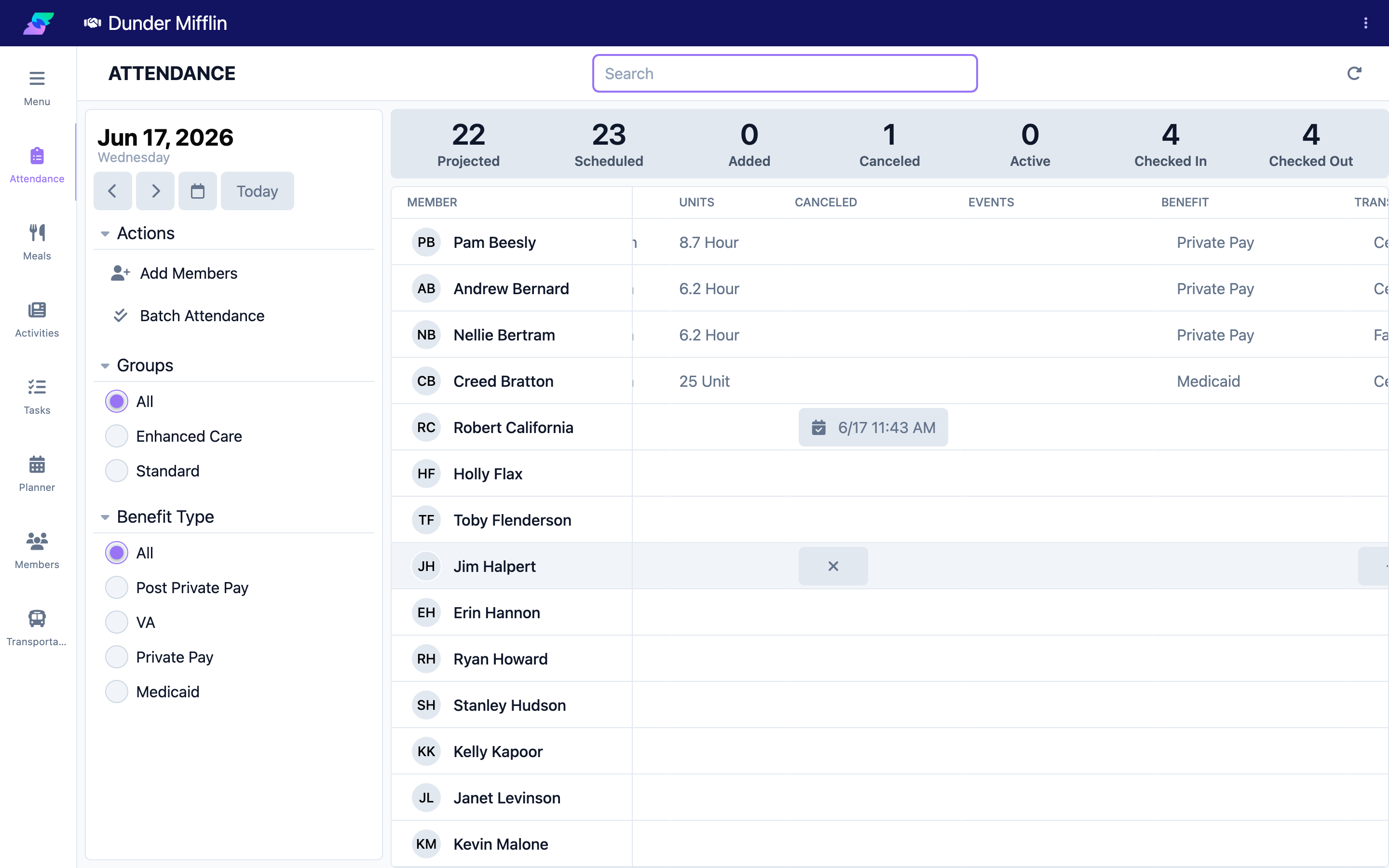
Step 3: Open the cancellation form
In the Canceled column, select the cancel button (the ✕ icon). The Cancellation Reason window opens.
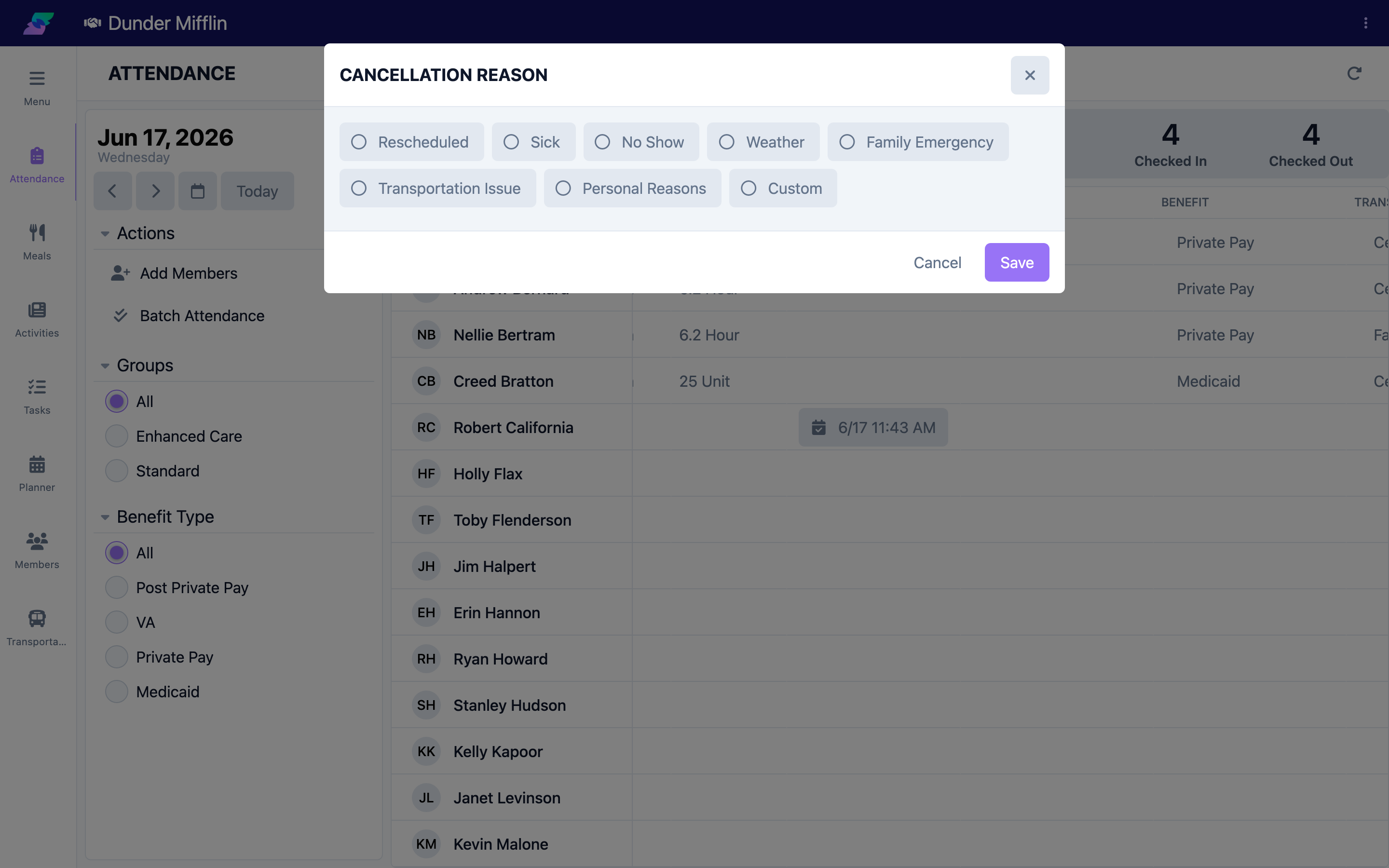
Step 4: Choose a reason and save
Pick a reason from your center's configured cancellation reasons, or type your own note. Save to record the cancellation. (Cancellation reasons are configured by your center, so your options may differ.)
Step 5: Confirm the cancellation
The Canceled column shows the cancellation date and time. The Canceled count rises and the Projected count falls (Scheduled + Added − Canceled). Any check-in or check-out for the day is cleared.
Removing a Cancellation
To undo a cancellation, open the attendance record by selecting the icon in the Scheduled column for that member. In the record, clear the Canceled date and save; the member returns to their scheduled state. Simply checking the member in also clears the cancellation.
Tips
- Use a cancellation when the member will not attend at all. If the member attends but with a notable variation (such as an early pickup), use an attendance event instead.
- You can record a cancellation for a future date by changing the date selector first.
Troubleshooting
| Problem | Solution |
|---|---|
| The member is not in the list | Confirm the date; the member may not be scheduled that day. |
| I do not see a cancel button | You may have view-only access. Ask your administrator for the Care:Attendance permission. |
| I chose the wrong reason | Open the attendance record from the Scheduled column and update the cancellation reason. |
| I need to reverse a cancellation | Open the attendance record from the Scheduled column and clear the Canceled date, or simply check the member in. |
Related Articles
- understanding-the-attendance-page — Understanding the Attendance Page
- checking-a-member-in — Checking a Member In
- checking-a-member-out — Checking a Member Out
- adding-attendance-events — Adding Attendance Events