
Overview
A credit memo reduces what a payor owes across one or more invoices — for adjustments, write-offs, goodwill gestures, or other corrections. A memo moves through a clear lifecycle: it starts as a Draft, becomes Applied once its lines fully cover the credit amount, and becomes Posted when you finalize it (which locks it). A posted memo can still be Voided if you need to reverse it. This article covers creating a memo, choosing its type and reason, and posting it.
Before You Begin
- You need Billing access to the center.
- The payor and the invoice(s) you are crediting must already exist.
- Know the total credit amount and which invoices it should reduce. A single memo can span multiple invoices for the same payor.
Steps
Step 1: Open the Credit Memos tab and start a new memo
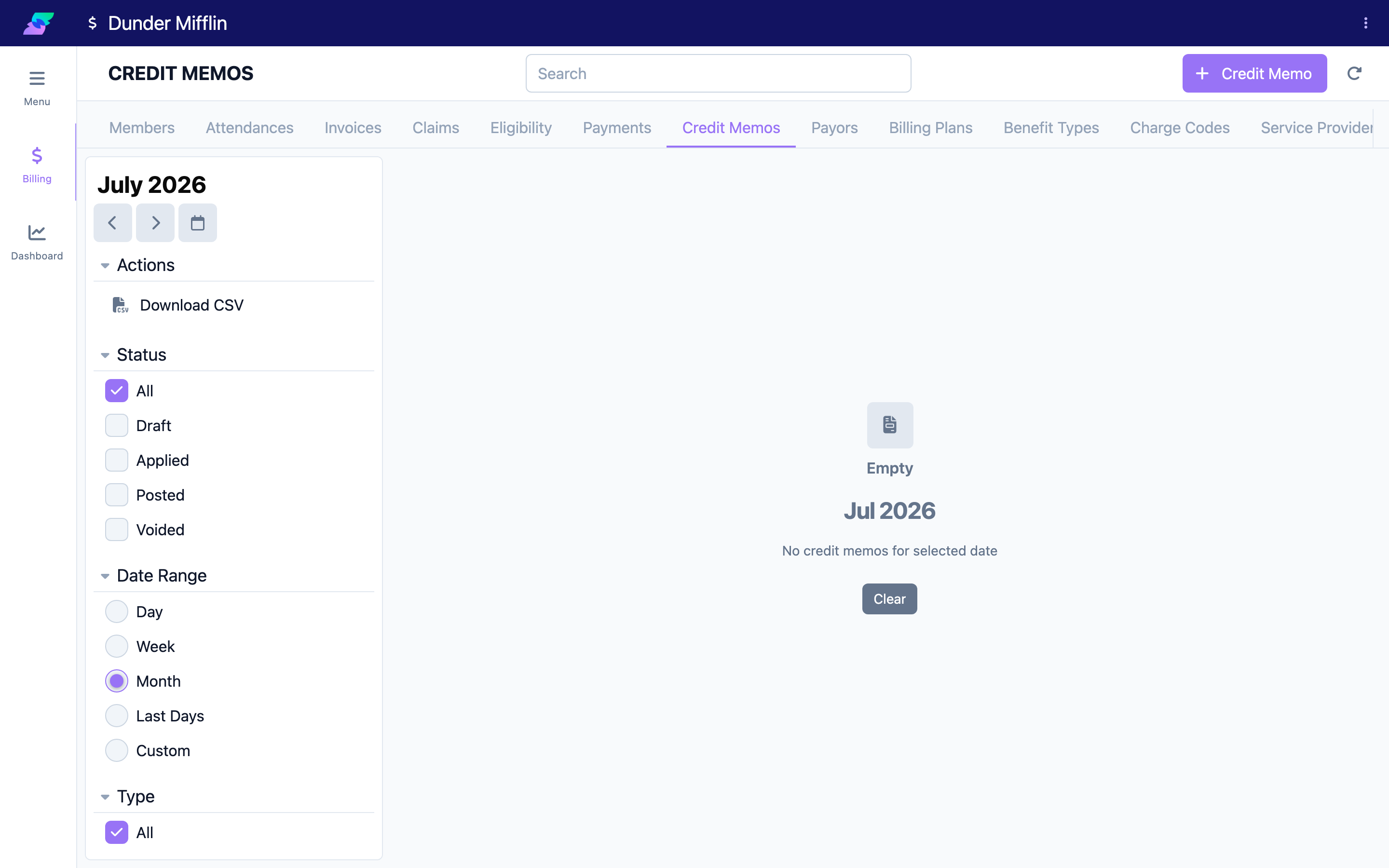
Go to the Billing module and select the Credit Memos tab. In the top action bar, click the Credit Memo button to open the form. It opens on the Info tab with the Status shown as Draft.
Step 2: Select the Payor and Invoices
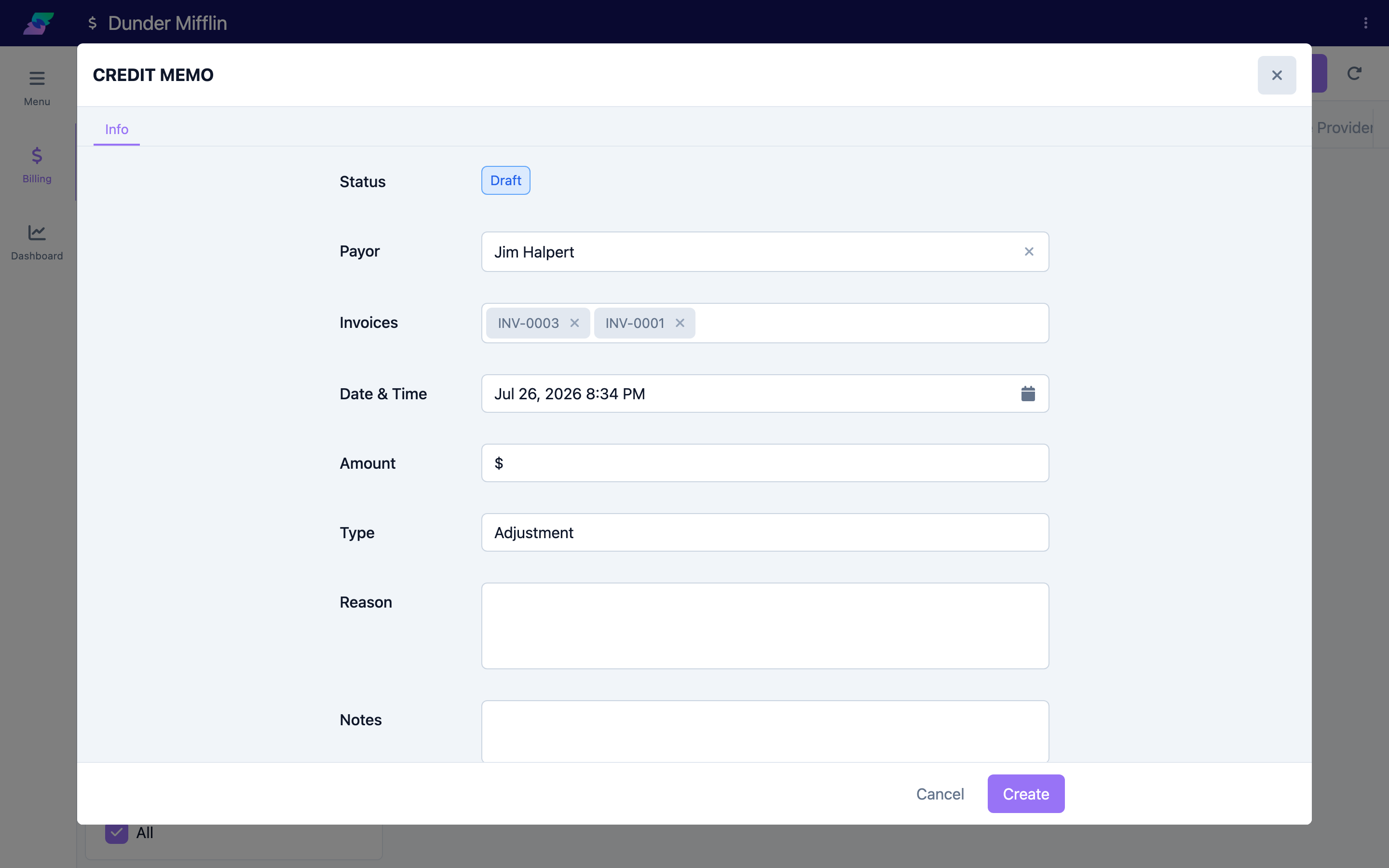
Choose the Payor first. Then open Invoices and select one or more of that payor's invoices to credit — selecting a payor resets the invoice list, so always pick the payor before the invoices. Both fields are required.
Step 3: Enter the amount, type, and reason
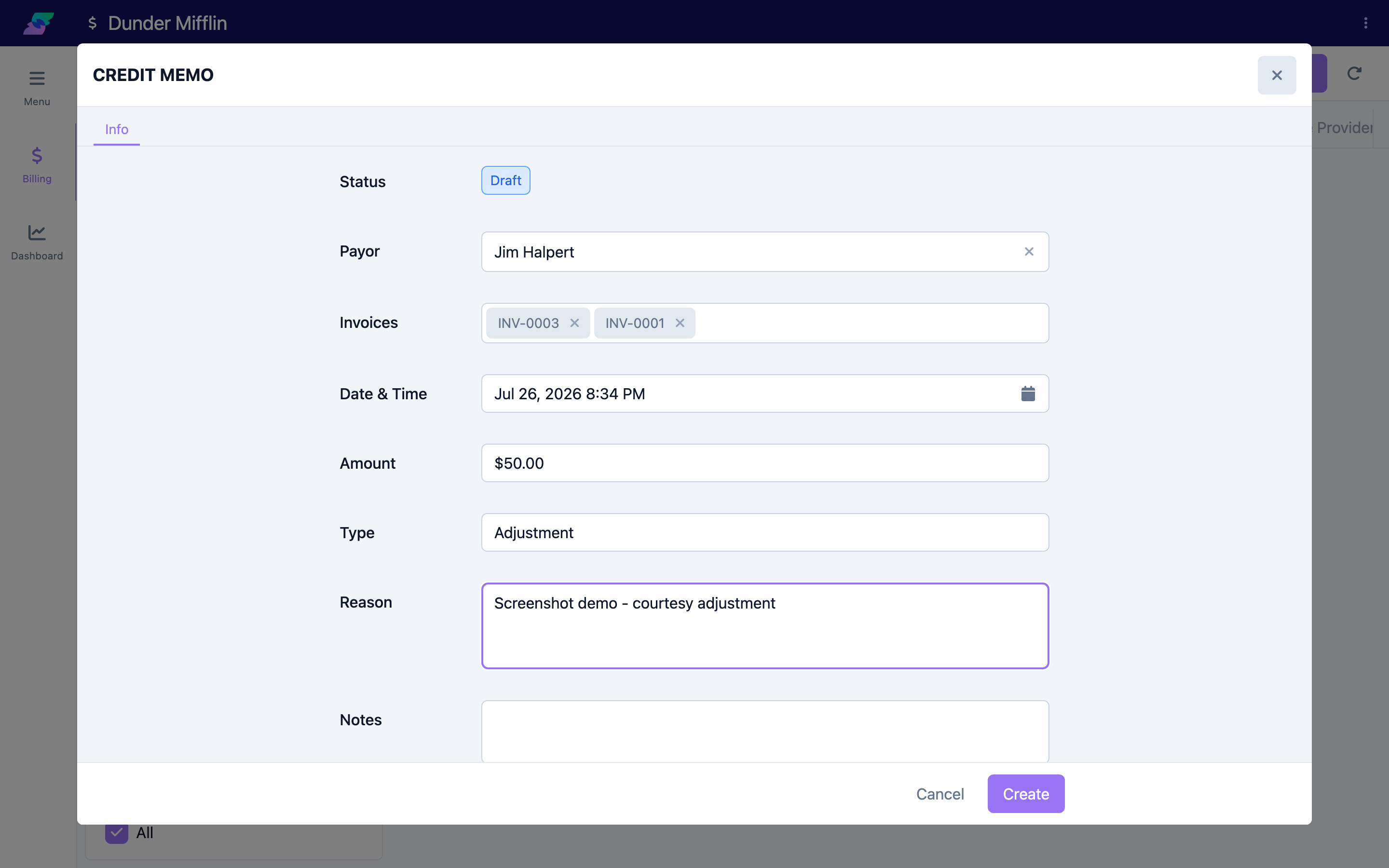
Complete the memo details:
- Date & Time — the date the credit is issued.
- Amount — the total credit amount. This is required.
- Type — Adjustment, Write-off, Goodwill, or Other. (Type defaults to Adjustment.)
- Reason — a free-text explanation of why the credit is being issued.
- Notes — any additional internal notes.
Step 4: Save the credit memo
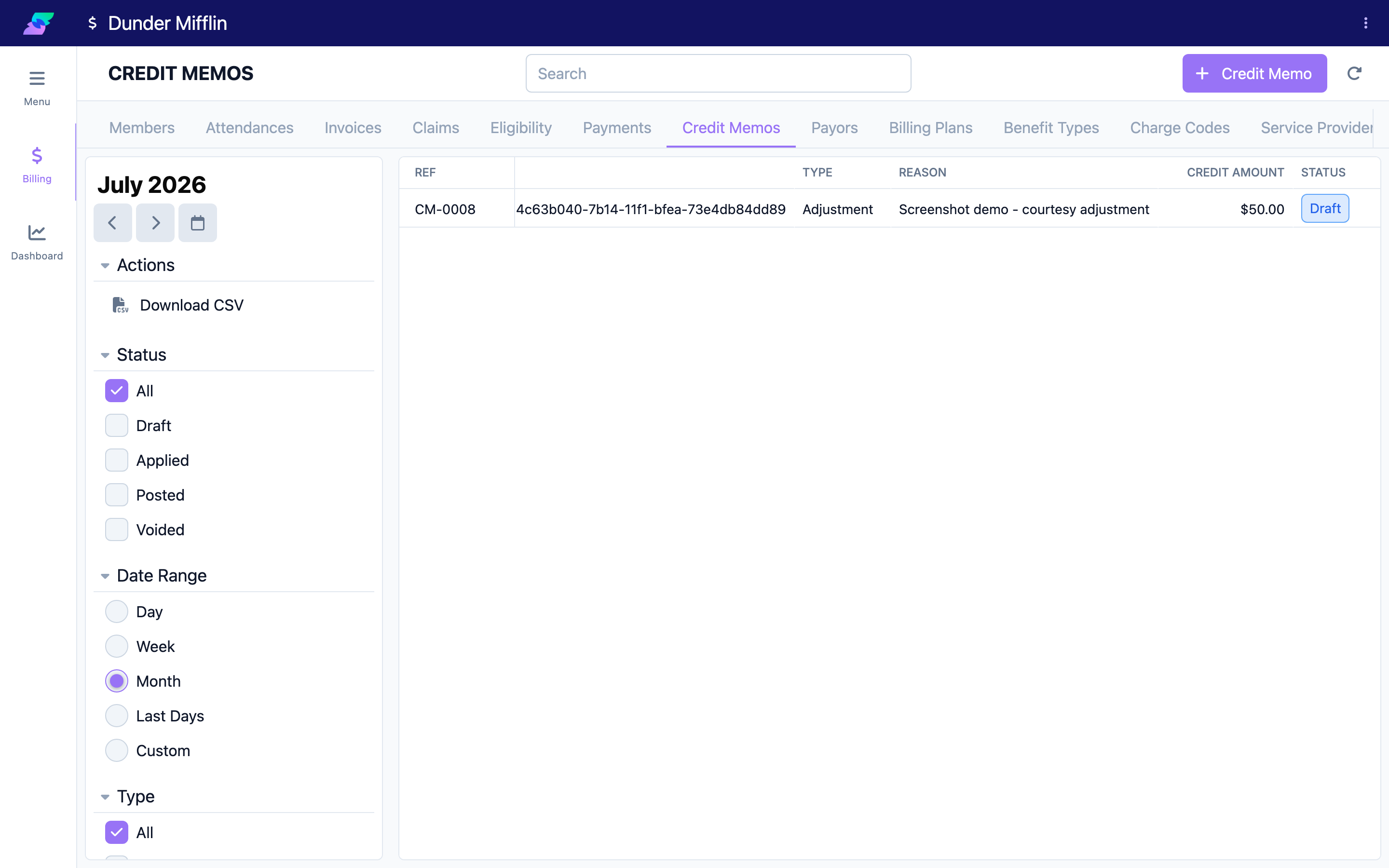
Click Save to create the memo. It is created as a Draft and appears in the Credit Memos list. At this stage nothing has been applied yet — the credit exists but is not tied to specific invoice lines.
Step 5: Apply the credit, then post to lock it
Open the memo and go to the Lines tab to apply the credit to invoice lines (see Applying Credits to Invoices for details). Once the applied amount fully covers the credit amount, the status changes to Applied and the Post Credit Memo button becomes available. Click it and confirm: "Are you sure you want to post this credit memo? Once posted, you won't be able to make any changes." The memo becomes Posted and locks.
Screenshot coming soon — Post Credit Memo confirmation dialog
Step 6: Void a posted memo if needed
A posted memo shows a Void Credit Memo button. Voiding reverses the credit but is permanent — the confirmation warns "Are you sure you want to Void this Credit Memo? This cannot be undone." Use it only when the credit should no longer apply.
Screenshot coming soon — Void Credit Memo confirmation dialog
Tips
- A memo can only be posted once it is fully Applied. If lines don't cover the full amount, a "Cannot Post" note appears: "Please apply all credit memo lines before posting this credit memo."
- You can delete a memo while it is Draft or Applied (the trash icon appears). Once Posted, deletion is no longer possible — void it instead.
- Reason is free text, not a fixed dropdown, so describe the specific circumstance clearly for the audit trail.
- One memo can credit several invoices at once — select them all in Step 2.
Troubleshooting
| Problem | Solution |
|---|---|
| The Invoices list is empty after I pick a payor | The list shows that payor's invoices. Confirm the payor has invoices, and remember that changing the payor clears any invoices you had selected. |
| The Post Credit Memo button is disabled | The memo must be fully Applied first. Go to the Lines tab and apply credit until the full amount is used. |
| I can't edit a memo | Posted memos are locked. If you need to change it, Void it and create a new memo. |
| The trash (delete) icon is missing | Delete is only available while the memo is Draft or Applied. Posted memos must be voided. |
| I can't finalize an invoice that has a credit memo | Related credit memos must be Posted before the invoice can be finalized. Post the memo, then finalize. |
Related Articles
- applying-credits-to-invoices — Applying Credits to Invoices
- recording-a-payment — Recording a Payment
- creating-an-invoice — Creating an Invoice
- finalizing-an-invoice — Finalizing an Invoice
- viewing-and-editing-invoices — Viewing and Editing Invoices