
Overview
Allocating a payment applies its funds to specific invoice lines, reducing the outstanding balance on each one. A payment must be posted before you can allocate it. You can allocate line by line by hand, or let the system distribute the money automatically with Auto Allocate. Every allocation is tracked per line (payment + invoice + invoice line), so you can allocate one payment across many invoices and many lines, and reverse or adjust individual allocations later.
Before You Begin
- The payment must be posted. A draft payment cannot be allocated — you will see a prompt to post it first.
- The invoices attached to the payment must have finalized lines with an outstanding balance.
- You need Billing access to the center.
Steps
Step 1: Open the payment's Allocations tab
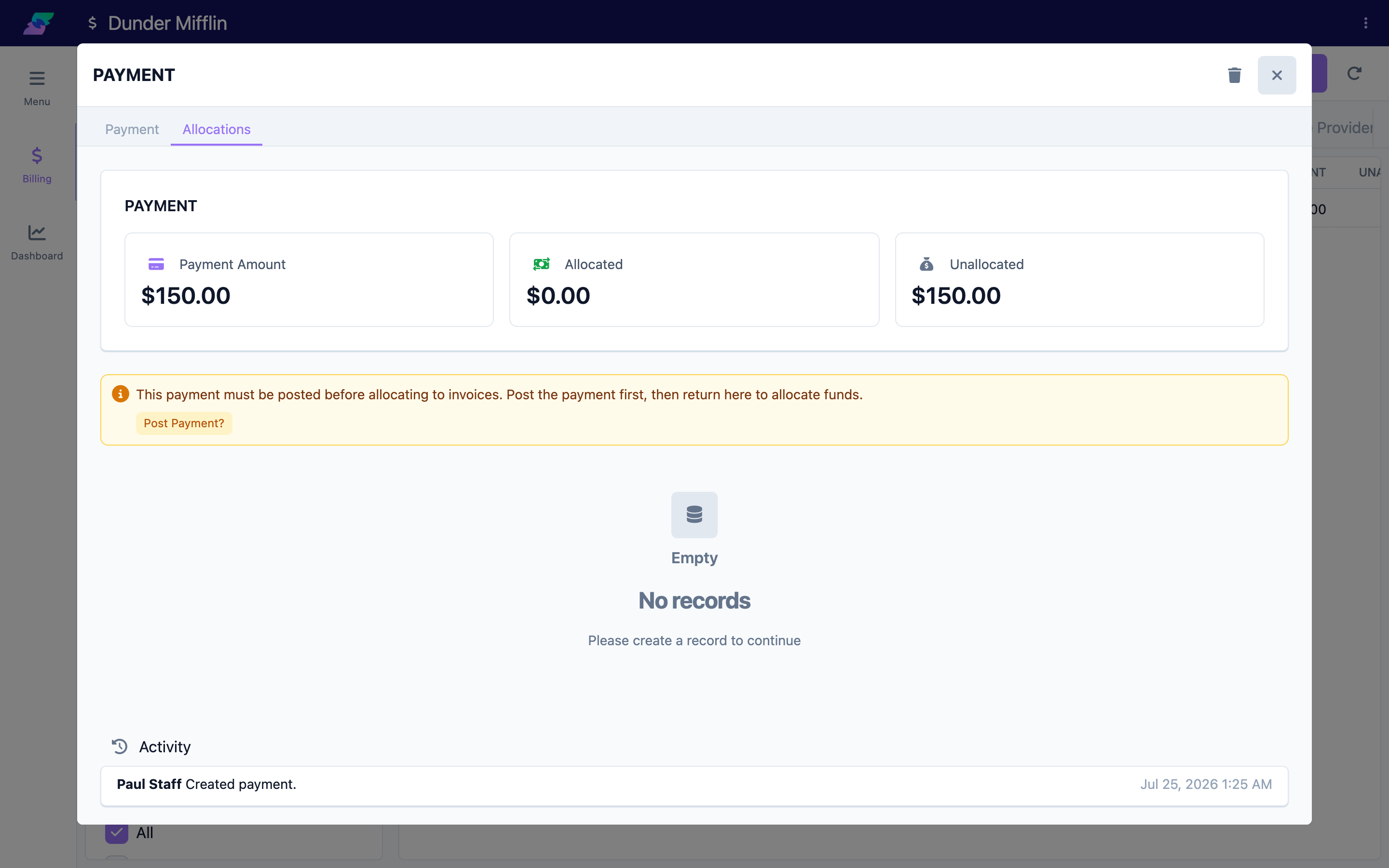
From the Billing module, open the Payments tab and select the payment. In the payment window, choose the Allocations tab. If the payment is still a draft, a warning appears: "This payment must be posted before allocating to invoices." Use the Post Payment? button to post it, then continue.
Step 2: Review the payment summary
At the top of the Allocations tab, the PAYMENT card shows three figures:
- Payment Amount — the total posted amount.
- Allocated — how much is currently applied.
- Unallocated — the amount still available to apply.
The invoices attached to the payment are listed below, each with its own line-item table.
Screenshot coming soon — PAYMENT summary card showing Payment Amount, Allocated, and Unallocated
Step 3: Allocate to invoice lines manually
Each invoice shows a table of lines with these columns: Date, Description, Line Amount, Credits/Payments, Allocation, and Outstanding. In the Allocation field for a line, type the amount you want to apply. The system automatically caps your entry at the line's outstanding balance and prevents the total from exceeding the payment's remaining amount. Setting an allocation back to 0 (or clearing it) removes it from that line.
Screenshot coming soon — Invoice line table with an amount entered in the Allocation column
Step 4: Use Auto Allocate (optional)
When there is an unallocated balance and open lines, an Auto Allocate button appears on the Unallocated figure. Click it to open the Auto Allocate window, then choose a method:
- Proportional Allocation — splits the payment across all open lines based on how much each one owes, paying every line down evenly.
- Oldest First Allocation — applies the payment to the earliest charges first, then moves to newer lines once older ones are fully paid.
Auto Allocate clears any existing allocations first and then distributes the full unallocated amount using the method you pick.
Screenshot coming soon — Auto Allocate window with Proportional and Oldest First options
Step 5: Reverse or reallocate
To change an allocation, adjust the Allocation amount on the line, or lower it to 0 to remove it. To formally reverse a single allocation, open it and set its Status to Reversed — reversed allocations are excluded from the payment's allocated total. To redistribute everything, run Auto Allocate again, which clears current allocations before reapplying. As you make changes, the Allocated and Unallocated figures update automatically.
Screenshot coming soon — Allocation with Status set to Reversed
Tips
- Allocations are recorded at the line level, not the invoice level, so you can pay part of one line and skip another on the same invoice.
- Incoming ERA (electronic remittance advice) files create the payment and its line allocations automatically from the matched claim service lines — you do not allocate those by hand.
- If an allocation exceeds what a line or the payment allows, an error card appears: "One or more allocations exceed the allowed amount. Please review and adjust each line to stay within the available balance." Lower the amount to clear it.
Troubleshooting
| Problem | Solution |
|---|---|
| The Allocations tab tells me to post the payment first | Only posted payments can be allocated. Click Post Payment? in the warning, confirm, then allocate. |
| The Auto Allocate button doesn't appear | It only shows when the payment is posted, has an unallocated balance, and has open lines to pay. |
| My allocation amount snaps to a smaller number | Entries are capped to the line's outstanding balance and to the payment's remaining amount. You cannot over-allocate. |
| I need to undo an allocation | Set the line's Allocation to 0 to remove it, or open the allocation and set its Status to Reversed. |
| The allocated total doesn't match what I entered | A data-sync warning ("cached allocated amount does not match") can appear on the payment. Re-open the allocations to refresh, or contact support. |
Related Articles
- recording-a-payment — Recording a Payment
- managing-unallocated-payments — Managing Unallocated Payments
- creating-an-invoice — Creating an Invoice
- viewing-and-editing-invoices — Viewing and Editing Invoices
- setting-up-payors — Setting Up Payors