
Overview
The Billing module is where you set up who pays, define what gets billed and at what rate, then turn attendance into invoices, payments, credits, and claims. This article is a tour of how the pieces fit together so the rest of the setup guides make sense.
Before You Begin
- You need the Billing:View permission to open the module.
- Billing setup fields (benefit-type rates, claims, service providers) appear only when the Billing feature is enabled for your center. If a section is missing, ask your admin.
Steps
Step 1: Open the Billing module
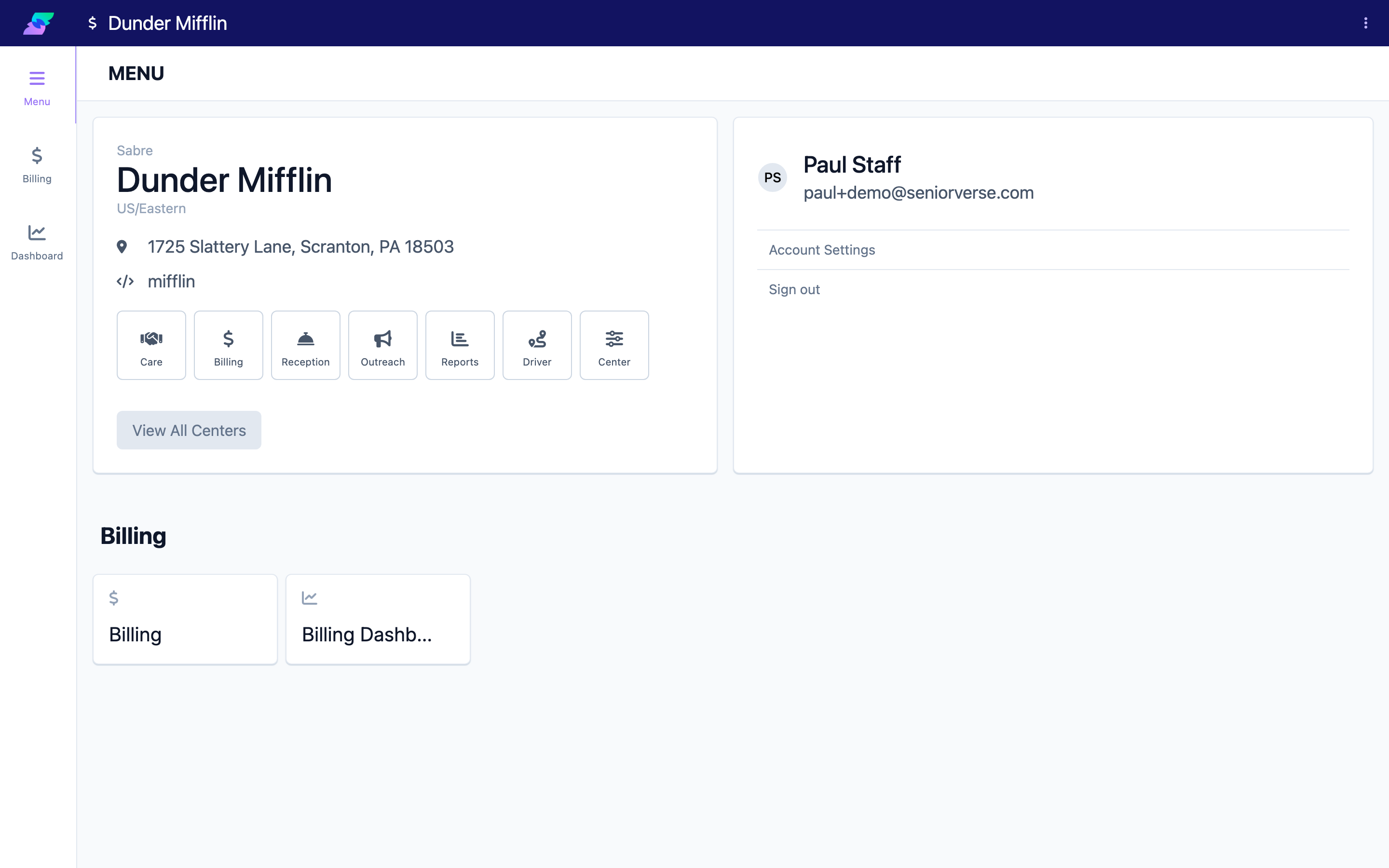
Open the Billing area from the main navigation. The Billing menu (dollar-sign icon) has three destinations:
- Billing — the main working page with all the tabs described below.
- Billing Dashboard — a month-at-a-glance analytics view (chart-line icon).
- Menu — the Billing Menu landing page.
Step 2: Learn the tab layout
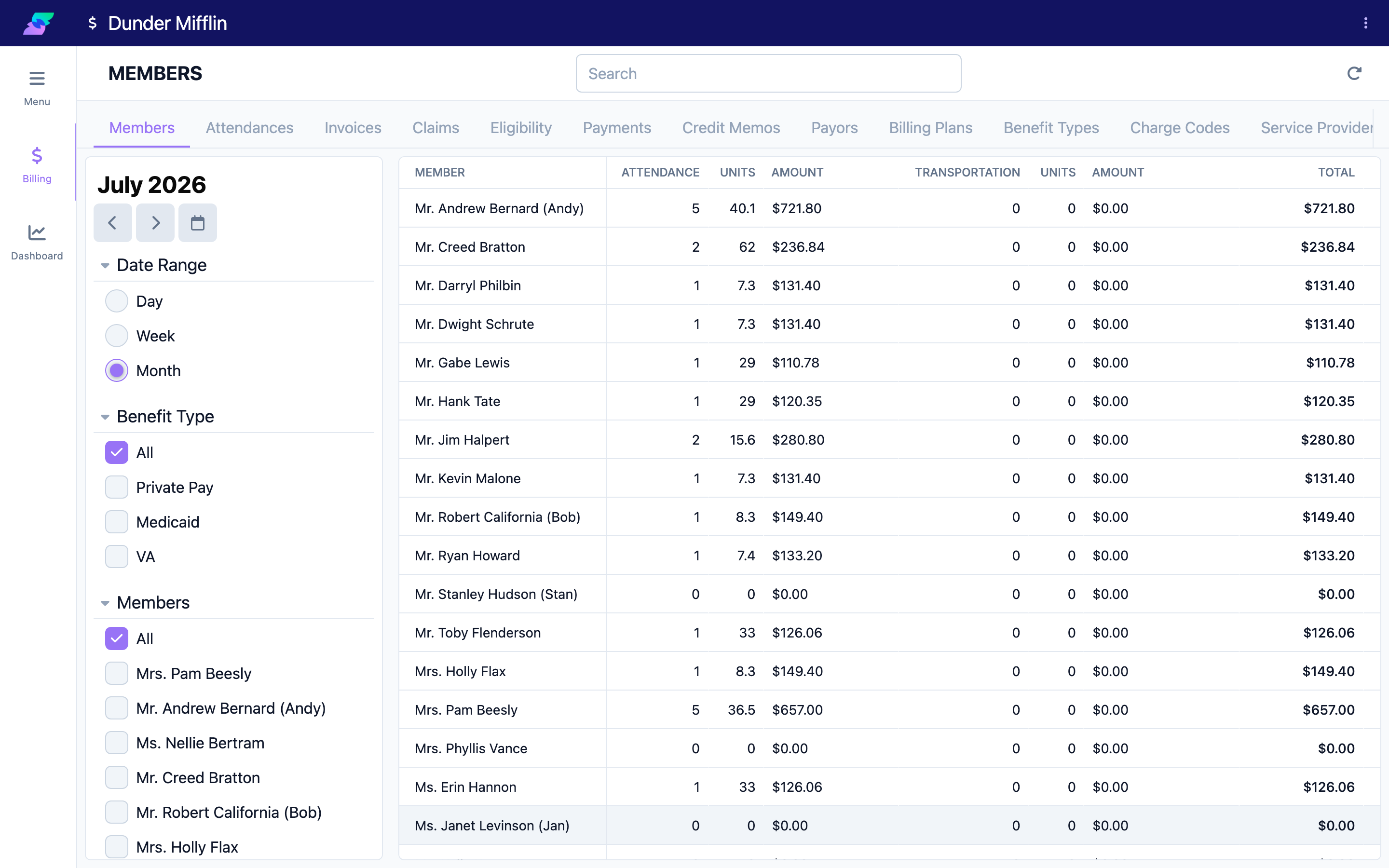
The Billing page is organized into 13 tabs. It always opens on the Members tab. Switch tabs across the top; your Benefit Type and Members filters follow you from tab to tab, while tab-specific filters (like Status) reset.
On most tabs an add button appears at the top right, labeled for that tab (for example "Payor" or "Charge Code"). It is intentionally hidden on the Members, Attendances, Claims, Eligibility, and Files tabs, because those records are created by other parts of the platform rather than added here.
Step 3: Set up your billing foundation
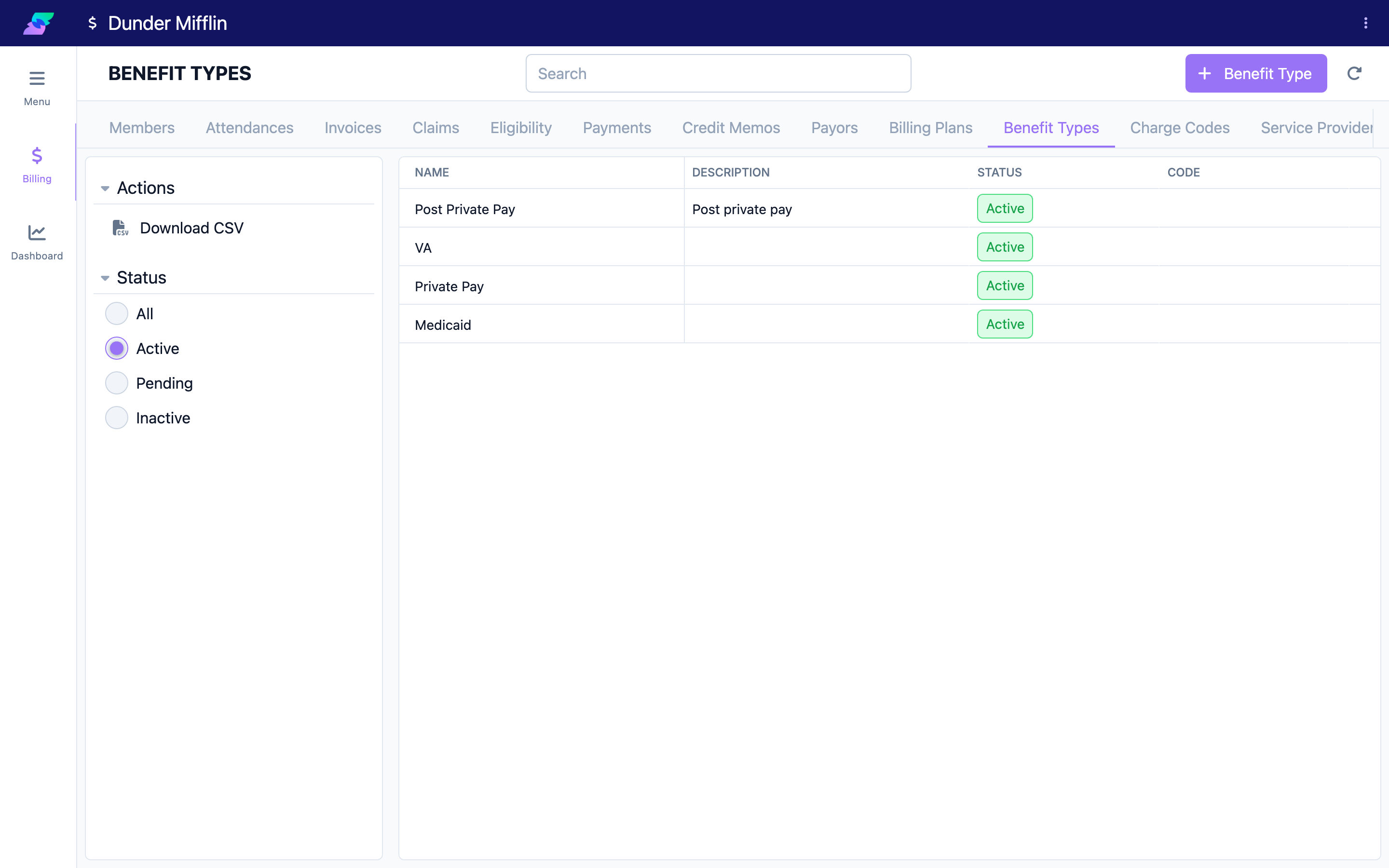
Three setup tabs define the "rules" of billing. Configure them in this order:
| Tab | What it is for |
|---|---|
| Payors | The people or organizations that pay — a member, a contact, or an integration (Manual, Stripe, or Stedi). |
| Benefit Types | A funding program (for example a Medicaid or private-pay program). Holds status, claim settings, and its rates. |
| Charge Codes | The reusable price items (Attendance, Transportation, Service) that attach to a benefit type to set its rates. |
Charge codes attach to benefit types through effective-dated rates, so a benefit type's price for a charge code can change over time without losing history. A fourth setup tab, Service Providers, holds the billing entity (name, address, NPI, EIN) that appears on invoices and claims.
Step 4: Understand how billing flows
Once the foundation is set, the operational tabs carry the work from attendance to money collected:
- Billing Plans — a recurring schedule (weekly or monthly) that ties one benefit type to a payor and produces invoice previews.
- Invoices — the bills themselves. Statuses include Draft, Finalized, Paid, Partial, and Payment Failed.
- Payments and Credit Memos — money received and credits applied against invoices.
- Claims — insurance claims generated from invoices when a benefit type has claims turned on.
- Attendances, Eligibility, and Files — supporting data: billable attendance, member eligibility checks, and inbound remittance files.
The overall path is: Payors → Benefit Types + Charge Codes → Billing Plans → Invoices → Payments / Credit Memos / Claims.
Screenshot coming soon — Diagram of the billing flow from payors through invoices to payments and claims
Step 5: Check the Billing Dashboard
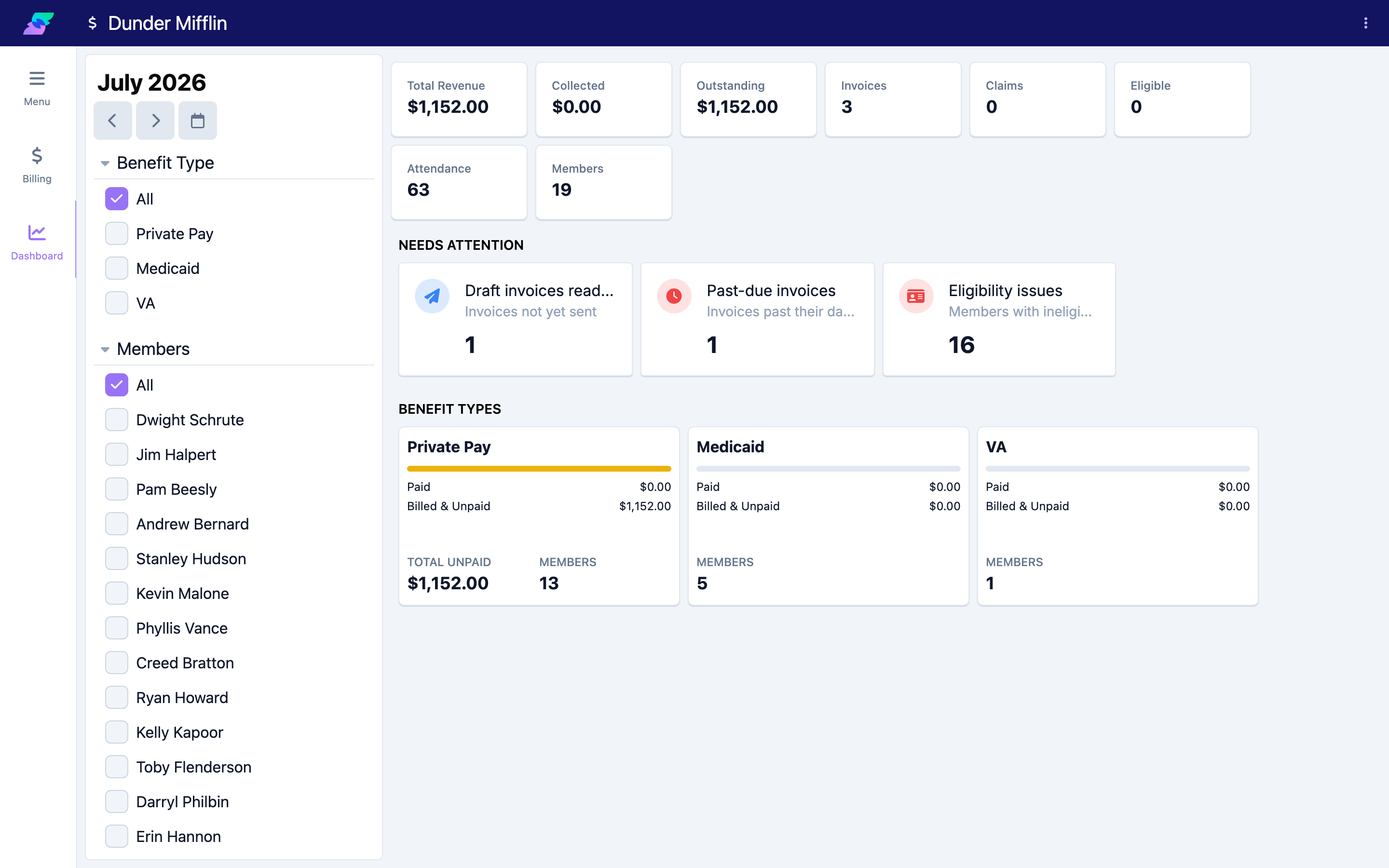
Open Billing Dashboard for a one-month summary. It shows headline totals (Total Revenue, Collected, Outstanding, plus counts of Invoices, Claims, Eligible members, Attendance, and Members), a per-benefit-type breakdown, and alert cards that appear only when there is something to act on: draft invoices ready to send, past-due invoices, rejected claims, and eligibility issues. Click an alert to jump to the matching filtered tab.
Tips
- Set up in dependency order: Service Providers and Payors first, then Charge Codes and Benefit Types, and only then Billing Plans — each step relies on the one before it.
- The Members and Attendances tabs are read paths into billing; you drill from a member into their attendances rather than "adding" them on the Billing page.
- The Dashboard is scoped to a single month. Change the date to review a different period.
Troubleshooting
| Problem | Solution |
|---|---|
| The Billing page shows a restricted or empty view | You are missing the Billing:View permission. Ask an admin to grant Billing access. |
| A tab has no add button | That is expected on Members, Attendances, Claims, Eligibility, and Files — those records come from elsewhere in the platform. |
| Claims, rates, or service-provider fields are missing during setup | The Billing feature may not be enabled for your center. Contact your admin or support. |
| A tab fails to load | Try again; billing data is fetched in date-range chunks and can time out. If it persists, contact support. |
Related Articles
- setting-up-payors — Setting Up Payors
- managing-charge-codes — Managing Charge Codes
- configuring-benefit-types — Configuring Benefit Types
- creating-billing-plans — Creating Billing Plans
- setting-up-service-providers — Setting Up Service Providers