
Overview
The Family Portal is a simple, private website where you can stay connected with your loved one's care at the center. The app is called Seniorverse Connect (you may just see "Connect" at the top of the screen).
Through the portal you can look up your loved one's information — their contacts, benefits, diagnoses, allergies, and medications — and complete any forms the care team shares with you. Everything you see is kept up to date by the center's staff, and most information is view-only.
This article gives you a tour of the portal so you know where to find things.
Before You Begin
- The center must have invited you to the portal. You will receive an email with a link to get started.
- You sign in with your email address and a one-time code — there is no password to remember. See Managing Your Family Portal Account.
- Your access is limited to the loved one (or loved ones) the center has linked to you.
Steps
Step 1: Sign In
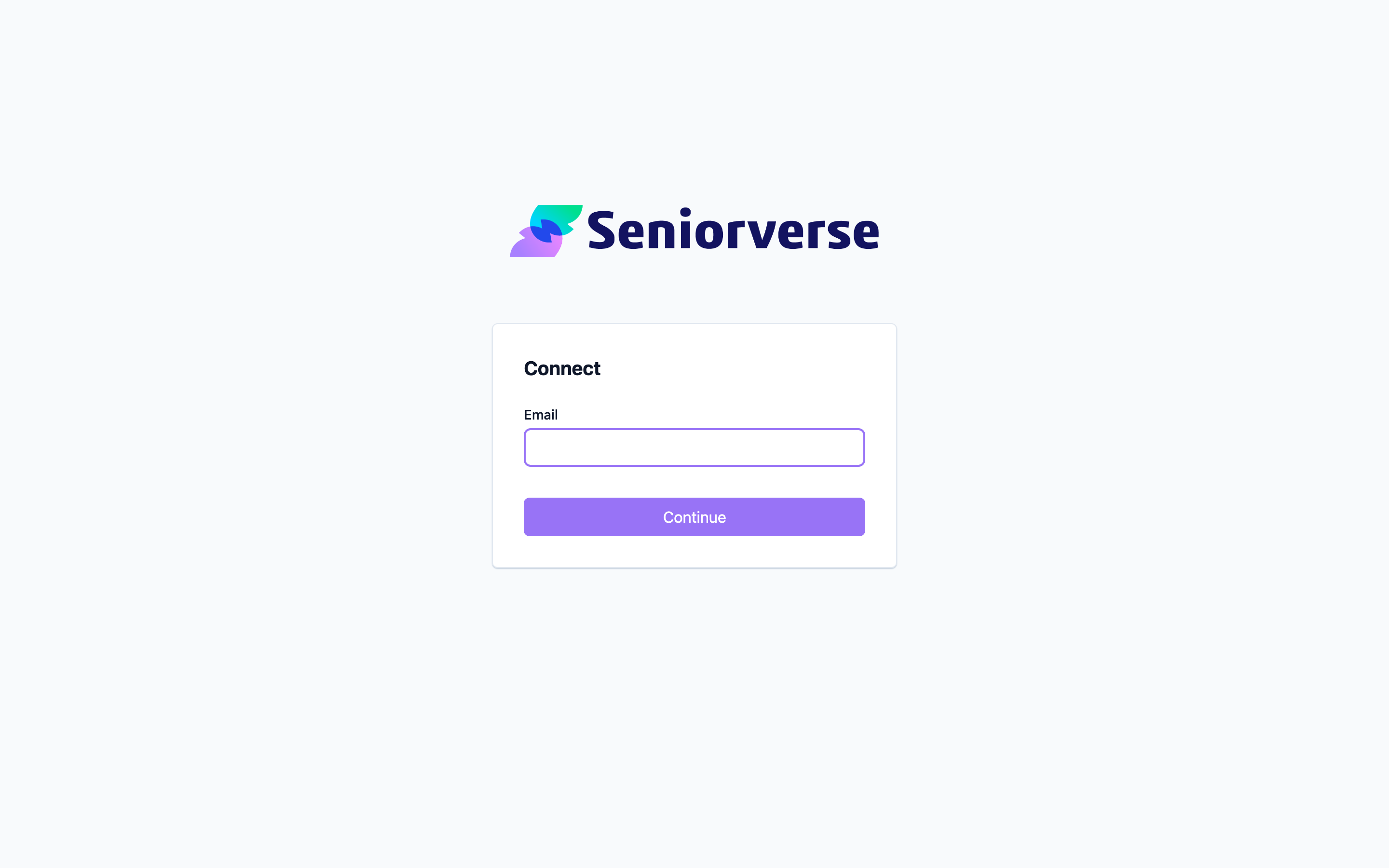
Open the link from your invitation email, or go to your center's Family Portal address. Enter your email address and select Continue. The portal emails you a one-time sign-in code. Enter the code and select Sign in.
Step 2: Choose Your Loved One
After you sign in, the Members screen lists everyone the center has linked to your account. Each card shows your loved one's name and photo. Select a card to open that person's page.
Screenshot coming soon — The Members list shows your linked loved ones
Step 3: Explore Your Loved One's Information
Your loved one's page shows their photo, name, and a summary (enrollment, phone, and address). Below the summary is a list of sections you can open:
| Section | What you can view |
|---|---|
| Forms | Forms and assessments the care team has shared with you to review or complete |
| Demographics | Birthdate, gender, language, and marital status |
| Contacts | Family and emergency contacts on file, with phone and email |
| Benefits | Benefit types with their days and start/end dates |
| Diagnoses | Documented conditions, with the physician and any notes |
| Allergies | Allergies with severity, type, reaction, and care instructions |
| Medications | The current medication list with days, times, and where each is given |
Select any section to open it. Use the back arrow to return to your loved one's page.
Screenshot coming soon — Your loved one's page lists the sections you can open
Step 4: Check Your Forms
The Forms button at the bottom of the screen opens your Forms inbox. This is where forms and assessments the care team sends you appear. Open one to read it or fill it in. To learn more, see Reviewing and Completing Forms.
Screenshot coming soon — The Forms button opens your inbox of shared forms
Step 5: Open the Menu
The menu button (the three dots in the top bar) lets you Log out and check the app version. There are no other settings — the center manages your account details for you.
Screenshot coming soon — The top menu lets you log out and check the version
Tips
- Bookmark the portal so you can return to it quickly. You will sign in again with a fresh one-time code whenever you have been away for a while.
- Most information is view-only. If something looks out of date or incorrect, contact the center — they keep the records current.
- Check your Forms inbox when the care team lets you know they have sent something. Forms you still need to complete are marked Pending.
Troubleshooting
| Problem | Solution |
|---|---|
| I did not get an invitation | Contact the center and ask them to invite you to the Family Portal and confirm they used the right email address. |
| My loved one is not listed | Your account may not be linked to them yet. Contact the center to have your account connected to your loved one's profile. |
| A section is empty | The care team may not have entered that information yet. Contact the center if you expected to see something. |
| Some information looks out of date | The portal is view-only. Contact the center so staff can update the records. |
| A page will not load | Refresh the page. If it keeps happening, try a different browser or contact the center. |