
Overview
Groups let you organize members into named categories you can filter by across Seniorverse. A group has a single property — its name. You create and rename groups on the Groups tab of the Center > Setup page, then assign members to them from each member's profile.
Before You Begin
- You need access to the Setup page (the Center:Setup:View scope).
- Decide on a naming scheme that will make sense to all staff (for example, by day of attendance, care level, or transportation route).
Steps
Step 1: Open Center > Setup > Groups
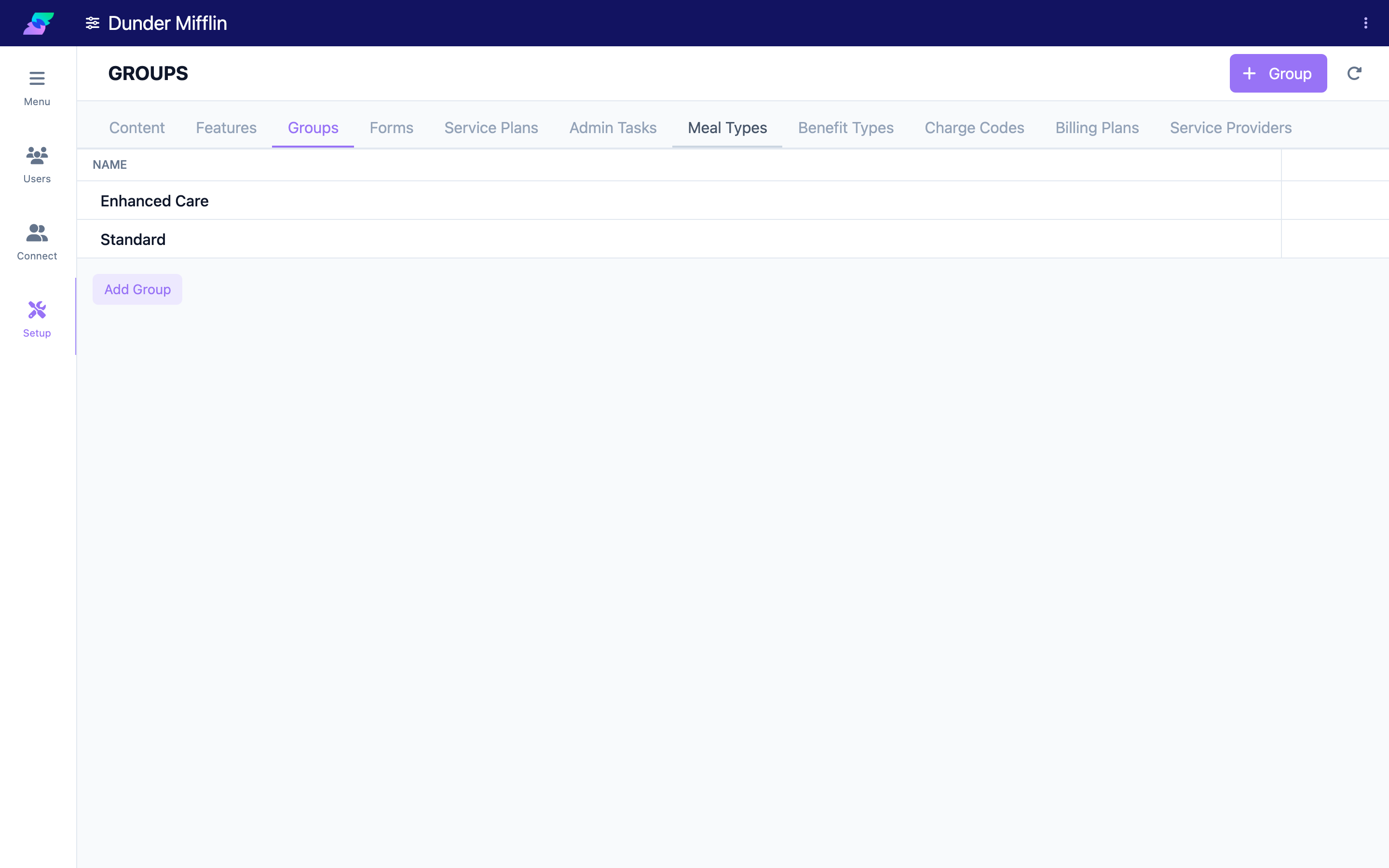
Select Center from the navigation, then Setup, then the Groups tab. The Groups table lists every group at your center by name.
Step 2: Add a group
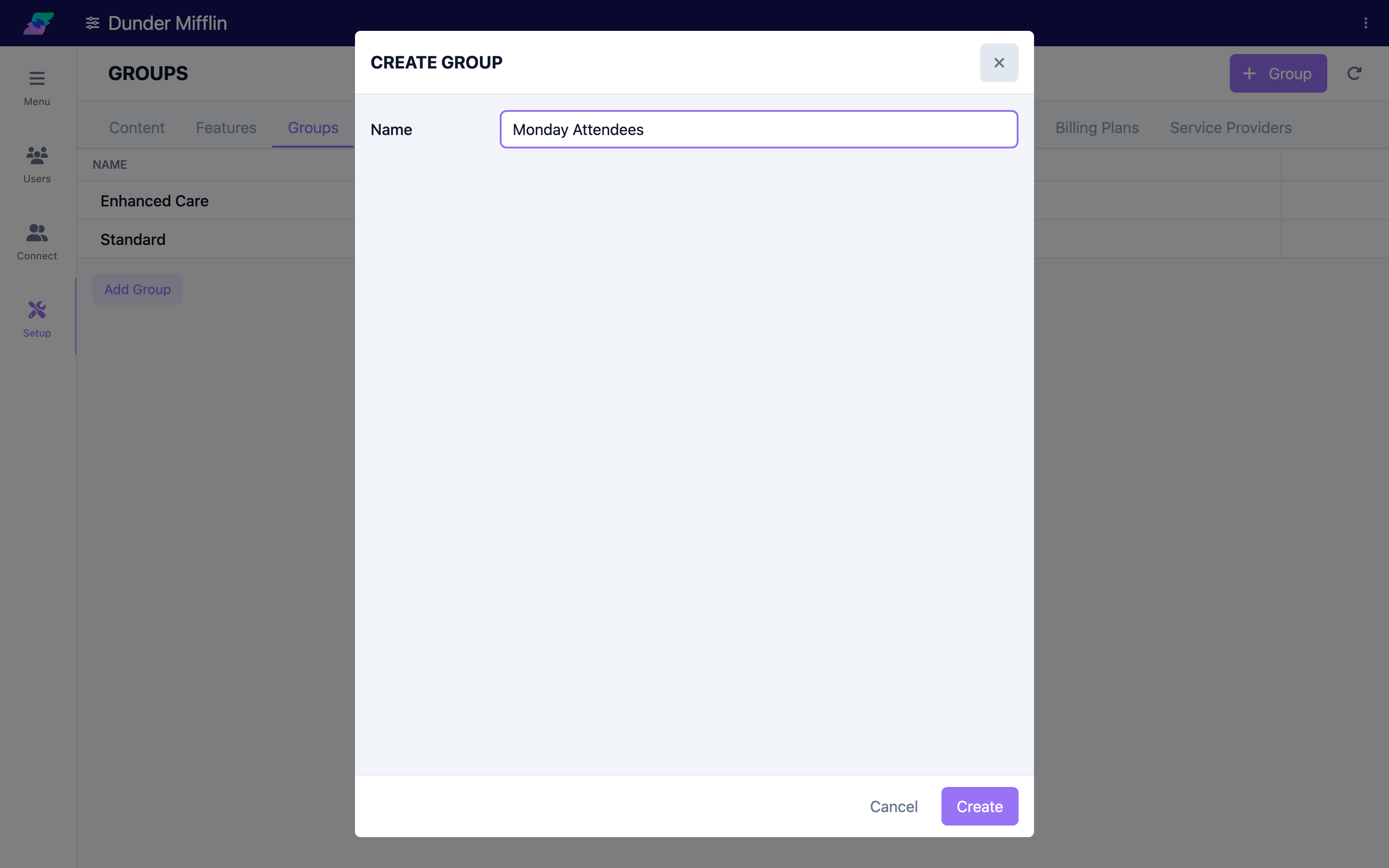
Select the Group button (with the plus icon) above the table, enter a name, and save. The new group appears in the table.
Step 3: Rename a group
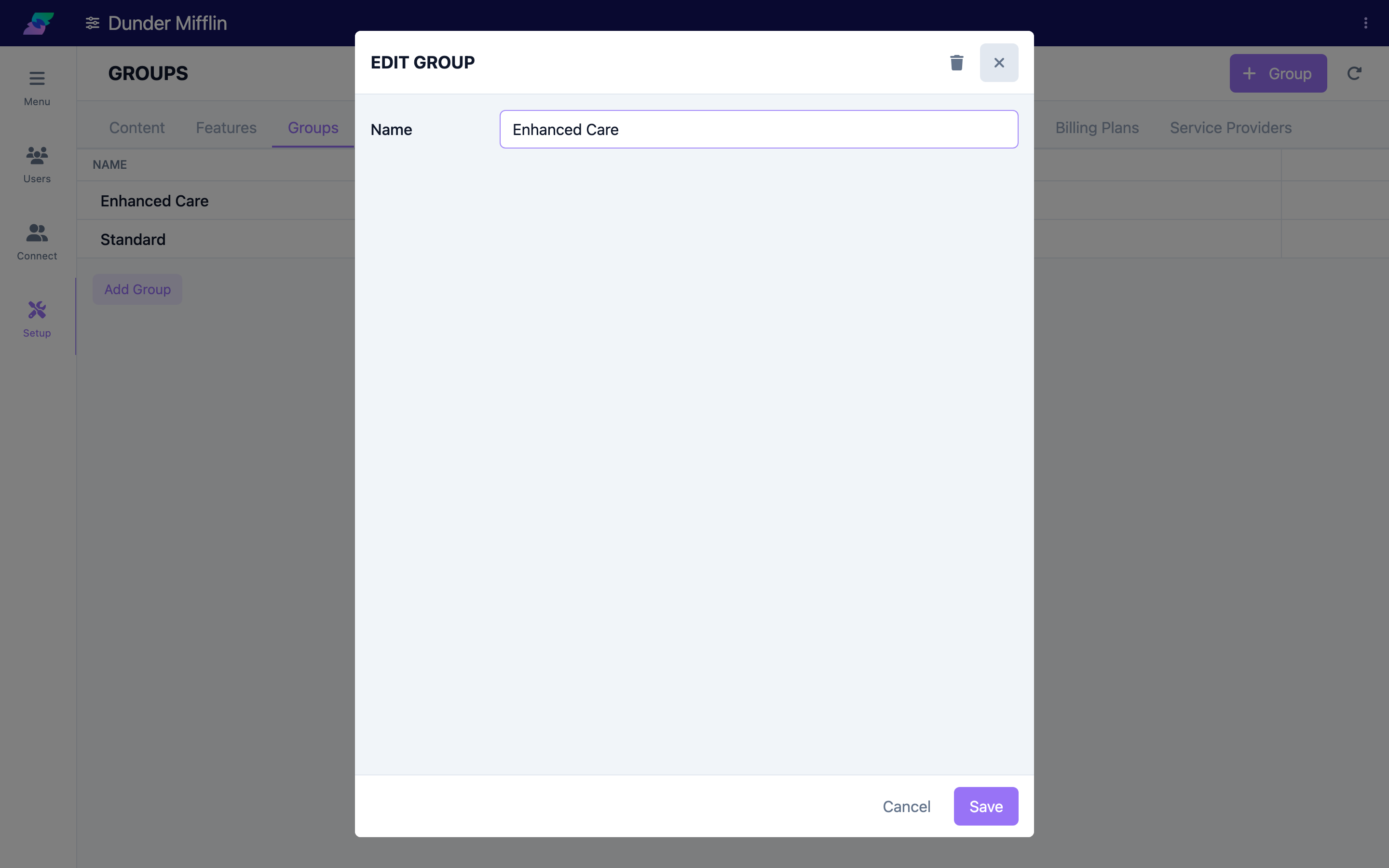
Select a group in the table to open it, update its name, and save.
Step 4: Assign members to a group
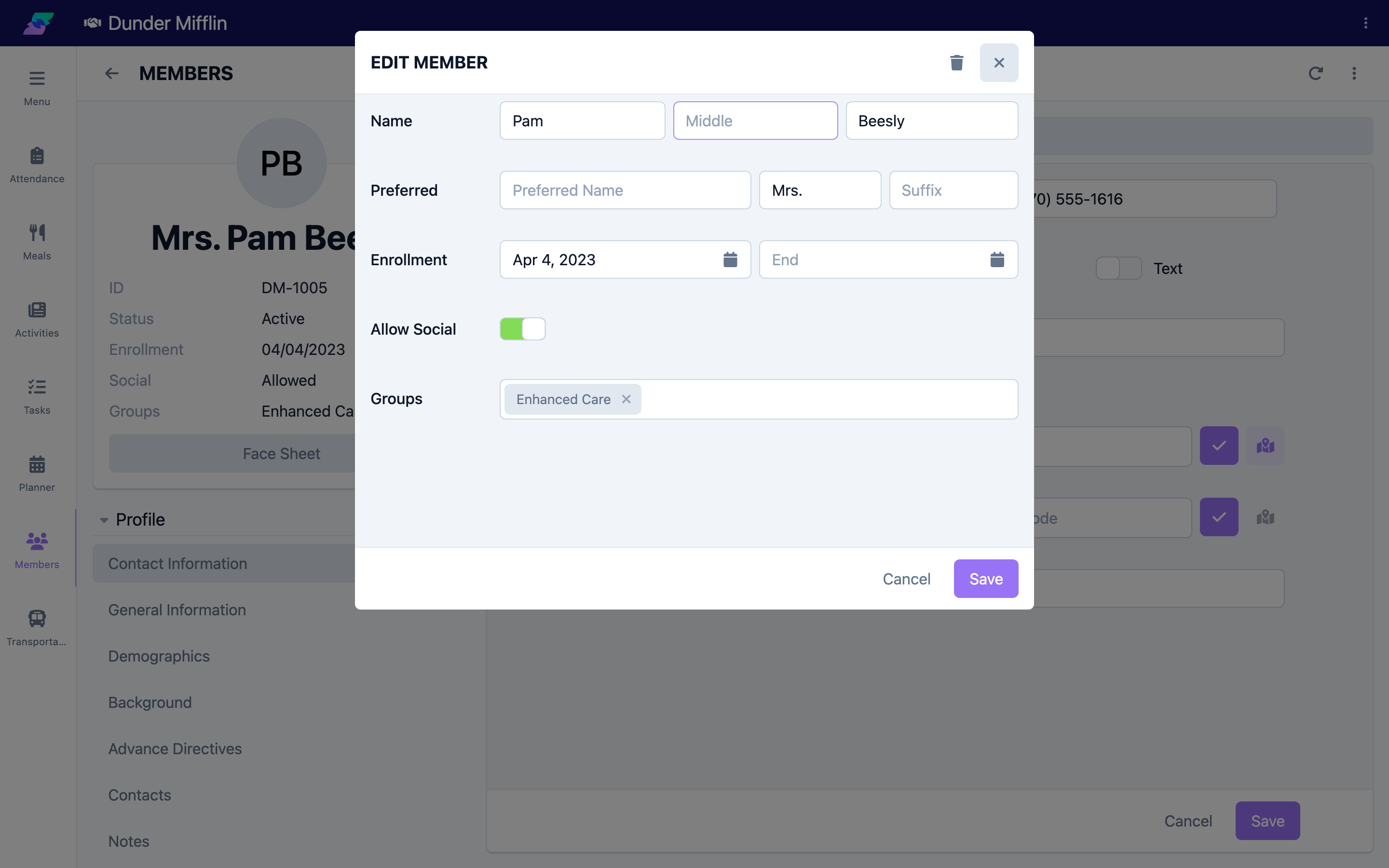
Open a member's profile and assign them to the groups that apply. Once members belong to a group, you can filter by that group on pages that support it, such as Attendance and Meals.
Tips
- Use clear, descriptive names. "Monday/Wednesday/Friday Attendees" is easier to use than "Group A."
- Build groups around how you work. Create the groupings your staff naturally use during the day so filtering matches real workflows.
- Combine group filters with other filters. Use a group to narrow a long list, then apply date or status filters for a more specific view.
- Review assignments periodically. As members' needs change, update their group membership from their profile.
Troubleshooting
| Problem | Solution |
|---|---|
| You do not see the Groups tab | You need access to the Setup page (Center:Setup:View). Ask an administrator to grant it. |
| A new group is not showing where you filter | Refresh the page; newly created groups may take a moment to appear in filters. |
| You cannot assign a member to a group | Group membership is set from the member's profile. Confirm you have permission to edit that member. |
| Members show under the wrong group | Open the member's profile and review their group assignments; a member can belong to more than one group. |