
Overview
Seniorverse uses member photos in a few different places:
- The profile photo identifies the member on their card, in lists, and on the Face Sheet.
- Activity photos capture moments during activities and can be tagged to the members who appear in them.
- Check-in and check-out photos are captured at the reception kiosk when a member arrives or leaves.
These are separate from the Files tab, which stores documents such as PDFs, scans, and insurance cards. For documents, see Uploading and Managing Files. This article covers the three kinds of photos above.
Before You Begin
- You must be logged in with permission to edit member profiles.
- Activity photos require the Activities feature; check-in/out photos require the Reception feature.
- Use a device with a camera for capturing photos.
Steps
Step 1: Add or change a member's profile photo
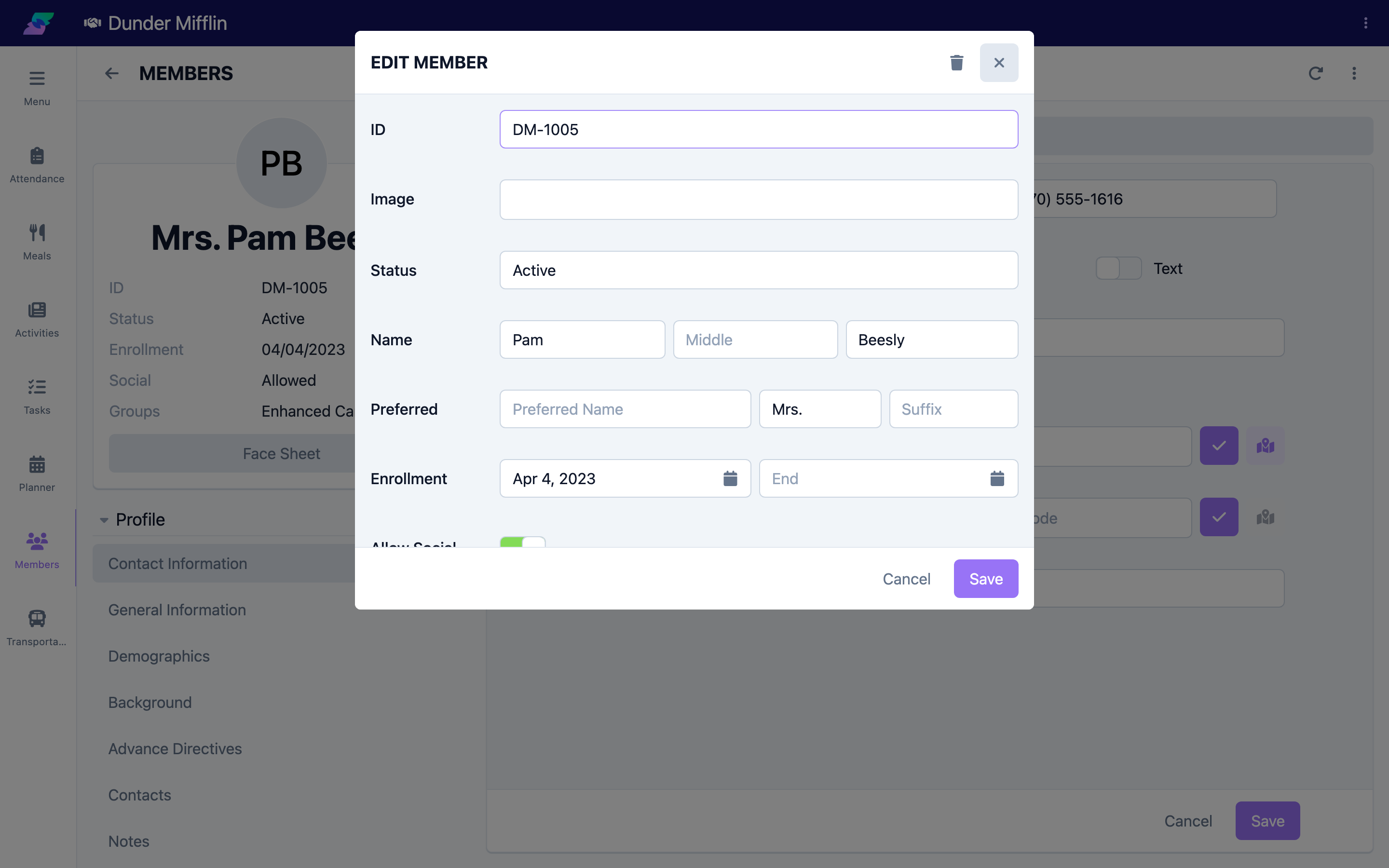
- Open the member and select Edit Member on the member card.
- In the Image field, upload a photo (one photo is kept as the profile photo).
- Select Save.
Step 2: View the profile photo
On the member card, select the profile photo to view it full size. The same photo also appears on the member's Face Sheet.
Screenshot coming soon — Member card profile photo opened full size
Step 3: Tag members in activity photos
- In the Activities area, open the activity that has photos.
- On a photo, use Tag Members and select the members who appear in it.
Tagged members' names are shown on the photo.
Screenshot coming soon — Tag Members control on an activity photo
Step 4: Find activity photos on a member
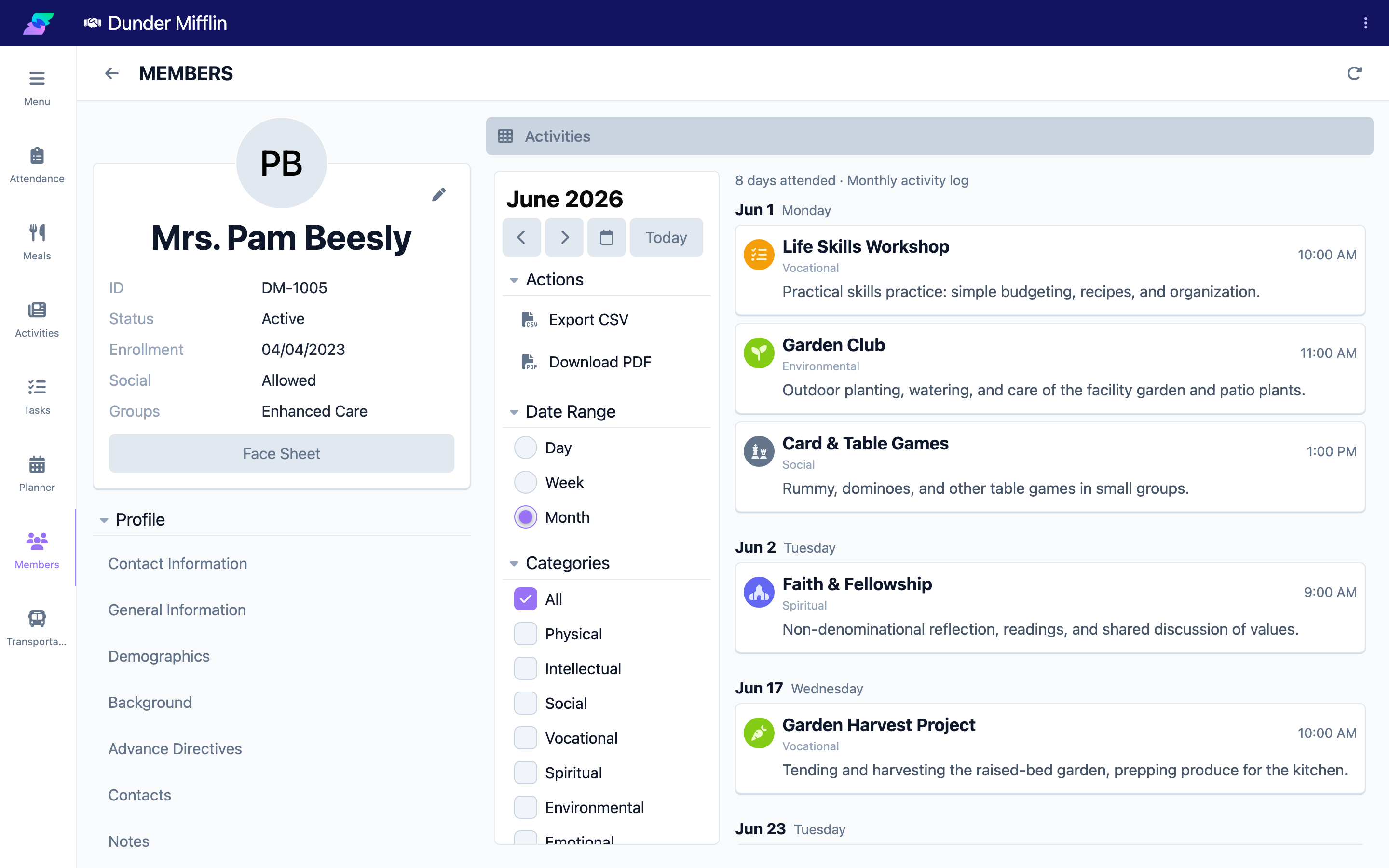
Open the member and select the Activities tab (in the Reports group). The activities and photos the member is tagged in appear here.
Step 5: Capture check-in and check-out photos at the kiosk
When a member checks in or out at the reception kiosk, the kiosk takes their photo. If facial recognition is set up, the same photo is used to match and identify the member. The photo is saved on that day's attendance record.
Screenshot coming soon — Reception kiosk capturing a check-in photo
Step 6: View check-in and check-out photos
- Open the member's Attendance tab, or the attendance record for the day.
- The Checked In and Checked Out photos are shown on the attendance record.
Screenshot coming soon — Attendance record showing checked-in and checked-out photos
Tips
- Photos vs. files. Use the profile Image field, activities, and the kiosk for photos. Use the Files tab for documents (PDFs, scans, cards).
- A good profile photo helps everyone. A clear, front-facing profile photo makes members easy to identify across the app and on the Face Sheet.
- Tag photos promptly. Tagging members right after an activity keeps each member's Activities tab up to date and lets families see them in the Family Portal.
- Check-in photos double as verification. Because the kiosk saves the check-in and check-out photos on the attendance record, you have a visual record of who was present.
Troubleshooting
| Problem | Solution |
|---|---|
| The profile photo did not update | Re-open Edit Member, confirm the Image field shows the new photo, and select Save. Refresh if it still shows the old one. |
| I cannot tag members on an activity photo | Make sure the members were present that day and that you have permission to edit activities. |
| Activity photos are not on the member's Activities tab | The photo may not be tagged to that member yet. Tag them on the photo in the Activities area. |
| There is no check-in or check-out photo | A photo is only saved when the member checks in or out at the reception kiosk. Manually entered attendance has no kiosk photo. |
| A photo will not upload | Check your connection and try a smaller image; upload one photo at a time. |