
Overview
Attendance events record notable occurrences during a member's day, such as a doctor's visit or another event your center tracks. Events are added from the Events column on the Attendance page and appear on the member's attendance record for the day.
Before You Begin
- You must be logged into Seniorverse with Care module access.
- You need the Care:Attendance permission (or Care:FullAccess).
- The member must have an attendance record for the day (scheduled or added).
Steps
Step 1: Open the Attendance page and find the member
Select Care, then Attendance. Confirm the date, then use the search box or filters to find the member.
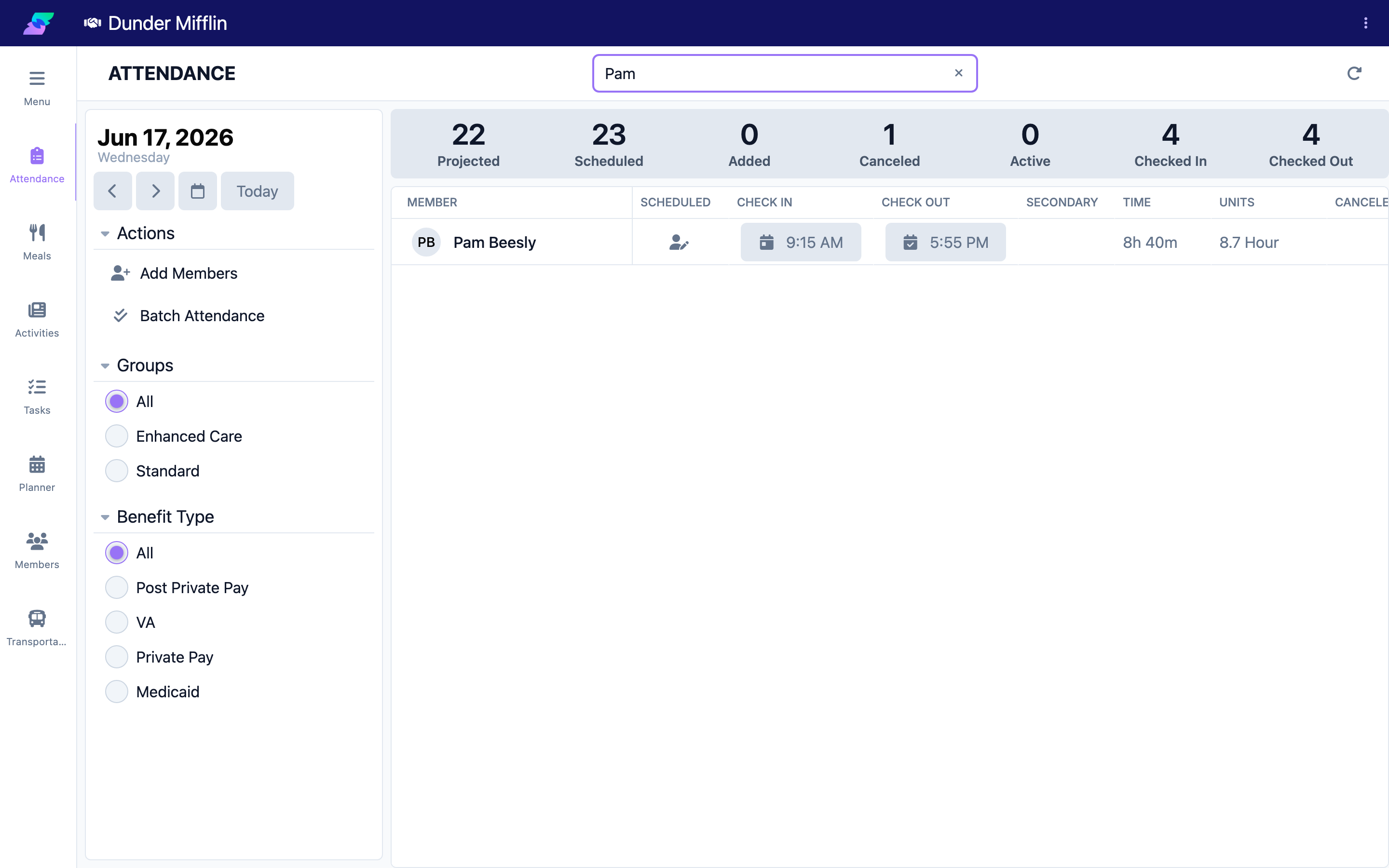
Step 2: Open the event form
In the Events column for the member, select the + button. The Event form opens.
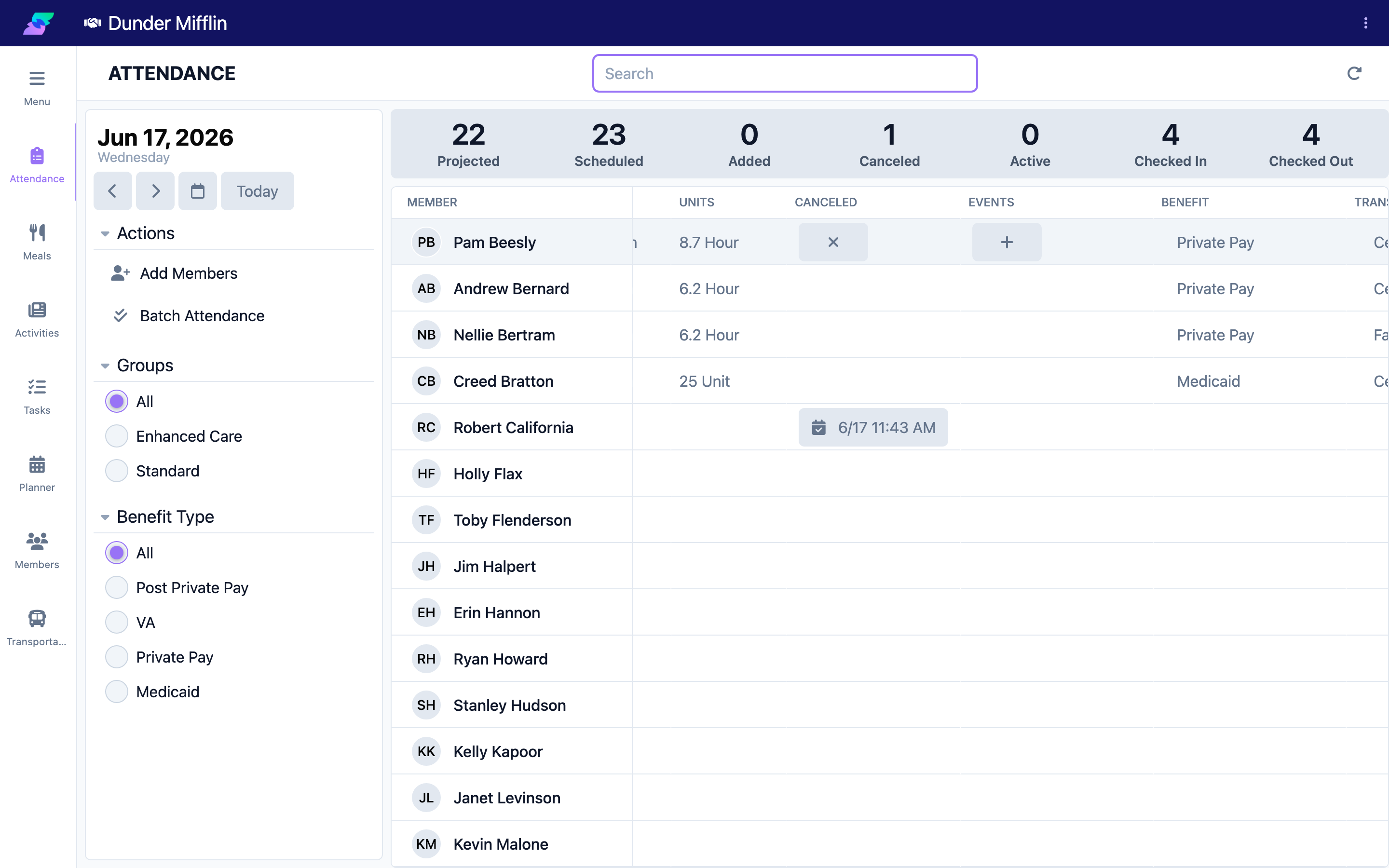
Step 3: Set the time and type
The Date is set from the attendance day. Set the Time the event occurred (defaults to now), then choose a Type. Types come from your center's configured event types, plus a Custom option.
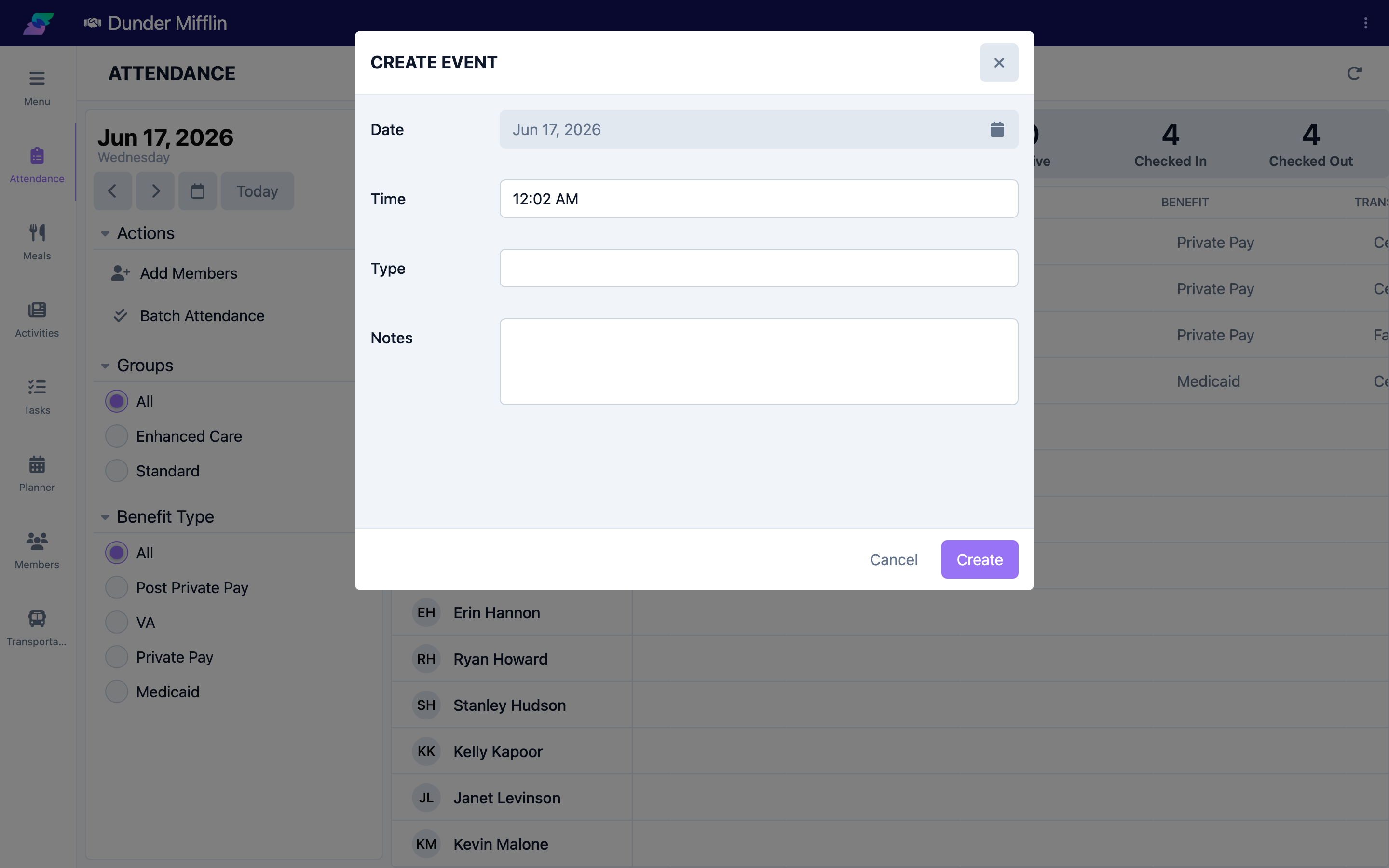
Step 4: Name the event and add notes
If you chose a configured type, that type is used as the event's name and no separate Name field appears. If you chose Custom, a Name field appears — enter a name yourself. Add Notes with any relevant detail, then save.
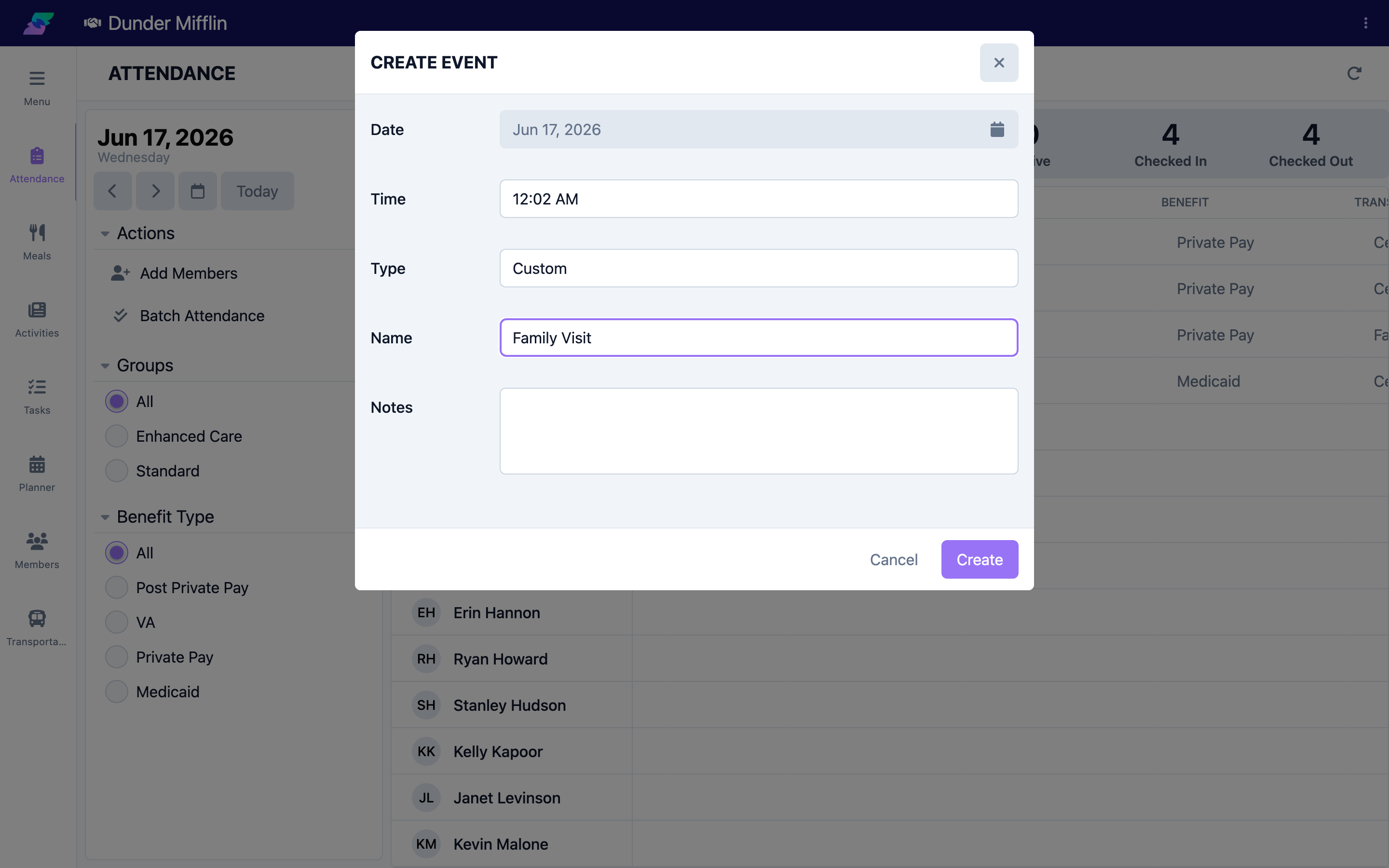
Step 5: Review and manage events
The Events column now lists the event name. Select it to open the Attendance Events list, where you can add another event, edit an event, or delete one (with the ✕ button).
Screenshot coming soon — Attendance Events list showing recorded events
Tips
- A member can have multiple events on the same day; each is recorded separately with its own time and notes.
- Use Custom when the occurrence does not match one of your center's configured event types.
- Event types are configured by your center. Ask an administrator if you need a new type added.
Troubleshooting
| Problem | Solution |
|---|---|
| I cannot add an event | The member needs an attendance record for the day. Add or schedule the member first. |
| The type I need is not listed | Choose Custom and type the name, or ask an administrator to add the event type. |
| I added an event to the wrong member | Open the Attendance Events list for that member and delete the event, then add it to the correct member. |
| I need to change an event | Select the event in the Events column to open the list, choose the event, edit it, and save. |
Related Articles
- understanding-the-attendance-page — Understanding the Attendance Page
- checking-a-member-in — Checking a Member In
- recording-a-cancellation — Recording a Cancellation