
Overview
Seniorverse groups its features into separate modules, each built for one area of your center's work. This article gives you a short tour of each module: what it is for, the pages it contains, and who typically uses it. Knowing the module map helps you find features quickly and understand where your work lives.
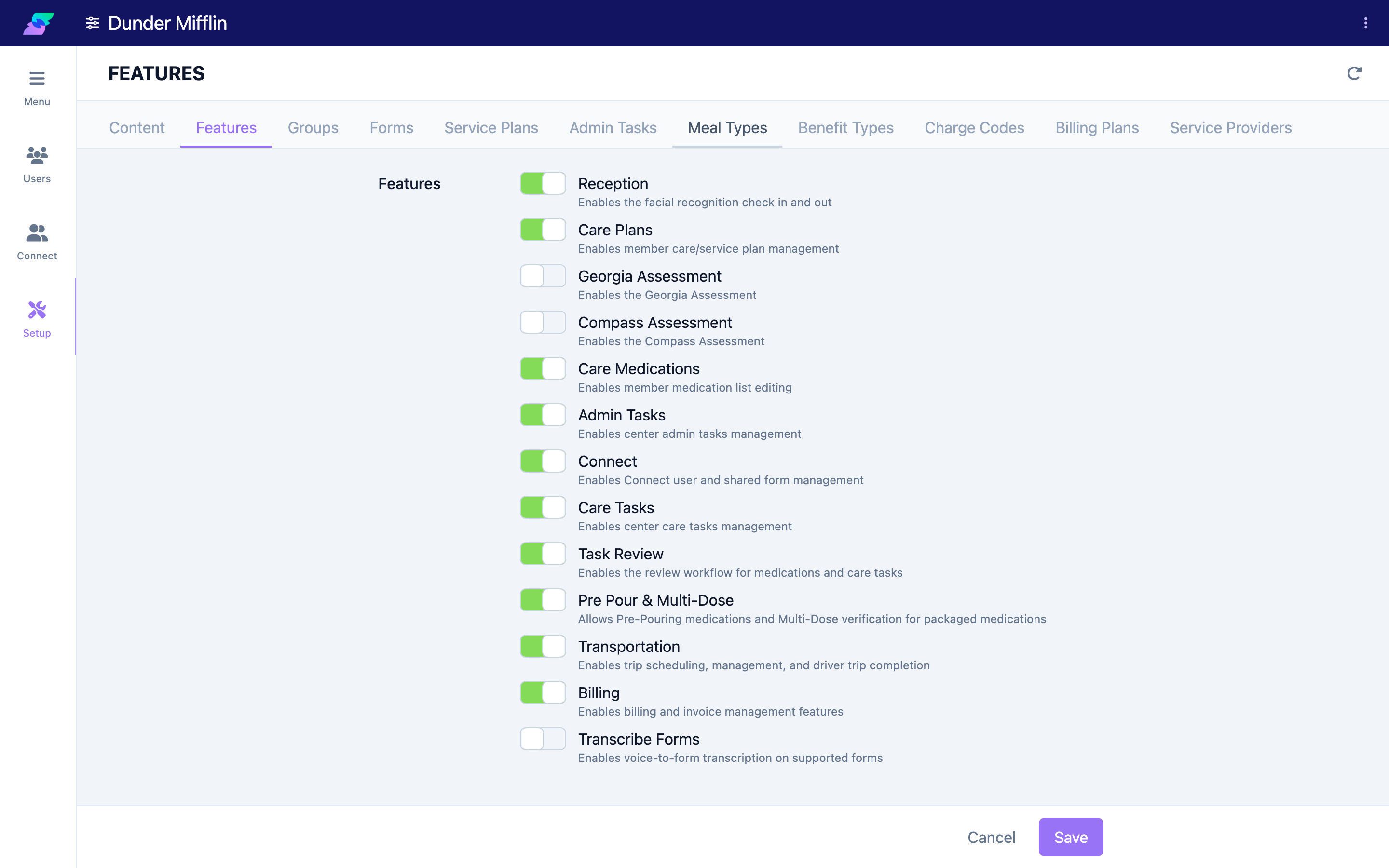
The modules you can open depend on your permissions and on which features your center has enabled, so you may not see every module described here.
Before You Begin
- No prerequisites. This is a conceptual overview.
- You reach any module from the center Menu page. See Navigating the Platform for how to move between modules.
Steps
Step 1: Care
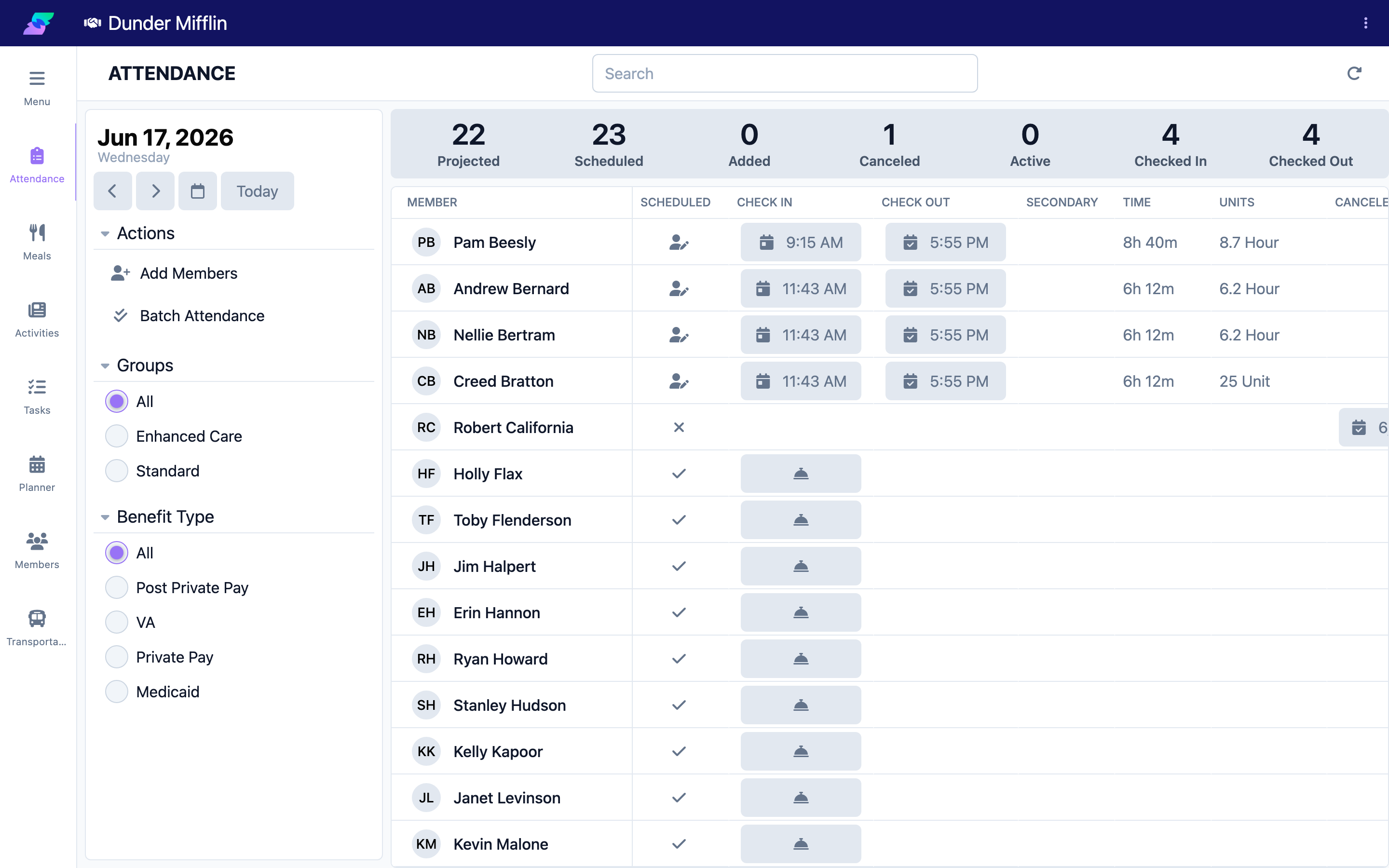
The Care module (handshake icon) is the heart of daily operations. Most staff spend the majority of their time here, and every member's profile lives in this module.
Its sidebar has Menu, Attendance, Meals, Activities, Tasks, Planner, Members, and Transportation. Additional Care pages — Benefit Types, Service Plans, Form Templates, Incidents, and Deleted — open from the Care Management grid on the Menu page. (Pages you lack permission for, or features your center has not enabled, are hidden.)
Use Care to record attendance, meal service, and activities; complete care tasks; manage the calendar in Planner; open and update member profiles; work with service plans and form templates; and document incidents.
Who uses it: Front desk staff, care aides, nurses, and administrators.
Step 2: Billing
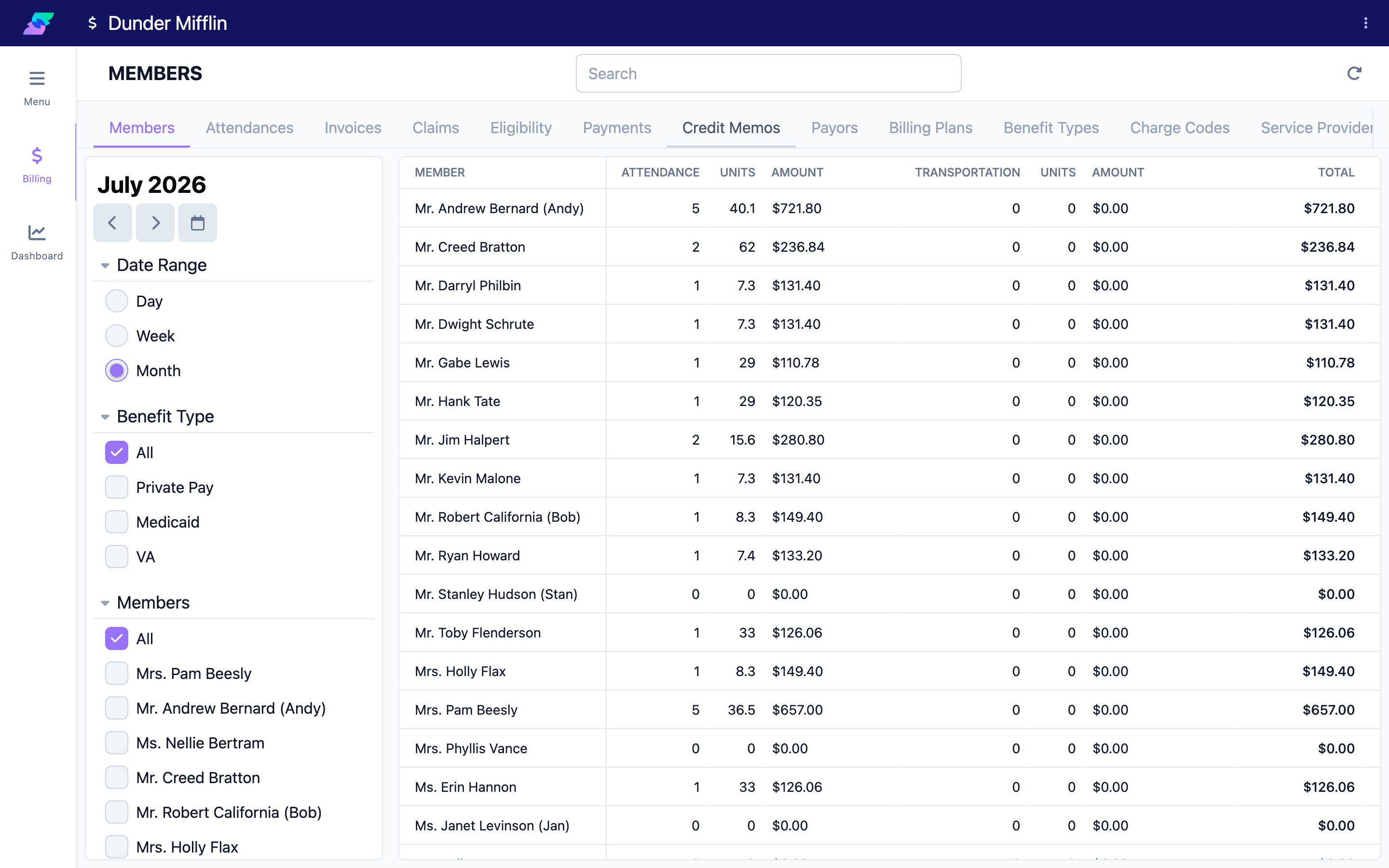
The Billing module (dollar-sign icon) handles financial operations. Its sidebar has Menu, Billing, and Billing Dashboard.
The main Billing page is organized into tabs: Members, Attendances, Invoices, Claims, Eligibility, Payments, Credit Memos, Payors, Billing Plans, Benefit Types, Charge Codes, Service Providers, and Files. From here you create and manage invoices, record and allocate payments, issue credit memos, and configure payors, billing plans, benefit types, and rates.
Who uses it: Billing staff and administrators. Billing must be enabled for your center.
Step 3: Reception
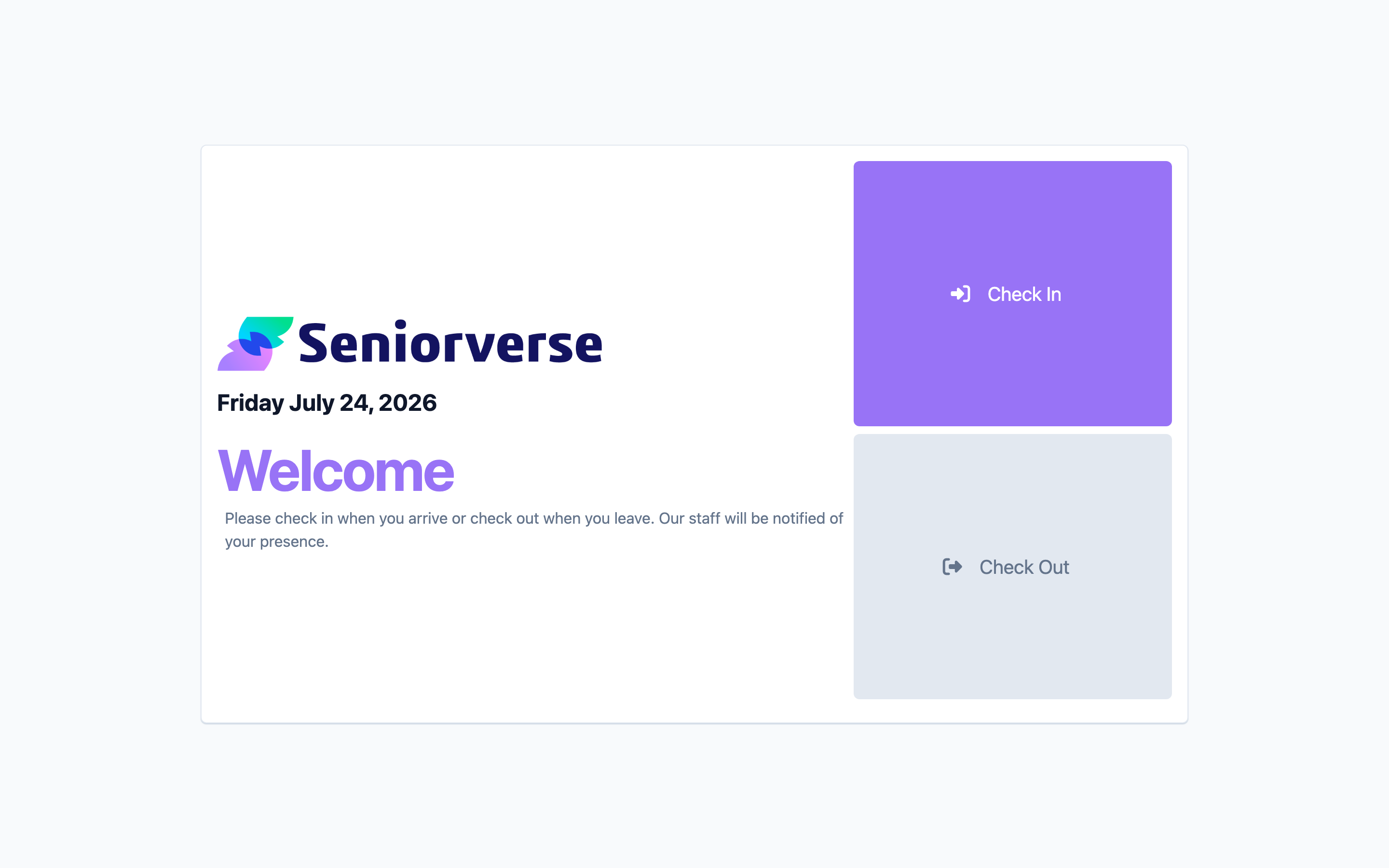
The Reception module (concierge-bell icon) is a streamlined interface built for the front desk. It focuses on quickly checking members in and out without the rest of the Care module's pages. Its sidebar has Menu and Reception.
Who uses it: Front desk staff at a dedicated check-in station. Reception must be enabled for your center. For anything beyond check-in and check-out, use the Care module.
Step 4: Reports
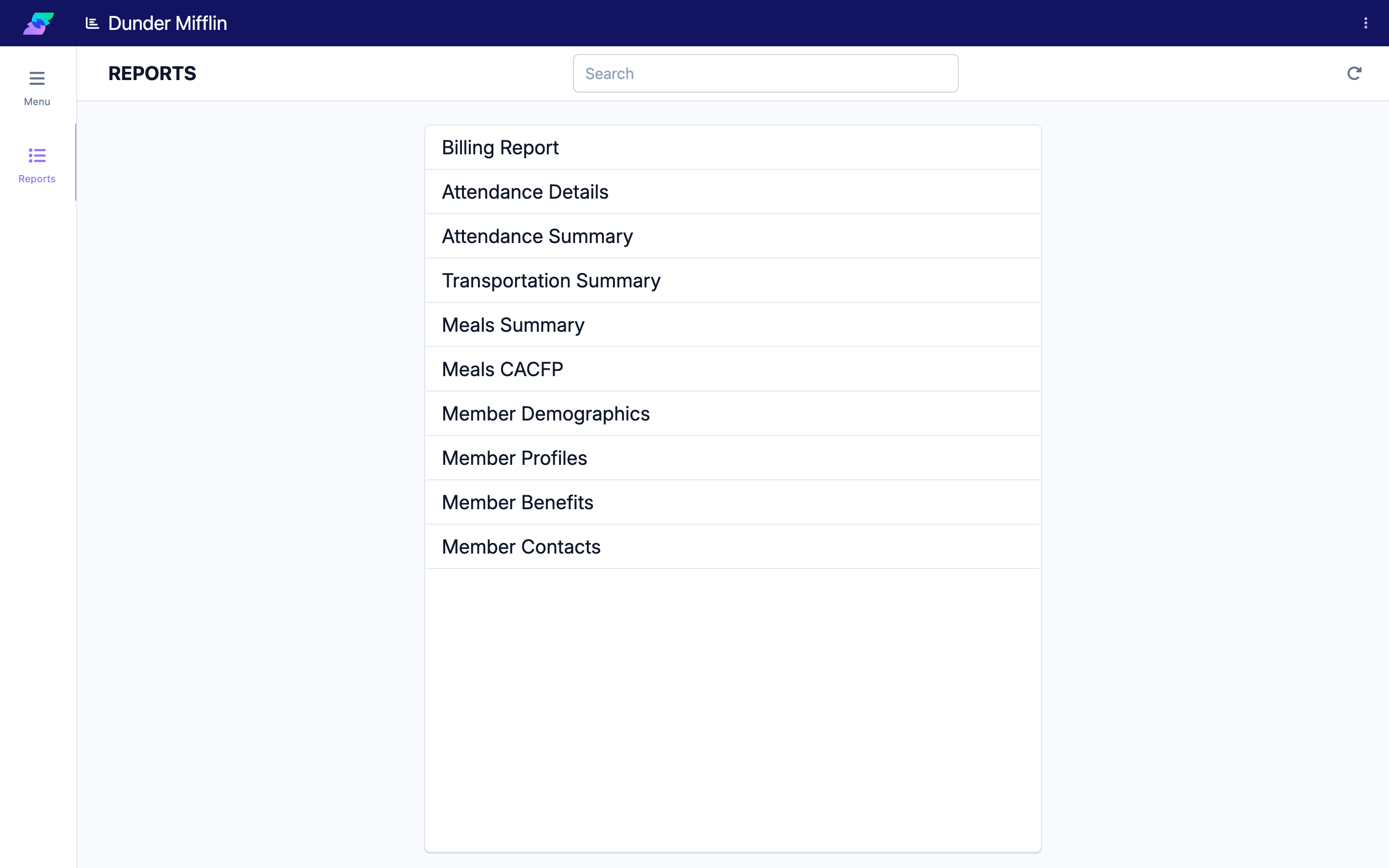
The Reports module (bar-chart icon) provides reporting and data exports. Its sidebar has Menu and Reports.
The available reports include Billing Report, Attendance Details, Attendance Summary, Transportation Summary, Meals Summary, Meals CACFP, Member Demographics, Member Profiles, Member Benefits, and Member Contacts. Use Reports to generate operational summaries and export data for compliance and record-keeping.
Who uses it: Directors, administrators, and billing staff who need summaries or exports.
Step 5: Center
The Center module (sliders icon) holds center-wide settings and administration. Its sidebar pages are: Menu, Users, Connect Users, and Setup.
Use Users to invite staff and manage their permissions, Connect Users to manage family and member-access (Connect) accounts, and Setup for center configuration. (Connect Users appears only when the Connect feature is enabled for your center.)
Who uses it: Administrators and directors.
Tips
- Start in Care for daily work. Attendance, meals, activities, tasks, and member profiles all live in the Care module.
- Use Reception for a dedicated check-in station. If a front-desk computer is used only for arrivals and departures, Reception is faster and simpler than the full Care module.
- Look in Reports for summaries and exports. Whenever you need a report or a data export for compliance, check the Reports module first.
- Outreach is for prospects, not members. Use Outreach for people who are not yet enrolled and for external organizations; current members are managed in Care.
- You only see what you can access. If a module or page is missing, it is because of your permissions or your center's enabled features.
Troubleshooting
| Problem | Solution |
|---|---|
| A module is not on my Menu | The module card only shows modules you have permission for, and Reception and Billing must be enabled for your center. Ask your administrator to check your access. |
| I cannot find a feature | Identify which module the feature belongs to using this article, then open that module. If it is still missing, it may require a permission you do not have. |
| A page in a module is grayed out or missing | Some pages require a specific permission or a feature that an administrator must enable. Check with your administrator. |
| Not sure which module to use | Use Care for daily member care, Billing for finances, Reports for data, Center for settings, and Outreach for prospects and external contacts. |