
Overview
Admin tasks are scheduled administrative duties — recurring or one-time — that can apply to all members, a selection of members, or no member. Each admin task is a schedule that generates task instances staff complete over time. You manage them from the Admin Tasks tab on the Tasks page.
Before You Begin
- You must be logged into Seniorverse with Care module access.
- The Admin Tasks feature must be enabled and you need the Care:AdminTasks:View permission.
Steps
Step 1: Open the Admin Tasks tab
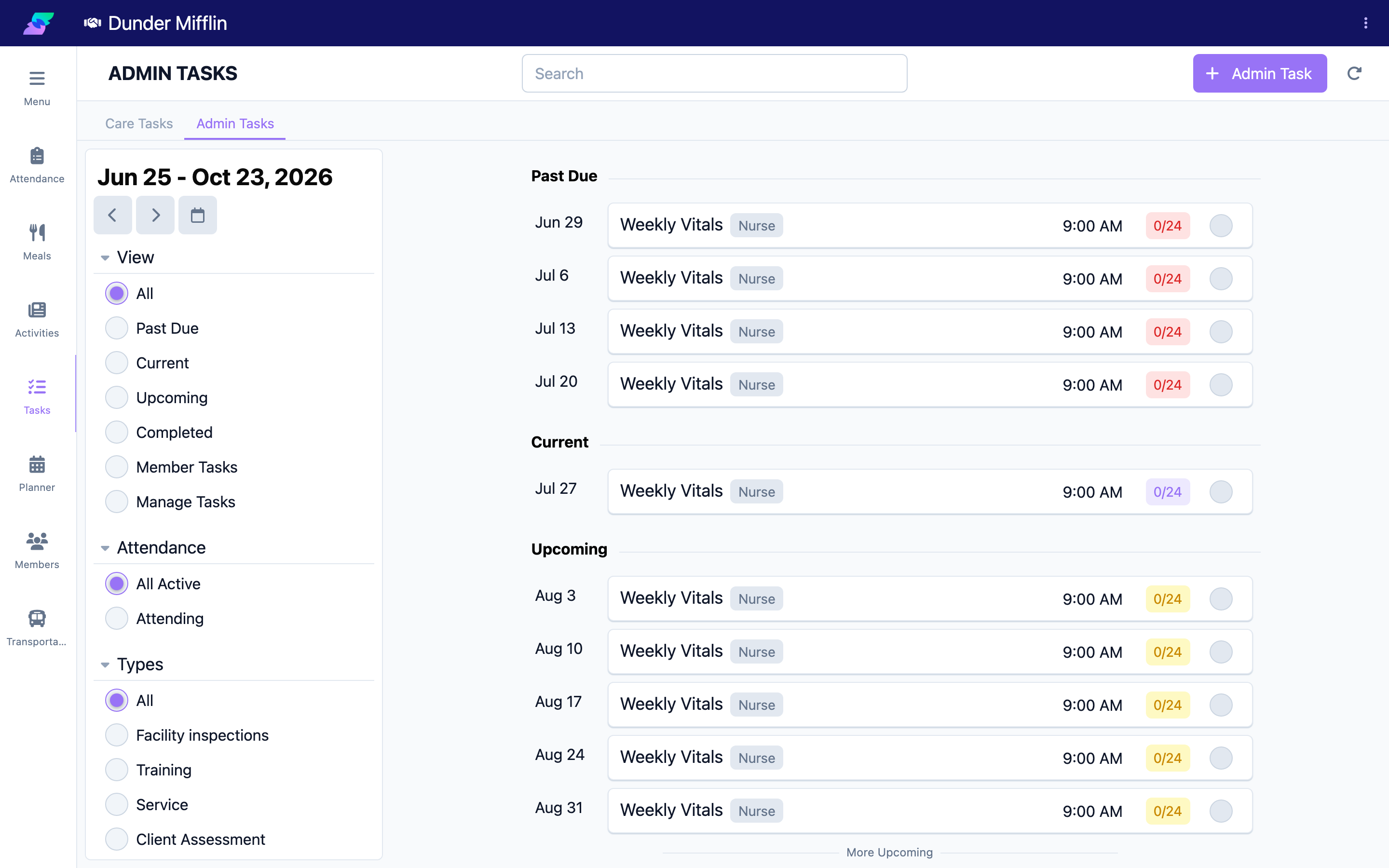
Select Care, then Tasks, then the Admin Tasks tab. The tab lists admin tasks across a date range.
Step 2: Create or open an admin task
Select Admin Task (top of the page) to create one, or open an existing admin task to edit it. The Admin Task form opens.
Step 3: Enter the details
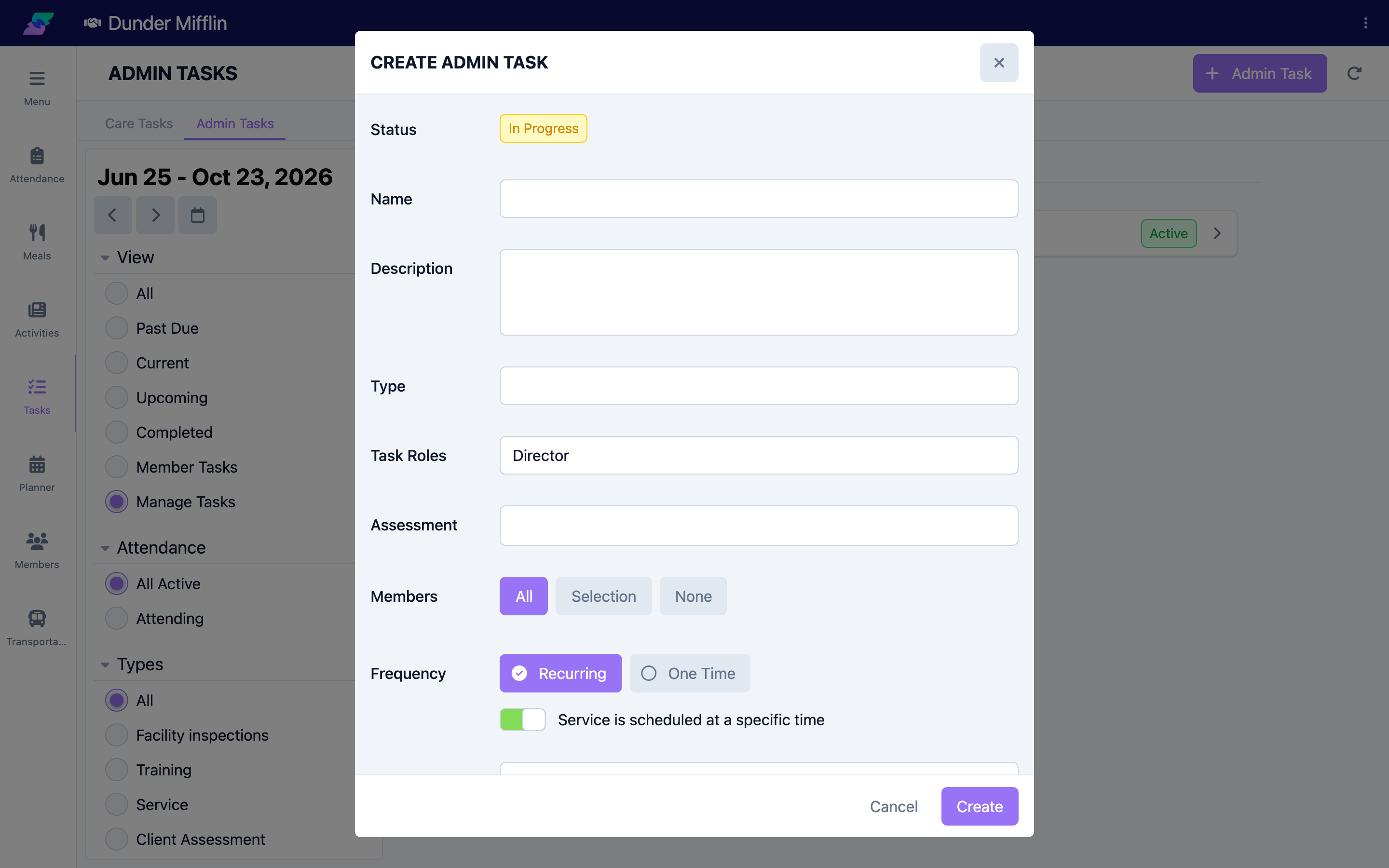
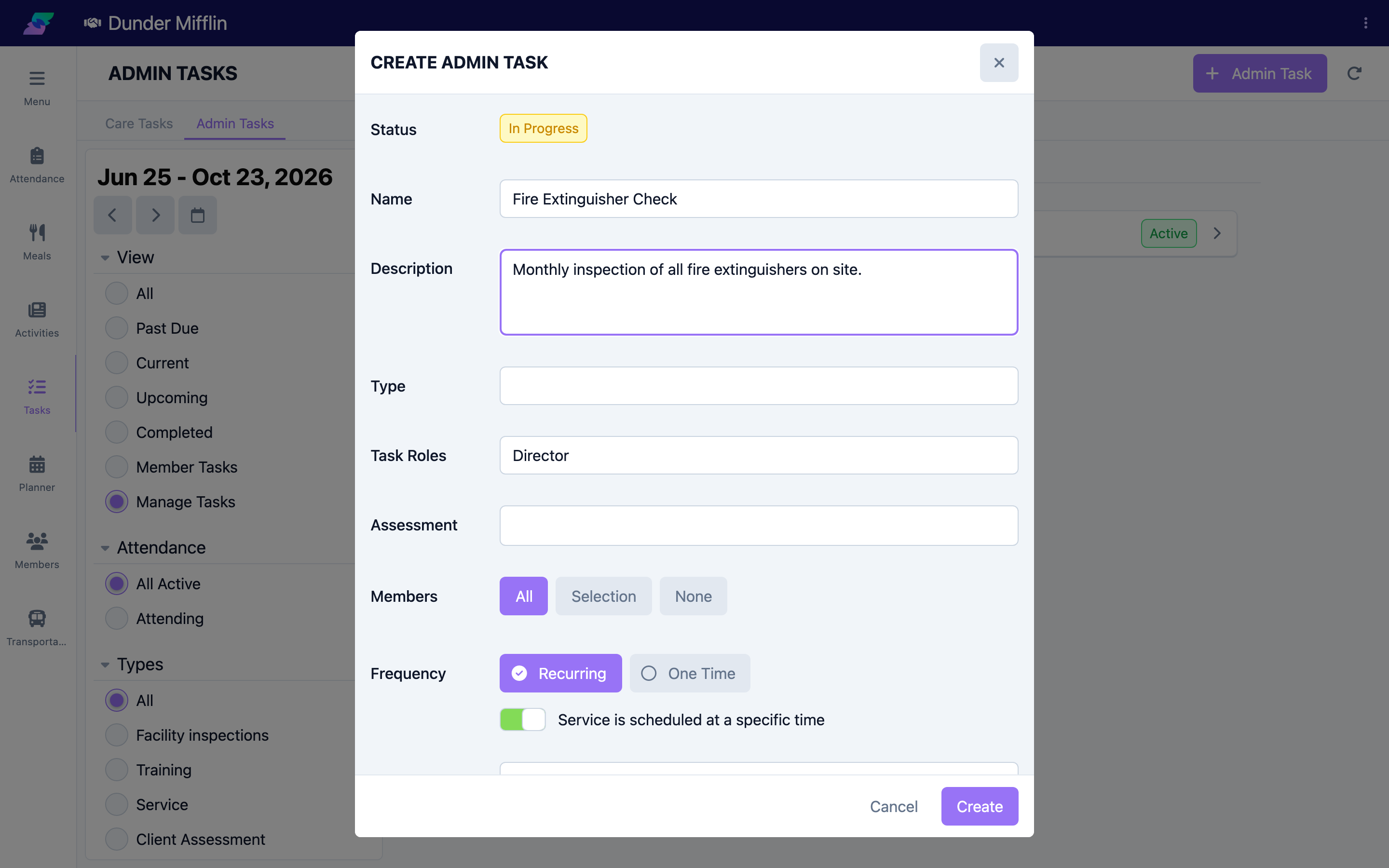
Set the Status, Name, and Description. Choose a Type (from your center's configured admin task types) and one or more Task Roles for the staff responsible. Optionally link an Assessment template.
Step 4: Choose members and schedule
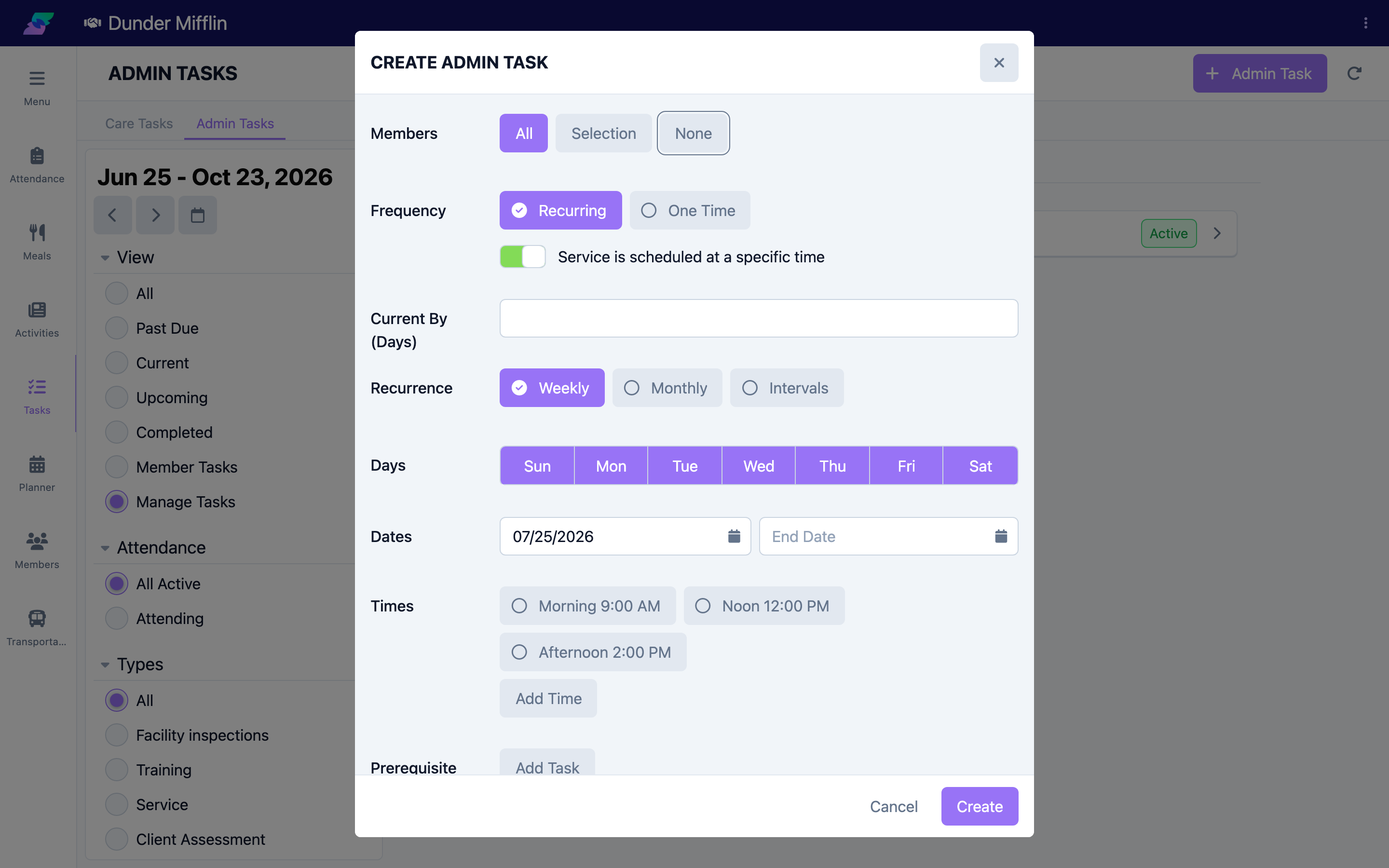
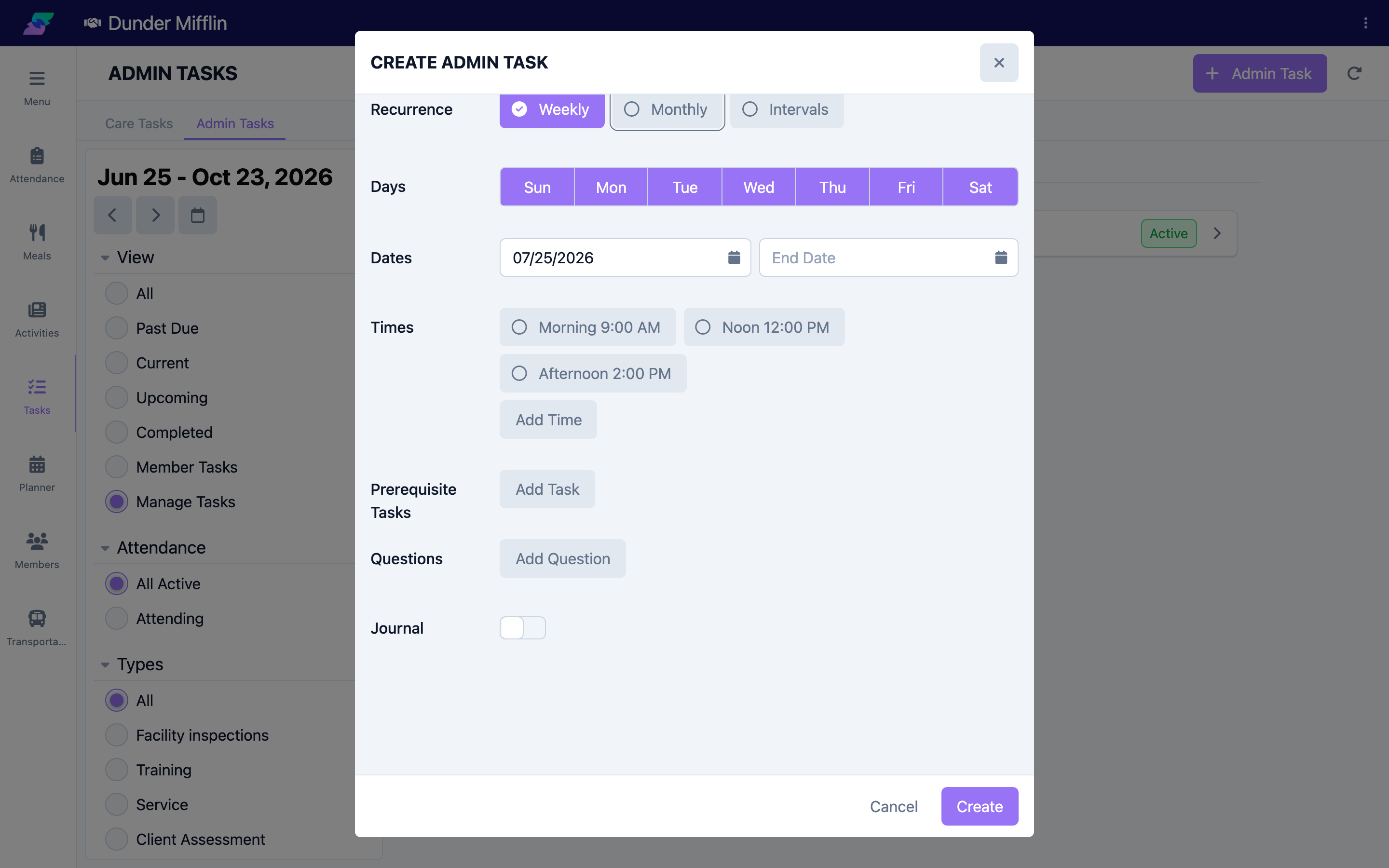
Under Members, choose All, Selection (then pick members), or None. Set the Frequency to Recurring or One Time. For recurring tasks, choose a Recurrence (Weekly, Monthly, or Intervals) and set the days, dates, and times. Use Current By (days) to control how far ahead the task becomes current.
Step 5: Add prerequisite tasks, questions, and save
Optionally add Prerequisite Tasks (each can require a vital), Questions, and turn on Journal if the task needs a written entry. Save the form to activate the schedule; it generates task instances for the chosen members.
Step 6: Track and complete instances
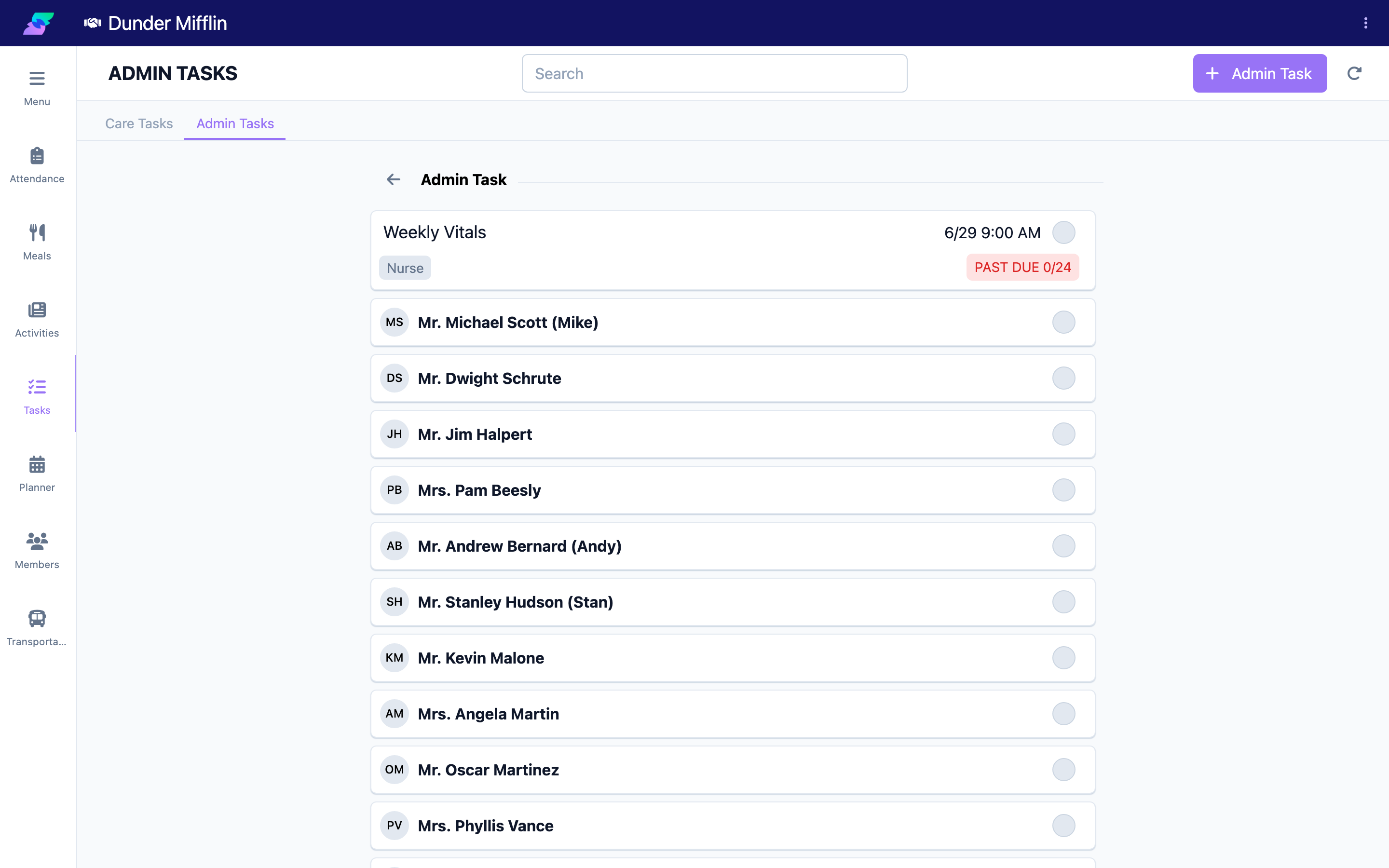
Back on the Admin Tasks tab, use the date range and filters to find due instances. Open an instance for a member to complete it, just like a care task.
Tips
- Once an admin task has generated active tasks, its schedule is locked. To change it, mark it Inactive and use Duplicate Admin Task to create an updated version.
- Use Selection members for a task that applies only to specific people; use None for a facility-wide duty with no member.
- Task roles determine which staff see and are responsible for the generated tasks.
Troubleshooting
| Problem | Solution |
|---|---|
| The Admin Tasks tab is missing | The feature must be enabled and you need the Care:AdminTasks:View permission. |
| I cannot edit an admin task | It has active tasks. Mark it Inactive and choose Duplicate Admin Task to make changes. |
| No instances appear | Widen the date range and clear filters. Confirm the task's status is Active and its members are set. |
| Members are missing from a Selection task | Only active members can be selected. Confirm the member is active. |
Related Articles
- understanding-the-tasks-page — Understanding the Tasks Page
- viewing-and-completing-care-tasks — Viewing and Completing Care Tasks
- creating-new-tasks — Creating New Tasks