
Overview
Meal completion records how much of a meal a member ate. On the Meals page, the Completion column offers five percentage buttons; selecting one saves the amount and marks the meal as served in one step. Completion data helps your team monitor nutritional intake.
Before You Begin
- You must be logged into Seniorverse with Care module access.
- You need the Care:Meals permission (or Care:FullAccess).
Understanding the Completion Buttons
The Completion column shows five buttons:
| Button | Meaning |
|---|---|
| 100 | Ate everything |
| 75 | Ate most of the meal |
| 50 | Ate about half |
| 25 | Ate a small portion |
| 0 | Did not eat any of the meal |
Selecting any of these also sets the meal status to served, so you do not need to set the status separately.
Steps
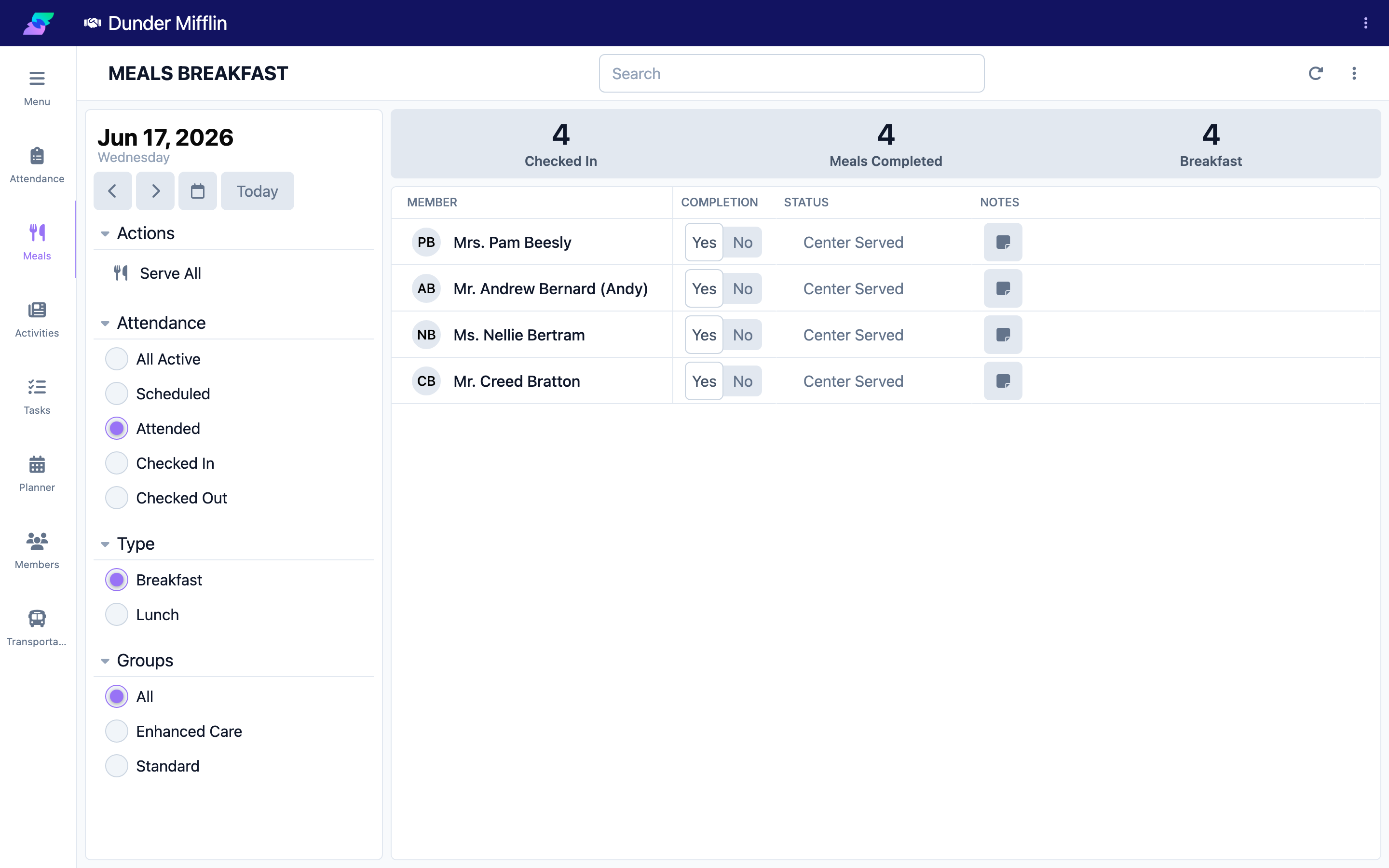
Step 1: Open the Meals page and select the meal
Select Care, then Meals. Confirm the date and choose the meal in the Type selector.
Step 2: Find the member
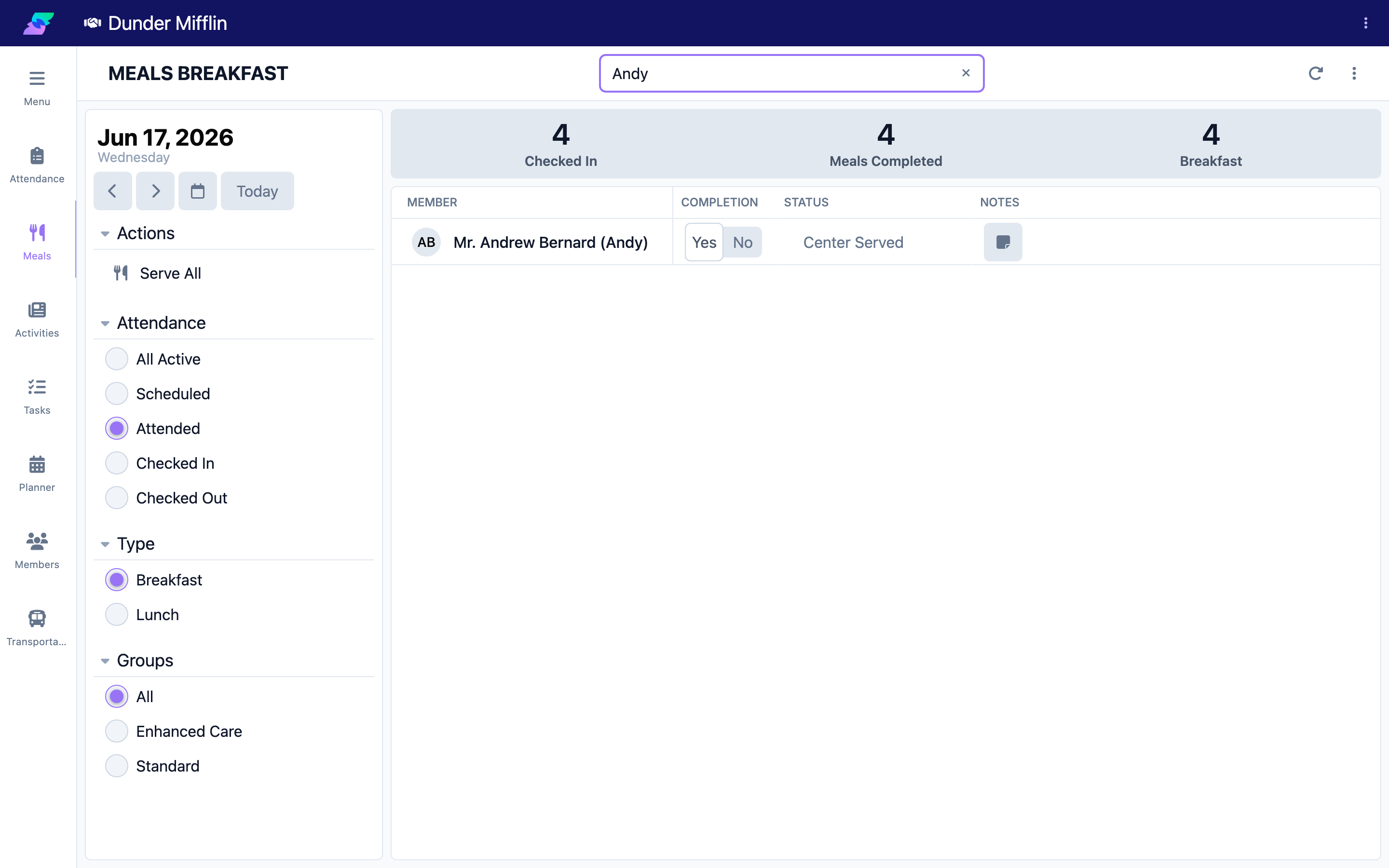
Use the search box or the Attendance and Groups filters to locate the member.
Step 3: Select the completion amount
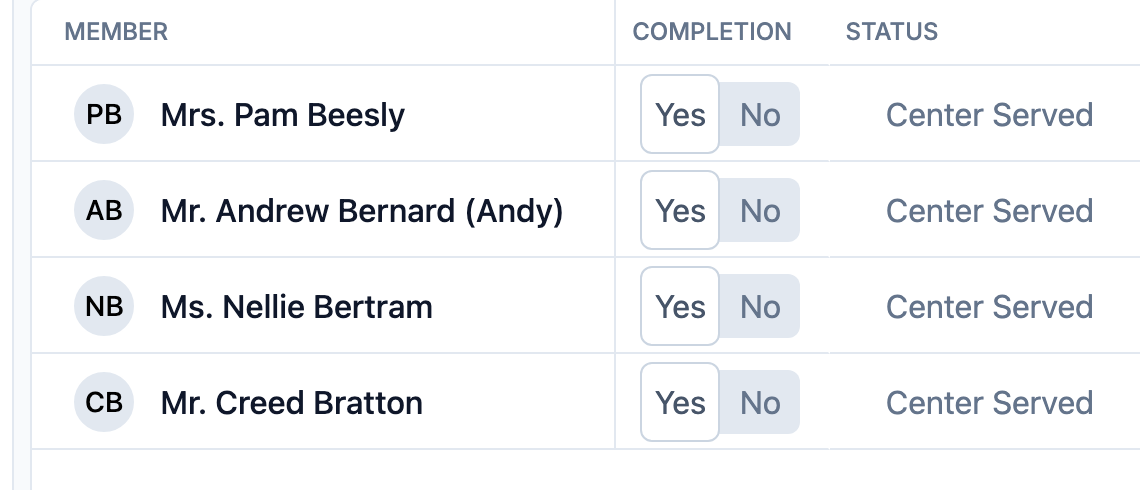
In the Completion column, select 100, 75, 50, 25, or 0. The selection saves immediately and the button stays highlighted.
Step 4: Add a note if the member ate little
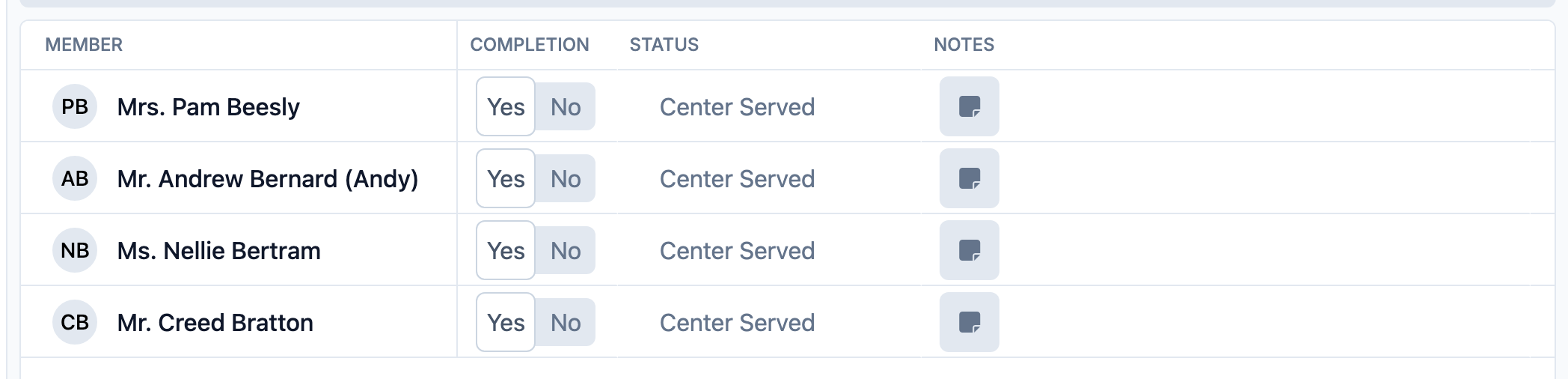
If a member ate 25 or 0, add context in the Notes column so the care team understands the pattern.
Simplified View
If your center uses the simplified meals view, the Completion column shows Yes and No instead of percentages. Yes marks the meal served and No marks it declined.
Tips
- Choose the closest percentage — for example, select 75 for about 60–80 percent.
- Record completion while serving so observations stay accurate.
- To correct a value, just select a different button; it overwrites the previous one.
Troubleshooting
| Problem | Solution |
|---|---|
| I selected the wrong amount | Select the correct button; the new value replaces the old one. |
| I need to record a past meal | Change the date selector to the meal's date, then record completion (if your permissions allow past edits). |
| The member is not in the list | Check the date, meal Type, and Attendance filter. |
| The buttons do nothing | You may lack the Care:Meals permission. Ask your administrator. |
Related Articles
- understanding-the-meals-page — Understanding the Meals Page
- recording-meal-service — Recording Meal Service
- adding-meal-notes-and-dietary-info — Adding Meal Notes and Dietary Info