
Overview
Recording how a member arrives and leaves helps with transportation planning, coordination with families, and (when configured) transportation billing. You record transportation from the Transport Arrival and Transport Departure columns on the Attendance page.
Before You Begin
- You must be logged into Seniorverse with Care module access.
- You need the Care:Attendance permission (or Care:FullAccess).
- The member must have an attendance record for the day.
- Transportation options are configured by your center; if none are set up, the picker will be empty.
Steps
Step 1: Open the Attendance page and find the member
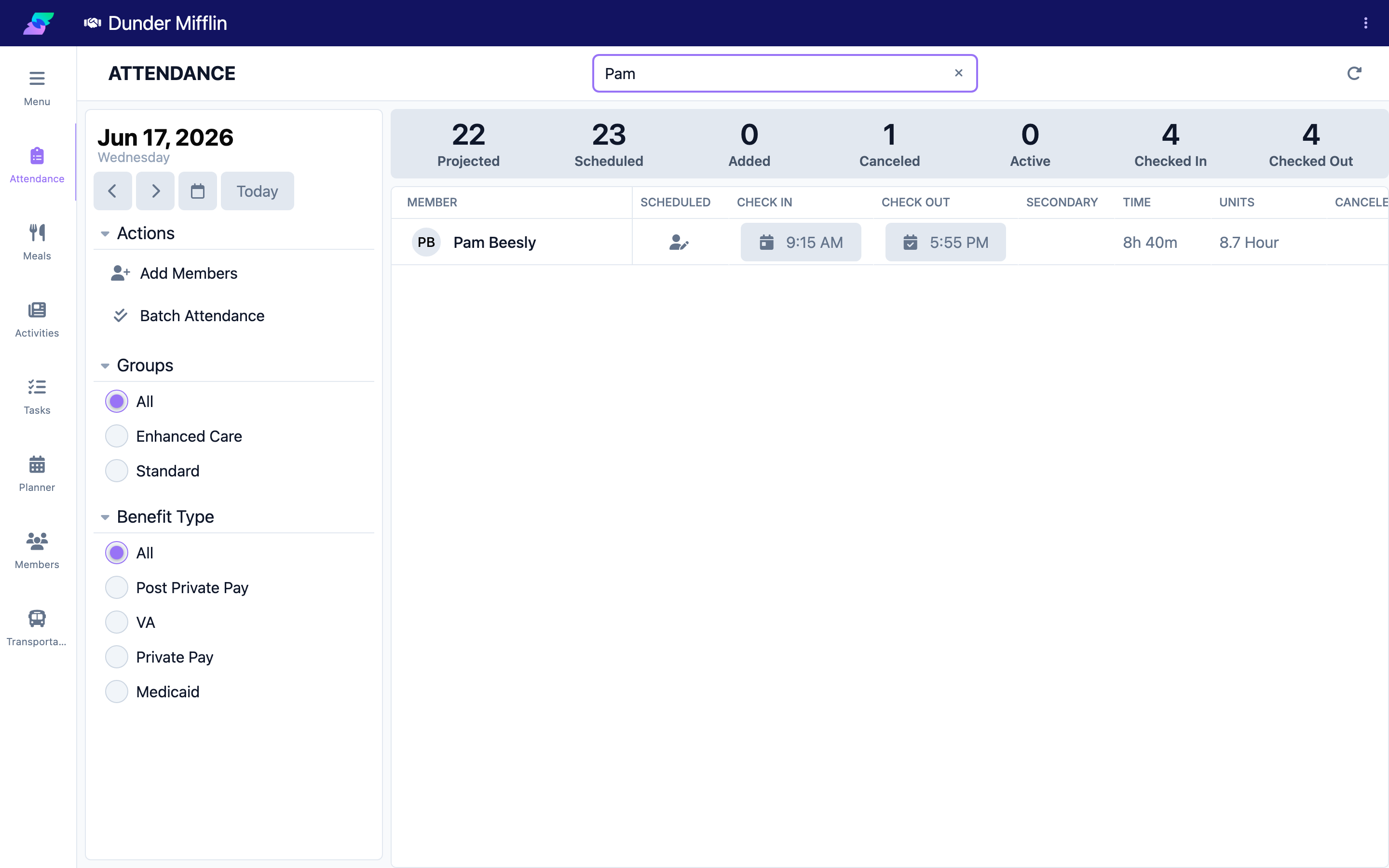
Select Care, then Attendance. Confirm the date and find the member with the search box or filters.
Step 2: Record the arrival transportation
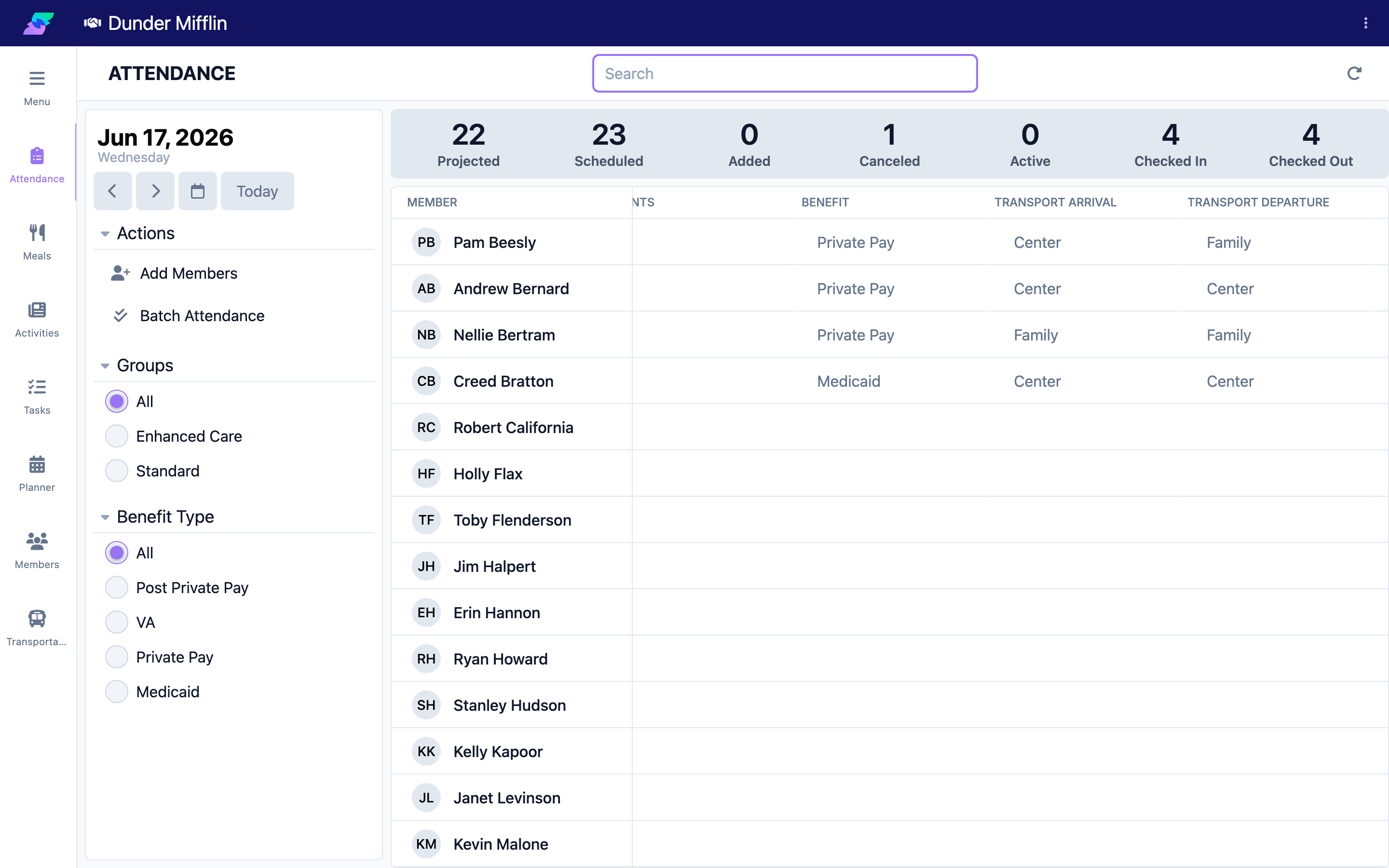
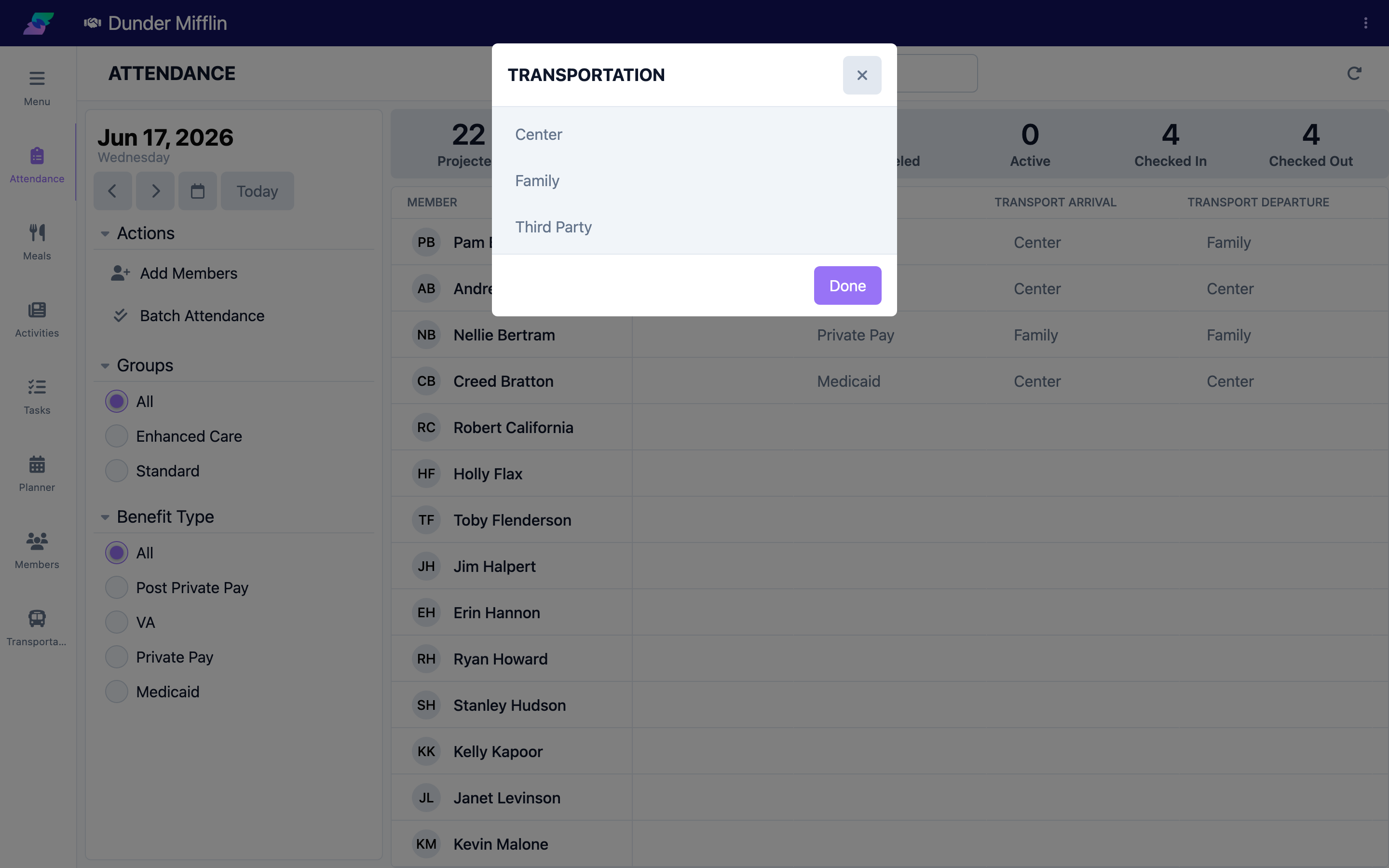
In the Transport Arrival column, select the field. The Transportation window opens with your center's configured transportation options. Choose how the member arrived; the selection saves automatically.
Step 3: Record the departure transportation
In the Transport Departure column, select the field and choose how the member will leave (or has left). The selection saves automatically.
Step 4: Confirm the transportation details
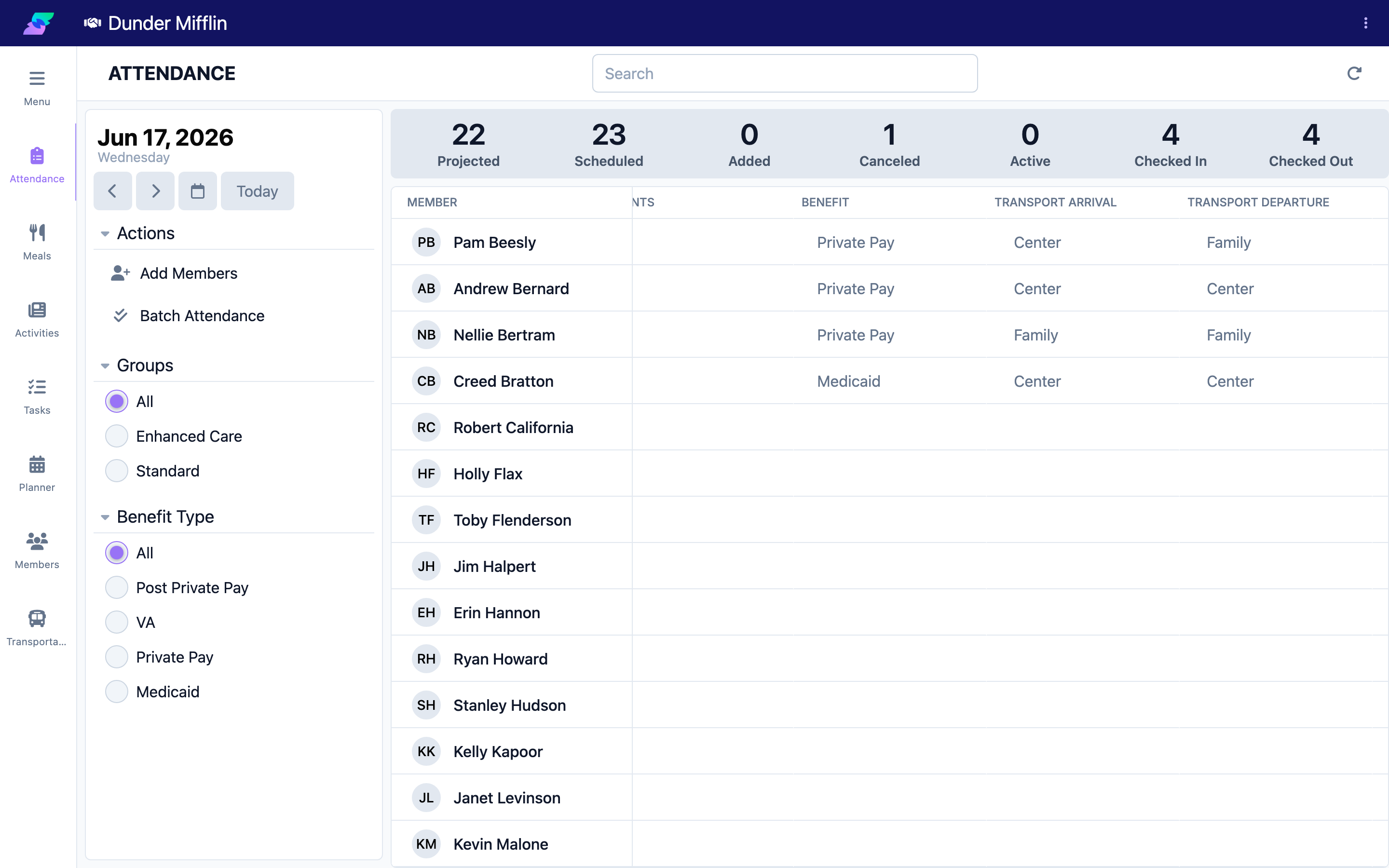
Both columns now show the selected transportation. To change either one, select the field again and pick a different option.
Tips
- If you know how a member will leave, record the departure when they arrive so end-of-day transitions run smoothly.
- Update the departure right away if plans change during the day.
- Transportation options are configured by your center. Ask an administrator if you need a new option added.
Troubleshooting
| Problem | Solution |
|---|---|
| The transportation list is empty | Your center has not configured transportation options. Ask an administrator to set them up. |
| I cannot open the field | You may have view-only access. Ask your administrator for the Care:Attendance permission. |
| The option I need is not listed | Transportation options are configured by your center. Ask an administrator to add it. |
| Transport columns are blank for a member | Transportation is optional; a blank simply means nothing was recorded. |
Related Articles
- understanding-the-attendance-page — Understanding the Attendance Page
- checking-a-member-in — Checking a Member In
- checking-a-member-out — Checking a Member Out