
Overview
The Family Portal keeps sign-in simple. You do not create or manage a password — instead, you sign in with your email address and a one-time code that the portal emails you each time. The center sets up your account and manages your details, so there is nothing to configure inside the portal itself.
This article explains how to sign in, what to do if a link is meant for a different email address, how to sign out, and how to get your account details changed.
Before You Begin
- The center must have added you as a Family Portal contact and used your correct email address.
- You will receive an invitation email with a link to the portal.
Steps
Step 1: Sign In With a One-Time Code
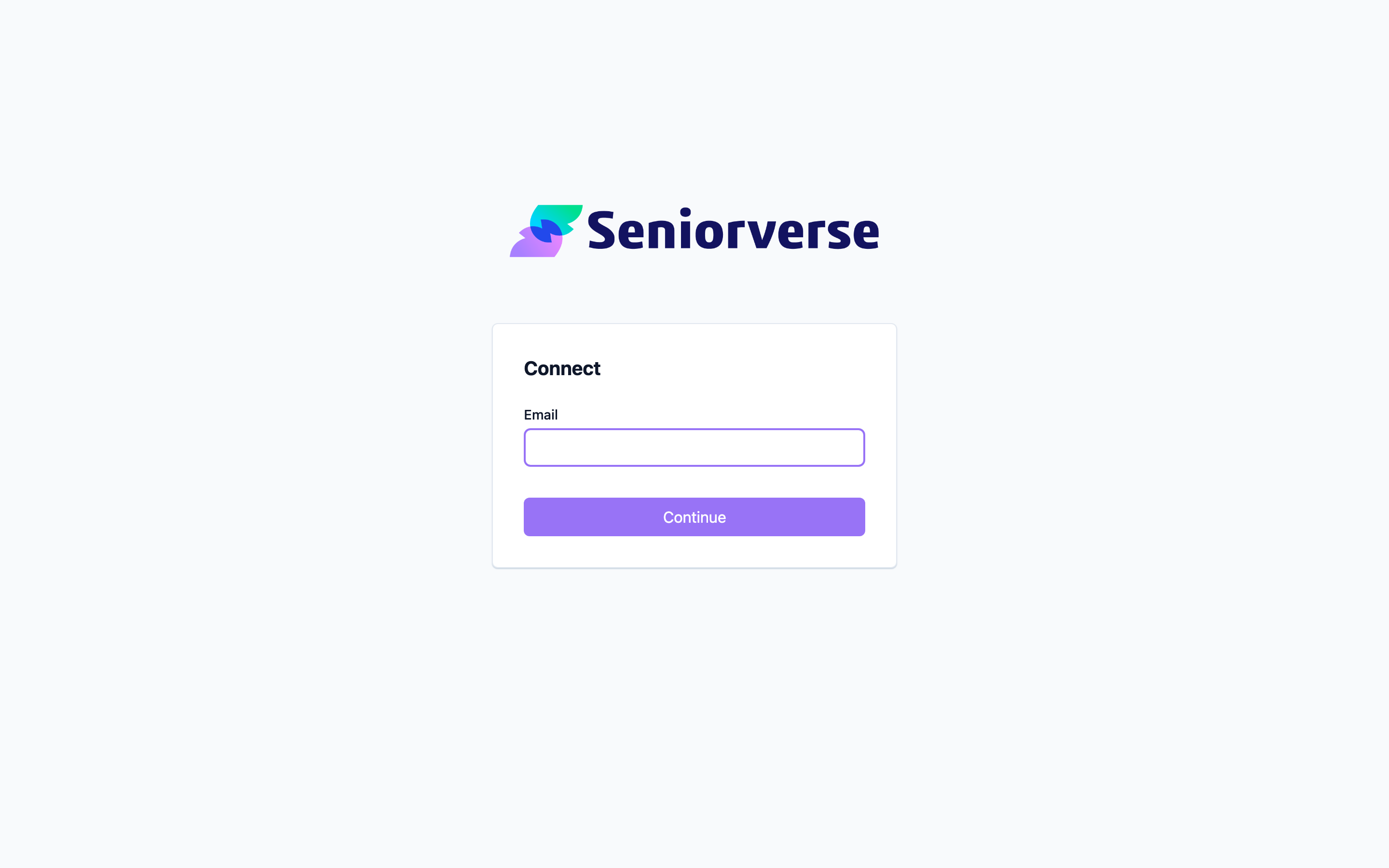
Open the portal from your invitation link, or go to your center's Family Portal address. Enter your email address and select Continue. The portal sends a one-time sign-in code to that email. Open your email, then enter the code in the portal and select Sign in.
If the code does not arrive within a minute or two, check your spam or junk folder.
Step 2: Handle a Link for a Different Email
If you open an invitation link while signed in with a different email, the portal shows a message that "This link is for" another address. You can choose to sign in as the address on the link, or continue as your current account. Pick the account that matches the loved one you want to view.
Screenshot coming soon — Choose which account to continue with
Step 3: Sign Out
When you are done — especially on a shared or public device — select the menu button (the three dots) in the top bar, then select Log out. You will be returned to the sign-in screen and will need a new one-time code to sign in again.
Screenshot coming soon — Log out from the top menu
Step 4: Check the App Version
The same menu shows the app Version. If you ever contact support about a problem, selecting the version copies it so you can share it with the center's staff.
Screenshot coming soon — The menu shows the app version
Step 5: Update Your Account Details
Your name, email address, and phone number are managed by the center — there is no settings page in the portal. To change any of them (for example, if your email changes), contact the center's staff and ask them to update your Family Portal contact information.
Screenshot coming soon — Contact the center to update your details
Tips
- There is no password to remember. If a sign-in code expires, just enter your email again to request a fresh one.
- Always log out on shared devices so no one else can view your loved one's information.
- Keep your email current with the center. Because sign-in codes are sent by email, an out-of-date address will lock you out until the center updates it.
Troubleshooting
| Problem | Solution |
|---|---|
| My one-time code did not arrive | Wait a minute and check your spam or junk folder. If it still has not arrived, enter your email again to request a new code. If the problem continues, contact the center to confirm your email address. |
| "Invalid Credentials" appears when I enter my email | The email may not match the one the center has on file. Contact the center to confirm the exact address linked to your account. |
| The link says it is for a different email | The invitation was sent to another address. Choose "Sign in as" that address, or ask the center to send an invitation to the email you prefer. |
| I need to change my email or phone number | The center manages your account details. Contact staff and ask them to update your information. |
| I want to stop receiving portal access | Contact the center and ask them to remove your Family Portal access. |