
Overview
Seniorverse does not use a single fixed list of job "roles" that grants access. Instead, each user at your center is described by three separate things:
- Position — a job-title label (for example, Registered Nurse or Aide). It is descriptive and appears in the Users table; it does not by itself grant any access.
- Permissions — the app scopes that decide what the user can see and do. These are covered in Setting User Permissions.
- Task Roles — the setting that decides which care tasks a user can see and complete.
This article covers Position and Task Roles. Both are set on the user's edit panel under Center > Users.
About Position
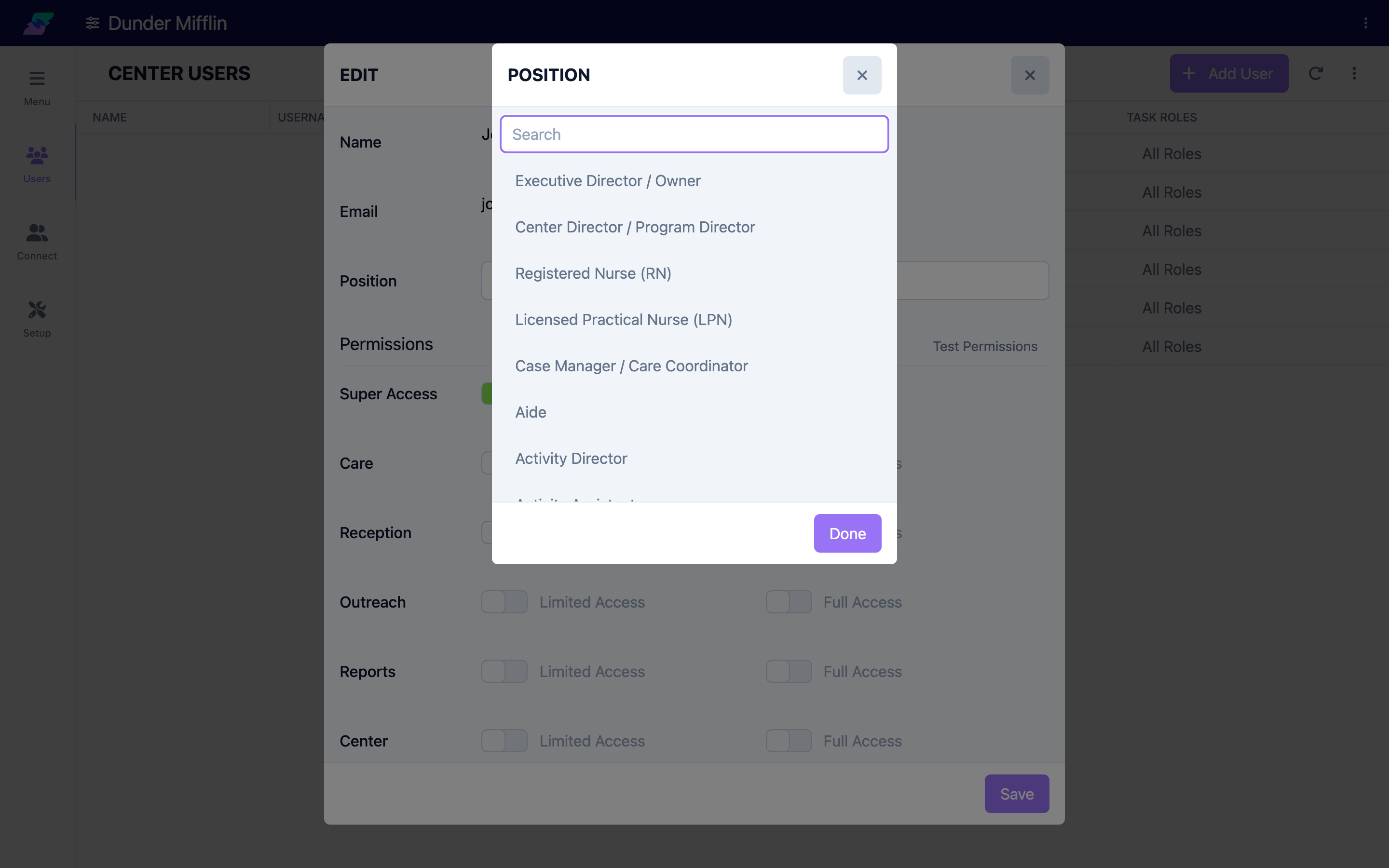
Position is chosen from a list your center defines. Seniorverse ships with common defaults, including Executive Director / Owner, Center Director / Program Director, Registered Nurse (RN), Licensed Practical Nurse (LPN), Case Manager / Care Coordinator, Aide, Activity Director, Activity Assistants, Driver, Transportation Aide, Receptionist / Front Desk, Intake Coordinator, and Billing Specialist. Your center's list may differ, because positions are part of your center content (see Configuring Content Options). Position is optional unless your center has been set to require it, in which case a None option is not offered.
About Task Roles
Task Roles control which care tasks appear for a user:
- All Roles enabled — the user can see and complete every care task.
- Specific roles selected — the user can see care tasks assigned to those roles, plus any task that has no role restriction.
- No roles selected (default) — the user can only see care tasks that have no role restriction.
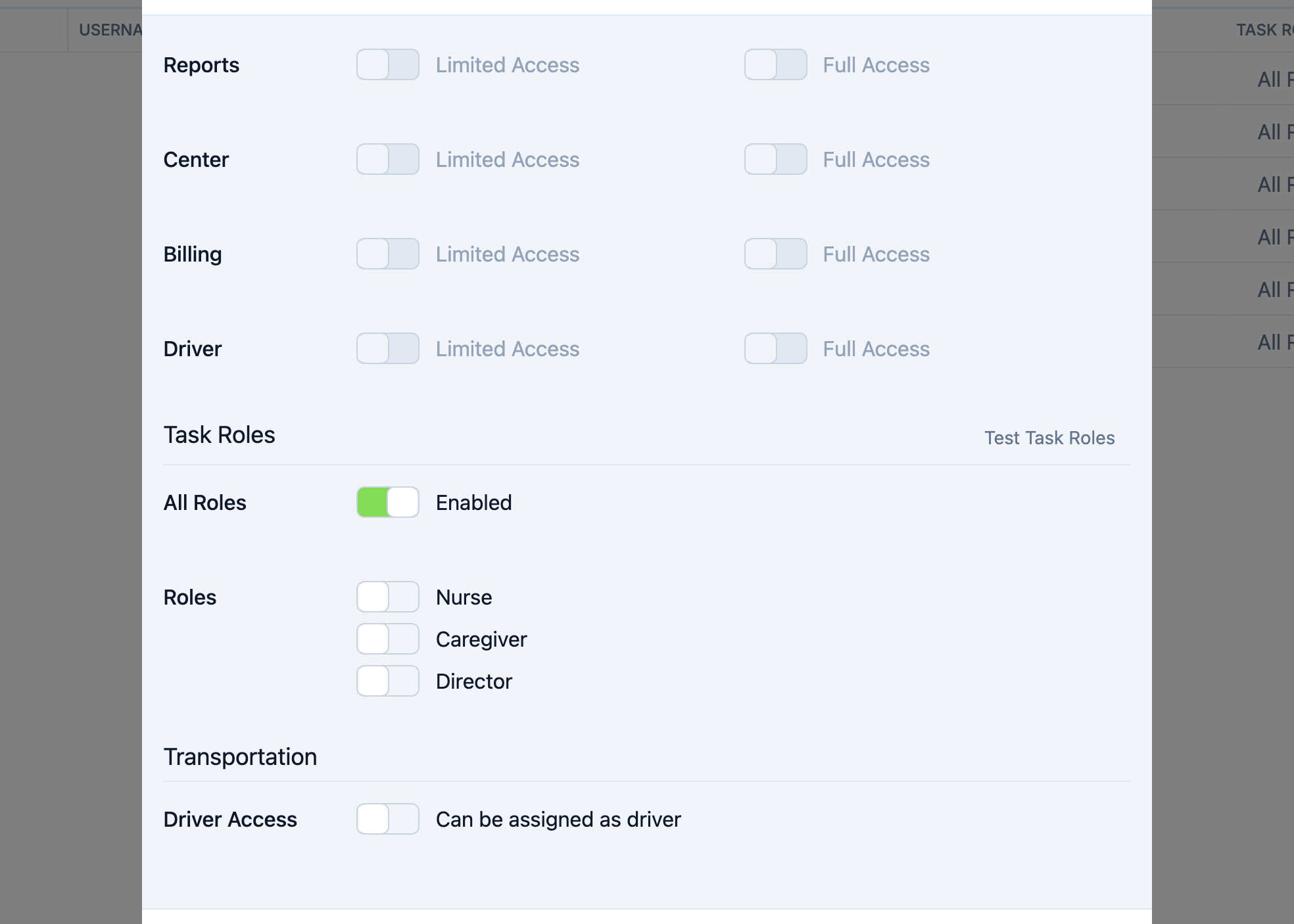
The available Task Roles are defined by your center (the defaults are Nurse, Caregiver, and Director). Add or change them in your center content — see Configuring Content Options.
Before You Begin
- You need permission to edit users at your center (the Center:User:Edit scope, or Super Access).
- Turning All Roles on or off requires Super Access.
- Decide which Positions and Task Roles your center uses before assigning them to staff.
Steps
Step 1: Open the user
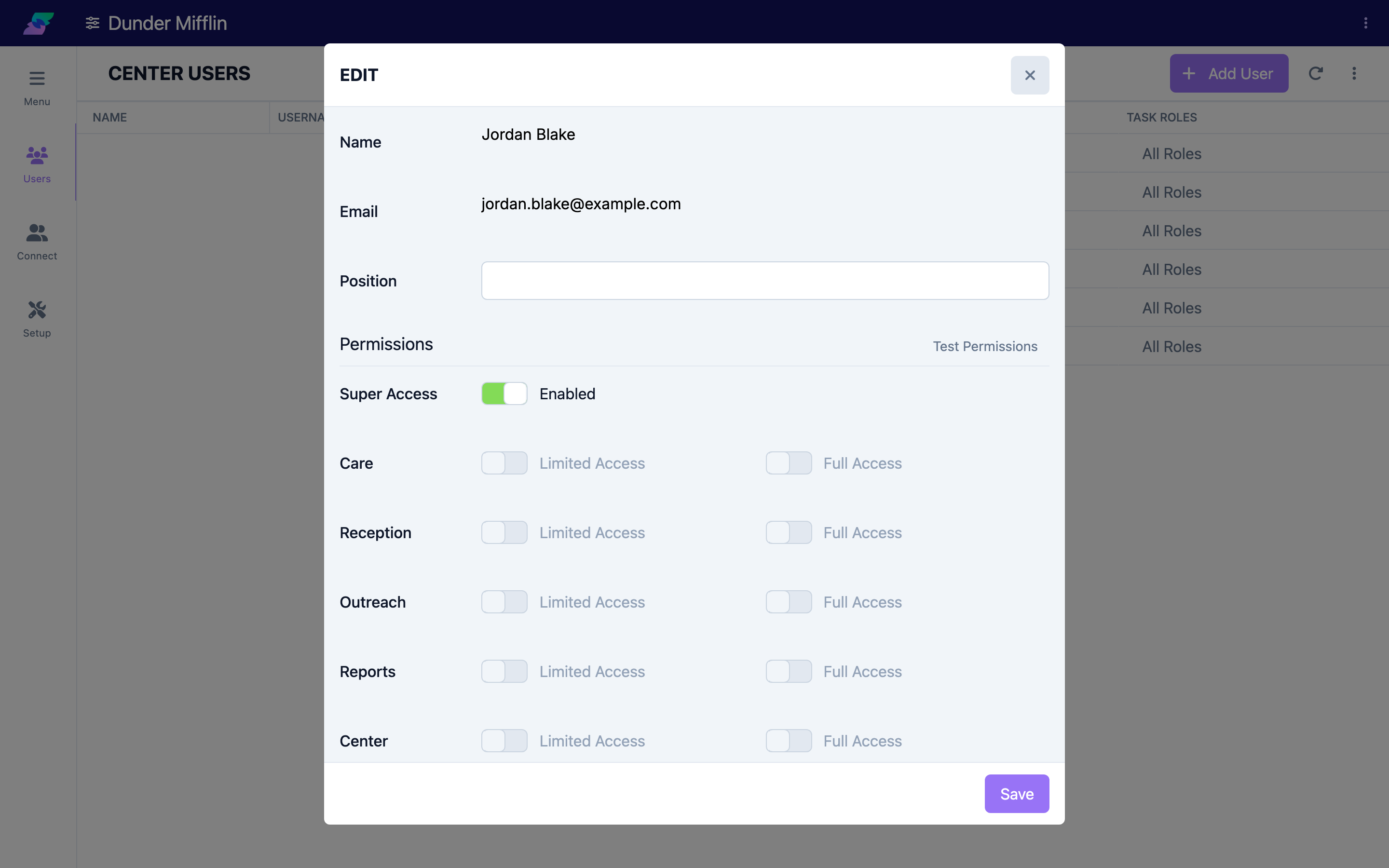
Select Center from the navigation, then Users. Select the person you want to update to open their edit panel.
Step 2: Set the Position
Under Position, choose the label that matches the staff member's job. If your center does not require a position, you can leave it as None.
Step 3: Choose how Task Roles apply
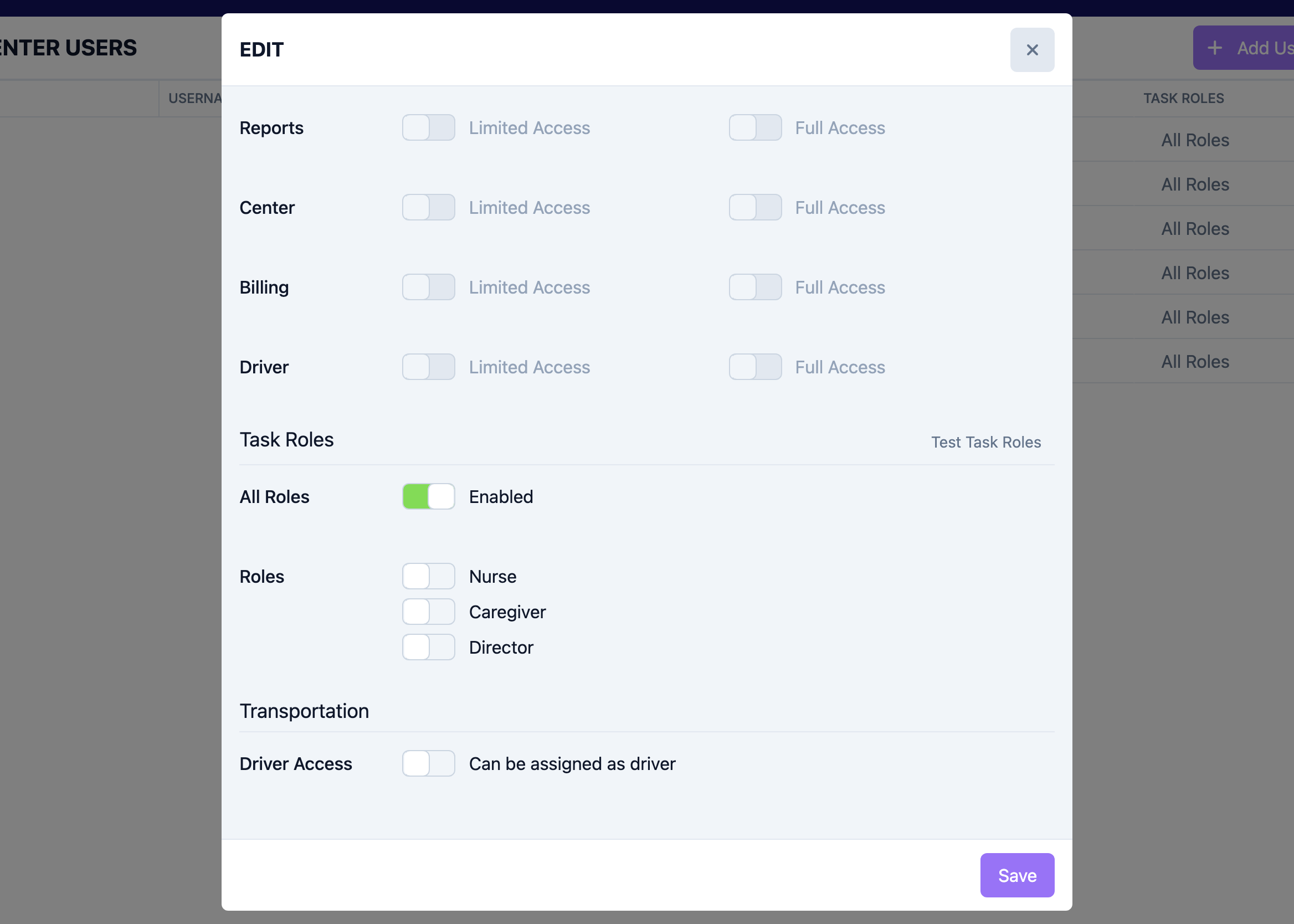
Scroll to the Task Roles section. Turn All Roles on for staff who should see every care task (for example, a charge nurse). Leave it off to assign only specific roles.
Step 4: Assign specific Task Roles
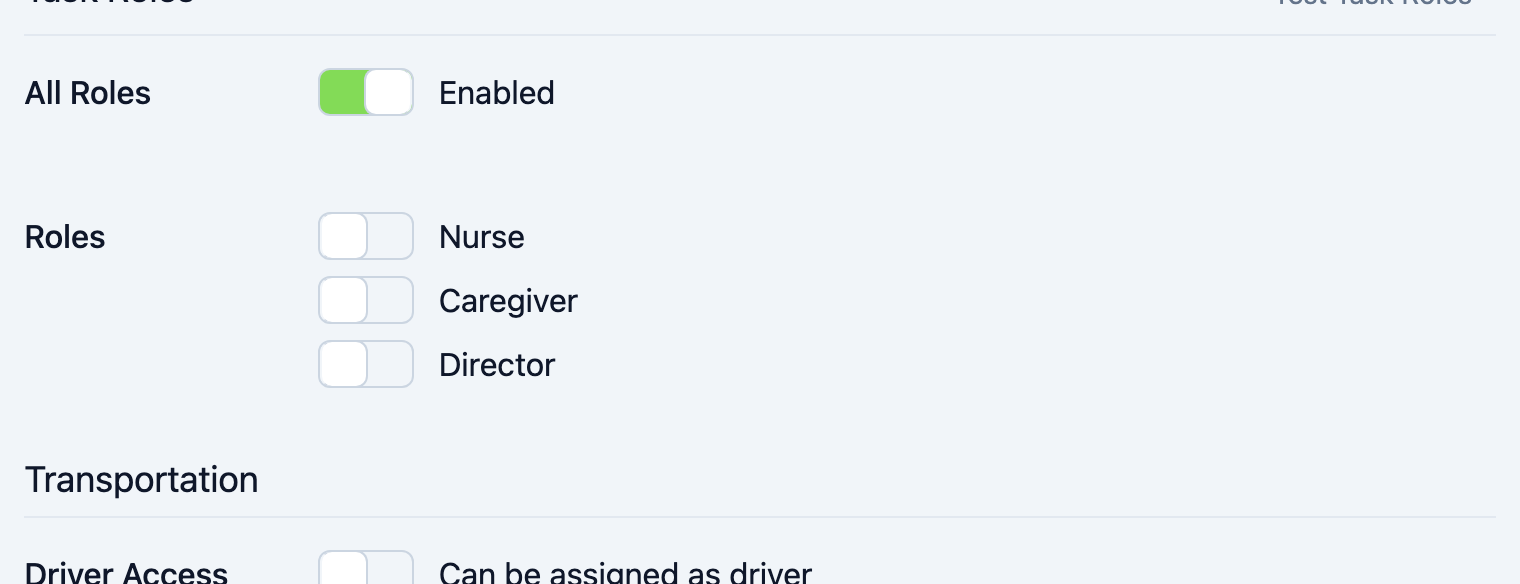
Under Roles, turn on each role that matches the staff member's care responsibilities. You can assign more than one. Selecting a specific role automatically turns off All Roles.
Step 5: Save
Select Save to apply the changes. The user's Position and Task Roles then appear in the Users table.
Tips
- Position is a label, not a permission. Setting someone's Position to Registered Nurse does not give them any access — configure Permissions and Task Roles separately.
- Leave Task Roles empty for general staff. A user with no roles selected still sees care tasks that have no role restriction, which is often all that is needed.
- Match Task Roles to how you assign care tasks. Task Roles only matter for care tasks that are restricted to a role; align your role list with how your team divides work.
- Keep your role and position lists short. They are defined in center content, so fewer, clearer options make assignment easier.
Troubleshooting
| Problem | Solution |
|---|---|
| The Position list is empty or missing an option | Positions come from your center content. Add or edit them in Configuring Content Options, or ask Seniorverse support. |
| The All Roles toggle is disabled | Turning All Roles on or off requires Super Access. Ask an administrator who has it. |
| A user is not seeing care tasks you expect | Confirm the task's role restriction matches a role the user has, or turn on the relevant Task Role. Remember that a user with no roles only sees unrestricted tasks. |
| Position or Task Roles changes are not visible to the user | Ask the user to sign out and back in to refresh their session. |
| You cannot open a user's edit panel | You need the Center:User:Edit scope (or Super Access), and you cannot edit your own account or, without Super Access, a user who has it. |