
Overview
The Health Insurance tab records a member's insurance carriers and policy details. This is separate from the Benefits tab, which handles funding sources, authorizations, and claim codes. Use Health Insurance to capture carrier, policy, and coverage information, and to attach a copy of the insurance card.
Before You Begin
- You must be logged in with Admin or Billing permissions.
- Have the member's insurance card or policy documents handy.
Steps
Step 1: Open the Health Insurance tab
- Open the member and select the Services group.
- Select the Health Insurance tab.
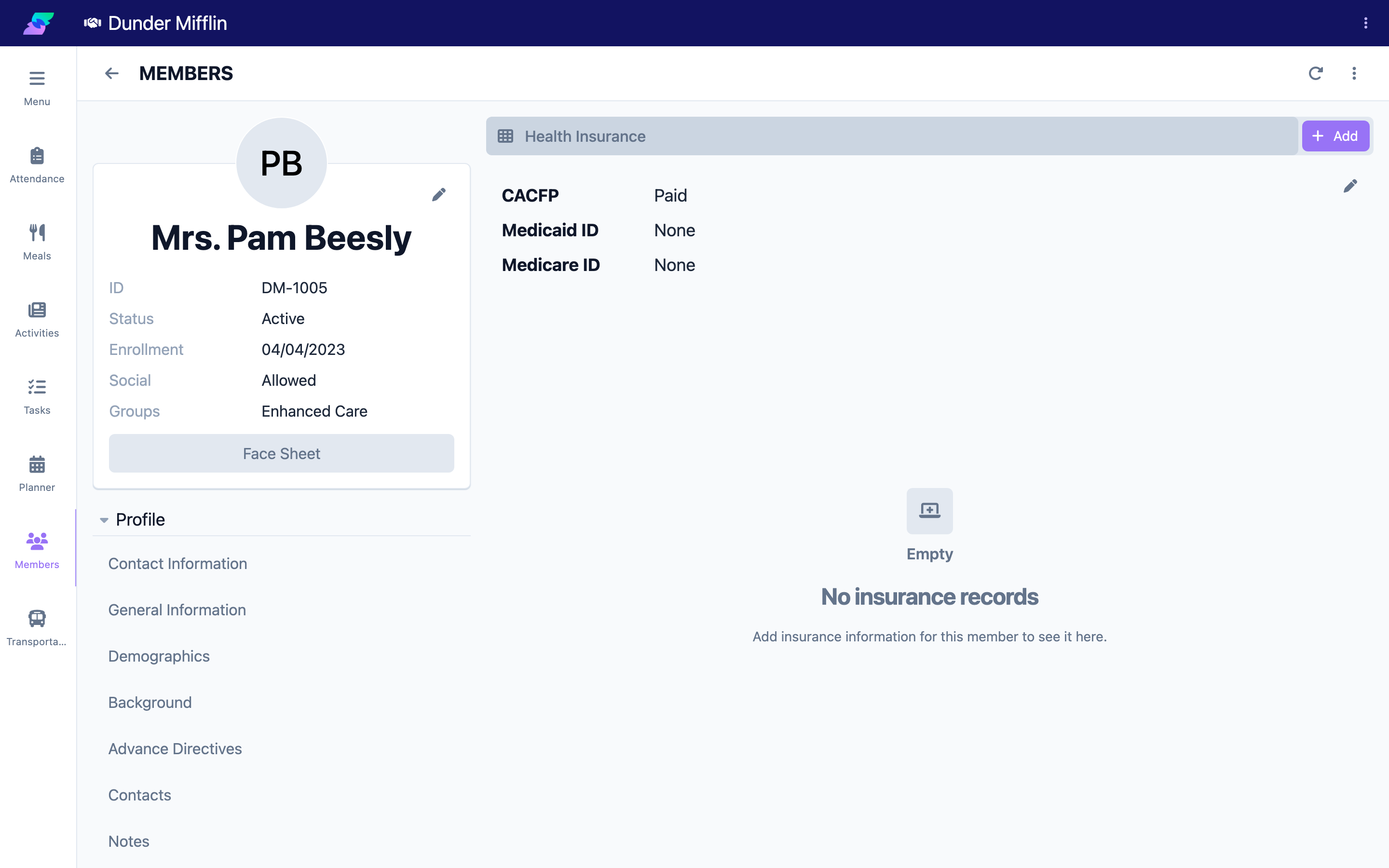
Step 2: Add an insurance record
- Select Add.
- Choose the Type (required) and enter the carrier Name (required).
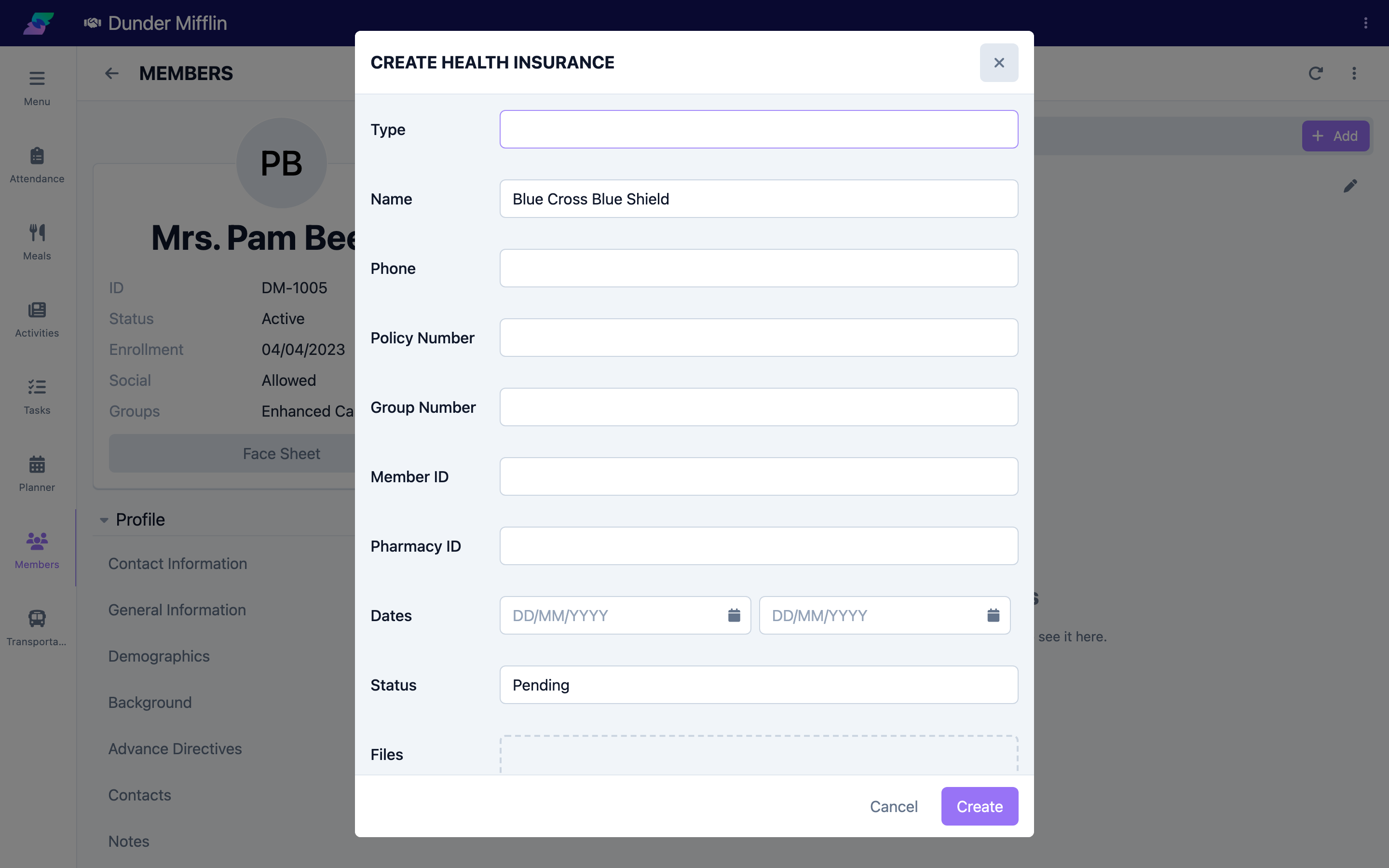
Step 3: Enter policy details
Enter the payer Phone, Policy Number, Group Number, Member ID, and Pharmacy ID as provided on the member's card.
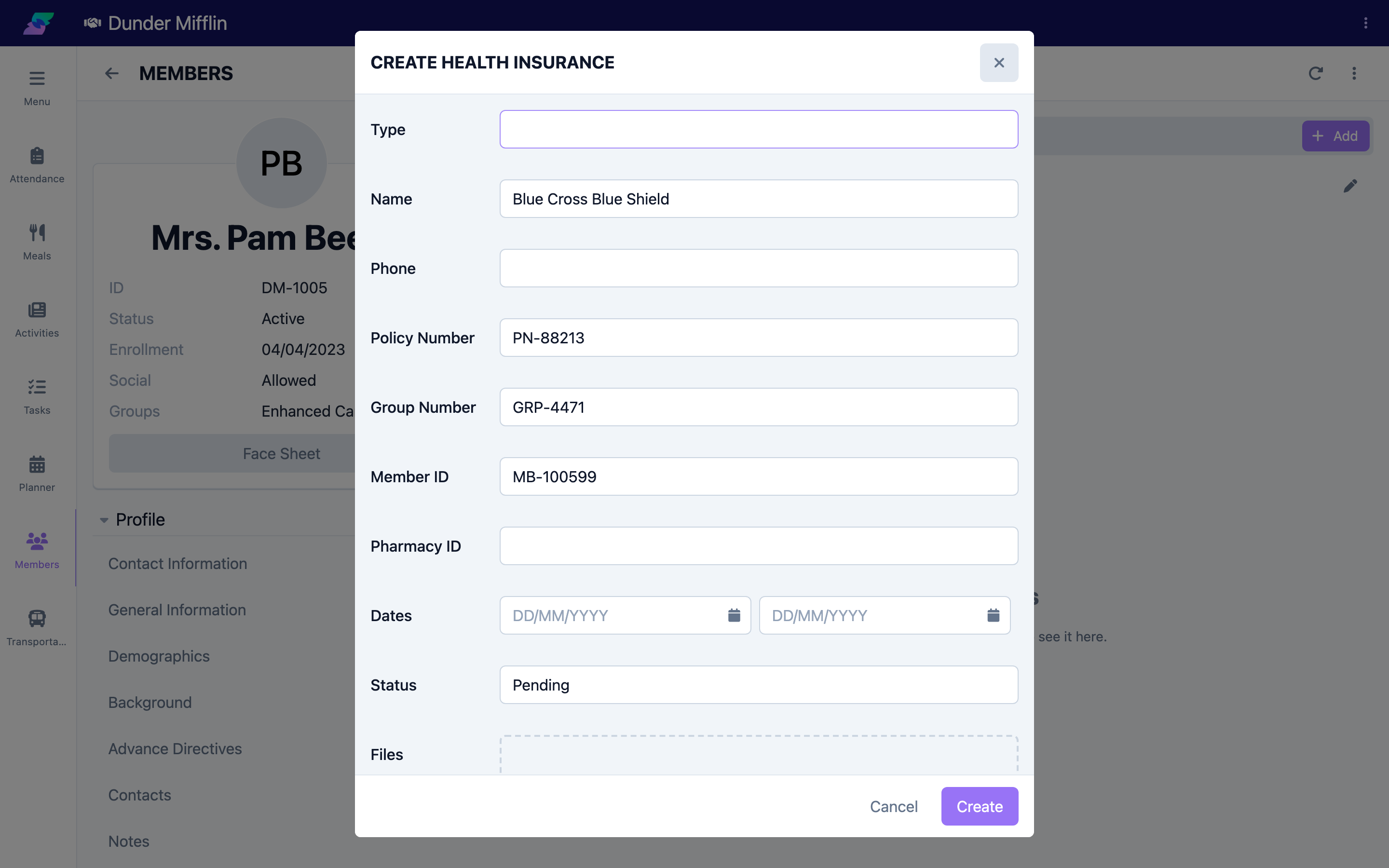
Step 4: Set coverage dates and status
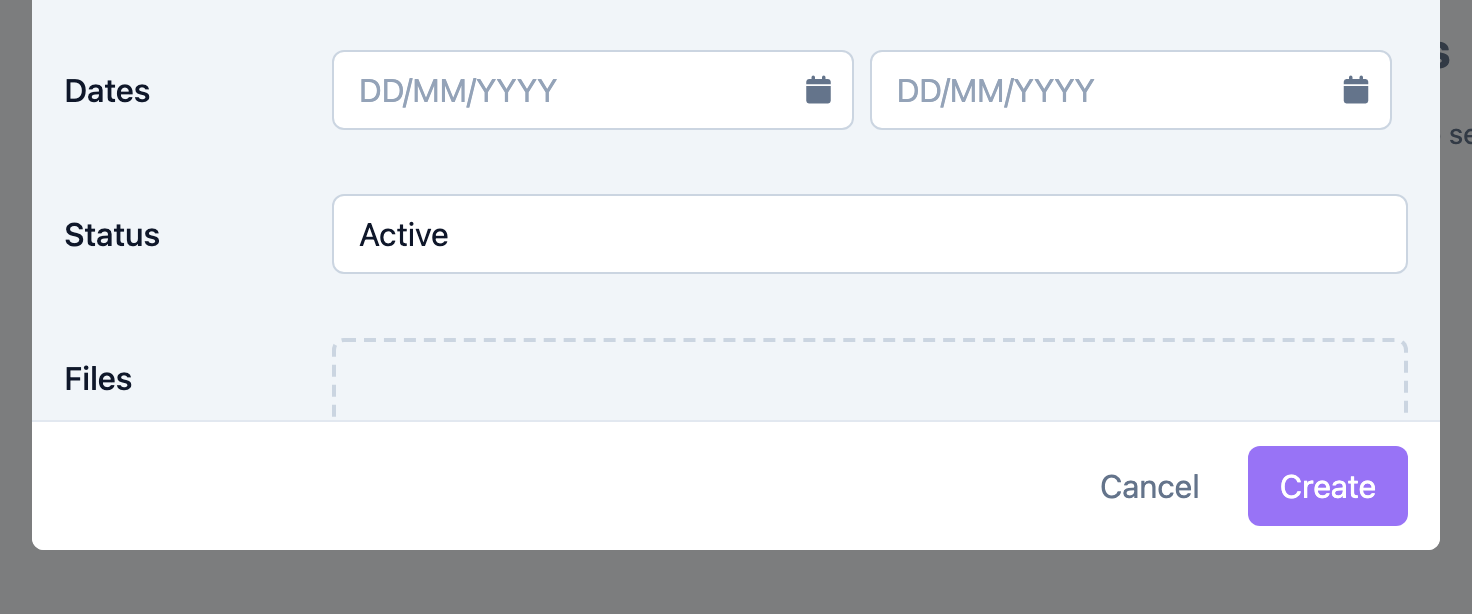
Set the Start Date and End Date for the coverage period, and set the Status to Active, Pending, or Inactive.
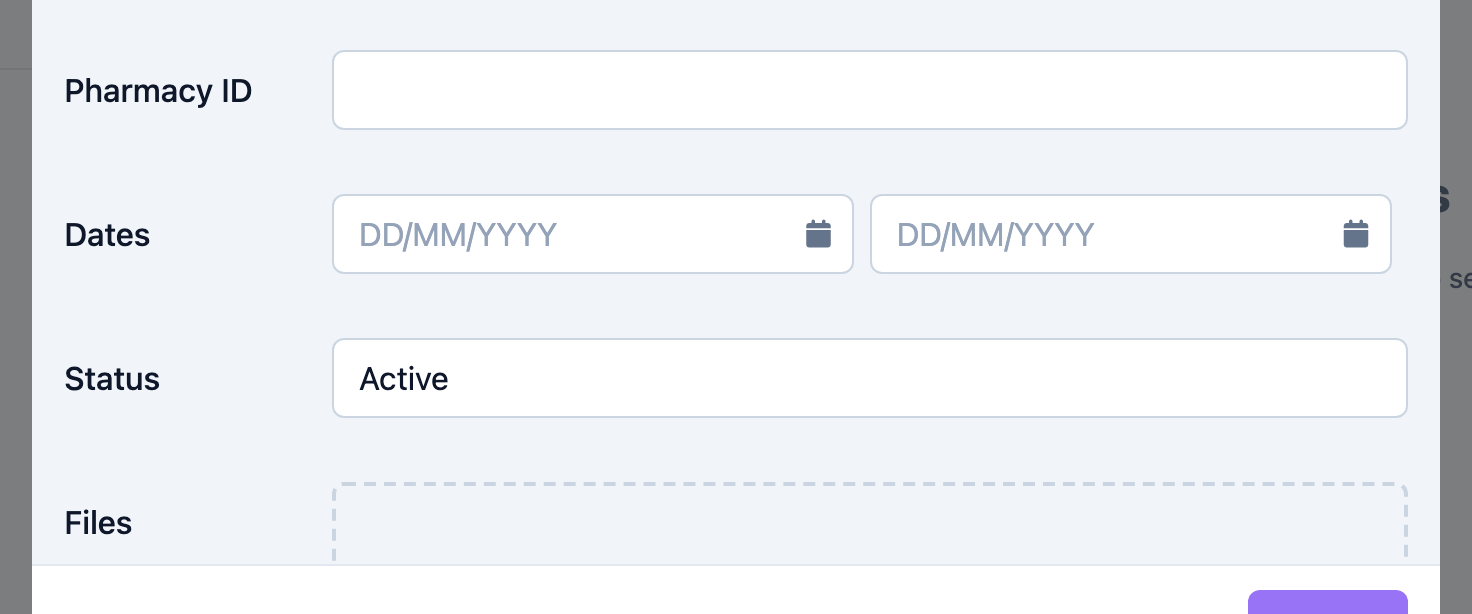
Step 5: Attach the insurance card
Use the Files field on the form to attach a scan or photo of the insurance card for quick reference.
Step 6: Save the record
Select Save. The insurance record appears on the Health Insurance tab. Add another record if the member has more than one policy.
Screenshot coming soon — Saved insurance record on the tab
Tips
- Insurance vs. Benefits. Record the carrier and policy here; record funding, authorizations, and ICD-10 on the Benefits tab.
- Attach the card so staff can verify coverage without hunting for paper.
- Add each policy separately when a member has more than one carrier.
- Copy numbers exactly from the card — policy and group numbers often mix letters and digits.
Troubleshooting
| Problem | Solution |
|---|---|
| The Health Insurance tab is missing | Confirm you have Admin or Billing permissions; contact your administrator otherwise. |
| The record will not save | Type and Name are required. Make sure the End Date is not before the Start Date. |
| A policy number is rejected | Remove extra spaces and match the exact format on the card. |