
Overview
An active Billing Plan produces invoice previews — proposed invoices for the plan's next billing period. A preview is not yet a real invoice; it's a suggestion the system builds from the plan's schedule, benefit type, members, and payor. You convert a preview into a Draft invoice with a couple of clicks, then run the normal lifecycle (prepare, finalize, send).
This is the fastest way to keep recurring billing on schedule without re-entering the same details each period.
Before You Begin
- The Billing Plan must have status Active — inactive plans produce no previews.
- The plan needs a recurrence (weekly or monthly), a benefit type, and, for grouped plans, a payor.
- Members must have member benefits of the plan's benefit type within the upcoming period.
Steps
Step 1: Find the previews in the Invoices list
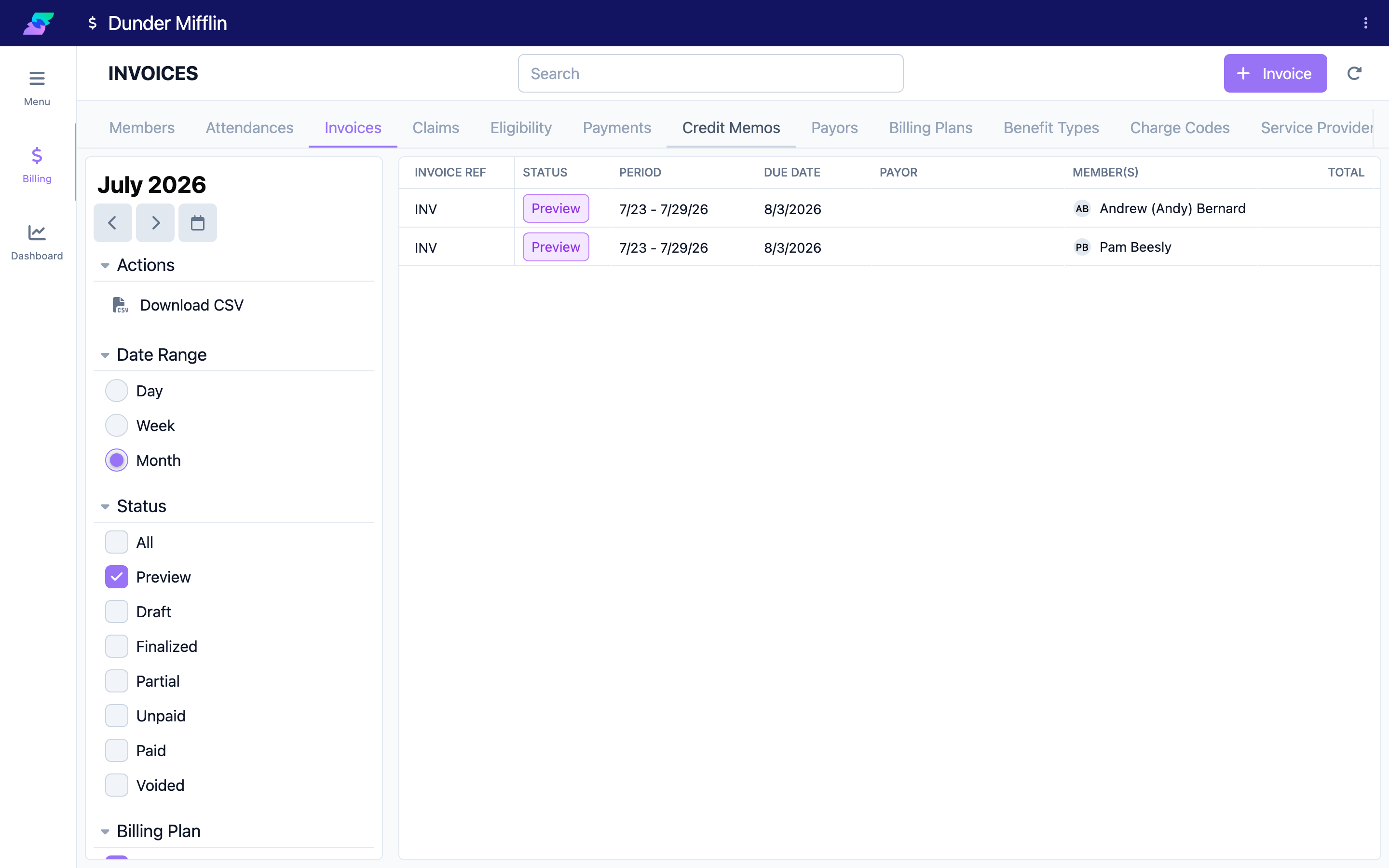
Go to Billing → Invoices. Preview rows appear alongside real invoices, marked with a purple Preview status pill. To see only previews, open the Status filter and select Preview.
Step 2: Review a preview
Each preview row shows the plan's Invoice Code, the proposed Period, the Due Date, the Payor, and the Member(s). For an Individual plan, the system generates one preview per eligible member, using that member's next period and active payor. For a Grouped plan, there is a single preview covering all eligible members.

Step 3: Open the preview to create the invoice
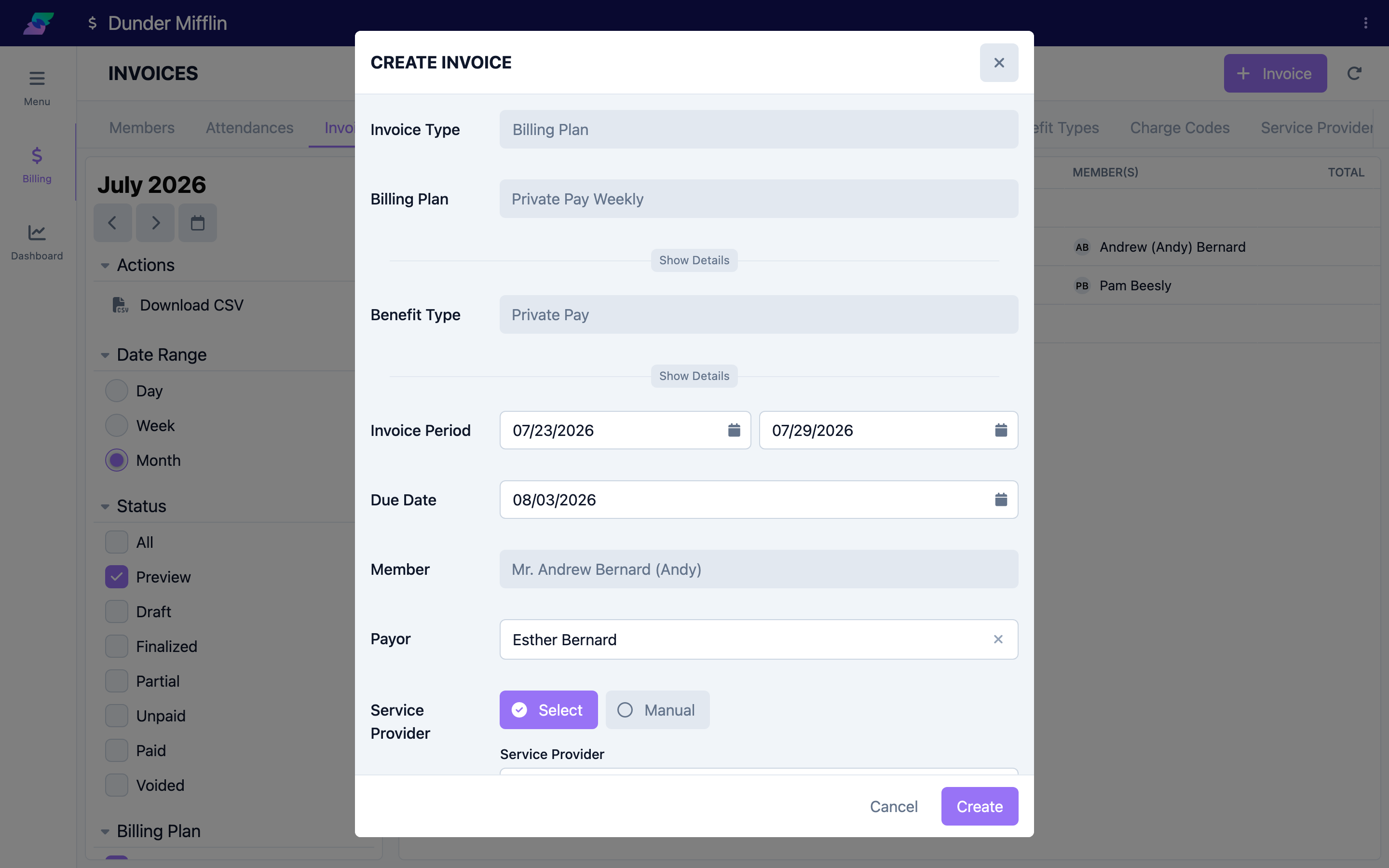
Click a preview row. Seniorverse opens the invoice form pre-filled from the plan: Invoice Code, Benefit Type, Payor, Grouping, Timing, and the claim configuration are all carried over, and the Period and Due Date are set from the plan's schedule.
Step 4: Adjust and save as Draft
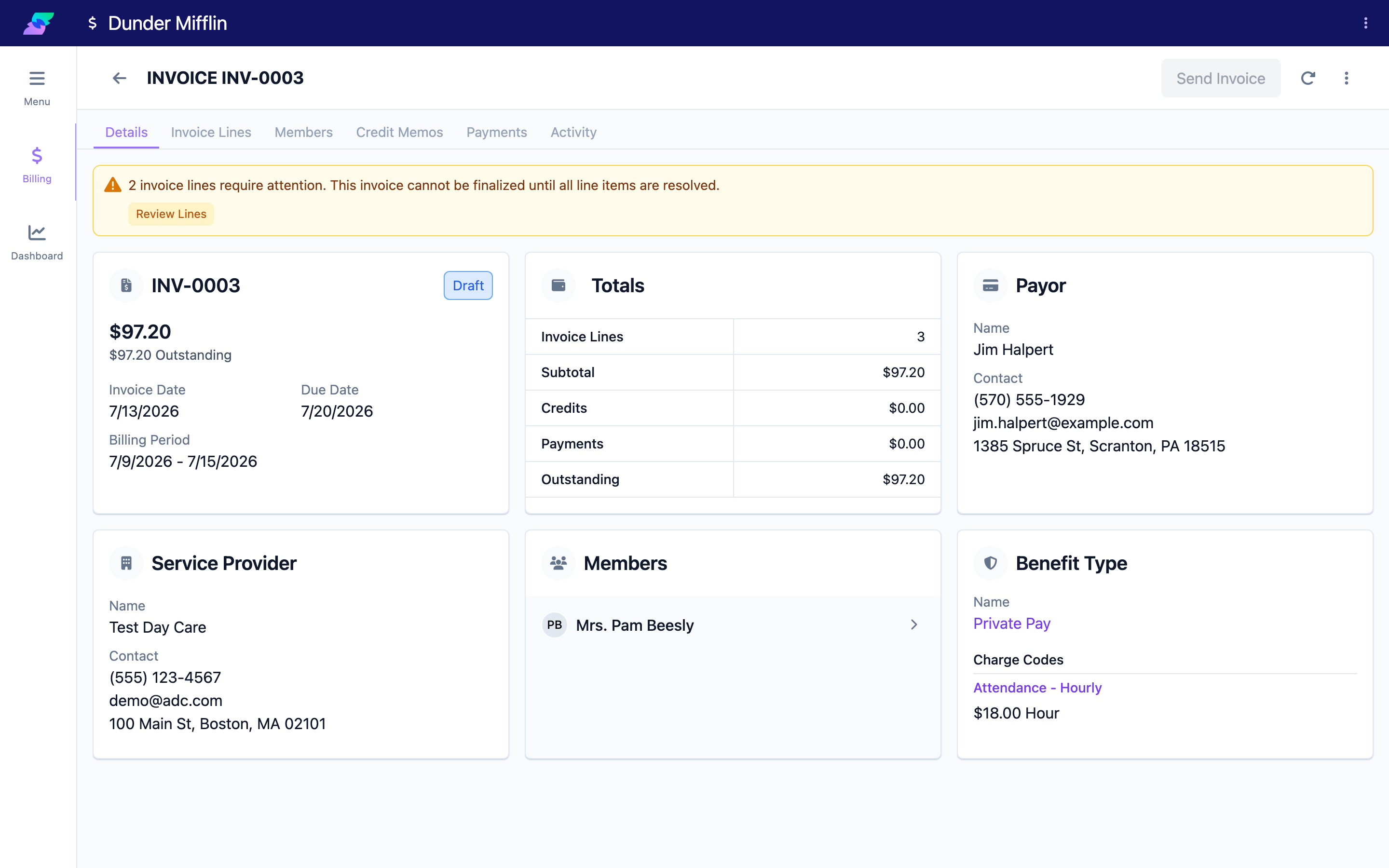
Review the pre-filled details, adjust the members or dates if needed, and save. The preview becomes a real invoice with status Draft, and you're taken to the invoice detail. The preview row disappears from the list because the period is now covered by a real invoice.
Step 5: Run the lifecycle
From the Draft, click Send Invoice to prepare, finalize, and send in one action — or work through the steps individually. See "The Invoice Lifecycle."

Tips
- The next period is chosen automatically: if there's no prior invoice (or the last one is stale), you get the current period; otherwise you get the period after the most recent invoice.
- Previews are recalculated live — as you finalize invoices, previews for the next period appear on their own.
- Use the Billing Plan filter to focus on previews and invoices from one plan.
Troubleshooting
| Problem | Solution |
|---|---|
| No previews appear | The billing plan is not Active, has no upcoming period, or no members have a matching member benefit in the period. |
| A member is missing from an Individual plan's previews | That member has no active member benefit of the plan's benefit type in the upcoming period, or already has an invoice covering it. |
| The preview's payor is blank | For an Individual plan the payor comes from the member's active payors — confirm the member has one. |
Related Articles
- creating-an-invoice — Creating an Invoice
- the-invoice-lifecycle — The Invoice Lifecycle
- viewing-and-editing-invoices — Viewing & Editing Invoices
- finalizing-an-invoice — Finalizing & Sending an Invoice