
Overview
Seniorverse can capture signatures on several kinds of records so you have a verifiable record of who signed, how, and when. Signatures appear in three places:
- Assessments and forms — in the Signatures section of an assessment or shareable form
- Service plans — in the Signatures section of a member's care plan
- Reception check-in and check-out — a signature captured when a member checks in or out, stored on their attendance record
Each signature line is a signature type with a Name, a Role, a Method (Electronic or Manual), and a Requirement. When a signature is completed, Seniorverse records the method, the signer's email, the IP address, and a timestamp — the audit trail that proves the signature.
Before You Begin
- You need Care access to the record you want to sign (assessment, form, or service plan).
- Decide whether each signature should be Electronic (drawn on screen) or Manual (recorded as signed on paper).
- If a family member must sign, they need a Connect account and access to the shared form — see Completing and Sharing Forms with Families.
Steps
Step 1: Open the Signatures section
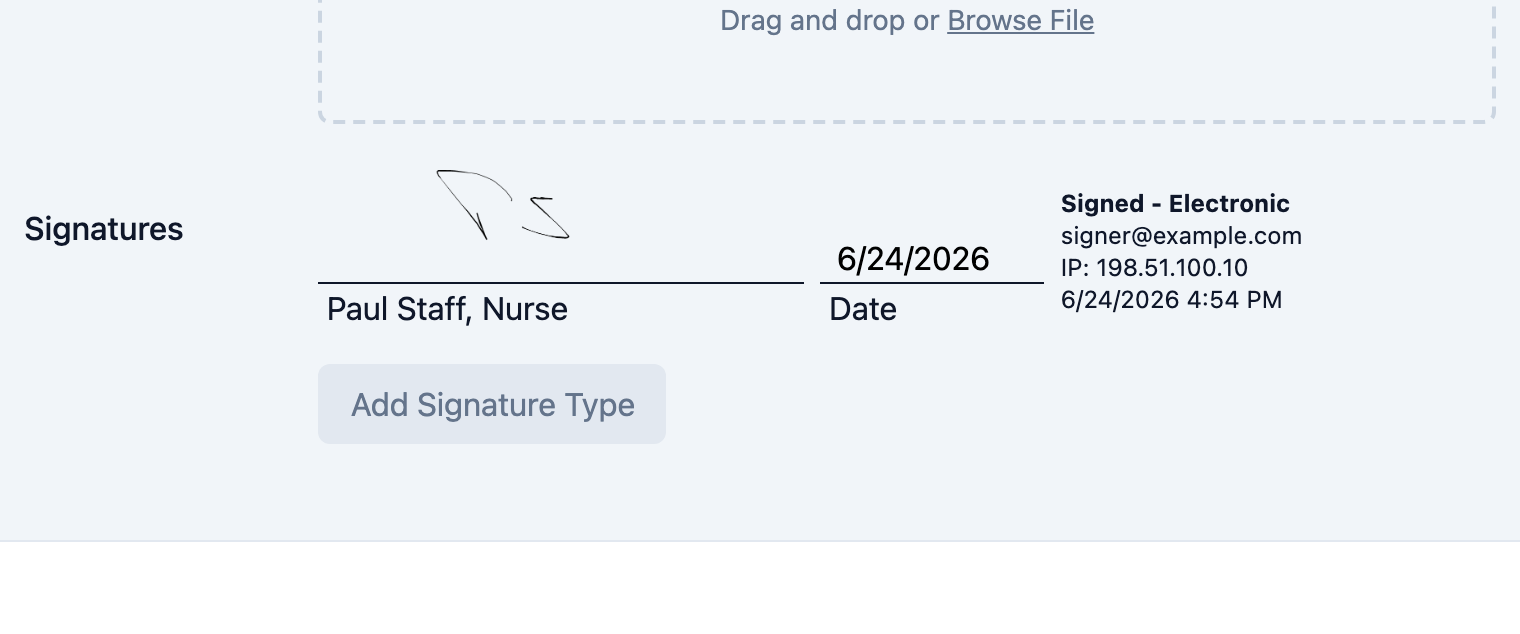
Open the assessment, form, or service plan and go to its Signatures section (on assessments and forms this is on the review step). Existing signature lines are listed here, each showing its name and role.
Step 2: Add a signature type
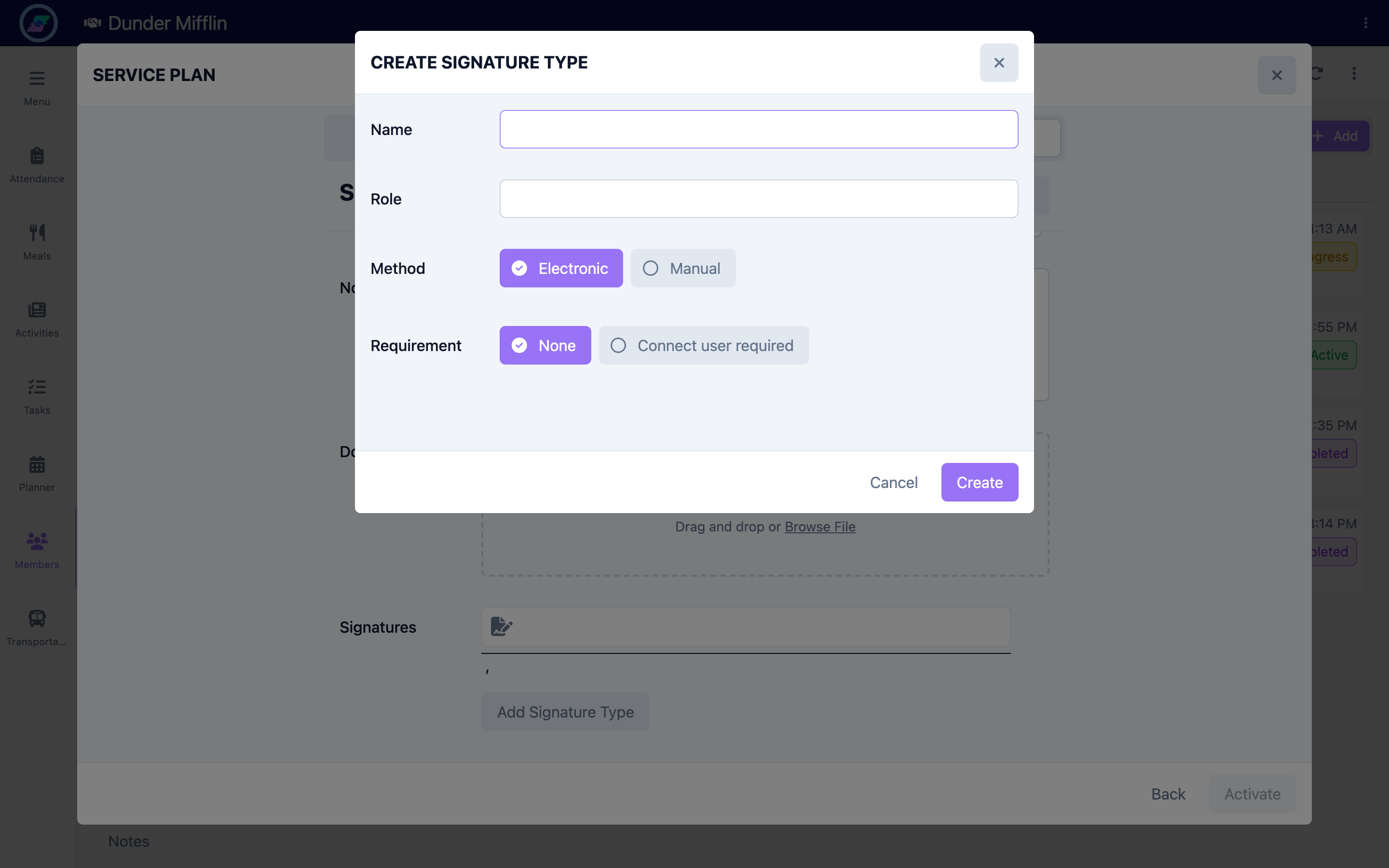
Select Add Signature Type and set:
- Name — the signer's name or the label for the line
- Role — the signer's role (for example, Nurse, Member, or Responsible Party)
- Method — Electronic (default) or Manual
- Requirement — None, or Connect user required if a family member must sign through Connect before the form can be submitted for review
Step 3: Sign electronically
For an Electronic signature, select the signature line to open the signature pad, draw the signature with a mouse, stylus, or finger, then select Done. Use Clear to start over. Seniorverse saves the drawn image to the line and stamps the audit details.
Screenshot coming soon — Signature pad with Clear and Done
Step 4: Record a manual signature
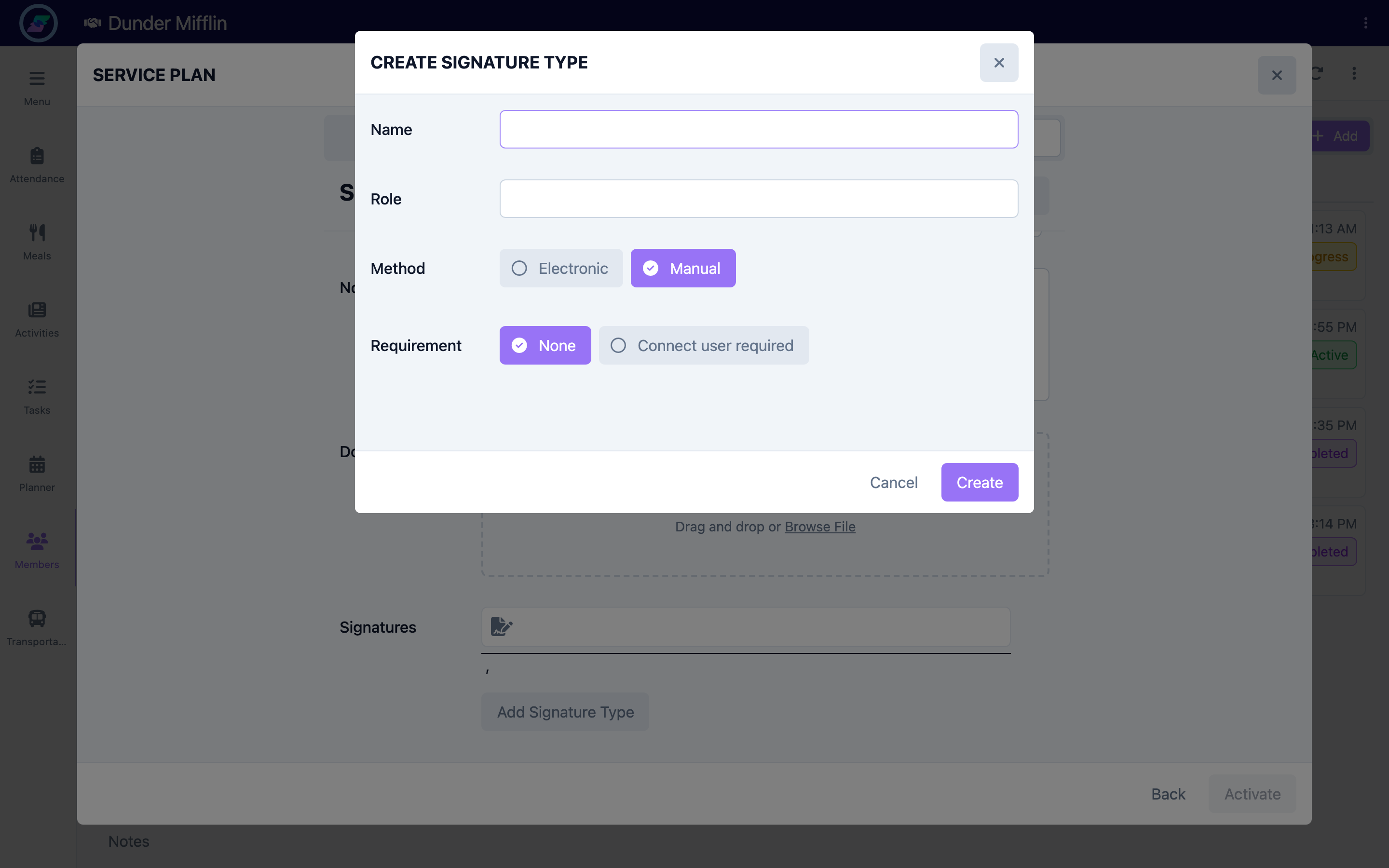
Set the signature type's Method to Manual when the document was signed on paper. With Manual selected, selecting the line records it as signed directly rather than opening the pad. The line is marked signed with the same timestamped audit details, without a drawn image.
Step 5: Require a family (Connect) signature
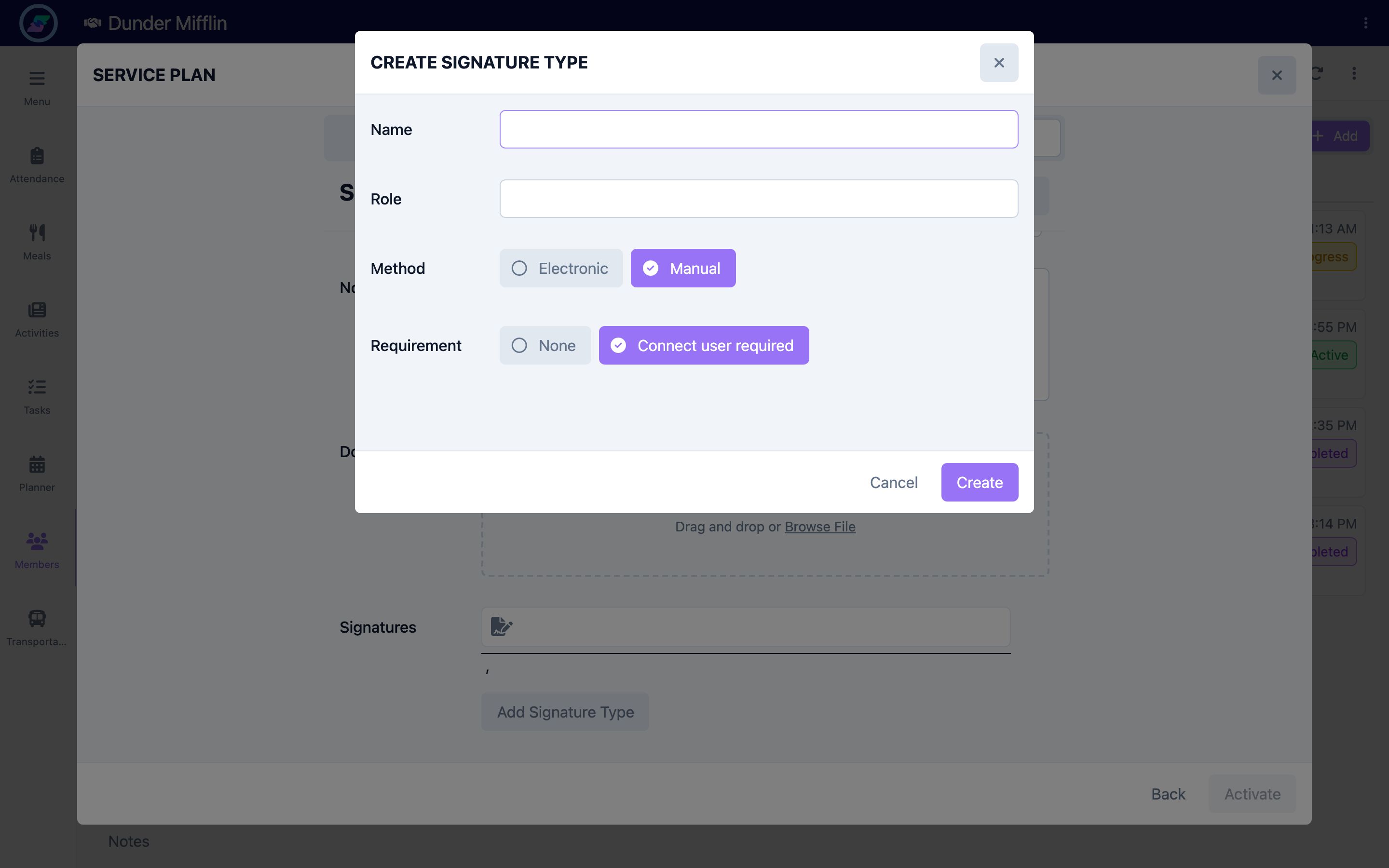
Set a signature type's Requirement to Connect user required when a family member must sign. When a form carries this requirement, staff cannot complete the form until it has been shared to a Connect user, and the family member signs their line in Connect before submitting the form for review. Required electronic signatures must be captured before an assessment, form, or plan can be marked complete.
Step 6: Review the audit trail
Once signed, each line displays Signed - Electronic or Signed - Manual, along with the signer's email, the IP address ("IP: ..."), and the date and timestamp. This information travels with the record and appears when the document is printed, giving you a complete audit trail.
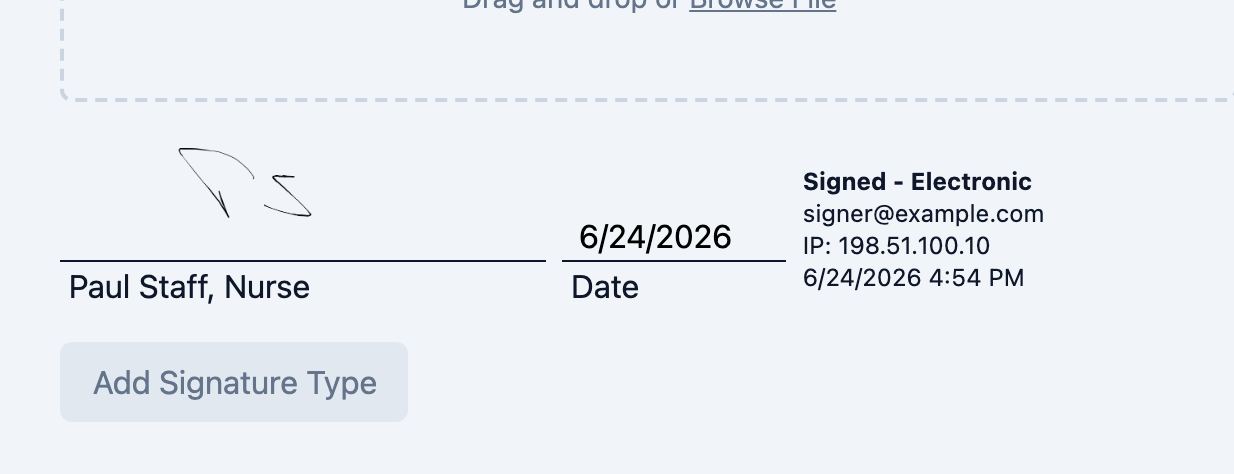
Step 7: Capture signatures at check-in and check-out
At Reception, a member's check-in and check-out can each capture a signature on the signature pad. The captured images are stored on that day's attendance record, and staff can view the check-in and check-out signatures on the attendance details.
Screenshot coming soon — Check-in signature captured at Reception
Tips
- Set the Method before signing — a completed signature locks its method, and you would need to reset the line to change it.
- Use Connect user required for consent or acknowledgement forms that a family member must review and sign.
- To redo a signature, use the reset control on the line; you will be asked to confirm before it is cleared.
- Electronic signatures record the signer's email and IP automatically, so there is no separate step to log who signed.
Troubleshooting
| Problem | Solution |
|---|---|
| I cannot mark the assessment, form, or plan complete | Every required electronic signature must be captured first. Check the Signatures section for any unsigned required lines. |
| The signature pad does not open when I tap a line | The line's Method is likely Manual, which records a signature without the pad. Reset the line and change the Method to Electronic if you need to draw it. |
| A family member's signature line is still blank | The form must be shared to their Connect account, and they sign it in Connect. See Completing and Sharing Forms with Families. |
| I need to change a signature after it was captured | Use the reset control on the line to clear it, then sign again. Note that completed assessments and plans lock further changes. |
| No signature was captured at check-in | Reception check-in and check-out signatures are optional and depend on your center's check-in setup. Confirm the signature step is enabled in your reception flow. |