
Overview
Shareable forms let a family member review, complete, and sign a document through Connect, the member's family-facing portal. You share a form from the member's record; the family member receives an email invitation, opens the form in Connect, fills it in, e-signs where required, and submits it for review. Back in Seniorverse, the share's status updates so you know when it has been reviewed.
Sharing applies to Forms (templates whose Type is Form) that are still In Progress or in Review — completed and canceled forms cannot be shared. To build the templates behind these forms, see Building Form and Assessment Templates.
Before You Begin
- The form must exist on the member's Forms tab and be In Progress or Review.
- The family member needs an email address. They can be an existing Connect user or a new one you invite by email.
- If the form requires a family signature, its signature type must be set to Connect user required — see Capturing Electronic Signatures.
Steps
Step 1: Open the form to share
On the member profile, open the Care tab group and select the Forms tab. Locate the form you want to share (it must be In Progress or Review). You can share it from the Forms list using Share, or open the form and choose Share / Review from its menu.
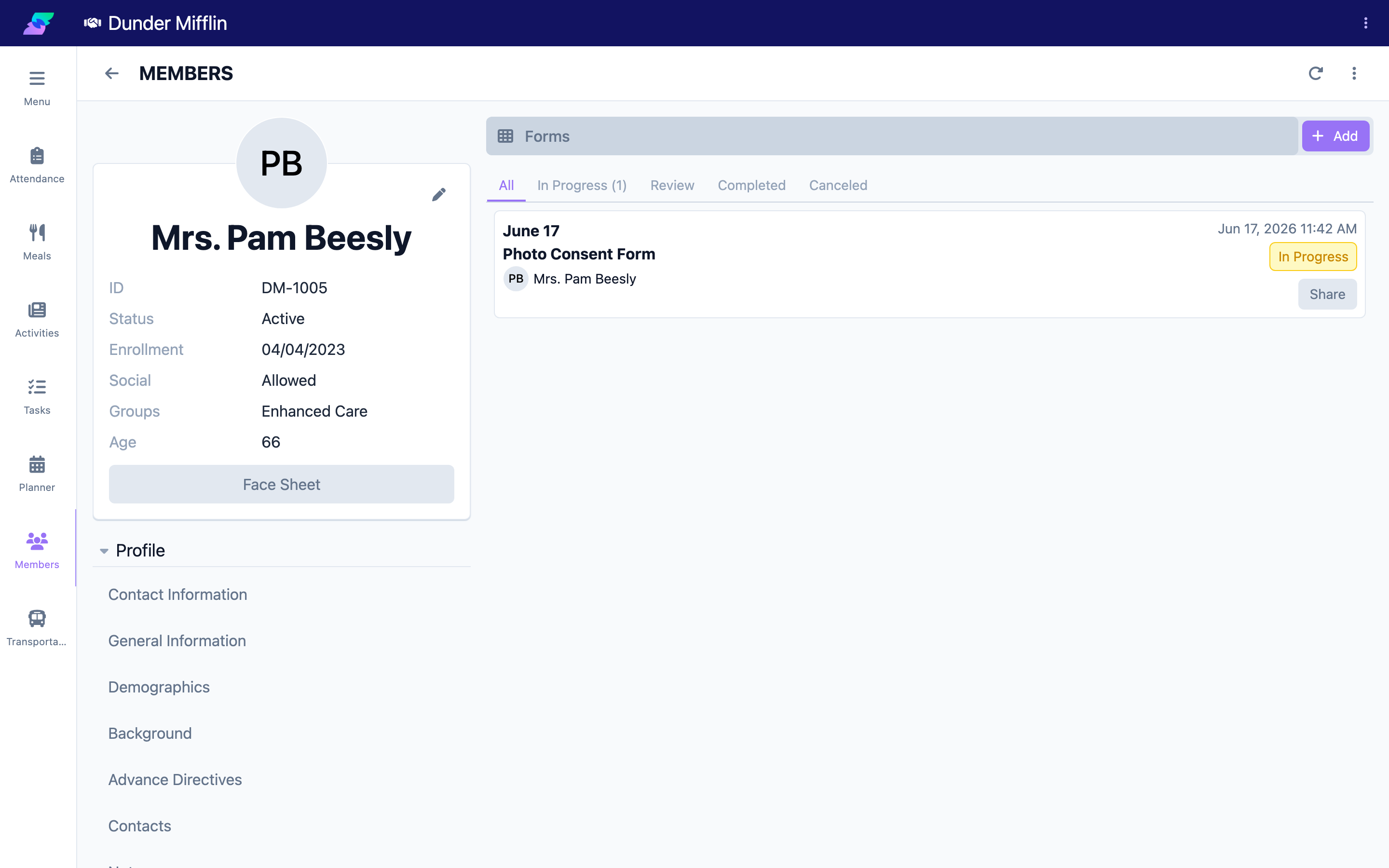
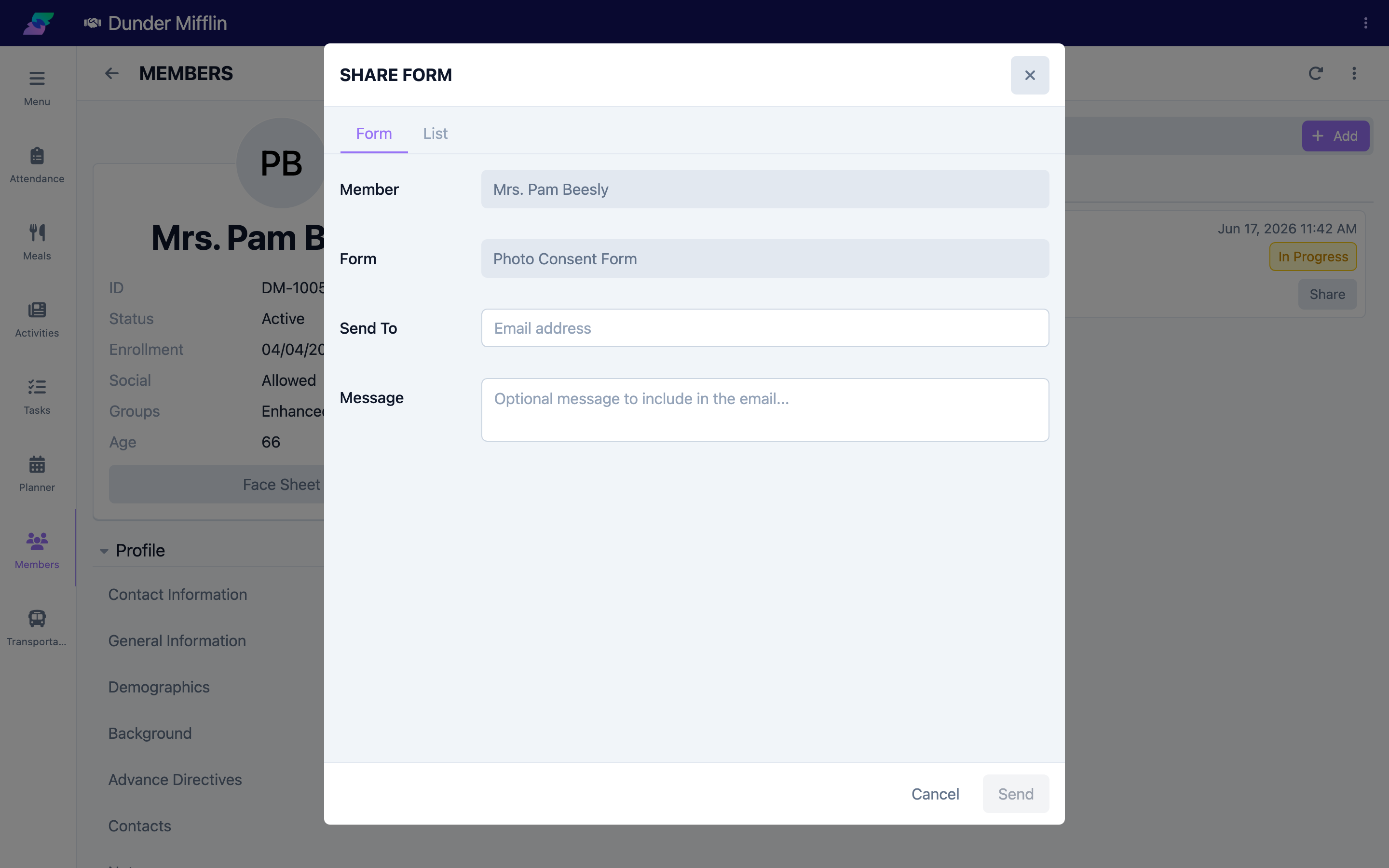
Step 2: Fill in the share details
In the Share Form dialog, on the Form tab, confirm the Member and the Form, then set Send To:
- Start typing an email to pick an existing Connect user, or
- Enter a new email address — for a new user you also provide a first and last name
Add an optional Message to include in the invitation email, then select Send. If that Connect user already has access, Seniorverse warns you and prevents a duplicate share.
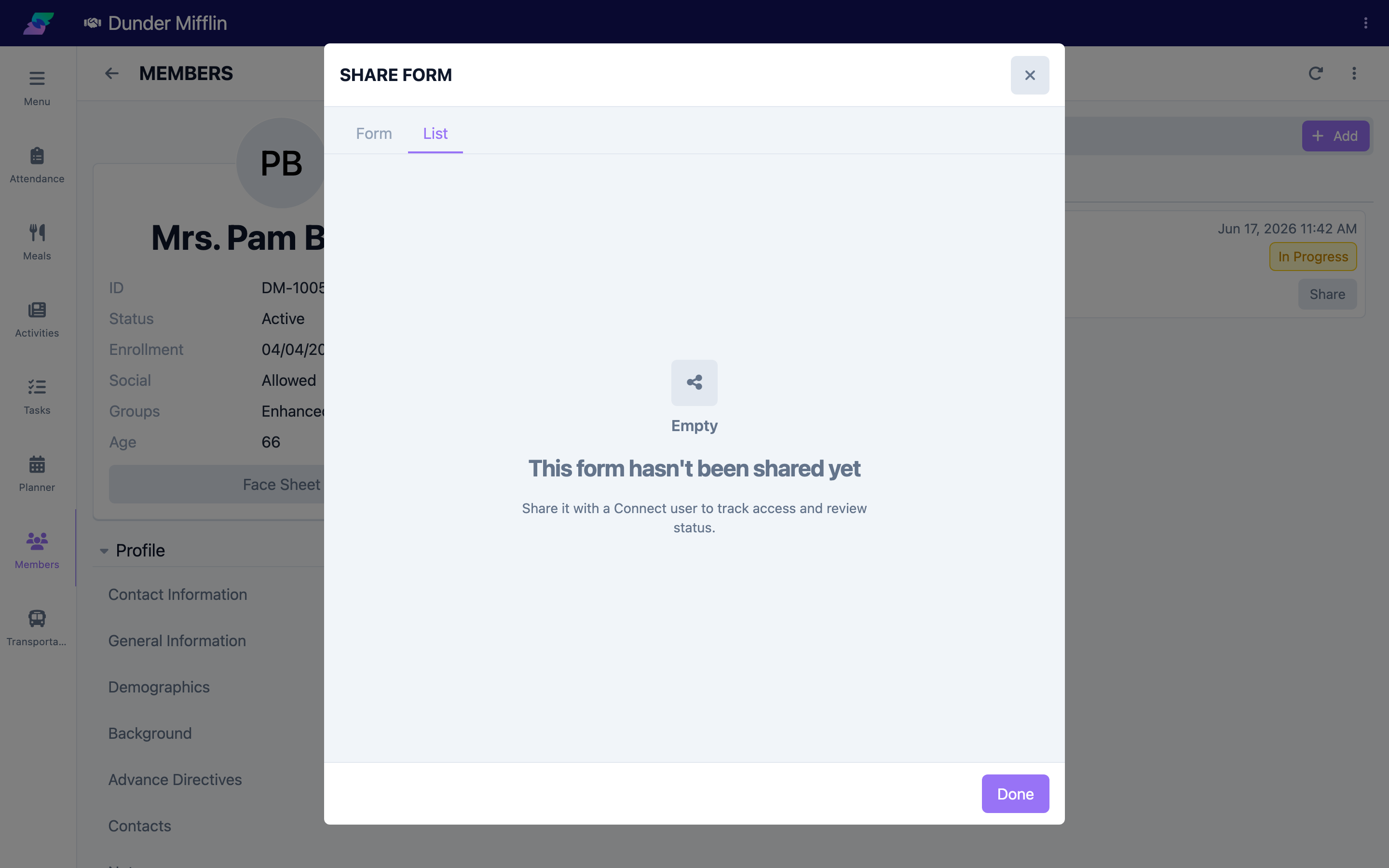
Step 3: Track who has access
Switch to the List tab of the Share Form dialog to see everyone the form has been shared with. Each row shows the family member's name, email, and the date invited, plus a status pill:
- Pending — shared, not yet submitted
- Reviewed — the family member has submitted the form for review
- Completed — the form has been marked complete by staff
Use Revoke on a row to remove that person's access.
Step 4: The family member opens the form in Connect
The family member signs into Connect and opens the member's Forms section, where the shared form appears. They select it to open it. What they can do depends on the access granted: with edit access they can complete and sign it; with view-only access they can read it.
Screenshot coming soon — Form listed in the Connect Forms section
Step 5: The family member completes and signs
The family member works through the form's questions and completes any required fields. If the form includes a Connect user required signature, they sign it electronically on their line. Only signatures marked for Connect review are shown to them.
Screenshot coming soon — Family member completing and signing the form in Connect
Step 6: The family member submits for review
When finished, the family member selects Submit For Review and confirms. This sets the share's status to Reviewed so your team knows it is ready. Required fields and required electronic signatures must be complete before they can submit.
Screenshot coming soon — Submit For Review confirmation in Connect
Step 7: Review and complete the form
Back in Seniorverse, open the form. On the review step you can read the family member's answers and, for any answers configured to sync to the member's record, Accept or Reject each one (or Accept All). When everything is in order and all required signatures are captured, select Mark Completed.
Screenshot coming soon — Staff reviewing the submitted form and marking it complete
Tips
- You can only share Form-type documents that are In Progress or Review. If the item you want is a clinical assessment, it stays with staff.
- Inviting a brand-new family member by email requires their first and last name; existing Connect users only need their email.
- Watch the status pill on the List tab to know when a family member has submitted — Reviewed means it is ready for your review.
- Revoking a share removes that family member's access immediately; share again to reinstate it.
Troubleshooting
| Problem | Solution |
|---|---|
| The form I want to share is not in the list | Only Form-type records that are In Progress or Review can be shared. Completed, canceled, or clinical-assessment records will not appear. |
| The Send button is disabled | Confirm you selected a member and form, entered a valid email, and — for a new Connect user — provided a first and last name. |
| "This Connect user already has access to this form" | That person is already on the List tab. Revoke and re-share only if you need to reset their access. |
| The family member cannot edit the form | They may have view-only access, or the form is already completed. Completed forms are read-only for everyone. |
| The status is still Pending | The family member has not submitted yet. It changes to Reviewed only after they select Submit For Review in Connect. |