
Overview
Documenting that a member has no known allergies is as important as recording actual allergies — it confirms an allergy assessment was completed rather than skipped. In Seniorverse, "No Known Allergies" (NKA) is recorded per type using the Medication, Food, and Environmental buttons at the top of the Allergies tab. Marking a type as NKA creates a record for that type and highlights its button.
Before You Begin
- You must be logged into Seniorverse with access to the Care module and permission to edit clinical records
- The member must already exist in the system
- A type cannot be marked NKA while the member has a documented allergy of that type; remove those allergies first
Steps
Step 1: Open the Allergies Tab
From the main navigation, select Care, then Members, and choose the member. In the member profile, open the Care tab group and select the Allergies tab. At the top you will see three buttons: Medication, Food, and Environmental.
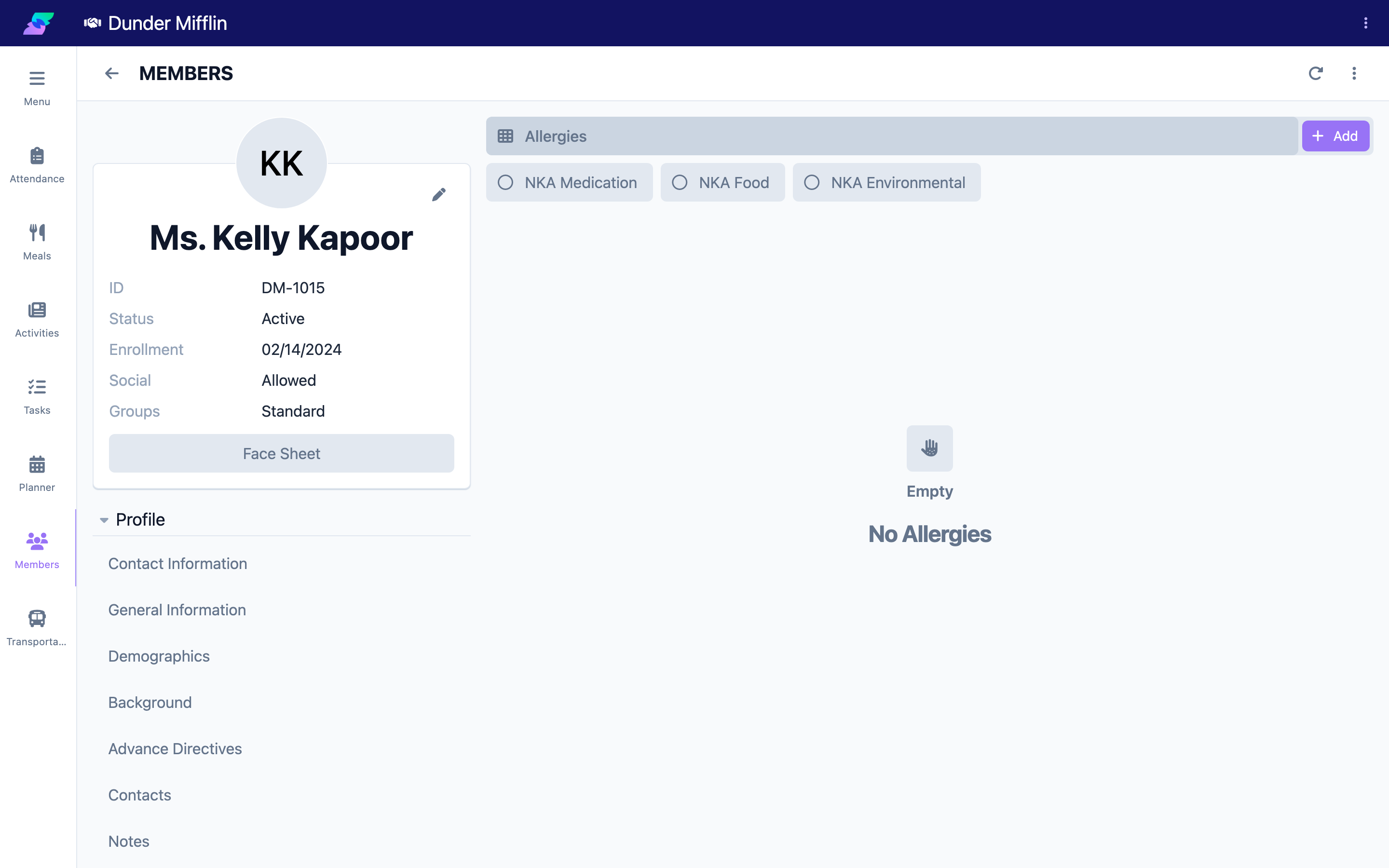
Step 2: Mark a Type as No Known Allergies
Select the button for the type you assessed — for example, Medication. The button becomes highlighted with a check to show the member has no known allergies of that type. This creates an NKA record for that type.
Screenshot not available: marking a type NKA creates a real record immediately on click (there is no open-form-then-cancel step), and no member in this demo currently has a type marked NKA to show as an existing example. Capturing this live would persist a real change to shared demo data, which capture rules do not allow.
Step 3: Repeat for Each Type Assessed
Assess each type independently. A member may have no known medication allergies but still have food or environmental allergies. Mark Food and Environmental as NKA only if you have confirmed there are none.
Screenshot not available for the same reason as Step 2.
Step 4: Remove a No Known Allergies Designation
If you later need to add an allergy of a type marked NKA, select that highlighted type button again and confirm when prompted. This removes the NKA designation so you can add allergies of that type.
Screenshot not available: reaching this confirmation requires an existing NKA-marked type, which would first require the persisting action described above.
Tips
- Mark NKA only after a genuine assessment — an empty list means the assessment was not done, while NKA confirms it was
- Assess Medication, Food, and Environmental separately; each is tracked on its own button
- Re-verify NKA designations during routine reviews, since allergies can develop over time
- To add an allergy to a type currently marked NKA, remove the NKA designation first
Troubleshooting
| Problem | Solution |
|---|---|
| A type button is disabled | The member already has a documented allergy of that type. You cannot mark NKA while allergies exist — the button is only available when the type has no allergies. |
| I need to add an allergy but the type is marked NKA | Select the highlighted type button and confirm to remove the NKA designation, then add the allergy. |
| I marked NKA by mistake | Select the highlighted type button again and confirm removal. |
| I cannot see the type buttons | The buttons are at the top of the Allergies tab in the Care tab group. Confirm you have Care module access and clinical edit permissions. |