
Overview
A service provider is the billing entity behind your invoices and claims — usually your center or organization. Its name, contact details, and logo appear on invoices, while its NPI, EIN, and taxonomy code identify you on insurance claims. Set up a default provider so every invoice starts with the right information.
Before You Begin
- You need Billing access for your center.
- Have your organization's NPI, EIN (Tax ID), and taxonomy code ready if you submit claims.
Steps
Step 1: Open the Service Providers tab
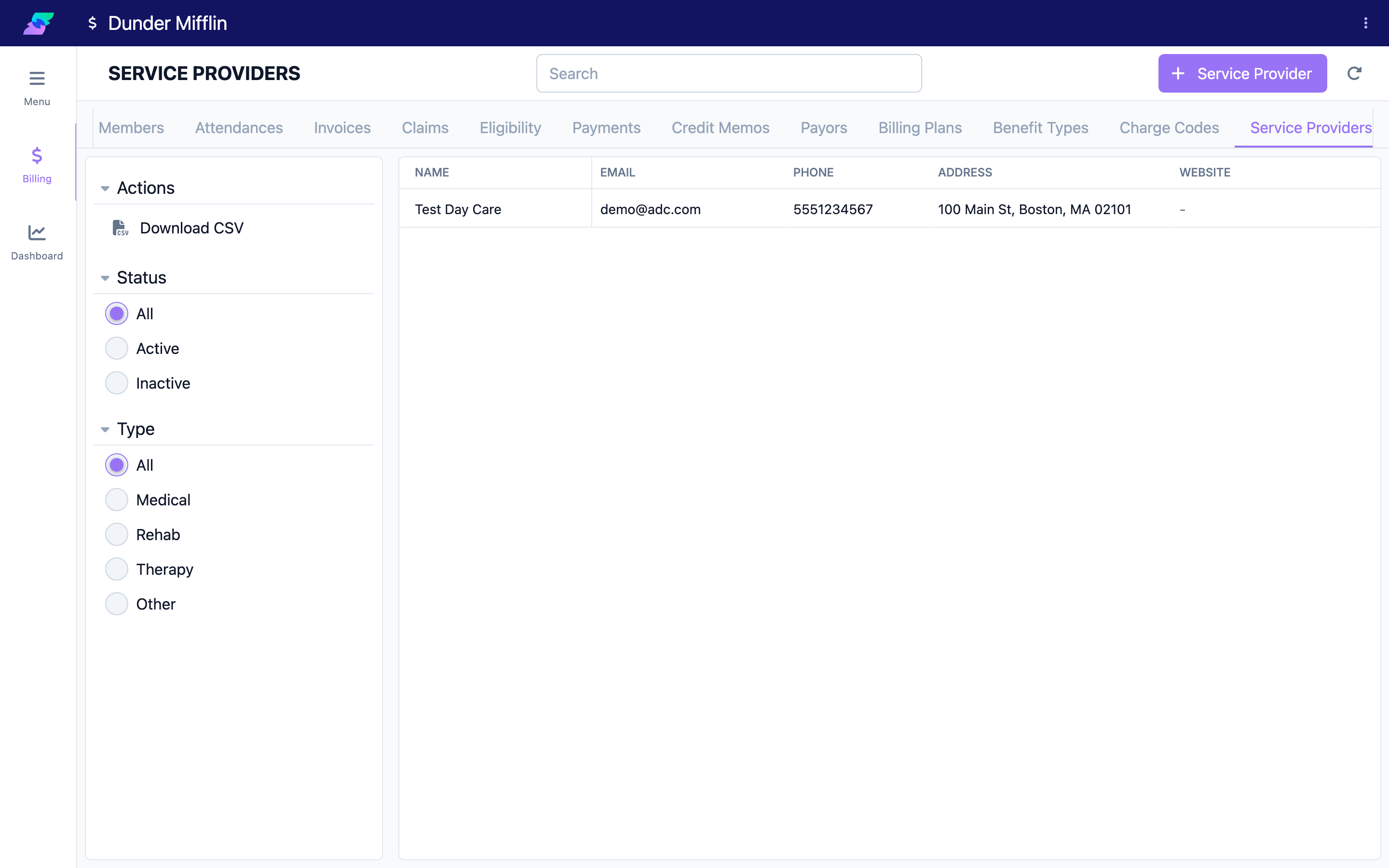
On the Billing page, select the Service Providers tab, then select the Service Provider button to open the new-provider form.
Step 2: Enter name and contact details
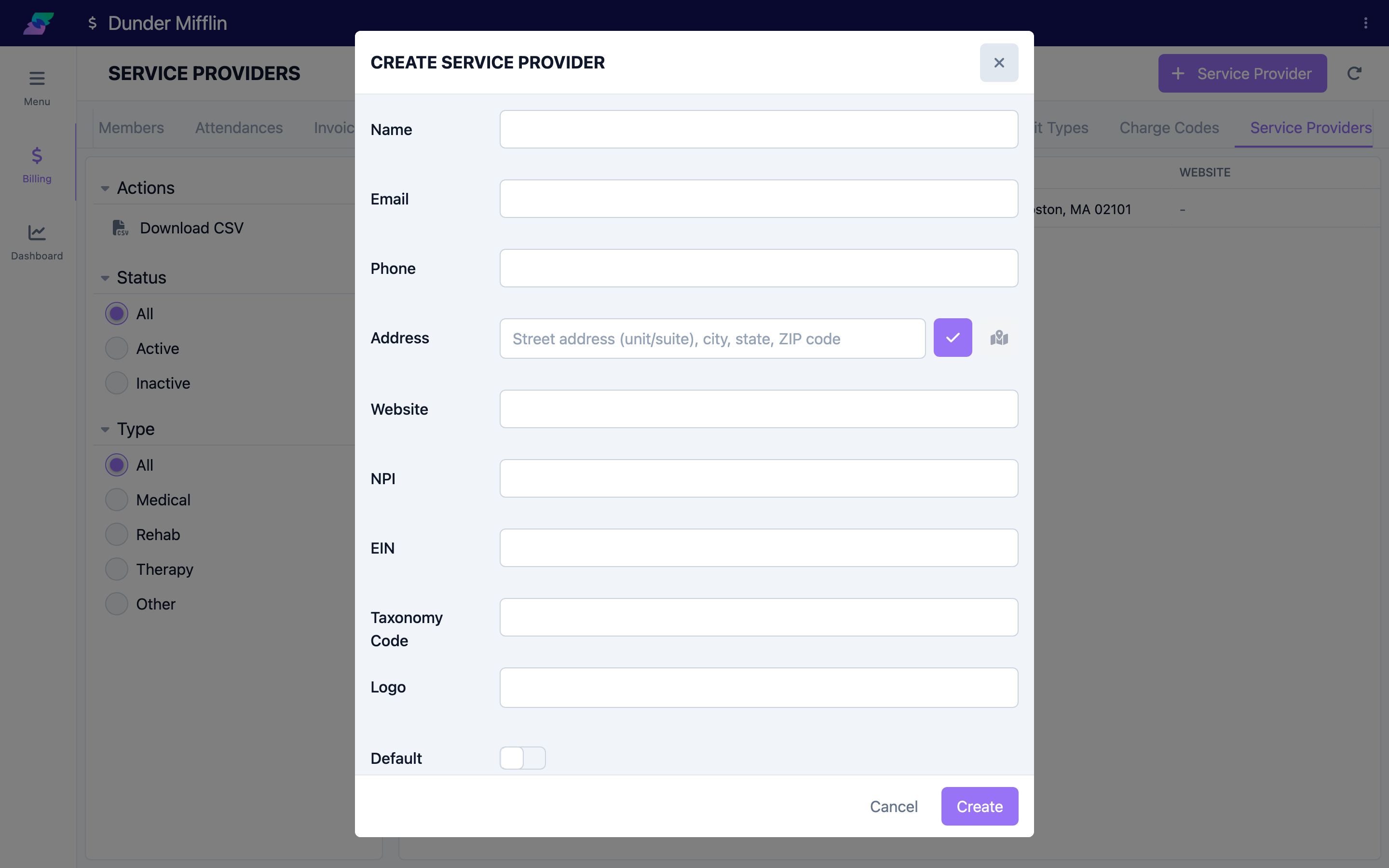
Enter the Name (required), then the Email, Phone (required), Address, and Website. These contact details are what appear on the invoice.
Step 3: Enter the claim identifiers
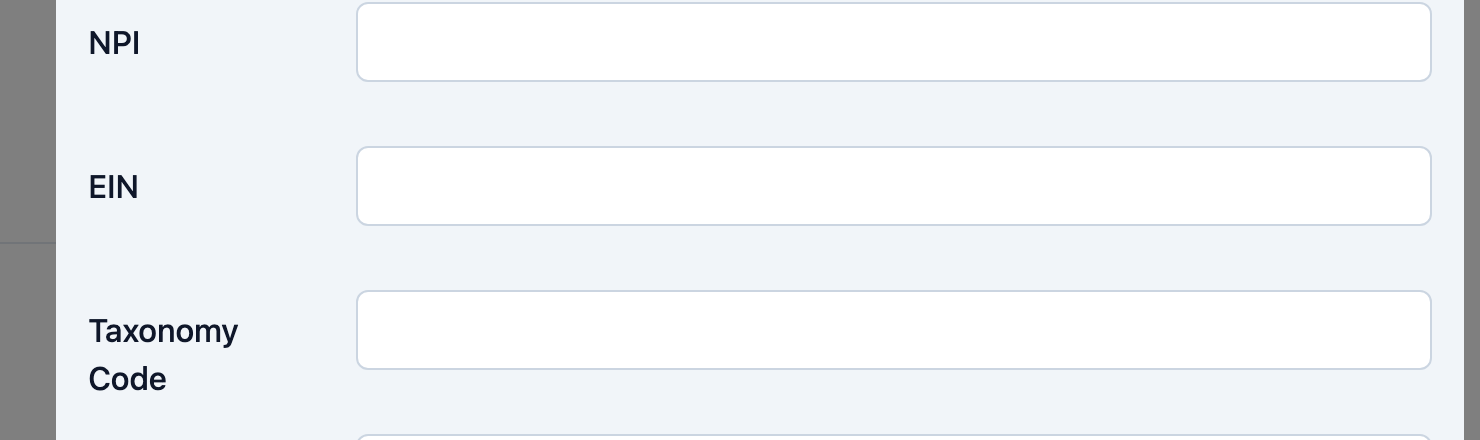
Enter the identifiers used on insurance claims:
- NPI — your National Provider Identifier.
- EIN — your Employer Identification Number (Tax ID).
- Taxonomy Code — your provider taxonomy classification.
These are not required to save the record, but claims will be incomplete without them.
Step 4: Add a logo, set the default, and save
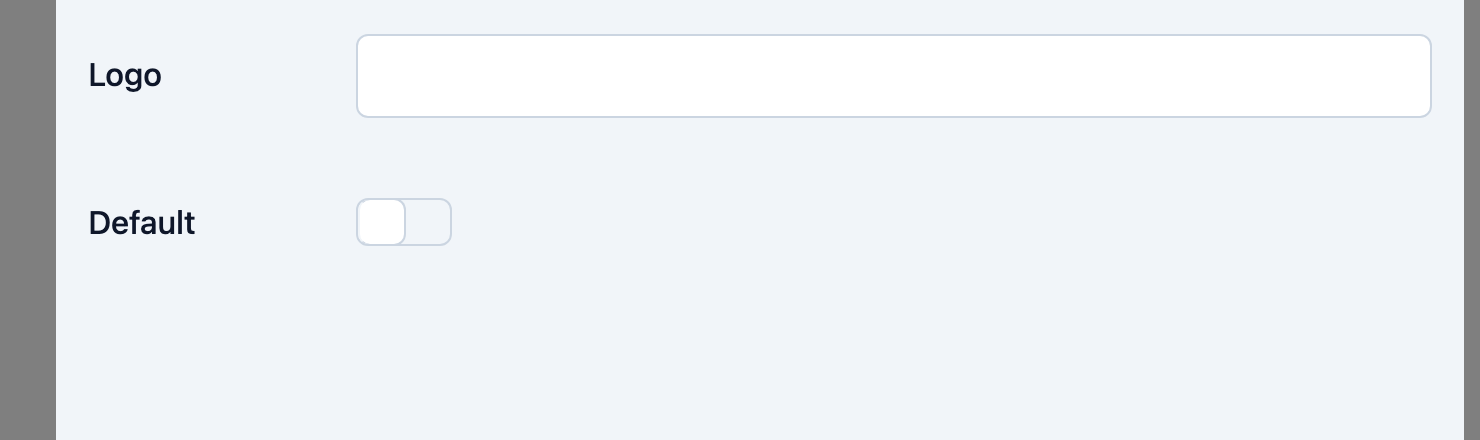
Upload a Logo to brand the invoice PDF. Turn on Default to make this the provider used automatically on new invoices. Select Save (or Create).
Only one provider should be the default. When a benefit type does not specify its own billing provider, the default provider is used.
Tips
- Why the identifiers matter: NPI is a global lookup key — an inbound electronic remittance (ERA) is routed by its payee NPI back to the matching provider and center, so an accurate NPI is essential for automatic remittance matching. EIN and taxonomy code identify you as the billing provider on 837 claims.
- The default provider's name, address, contact details, and logo are snapshotted onto each invoice and shown on the invoice PDF; the invoice records whether that provider came from a Service Provider record or was entered manually.
- A benefit type can point to a specific service provider (its "Billing Provider"). Set that when a program should bill under a different entity than your default.
- Deleting a provider is confirmed with a prompt. Prefer keeping historical providers so past invoices keep their snapshot intact.
Troubleshooting
| Problem | Solution |
|---|---|
| The form will not save | Name and a valid Phone are required. Email and Website, if entered, must be valid. |
| A new invoice shows no provider details | No default provider is set. Add a provider and turn on Default, or set a Billing Provider on the benefit type. |
| An incoming remittance was not routed to your center | The ERA's payee NPI did not match a provider. Confirm the NPI on the service provider record is correct. |
| Claims are missing provider identifiers | Add the NPI, EIN, and taxonomy code to the provider (or to the benefit type's billing-provider override). |
Related Articles
- configuring-benefit-types — Configuring Benefit Types
- understanding-the-billing-module — Understanding the Billing Module
- setting-up-payors — Setting Up Payors
- creating-billing-plans — Creating Billing Plans