
Overview
Advance directives are legal documents that record a member's wishes for their medical care. The Advance Directives tab lets you file these documents so care staff can find them quickly. Each directive records a type, a status, and the uploaded document, which is required. Directive types are configured by your center — common examples are Living Will, DNR, POLST, and Healthcare POA.
Before You Begin
- You must be logged into Seniorverse with access to the Care module and permission to edit the member's record
- The member must already exist in the system
- Have a digital copy of the signed document ready to upload
Steps
Step 1: Open the Advance Directives Tab
From the main navigation, select Care, then Members, and choose the member. In the member profile, open the Profile tab group and select the Advance Directives tab. Existing directives are listed here.
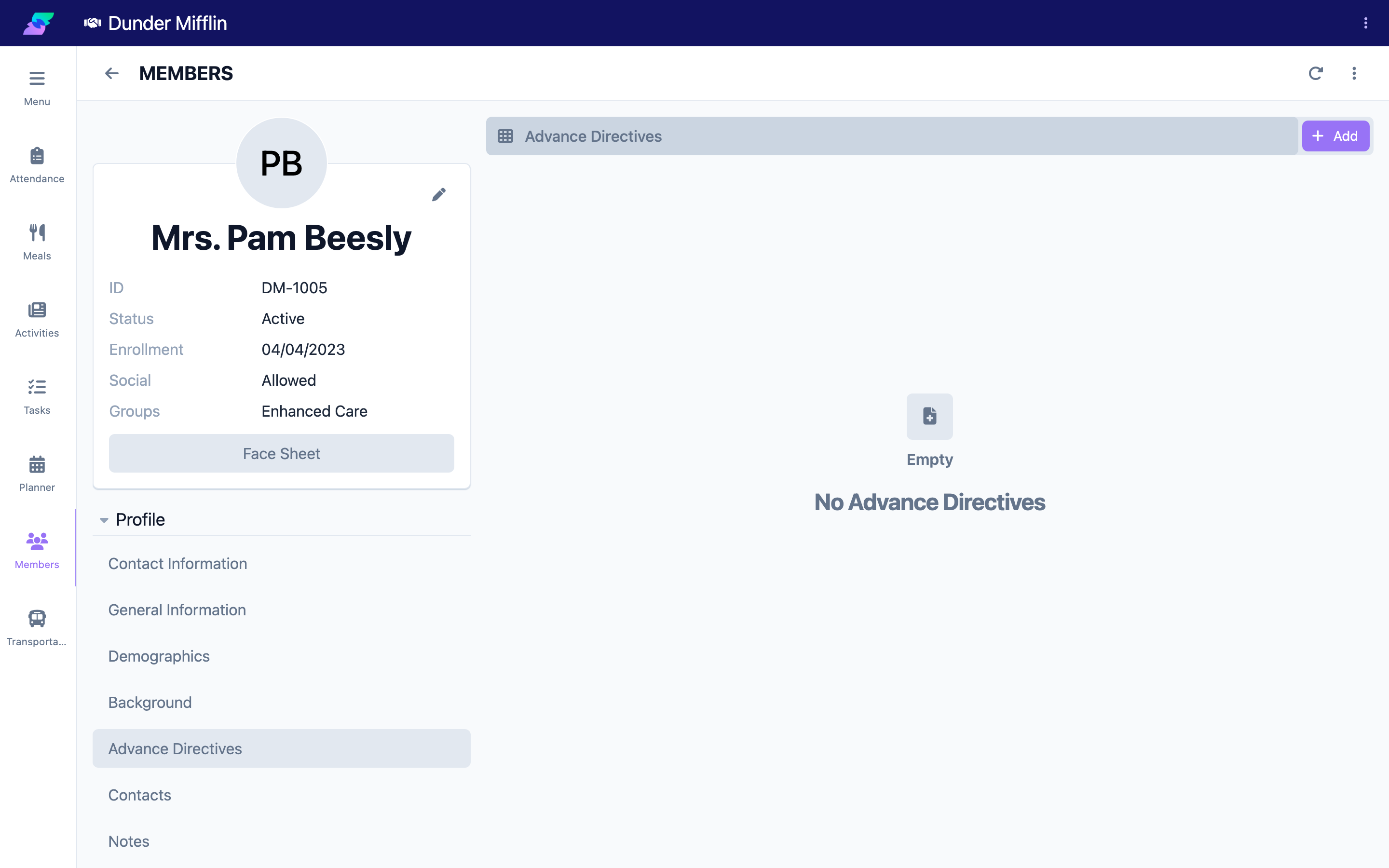
Step 2: Add a Directive
Select the Add button to open the Advance Directives form.
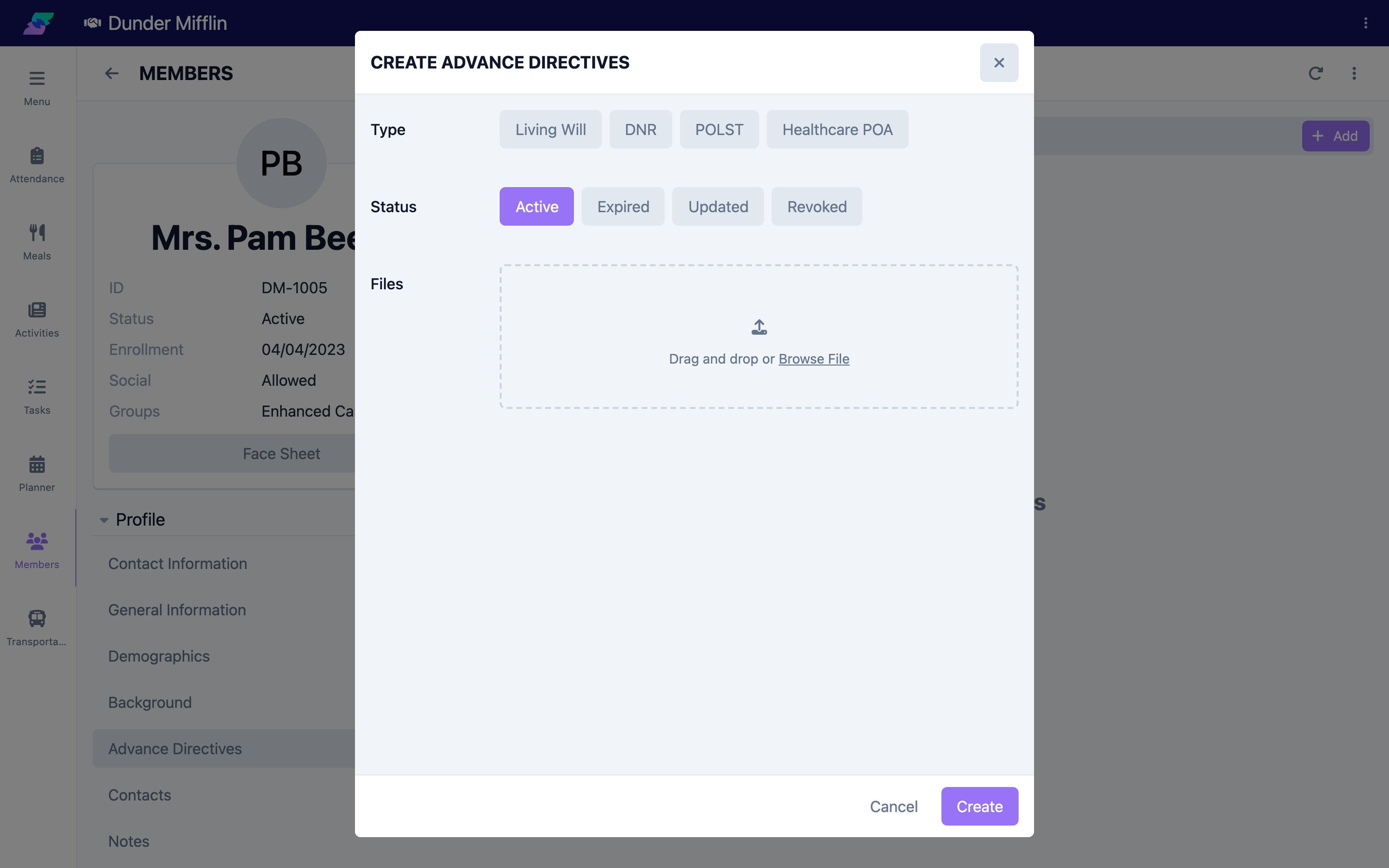
Step 3: Select the Type and Status
Choose the Type from the options your center has configured (for example, Living Will, DNR, POLST, or Healthcare POA). Set the Status to Active, Expired, Updated, or Revoked. New directives default to Active.
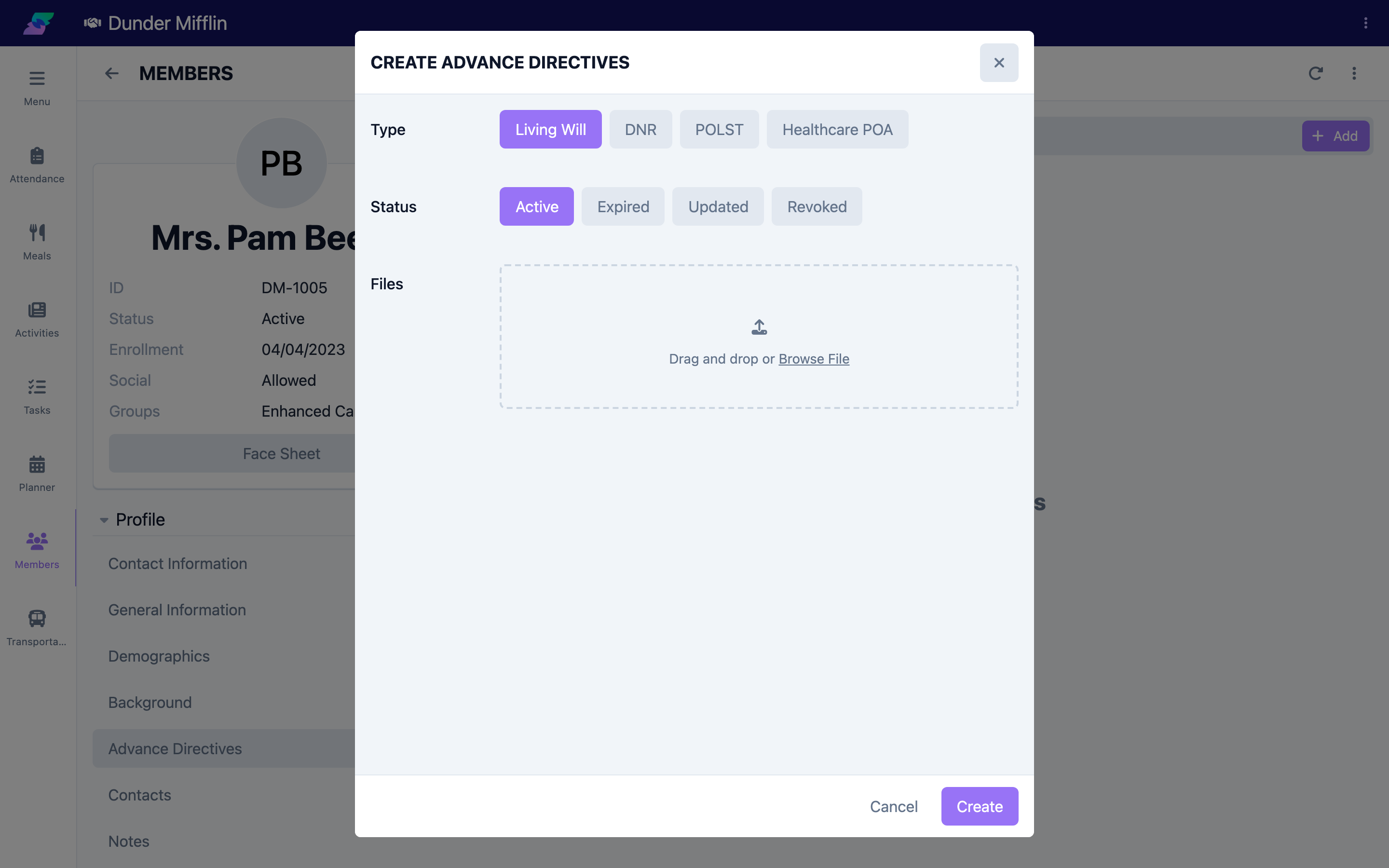
Step 4: Upload the Document and Save
Attach the signed document in the Files field — a document is required for a directive. Then select Save. The directive appears in the list.
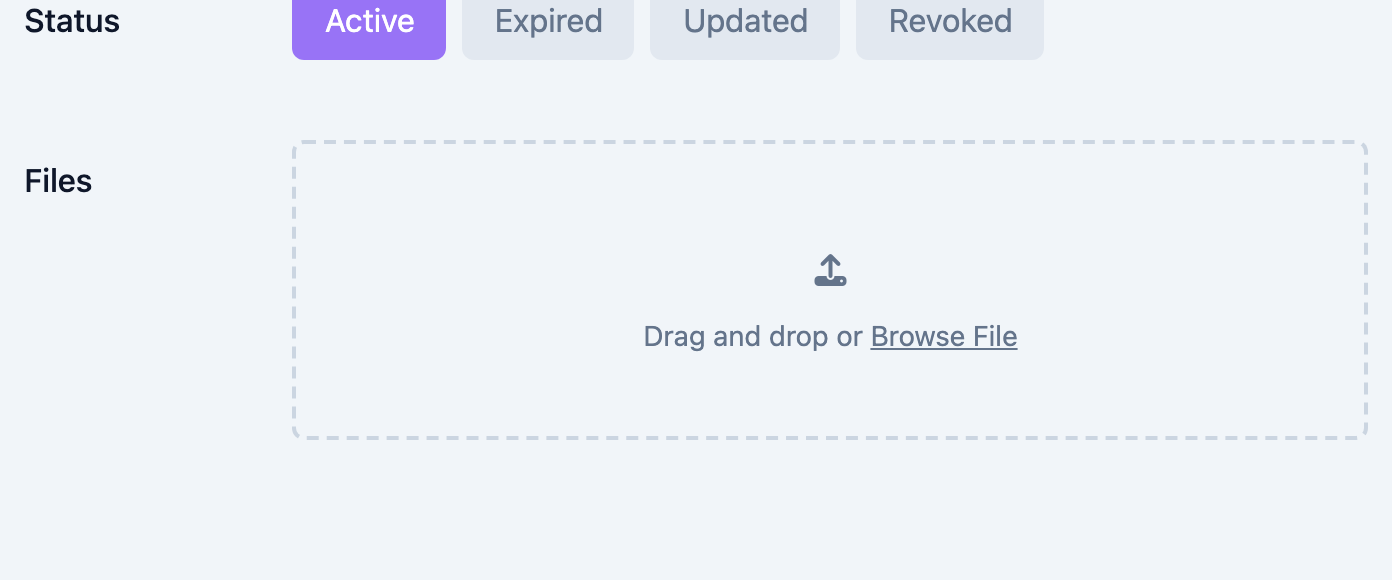
Step 5: Update a Directive Over Time
When a directive changes, open it from the list and update its Status — for example, set it to Expired, Updated, or Revoked — and upload a replacement document if needed. The form shows the Created and Updated dates so you can track the history.
Screenshot not available: no member in this demo currently has an existing Advance Directive record to open and edit (every member's tab is empty).
Tips
- Keep the uploaded document current; when a directive is replaced, add the new document and update the status
- Use the Status field (Active, Expired, Updated, Revoked) to reflect the directive's current standing rather than deleting old records
- Confirm the directive types you need are configured for your center; an administrator manages that list
- Review directives during routine reviews so the file reflects the member's current wishes
Troubleshooting
| Problem | Solution |
|---|---|
| Advance Directives tab is not visible | The tab is in the Profile tab group of the member profile. Confirm you have Care module access and permission to edit the member. |
| The form will not save | Type, Status, and an uploaded document are all required. Add the file before saving. |
| The type I need is not listed | Directive types are configured per center. Ask your administrator to add the type to your center's list. |
| A directive is no longer valid | Open it and set the Status to Expired or Revoked rather than deleting it, to preserve the history. |