
Overview
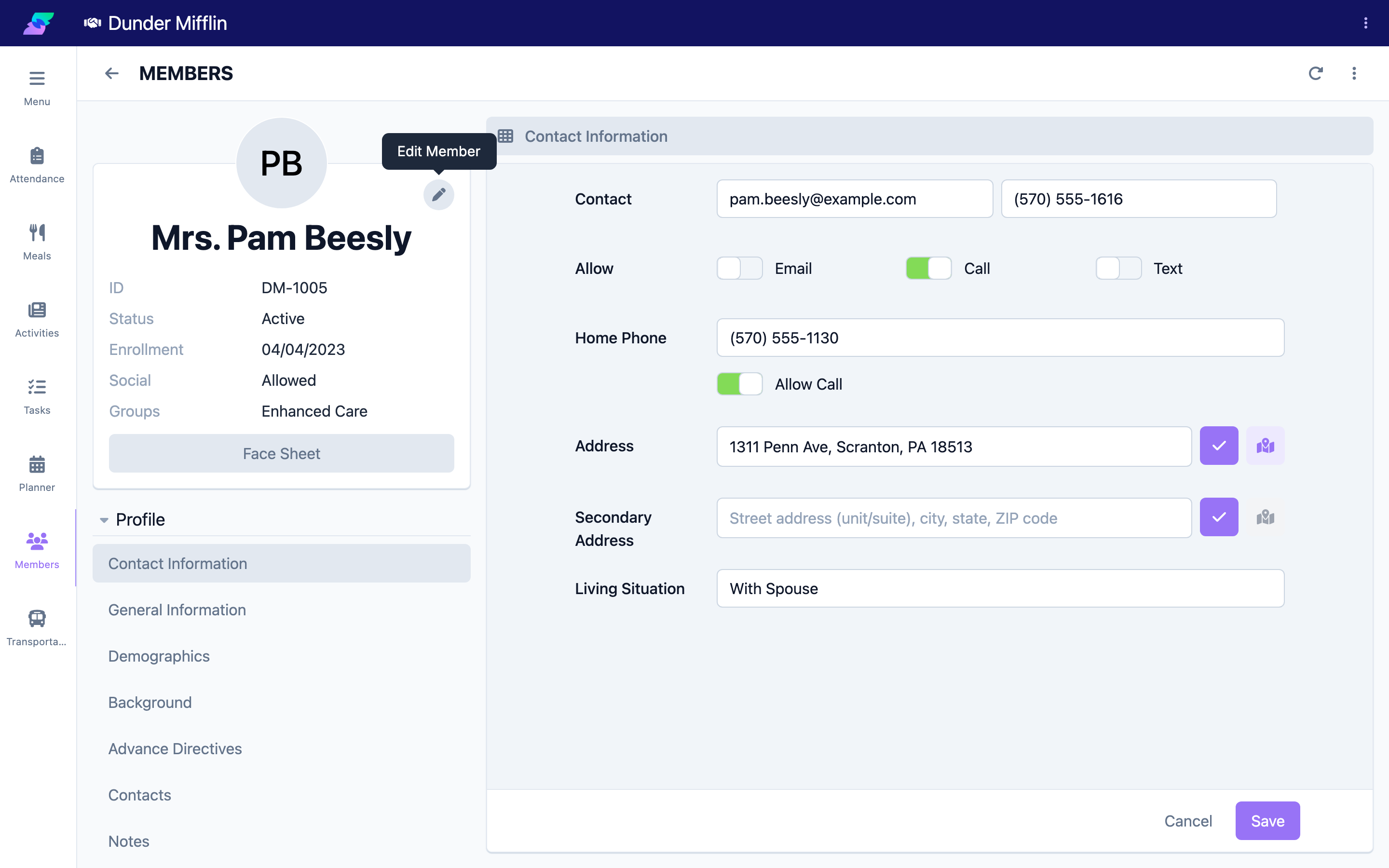
There are two places to update a member's information. The Edit Member action on the member card updates the member's core record — name, ID, photo, status, enrollment, and groups. Everything else (demographics, contacts, benefits, insurance, transportation, files, and care details) is edited directly on the matching profile tab. This article covers both.
Before You Begin
- You must be logged in with edit permission for member profiles.
- Changing a member's Status requires the Status edit permission; without it, the Status field is read-only.
Steps
Step 1: Open the member's core record
- Open the member's profile.
- On the member card, select Edit Member (the pencil).
Step 2: Update the core member fields
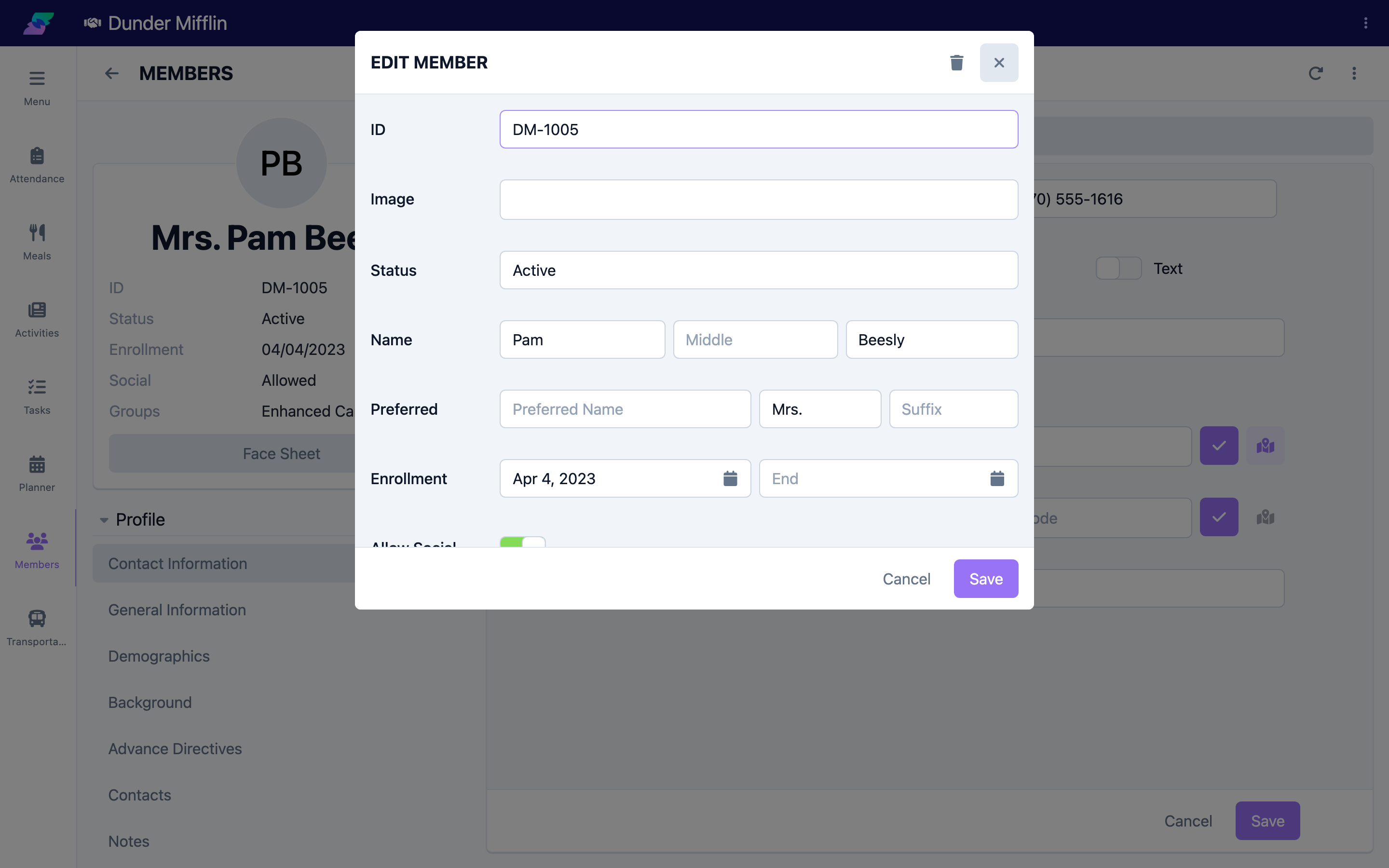
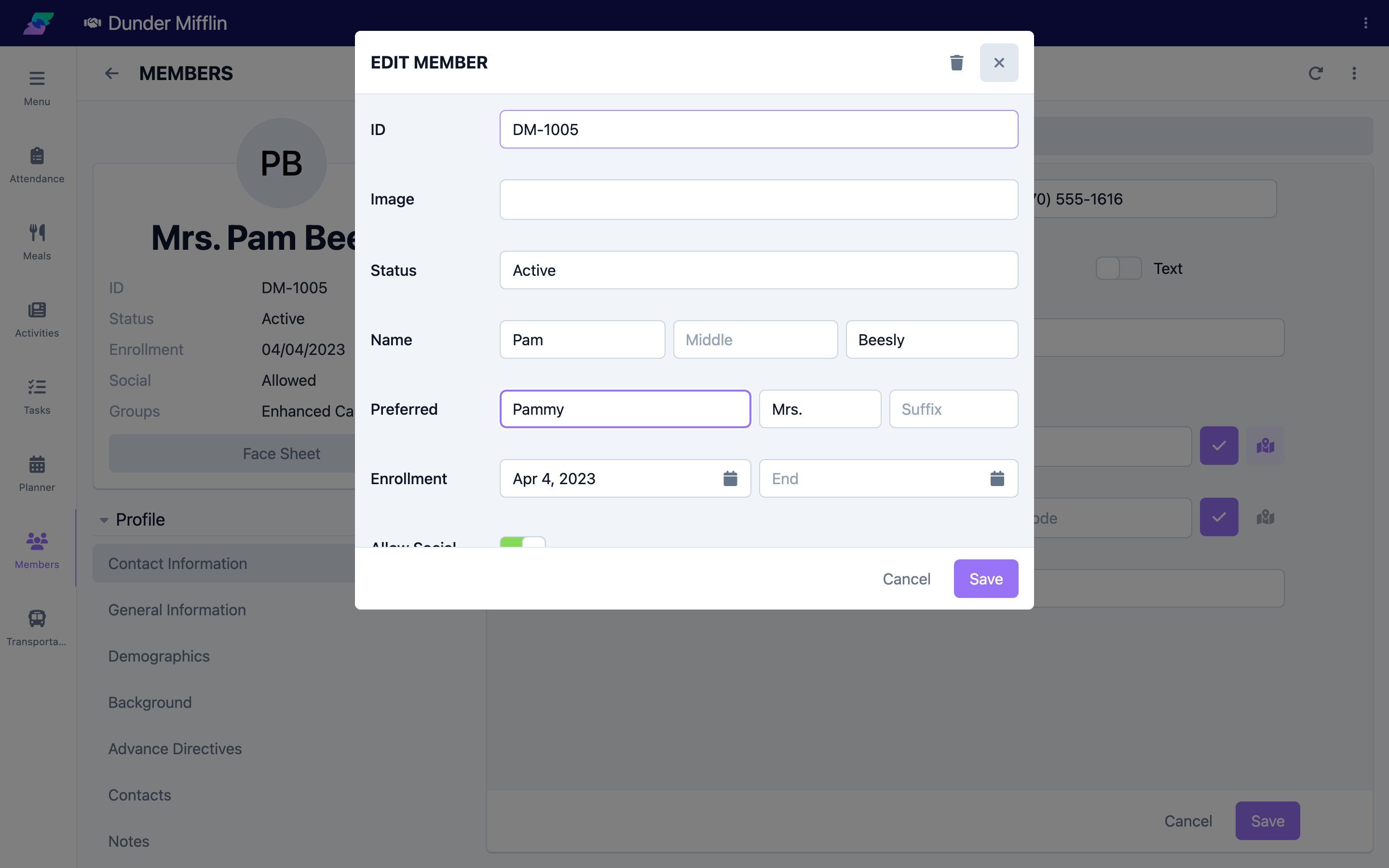
Update any of these fields: ID, Image (photo), Status, First/Middle/Last Name, Preferred Name/Prefix/Suffix, Enrollment dates, Allow Social, and Groups. First Name and Last Name are required.
Step 3: Save your changes
Select Save. The form closes and the member card reflects your updates.
Step 4: Edit information on a specific tab
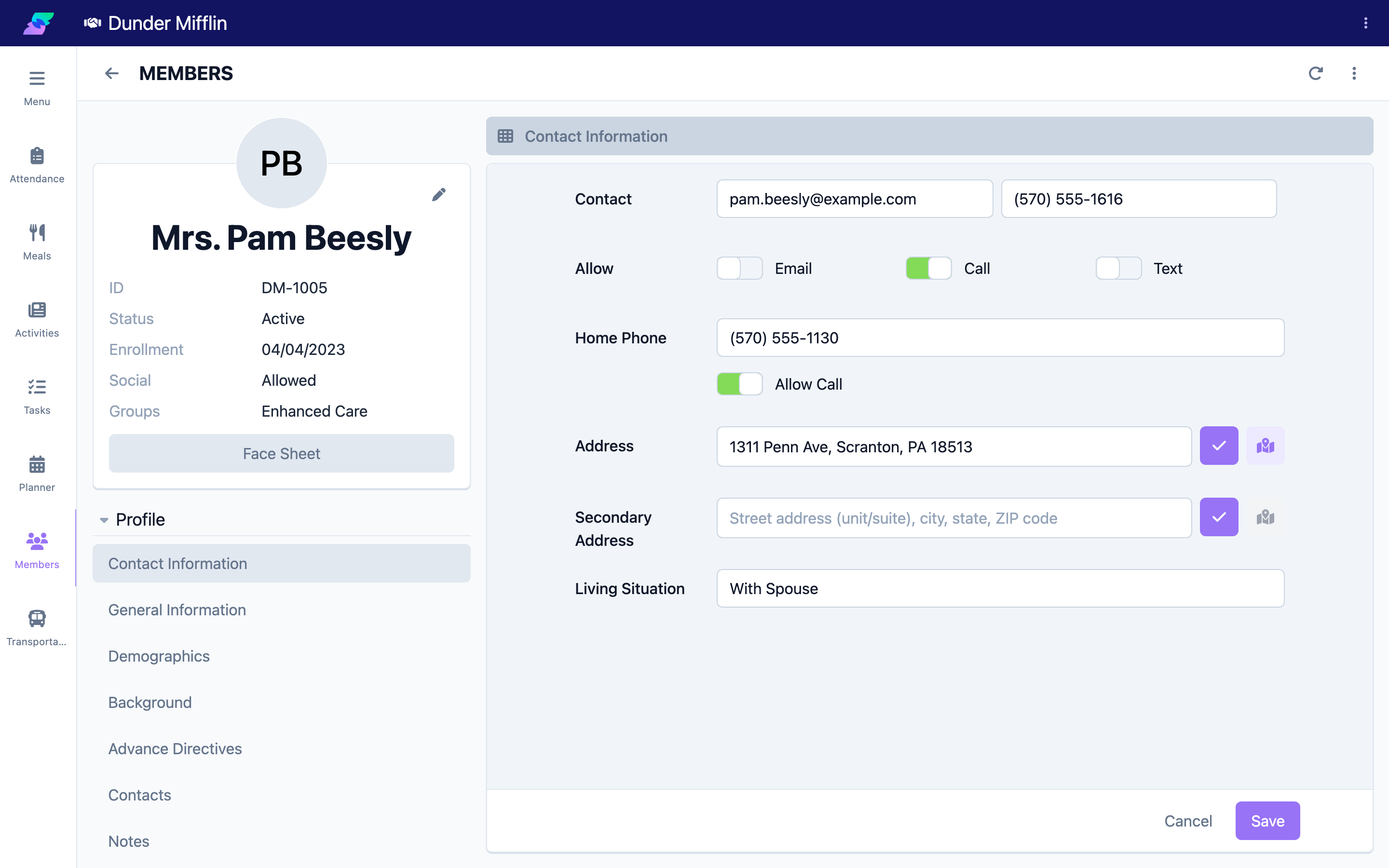
For information other than the core record, open the relevant tab and use its controls. For example, open Demographics to update birthdate and gender, Contacts to manage contacts, or Benefits to update funding. Each tab has its own Add or edit controls and its own Save.
Step 5: Discard changes if needed
If you do not want to keep your edits, close the form (the ×) or select Cancel. When you have unsaved changes, your browser shows a confirmation prompt — "Are you sure you want to discard your changes?" — before closing the form.
Screenshot coming soon — Discard changes confirmation
Tips
- Know which editor you need. Use Edit Member for identity and enrollment; use the individual tabs for everything else.
- Status may be locked. If you cannot change Status, you do not have the Status edit permission — ask an administrator.
- Verify contact details carefully. Double-check phone numbers and addresses, which matter in emergencies.
- There is no undo. To fix a saved mistake, edit again and re-enter the correct value.
Troubleshooting
| Problem | Solution |
|---|---|
| I cannot find the Edit Member action | It is on the member card (left side), near the Face Sheet button. If it is missing, your role may be view-only. |
| The Save button is disabled | A required field (First Name or Last Name) is empty, or a field has invalid data. |
| I cannot change the Status | Changing status requires the Status edit permission. Contact your administrator. |
| My tab edit did not save | Each tab saves independently — make sure you saved on that tab, not just the Edit Member form. |