
Overview
The benefit type (payor) on an attendance record determines how a visit is billed and to whom. You can change it from the Benefit column on the Attendance page — for example, when a member has more than one active benefit or the wrong one was applied.
Before You Begin
- You must be logged into Seniorverse with Care module access.
- You need the Care:Attendance permission (or Care:FullAccess).
- The member must have an attendance record for the day, and the benefit you want should already be set up in the member's record.
Steps
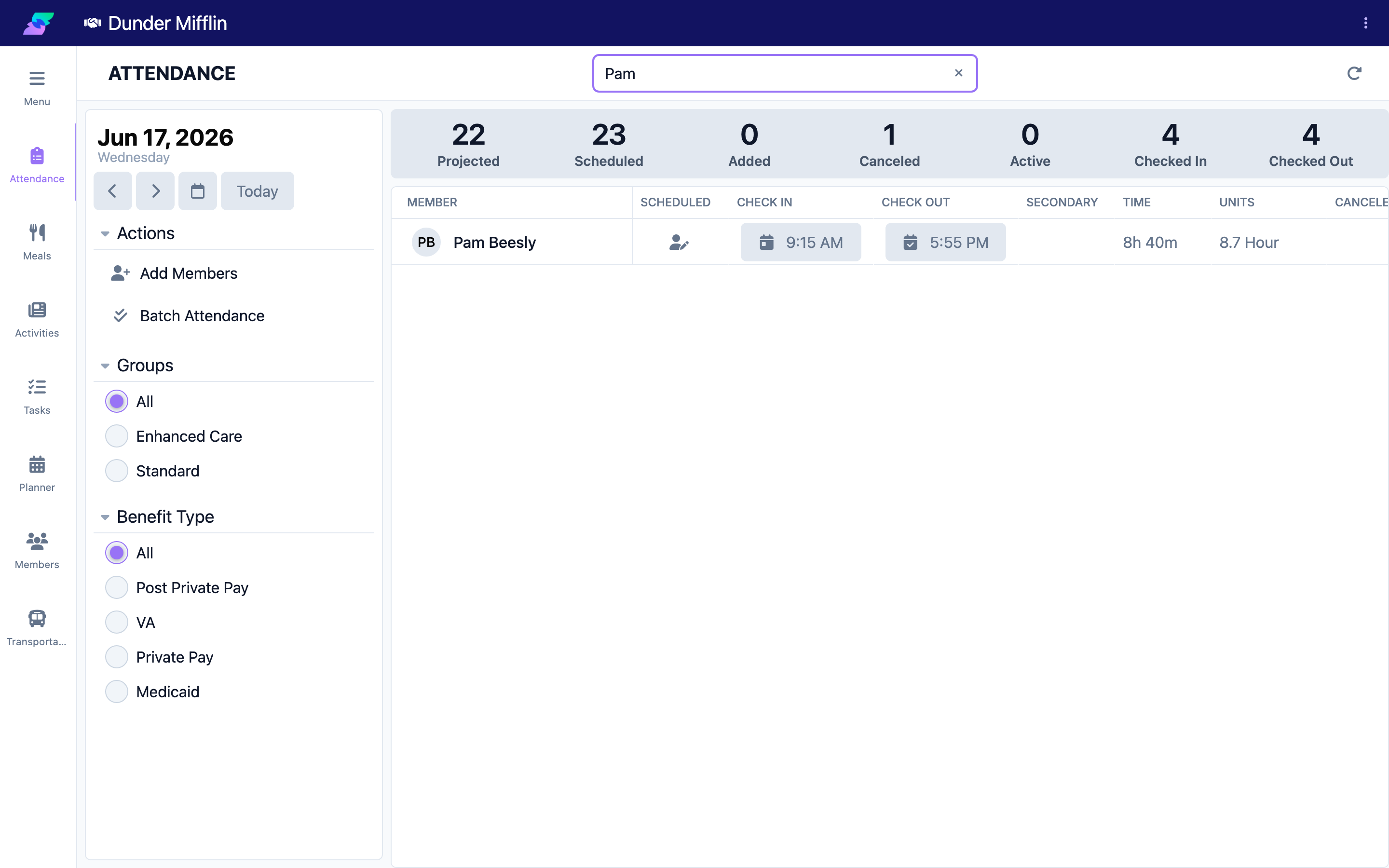
Step 1: Open the Attendance page and find the member
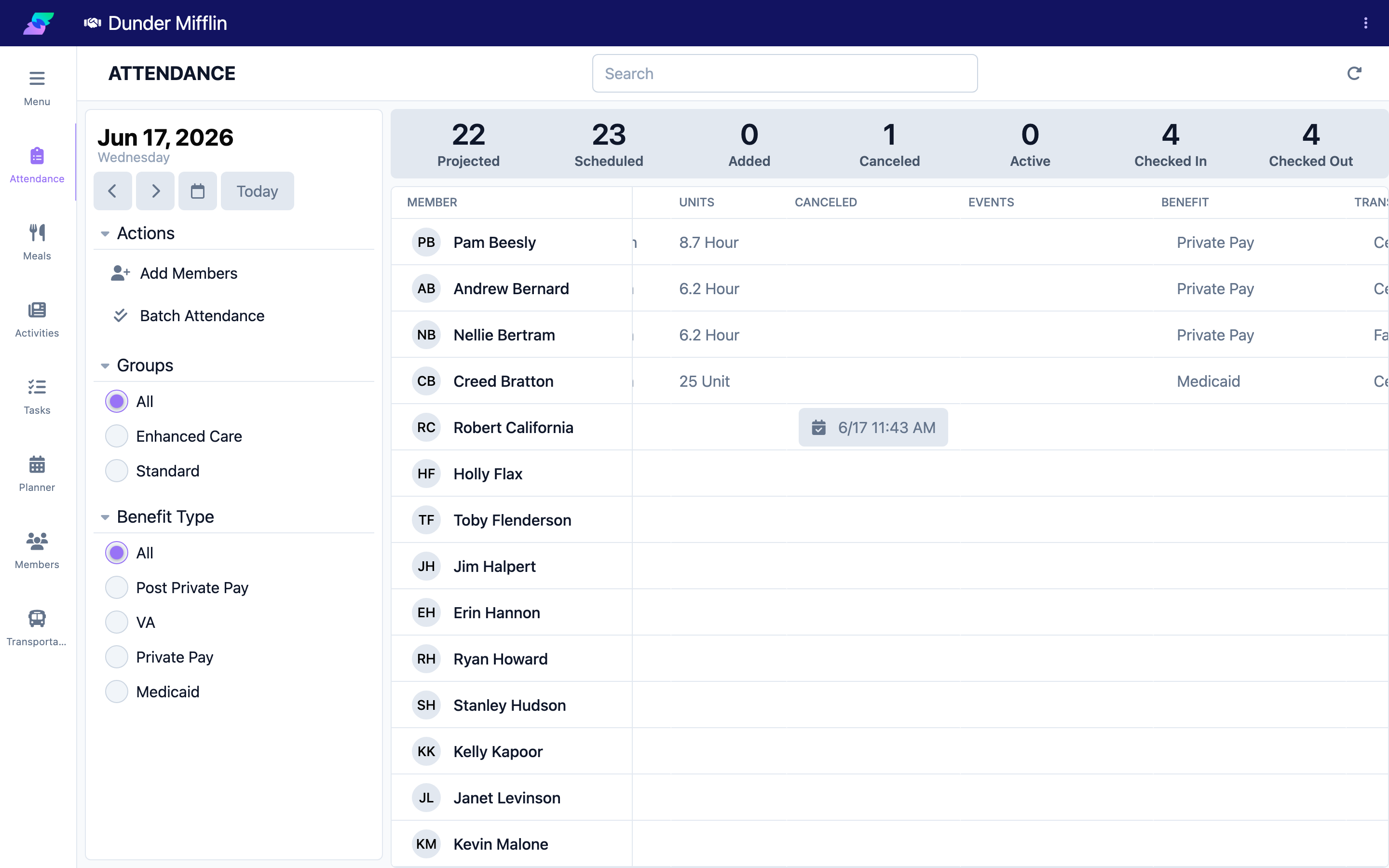
Select Care, then Attendance. Confirm the date and find the member with the search box or filters.
Step 2: Locate the Benefit column
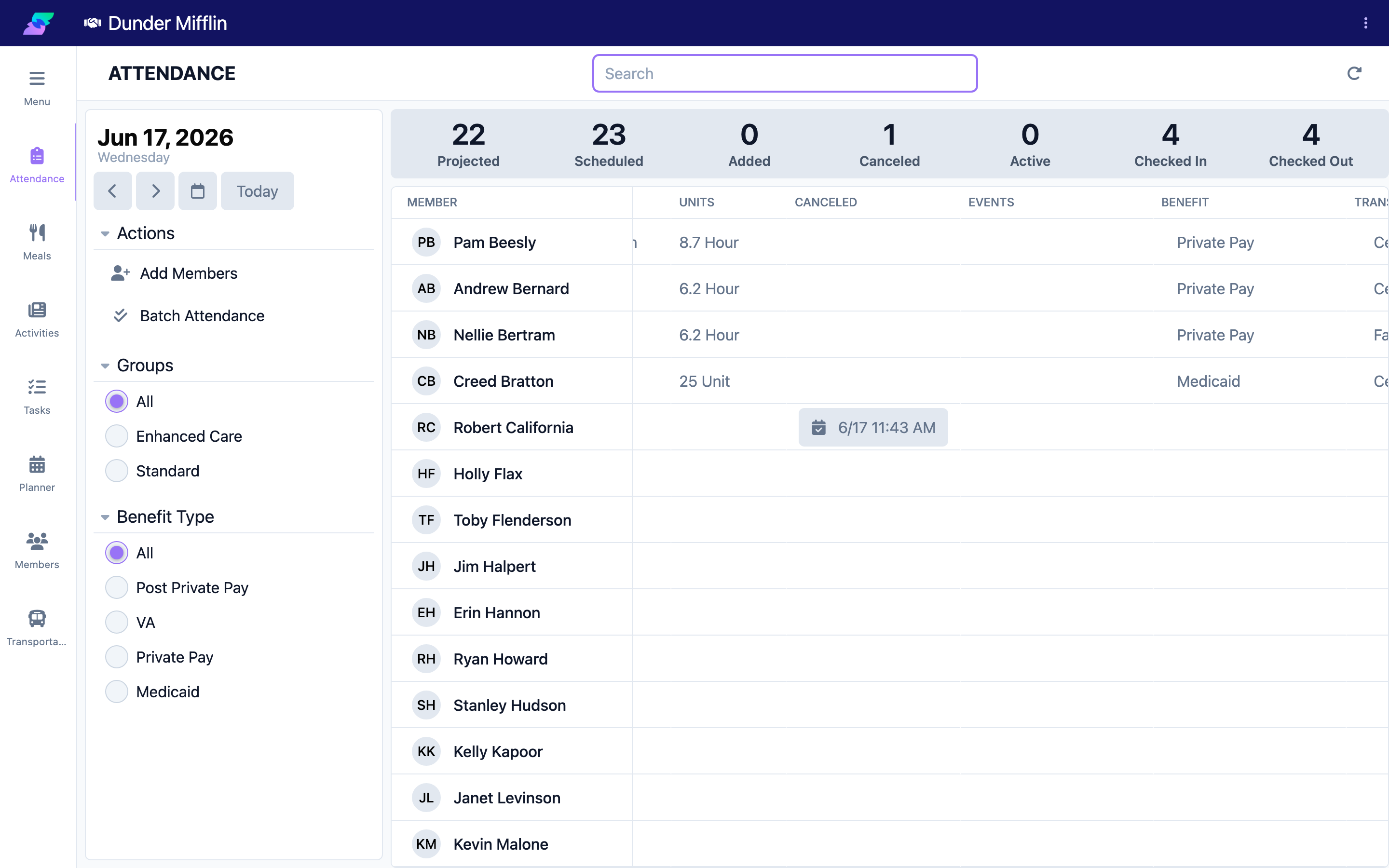
In the member's row, find the Benefit column. It shows the payor currently applied to the visit. If no valid benefit applies, it shows a red Invalid button.
Step 3: Open the Payor Types list
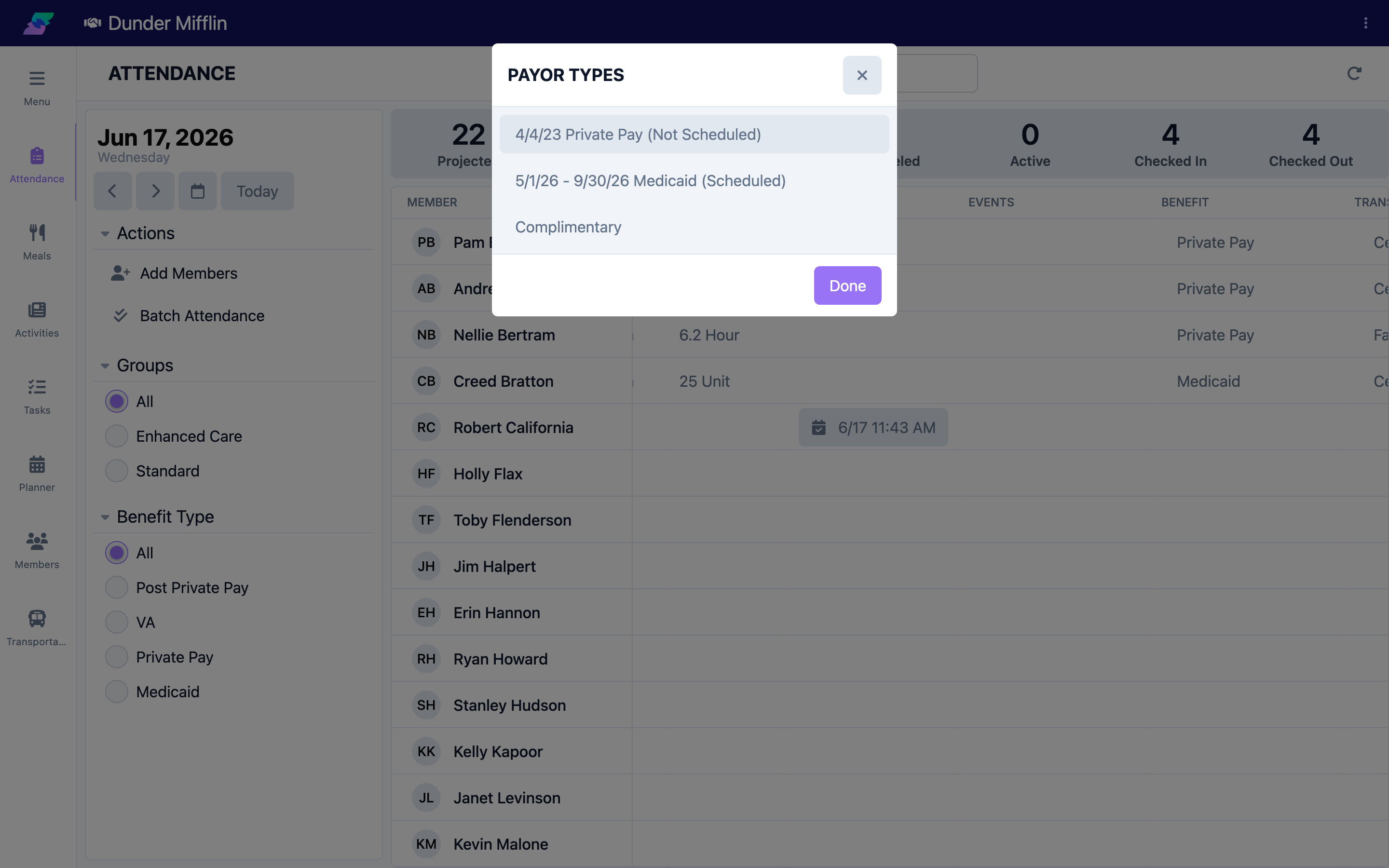
Select the value in the Benefit column. The Payor Types window opens, listing the member's benefits plus a Complimentary option.
Step 4: Choose the payor
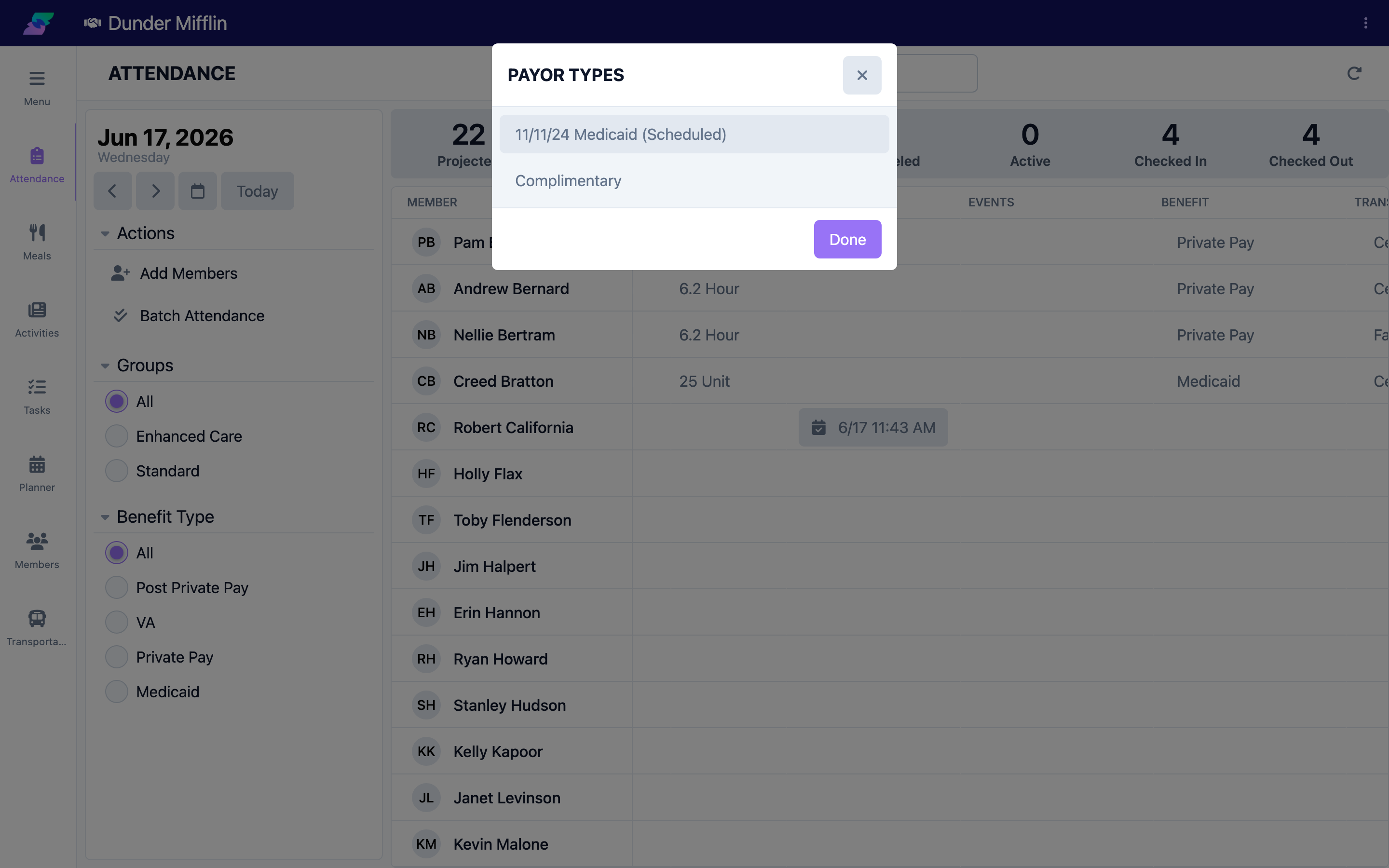
Select the correct benefit (or Complimentary). The change saves immediately and the Benefit column updates.
Step 5: Confirm the change
Confirm the Benefit column now shows the payor you chose. If billing was already generated for the visit, it will reflect the new payor.
Tips
- Choose Complimentary for a visit that should not be billed to a benefit. (Your center may rename this option.)
- If the benefit you expect is not listed, the member does not have it set up. Add it in the member's record, then return here.
- Correct the payor before the billing cycle closes when possible.
Troubleshooting
| Problem | Solution |
|---|---|
| The benefit I want is not in the list | The member does not have that benefit set up. Add it in the member's record, or ask an administrator. |
| The Benefit column shows a red "Invalid" | The visit has no valid payor for the date. Select it and choose a benefit from the Payor Types list. |
| I cannot open the Benefit field | You may have view-only access. Ask your administrator for the Care:Attendance permission. |
| I selected the wrong payor | Select the Benefit field again and choose the correct option; the change is immediate. |
Related Articles
- understanding-the-attendance-page — Understanding the Attendance Page
- checking-a-member-in — Checking a Member In
- checking-a-member-out — Checking a Member Out
- recording-a-cancellation — Recording a Cancellation