
Overview
A benefit type is a funding program you bill against — for example a Medicaid or private-pay program. It holds the program's status, its claim settings, and (through effective-dated charge-code links) its rates. Benefit types connect member attendance to invoices and, when enabled, to insurance claims.
Before You Begin
- You need Billing access for your center.
- Create the charge codes you plan to price first (see "Managing Charge Codes").
- The claims and rate sections appear only when the Billing feature is enabled for your center.
Steps
Step 1: Open the Benefit Types tab
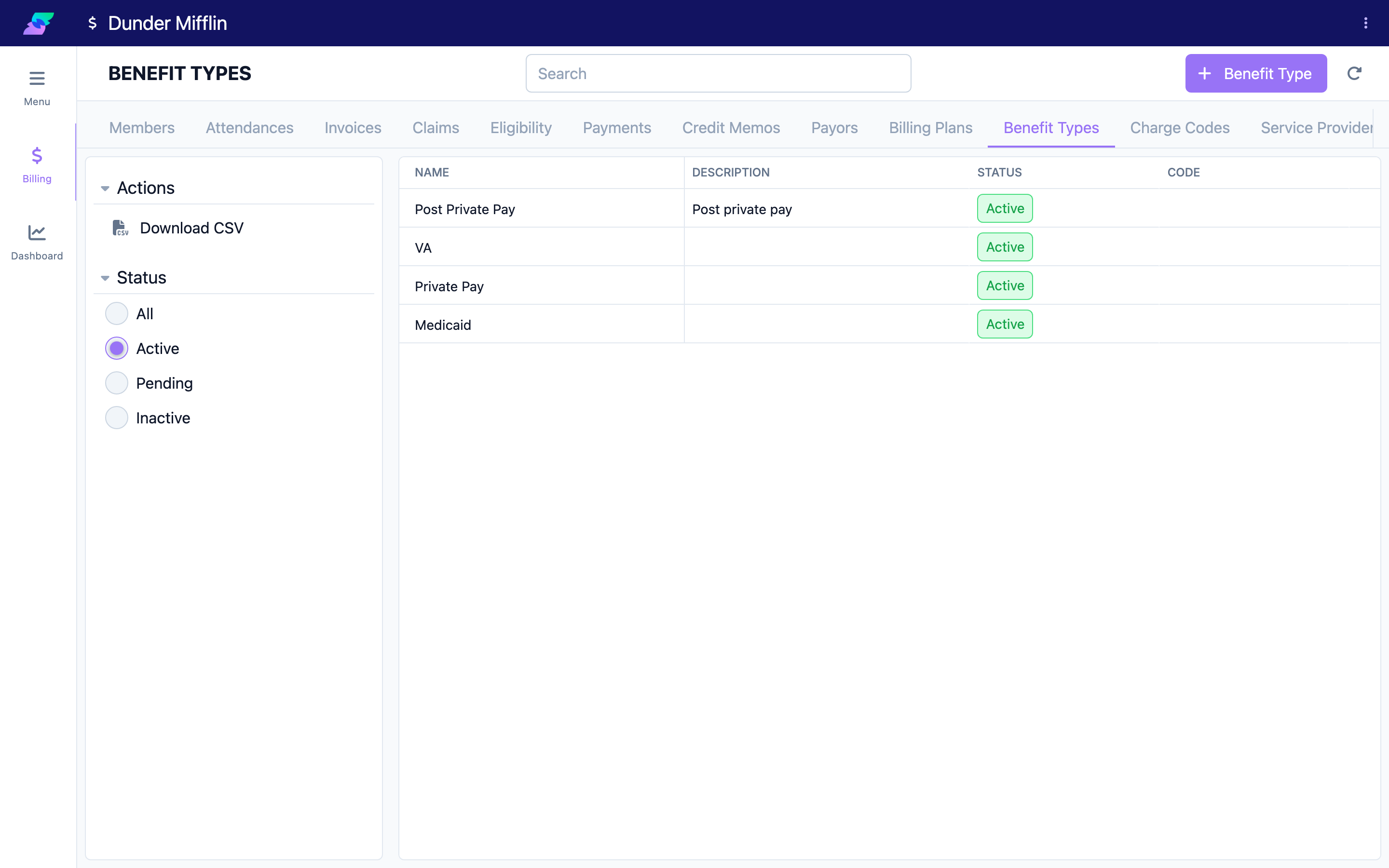
On the Billing page, select the Benefit Types tab, then select the Benefit Type button to start a new one.
Step 2: Enter the basic details
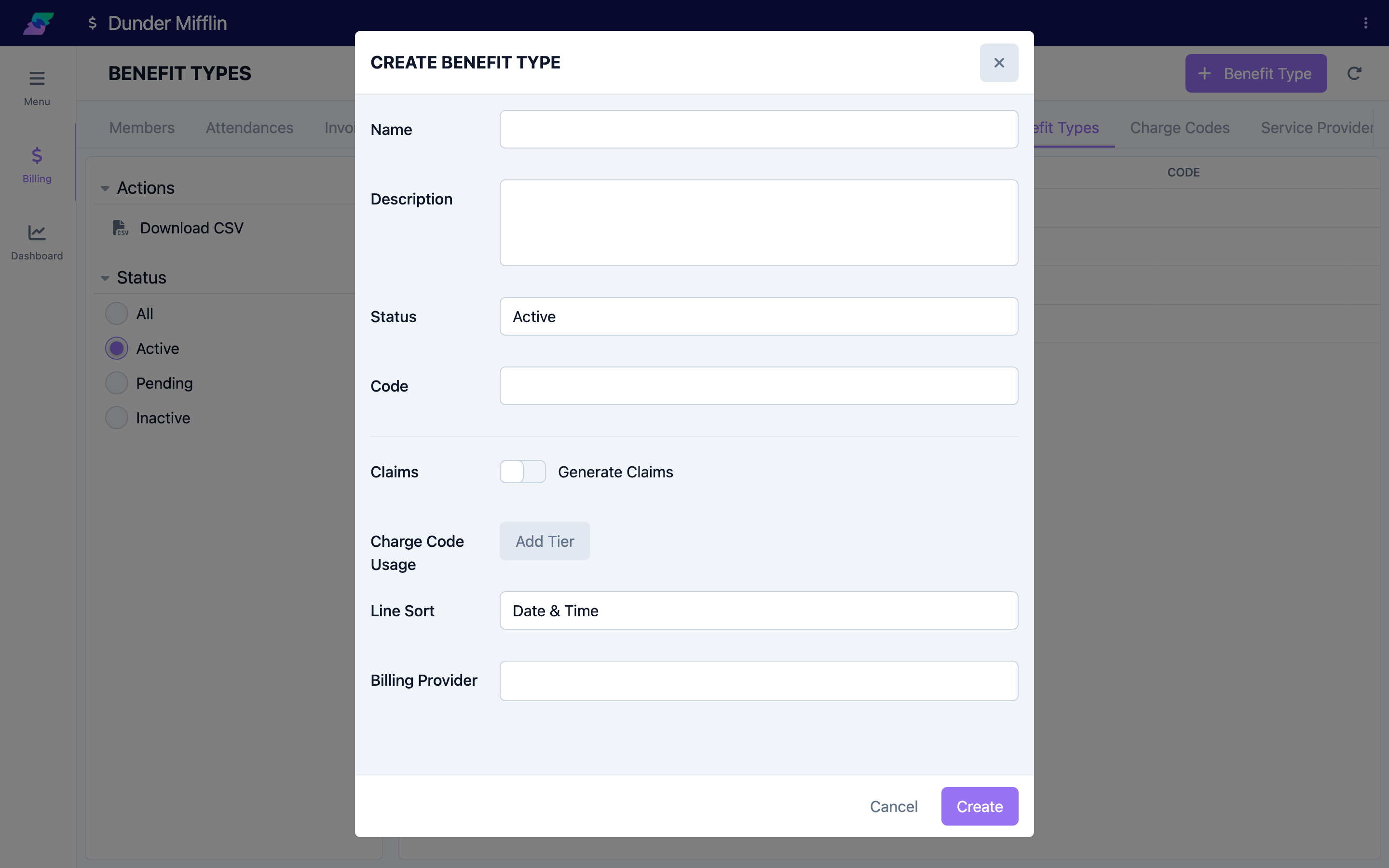
Fill in the top of the form:
- Name (required)
- Description
- Status — Active, Inactive, or Pending (new benefit types default to Active).
- Code
Step 3: Turn on claims and set the claim type
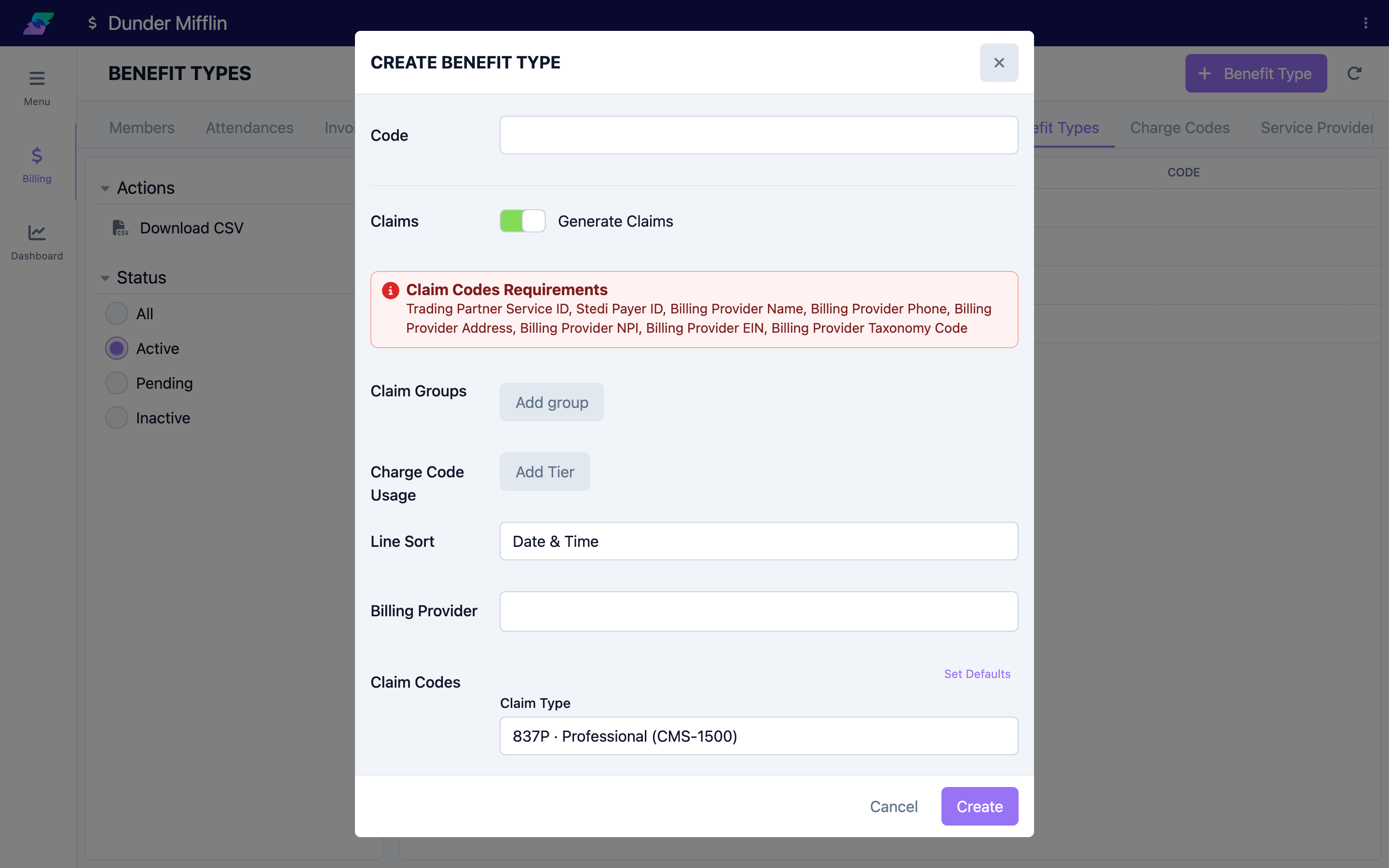
If this program submits insurance claims, turn on Claims (labeled "Generate Claims"). Invoices from this benefit type will then produce claims.
With claims on, open the Claim Codes section and set the Claim Type:
- 837P — Professional / CMS-1500 (the default).
- 837I — Institutional / UB-04.
The claim type controls which additional claim-code fields appear (for example Claim Filing Code and Place of Service Code, plus institutional codes for 837I).
Step 4: Configure billing settings
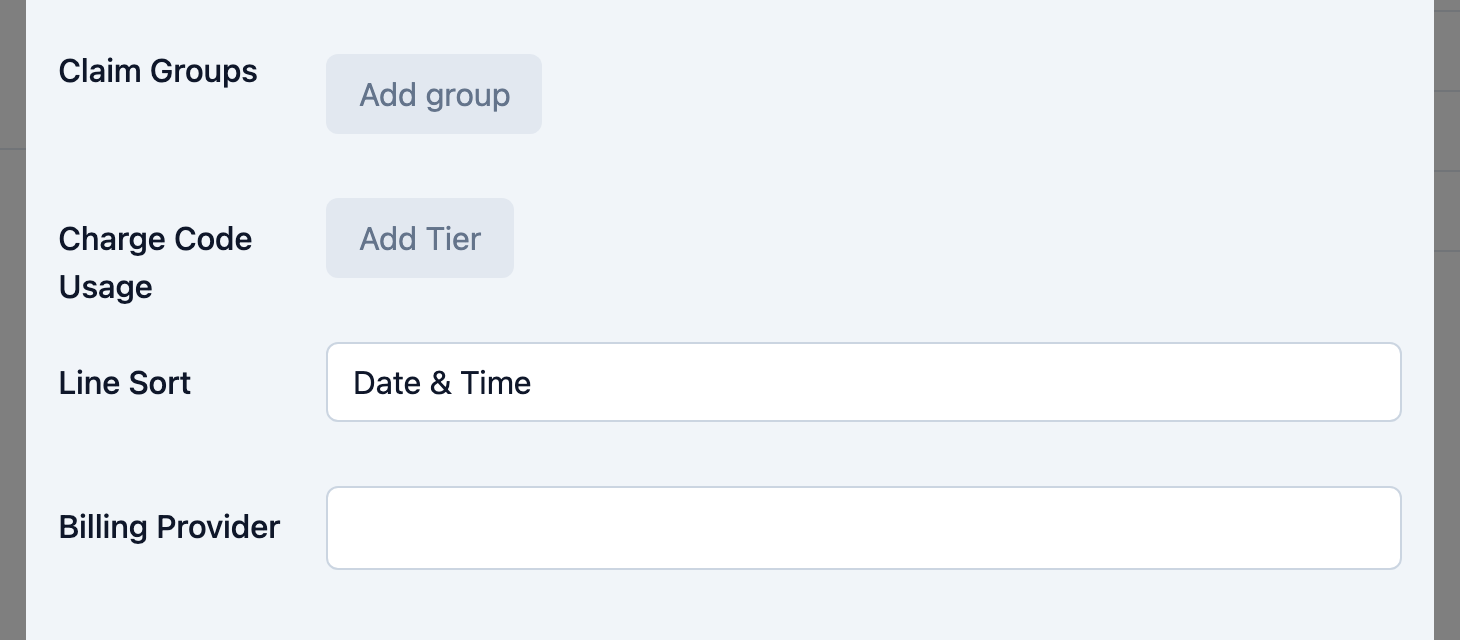
Still in the billing section, set how invoices and claims behave:
- Claim Groups — how a member's invoice lines split into separate claims (each group has a Name, Reference, Max Lines, Sources, and Charge Codes).
- Charge Code Usage — tiered or prepaid allotments. Add the Active attendance charge codes this program covers, each with a usage limit; the top entry can be marked as a prepaid allotment.
- Line Sort — the order invoice lines appear in.
- Billing Provider — select the Service Provider used on this program's invoices and claims. The selected provider's NPI, EIN, phone, and address are shown for confirmation.
Step 5: Set rates on the Charge Codes tab
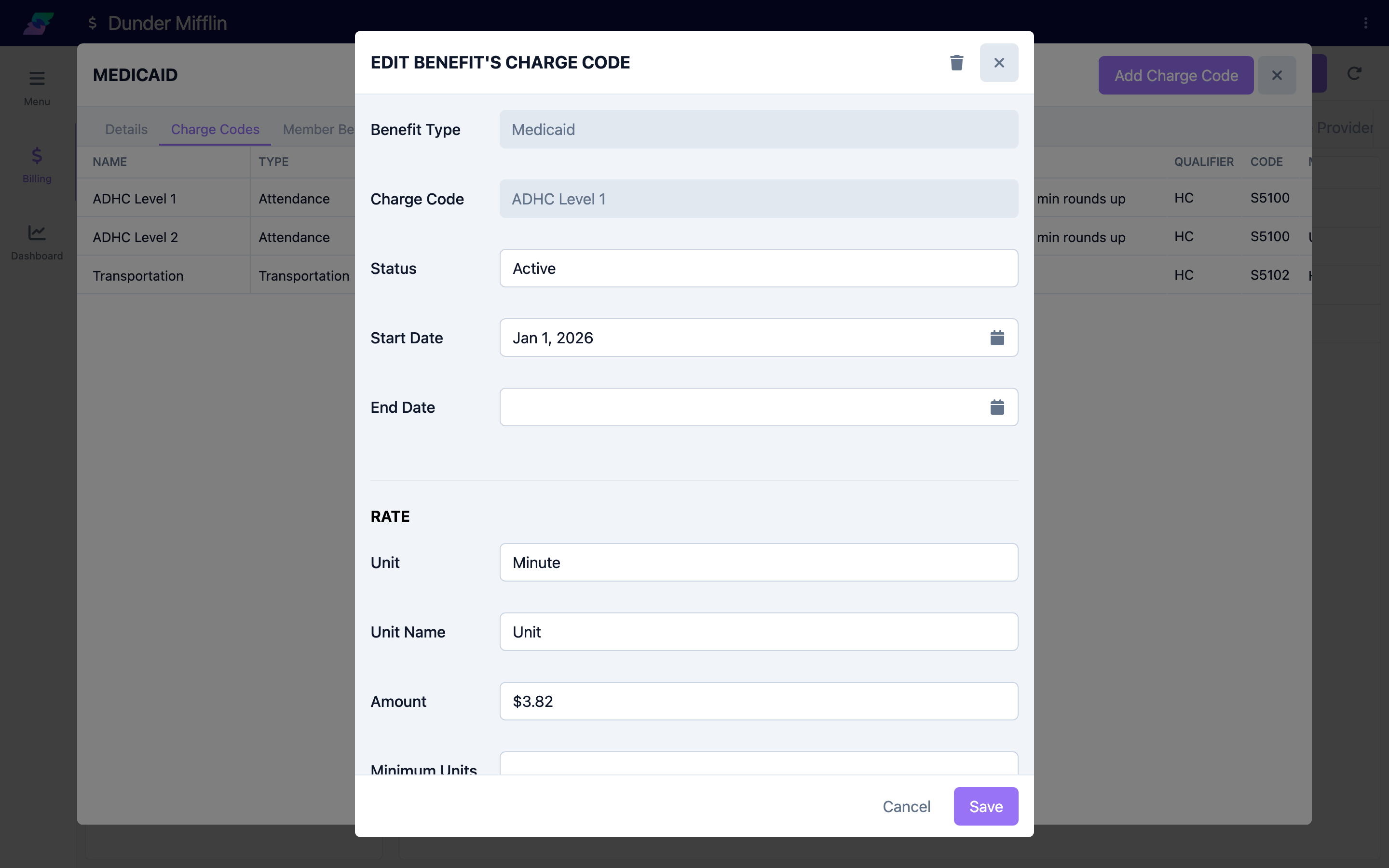
Rates are not a single field on the benefit type. Save the benefit type, then open it and go to its Charge Codes tab and select Add Charge Code.
Each link is effective-dated. In the "Benefit's Charge Code" form you set:
- Charge Code — pick an existing code, or create one on the spot.
- Status — Active, Inactive, or Pending.
- Start Date (required) and End Date — the window this rate is in effect.
- Rate — Unit (Each, Hour, Minute), Unit Name, Amount, and, for time units, Minimum Units, Max Units, and Rounding. The charge code's default rate pre-fills, and you can override it here.
To change a rate later, add a new dated link rather than editing the old one — that keeps a full rate history and avoids overlapping date ranges for the same code.
Tips
- A benefit type also has Details, Charge Codes, and Member Benefits tabs once created — use them to manage rates and see who is enrolled.
- Set a charge code as Default for its type (in the charge code itself) so it is auto-selected for member benefits under this program.
- If you cannot use a Service Provider record, the Claim Codes section has a manual "Billing Provider (Override)" group where you can enter provider name, NPI, EIN, and taxonomy directly.
Troubleshooting
| Problem | Solution |
|---|---|
| The claims and rate sections are missing | The Billing feature may not be enabled for your center. Contact your admin or support. |
| A claim-requirements warning appears | With claims on, required claim codes (and provider details) are missing. Complete the flagged Claim Codes and Billing Provider fields. |
| The benefit type cannot be deleted | It is still referenced by invoices or member benefits. A benefit type is deletable only when it has none of either. |
| Two rates conflict for the same charge code | Their effective date ranges overlap. Give the old rate an End Date so the new one starts cleanly. |
Related Articles
- managing-charge-codes — Managing Charge Codes
- setting-up-service-providers — Setting Up Service Providers
- creating-billing-plans — Creating Billing Plans
- setting-up-payors — Setting Up Payors
- understanding-the-billing-module — Understanding the Billing Module