
Overview
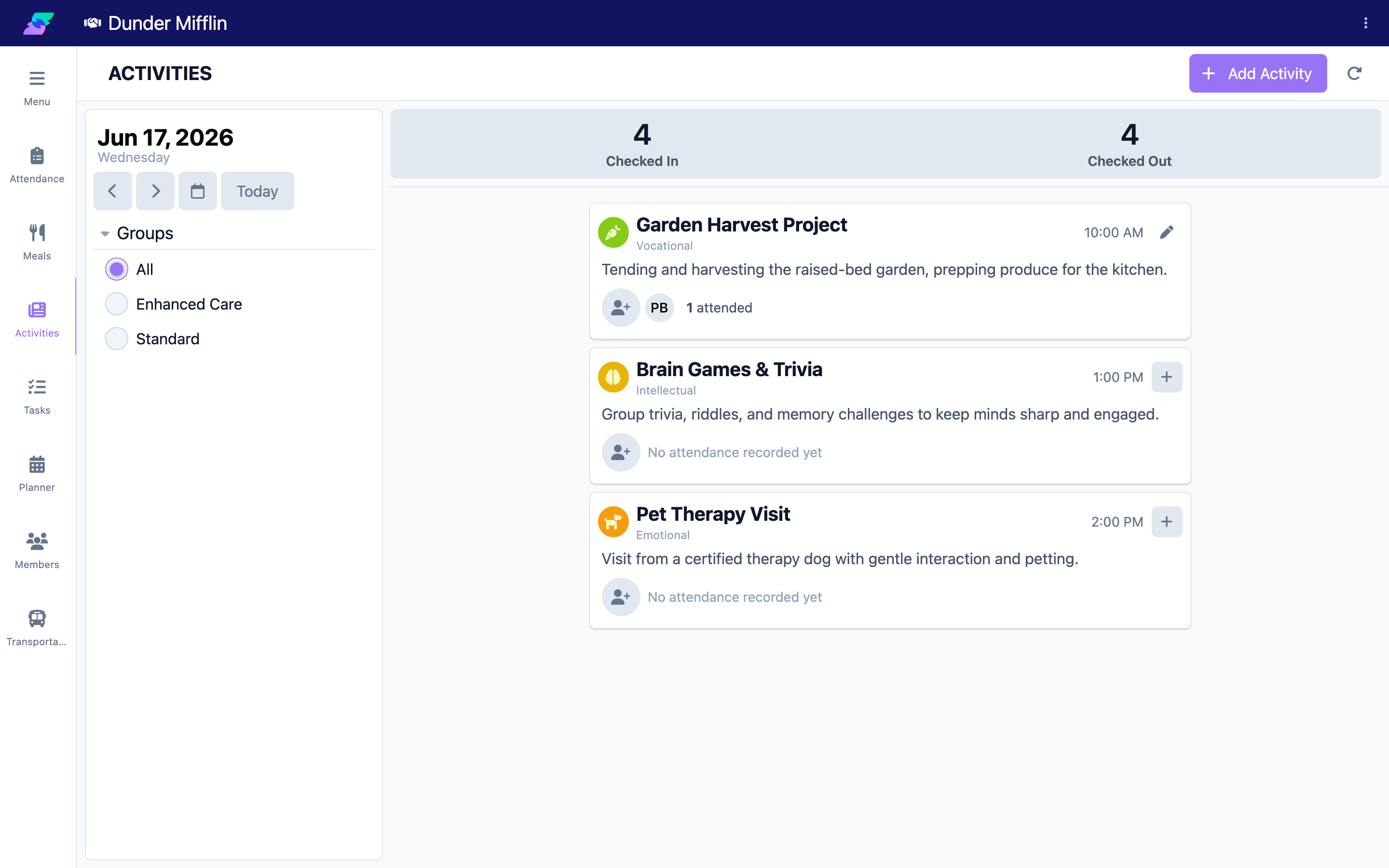
You can review past activities two ways: the Activities page shows everything logged on a given date across the center, and a member's record shows the activities that individual took part in. Use the center view for daily summaries and the member view for individual questions.
Before You Begin
- You must be logged into Seniorverse with Care module access.
- You need the Care:Activities permission (or Care:FullAccess) for the Activities page.
- To view a member's activities in their record, you need the Care:MemberEdit:Activities:View permission.
Steps
Step 1: Open the Activities page
Select Care, then Activities.
Step 2: Choose a past date
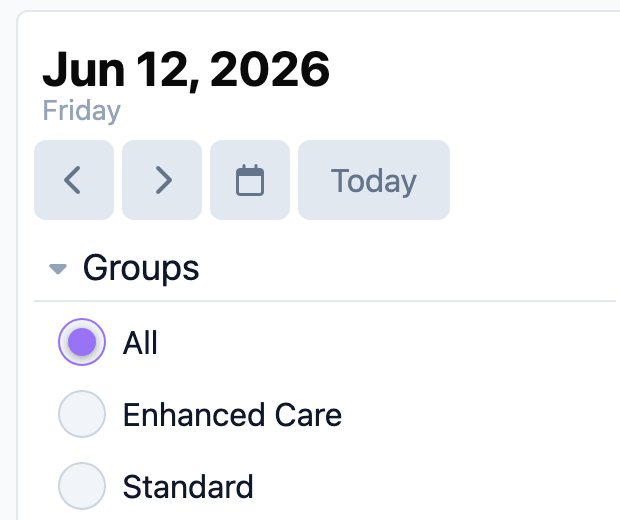
Use the date selector to move to the day you want to review. The card list updates to show that day's activities and approved events.
Step 3: Filter by group and open a card
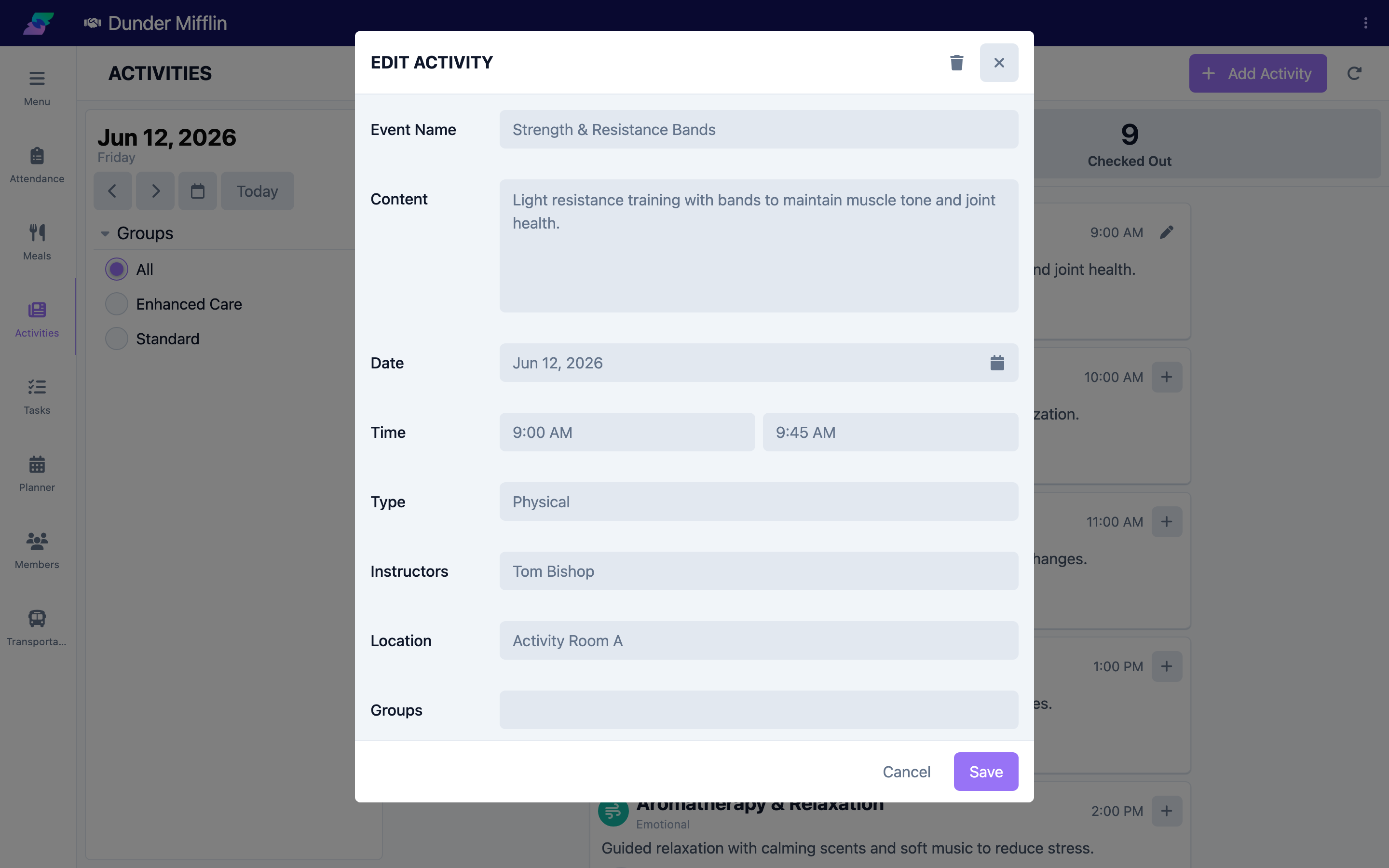
If your center uses groups, use the Groups filter to narrow the list. Open any card to see the activity's full details, participants, and photos.
Step 4: View a member's activity history
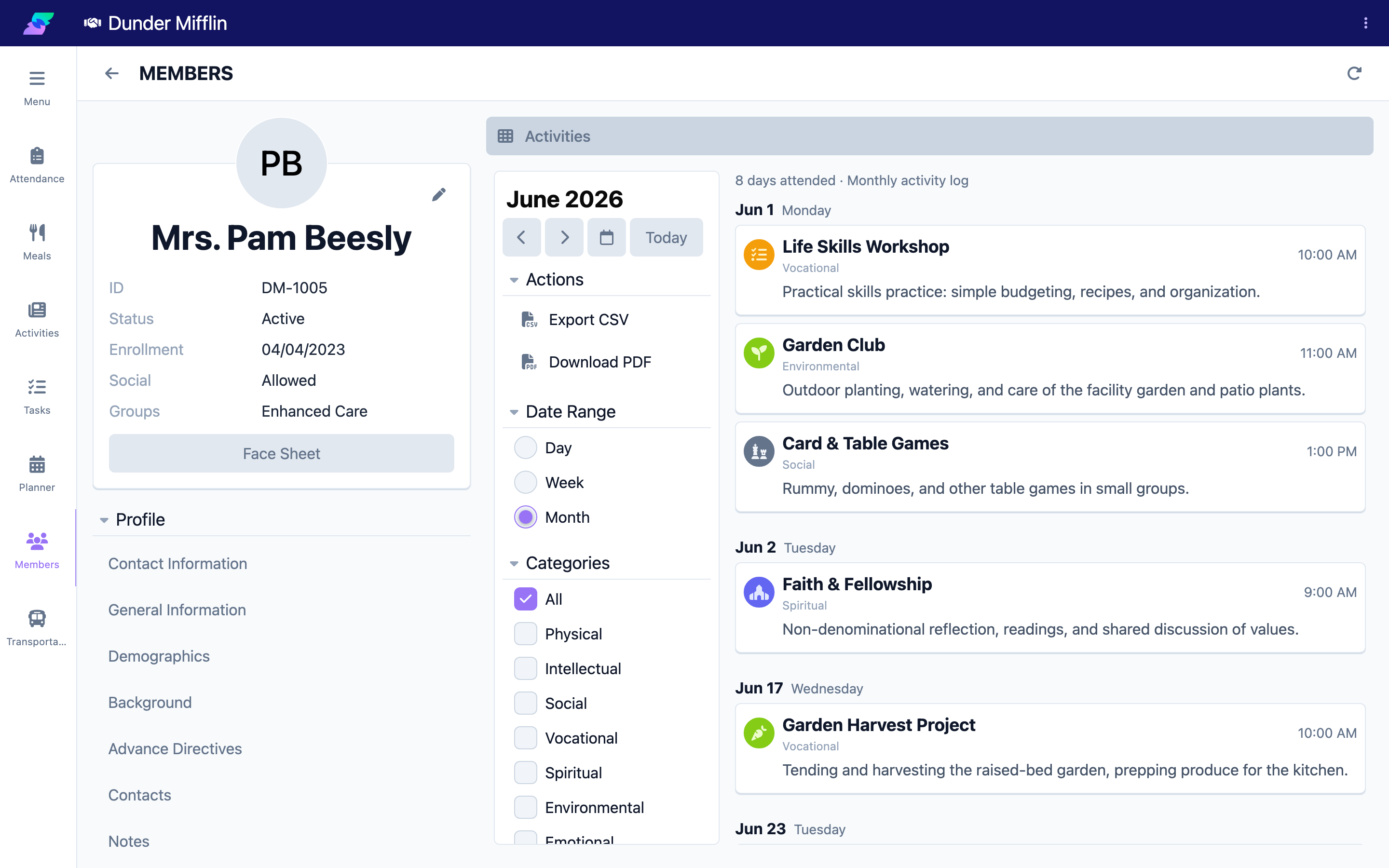
To see one member's participation, open the member's record and select the Activities tab. It lists the activities that member took part in.
Tips
- Use the center-wide Activities page for shift handoffs and daily summaries.
- Use a member's Activities tab when a family asks about their loved one's engagement.
- A member appears in an activity's history only if they were added as a participant when it was logged.
Troubleshooting
| Problem | Solution |
|---|---|
| No activities appear for a date | Confirm the date, and clear the Groups filter. If nothing was logged that day, the list is empty. |
| A member has fewer activities than expected | The member only appears where they were added as a participant. |
| I cannot open a member's Activities tab | You may need the Care:MemberEdit:Activities:View permission. Ask your administrator. |
Related Articles
- understanding-the-activities-page — Understanding the Activities Page
- creating-and-recording-activities — Creating and Recording Activities